Pulse Overview
Pulse is the unified engagement dashboard that shows every lead across all your active campaigns in one place. Instead of clicking into individual campaigns to check conversations, Pulse gives you a single scrollable list of leads, their latest messages, and the ability to read, reply, and take over any conversation — all from one screen.
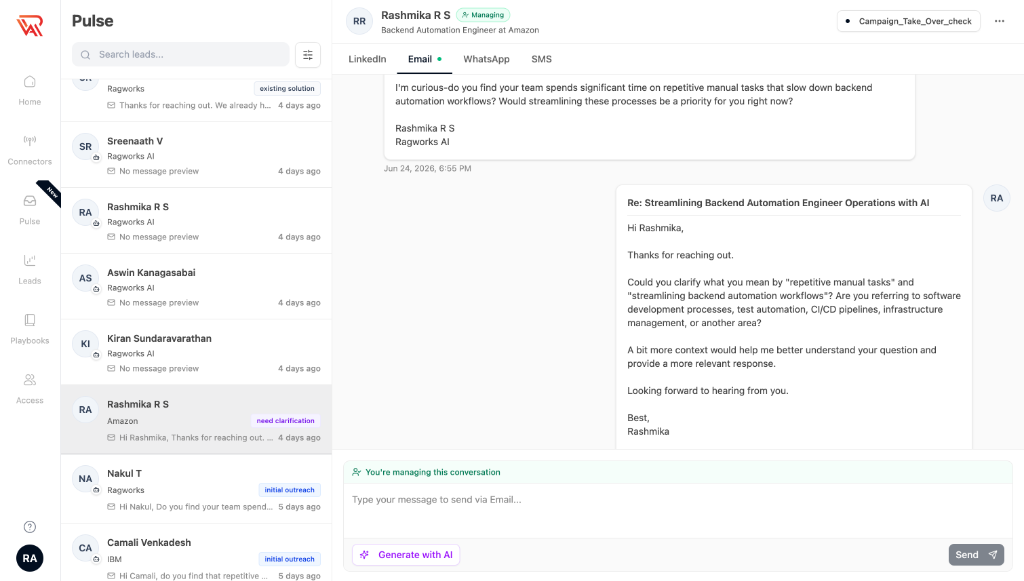
Overview
With Pulse you can:
- See every lead across all campaigns in a single view
- Search leads by name, company, or job title
- Filter by campaign, engagement label, or connected account
- Read full conversation history across LinkedIn, Email, WhatsApp, and SMS
- Take over from the AI and send manual replies
- Generate AI-powered message drafts before sending
- View campaign details and workflow progress for any lead
- Export or copy conversation transcripts
Navigating the Dashboard
Pulse is divided into three main areas:
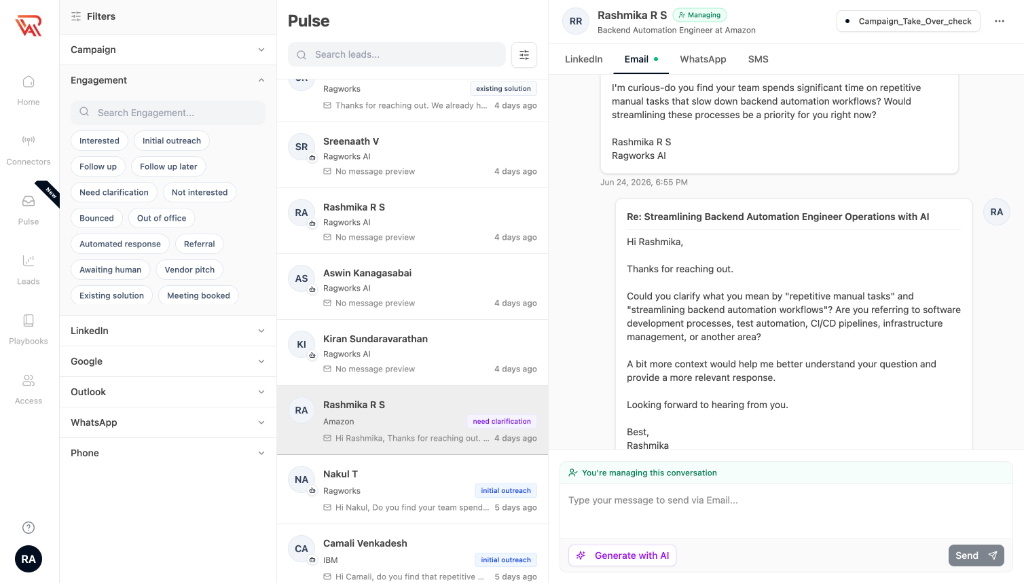
| Area | What it shows |
|---|---|
| Filters (left, toggle on/off) | Filter your leads by campaign, engagement label, or connected account |
| Lead List (left column) | Scrollable list of all your leads, sorted by most recent activity |
| Conversation (center) | Full message history with the selected lead, plus a composer for replies |
Lead List
The lead list shows all your leads across every active campaign, with the most recently active leads at the top.
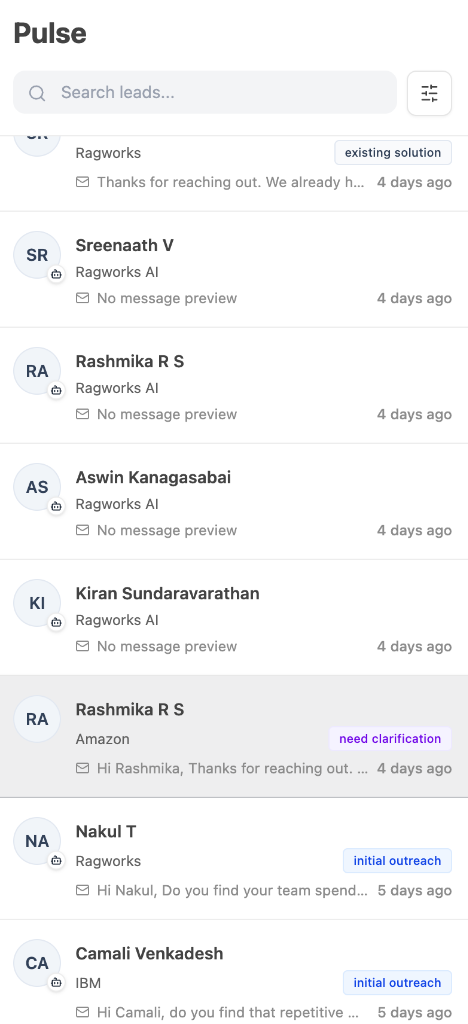
Each lead card shows:
- Profile photo or initials
- Name and company
- Engagement label — a color-coded tag showing the current classification (e.g., Interested, Not Interested, Follow Up)
- Channel icon — indicates whether the last activity was on LinkedIn, Email, WhatsApp, or Phone
- Message preview — a snippet of the most recent message
- Time — how long ago the last activity occurred (e.g., "2 days ago")
- AI badge — a small bot icon appears when the AI is still managing the conversation
Click any lead to open their conversation in the center pane.
Scrolling and Loading
Leads are loaded 25 at a time. As you scroll down, the next batch loads automatically — you never need to click "next page." This works even when filters are active.
Searching Leads
Use the search bar at the top of the lead list to find a specific lead by name, company, or job title.
Search queries are sent to the server, so results come from your full database — not just the leads currently visible on screen. There is a short delay (less than a second) after you stop typing before the search runs, to avoid unnecessary queries while you're still typing.
To clear the search, delete the text from the search bar.
Filtering Leads
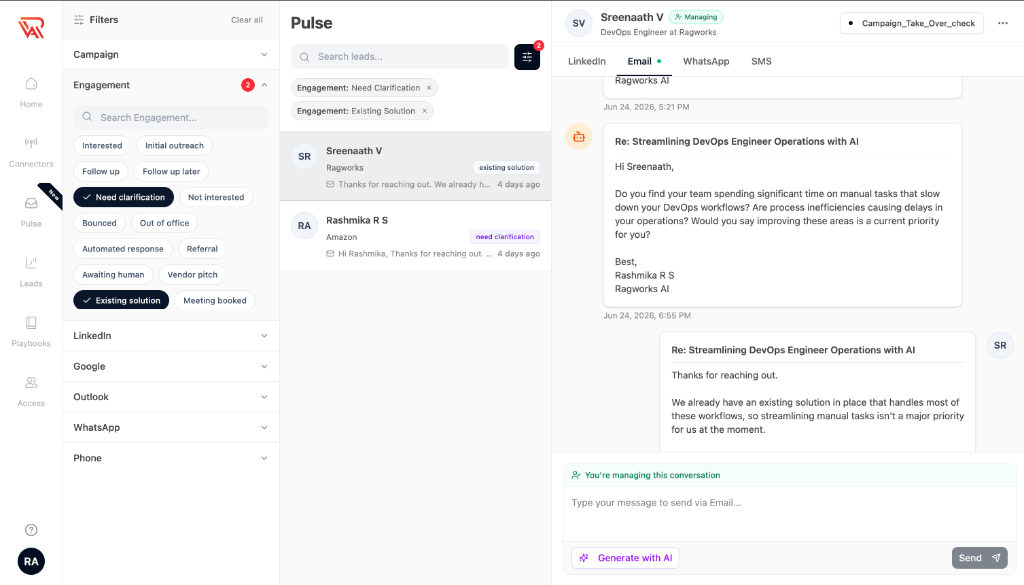
Click the filter icon (sliders) next to the search bar to open the filter panel.
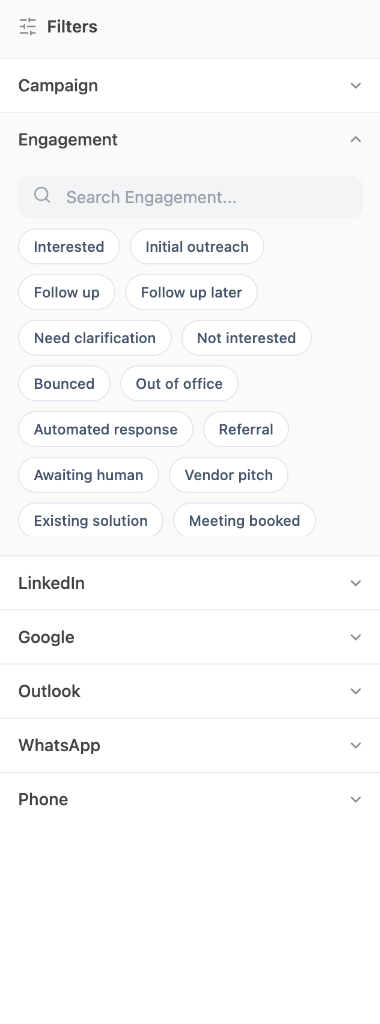
Available Filters
| Filter | What it filters by |
|---|---|
| Campaign | Show leads from one or more specific campaigns |
| Engagement | Show leads with a specific engagement label (e.g., Interested, Not Interested) |
| Show leads from campaigns using a specific LinkedIn account | |
| Show leads from campaigns using a specific Google email account | |
| Outlook | Show leads from campaigns using a specific Outlook account |
| Show leads from campaigns using a specific WhatsApp account | |
| Phone | Show leads from campaigns using a specific phone account |
Using Filters
- Click a category (e.g., Campaign) to expand it
- Click any option to select it — selected options turn dark with a checkmark
- Click the same option again to deselect it
- Use the search bar within each category to find a specific option
Filters take effect immediately. The lead list updates as soon as you select or deselect an option.
Filters search your entire database, not just the 25 leads currently on screen. When you apply a filter, a fresh query runs against all your leads and returns the first batch of matching results.
Filter Chips
When filters are active, small removable chips appear below the search bar showing each active filter. Click the × on any chip to remove that filter.
Clearing Filters
To clear all active filters at once, click Clear all in the filter panel header.
Engagement Labels
These are the supported engagement labels used for filtering and display:
| Label | Meaning |
|---|---|
| Interested | Lead expressed buying interest |
| Initial outreach | First message sent, awaiting reply |
| Follow up | Follow-up message sent |
| Follow up later | Lead asked to reconnect at a later date |
| Need clarification | Lead asked for more information |
| Not interested | Lead declined |
| Bounced | Email bounced |
| Out of office | Auto-reply detected |
| Automated response | Non-human reply |
| Referral | Lead referred to another contact |
| Awaiting human | Flagged for manual review |
| Vendor pitch | Lead attempted to sell back |
| Existing solution | Lead already uses a competing product |
| Meeting booked | Meeting successfully scheduled |
Tips
- Use Pulse for daily monitoring — check replies and hot leads across all campaigns without clicking into each one
- Filter by "Interested" to quickly find leads that need follow-up
- Combine filters — use Campaign + Engagement together to narrow down specific segments