How Takeover Works
Every campaign runs two kinds of automation for each lead. They stop in different ways, so it helps to know which one you're dealing with before you step in.
Two kinds of automation
| Sequence | AI replies | |
|---|---|---|
| What it is | The follow-ups you planned in advance: initial outreach, follow-up 1, follow-up 2 and so on | The AI agent answering the lead's messages in real time, using your response guidelines |
| When it runs | On a schedule, until the lead replies | Only after the lead replies |
| What stops it | The lead replies, you click Take over, or you message the lead yourself while Take over the lead when you reply yourself is on | A takeover label is assigned, you click Take over, or you message the lead yourself while Take over the lead when you reply yourself is on |
How the sequence stops
- The lead replies. The remaining follow-ups are cancelled and Pulse logs Sequence Stopped. From then on, the AI only answers what the lead says. Autoresponders don't count as a reply: an Out of office or Automated response lets the sequence carry on. See Out-of-office replies and bounces.
- You click Take over. The sequence stops right away, whether or not the lead has replied.
- You message the lead yourself, from your LinkedIn or email account outside Ragworks, in a campaign with Take over the lead when you reply yourself turned on. See Messaging a lead yourself, outside Ragworks.
How AI replies pause
- A takeover label is assigned. In the campaign's Settings → Takeover settings, choose the engagement labels you want to handle yourself, such as Interested, Need clarification or Referral. When a lead's reply gets one of those labels, automation pauses for that lead and you're notified. See Automated Takeover by Label.
- You click Take over. The AI stops replying to that lead.
- You message the lead yourself while Take over the lead when you reply yourself is on (see below).
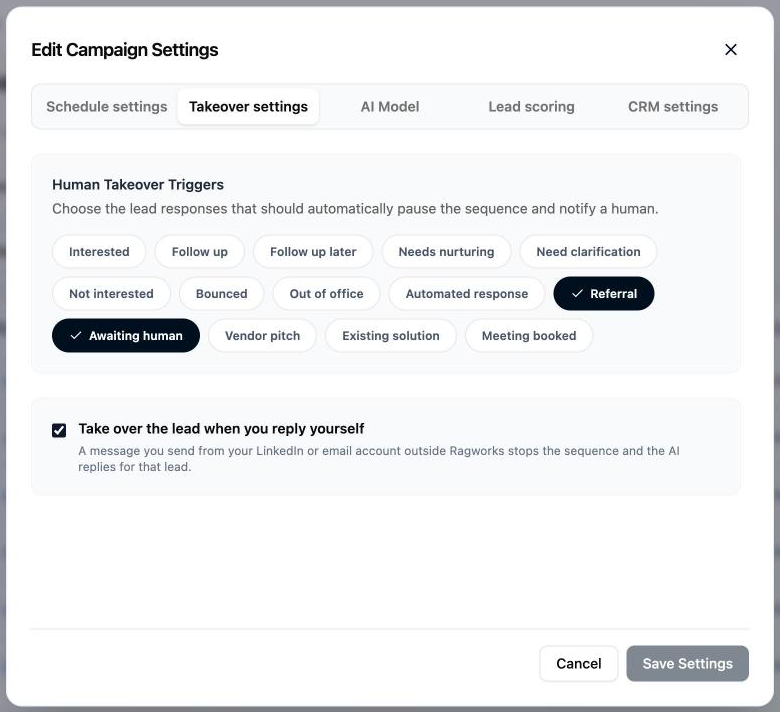
Takeover labels need a reply from the lead before they can fire. For a lead who hasn't replied yet, click Take over, or turn on Take over the lead when you reply yourself and message them.
Messaging a lead yourself, outside Ragworks
What happens when you message a lead from your own LinkedIn or email account, outside Ragworks, depends on one campaign setting: Take over the lead when you reply yourself, under Human Takeover Triggers in the campaign's Settings → Takeover settings. You can also turn it on in the Schedule step when you create the campaign. It's off unless you turn it on.
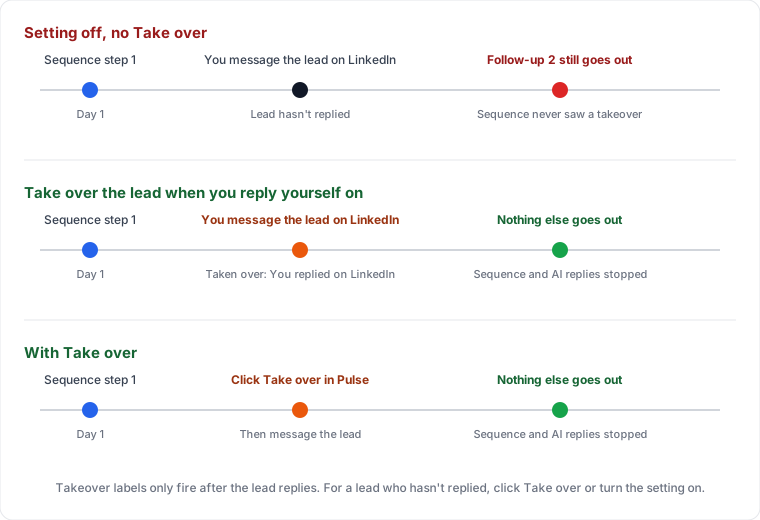
With Take over the lead when you reply yourself on
Your message takes the lead over, exactly as if you'd clicked Take over: the sequence stops, the AI stops replying, and the lead shows a green Managing badge in Pulse. The lead's Replies & Interruptions timeline logs Human Takeover with the reason, You replied on LinkedIn or You replied by email.
- It works for messages you send from the LinkedIn or email account connected to Ragworks (Gmail, Outlook or IMAP). WhatsApp and Instagram messages don't take a lead over.
- Right after a lead accepts your connection request, LinkedIn can send the request's note back to Ragworks as if it were a new message from you. Ragworks ignores that first message so the note doesn't take the lead over, which means your own first message after an invite without a note may not count either. To be sure, click Take over.
- To hand the lead back to the AI, remove the take-over flag. Pulse logs Automation Resumed.
With it off
A message you send yourself is not a takeover:
- If the lead hasn't replied yet, the sequence still sees no reply and sends the next scheduled follow-up after your message.
- If you reply before the AI does, the AI skips that one reply only. Automation for the lead stays on: when the lead sends their next message, the AI can answer it once the AI reply delay has passed, and the sequence can carry on.
Plan around the AI reply delay
After a lead replies, the AI waits a random time between AI Reply Min Delay and AI Reply Max Delay before it answers. You set both in the campaign's Settings → Schedule settings. With the values below (1200 and 1500 seconds), the AI replies 20 to 25 minutes after each new message from the lead.
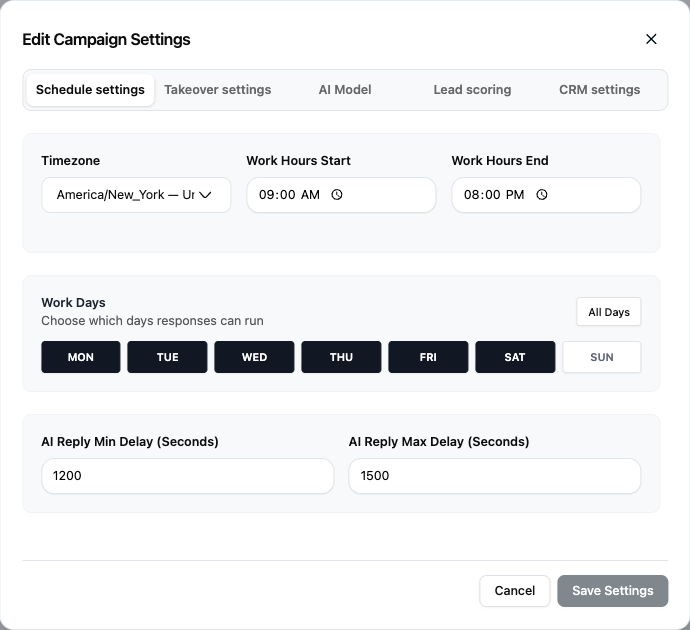
With Take over the lead when you reply yourself off, that delay is your window. If you answer the lead yourself on LinkedIn within it, the AI skips that reply. If you don't, the AI answers. And every new message from the lead starts a fresh window, so a reply from you only covers one turn of the conversation.
To keep the conversation for yourself, don't race the delay. Click Take over, or turn on Take over the lead when you reply yourself for the campaign.
If you want to handle a lead yourself and the setting is off, click Take over in Pulse before you message them on LinkedIn, or straight after. Clicking Take over stops both the sequence and the AI replies for that lead in every case.
Taking over a lead
- Open Pulse and search for the lead's name.
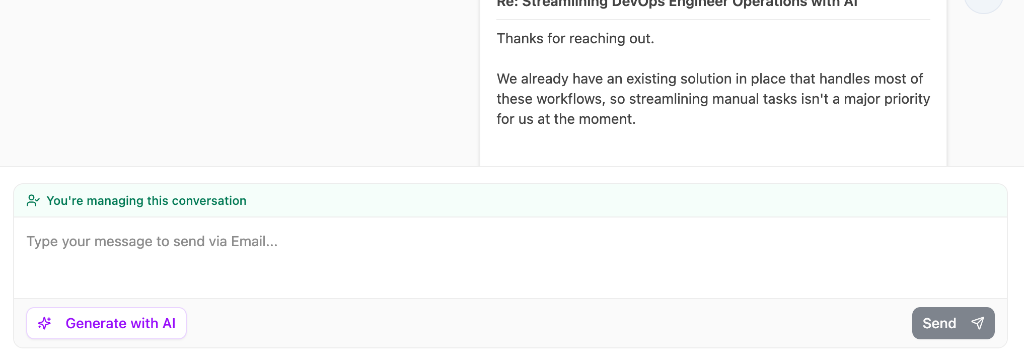
- At the bottom of the conversation, click Take over.
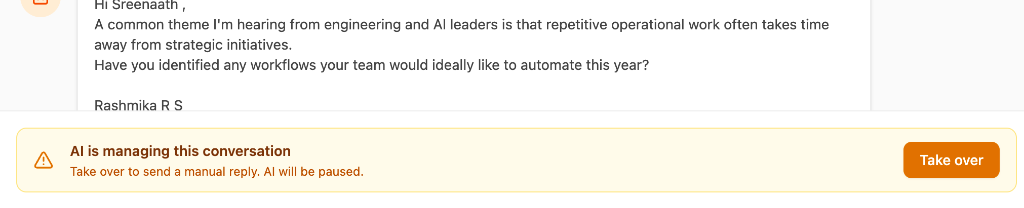
A green Managing badge appears next to the lead's name and Pulse logs Human Takeover. The composer shows You're managing this conversation, and nothing else goes out to that lead automatically.
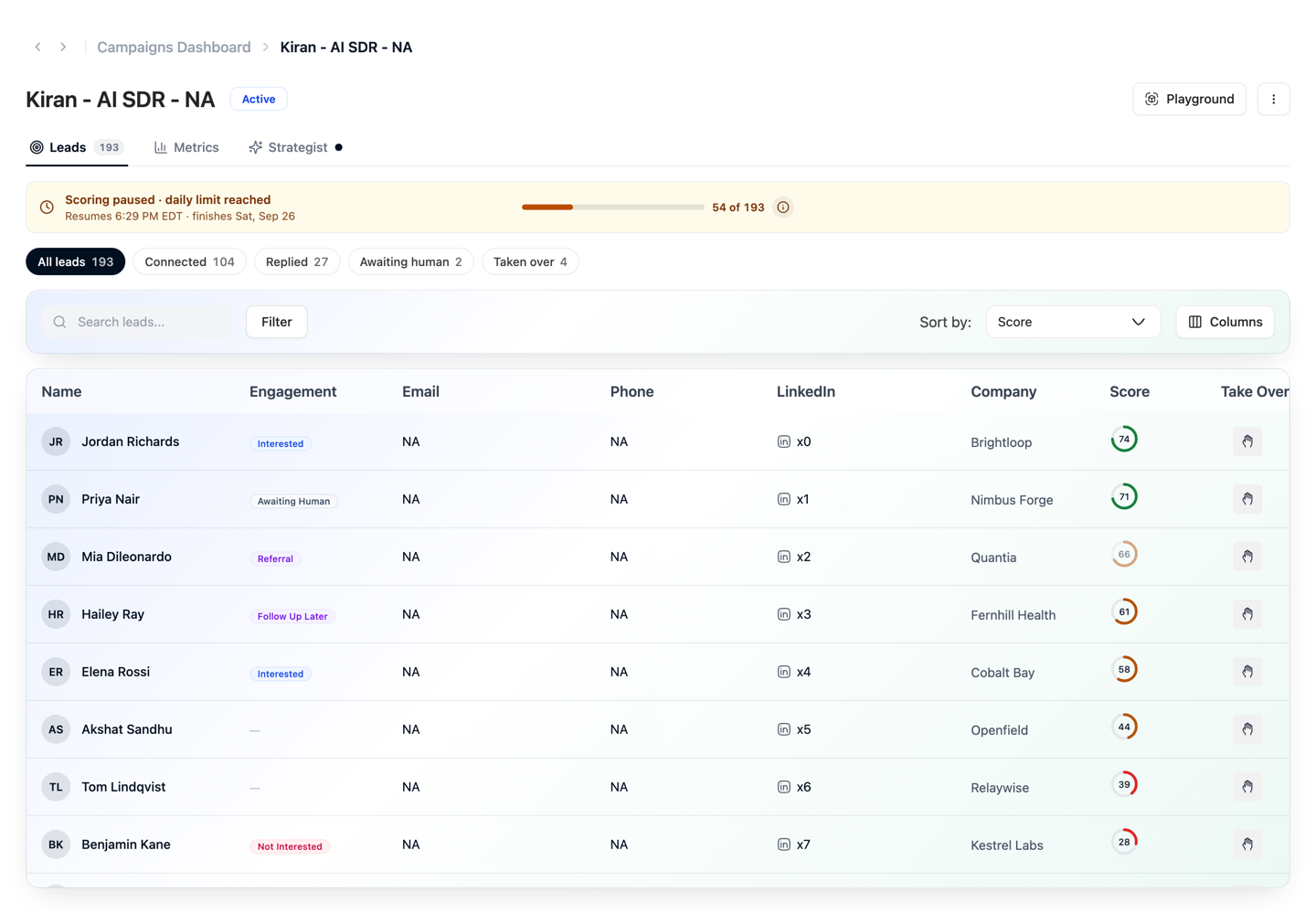
From the campaign's leads table
You can also take over from the campaign's Leads tab: click the hand icon in the Take Over column. Use the Taken over filter to see every lead you're handling yourself, and Awaiting human to find leads waiting for you. See Taking Over a Lead.
To hand the lead back to the AI, remove the take-over flag. Pulse logs Automation Resumed.
From your AI assistant
If you have connected an AI assistant, you can ask it to take a lead over, and to send that lead a message on LinkedIn, email, WhatsApp or Instagram. It works the same way: the campaign's automation stops for that lead, and you hand the lead back in the app. See Messaging a lead from your assistant.
Which one should I use?
| You want to… | Do this |
|---|---|
| Personally message a lead who hasn't replied | Click Take over first, then message them |
| Take a lead over whenever you message it from LinkedIn or email | Turn on Take over the lead when you reply yourself in Takeover settings |
| Handle every interested or high-value lead yourself | Turn on those labels in Takeover settings |
| Stop all automation for one lead right now | Click Take over in Pulse |
| Let the AI handle everything except tricky replies | Leave Take over off and pick your labels in Takeover settings |