Conversations & Replies
Once you select a lead in the Pulse dashboard, the conversation pane opens showing their full messaging history. From here you can read messages, take over from the AI, send manual replies, generate AI drafts, and view the campaign details for that lead.
Reading Conversations
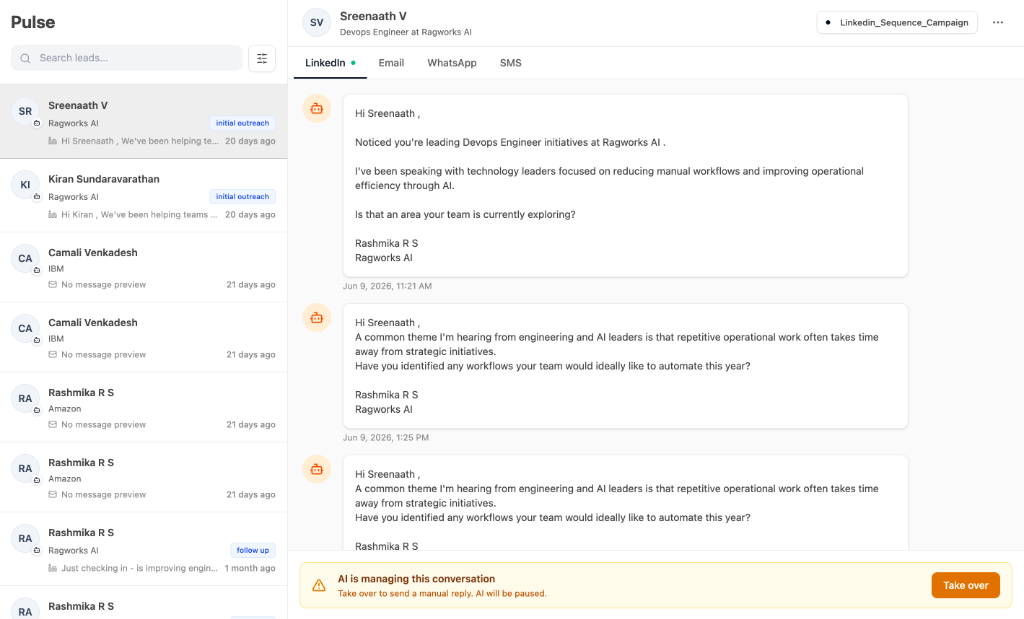
Channel Tabs
At the top of the conversation pane, switch between channels:
| Tab | Shows |
|---|---|
| All LinkedIn messages exchanged with this lead | |
| All email messages (with subject lines displayed) | |
| All WhatsApp messages | |
| SMS | All SMS messages |
A small green dot appears on tabs that have messages, so you can quickly see which channels are active for each lead.
Message Layout
- Messages from the AI or from you appear on the left side of the conversation
- Messages from the lead appear on the right side
- Each message shows the full text and a formatted timestamp
Translation Features
To help you communicate seamlessly with leads across the globe, the platform offers built-in Global Conversation Translation:
- Auto-Translation: Messages are automatically translated into your preferred language. You can select your desired language using the language toggle button directly on the message card.
- Persistent Preference: Your language preference is saved, ensuring a consistent experience across all your leads.
- Universal Support: The system translates the entire conversation timeline, making it easy to understand the context of every interaction, no matter the original language used by the lead.
Conversation Actions
Click the ⋯ menu in the conversation header to access additional actions:
| Action | What it does |
|---|---|
| Export conversation | Downloads the full conversation as a text file |
| Copy full transcript | Copies the entire conversation to your clipboard |
Taking Over a Conversation
By default, the AI manages each lead's conversation — sending follow-ups and handling replies automatically based on the playbook.
When a lead is managed by AI, the bottom of the conversation pane shows an amber banner:
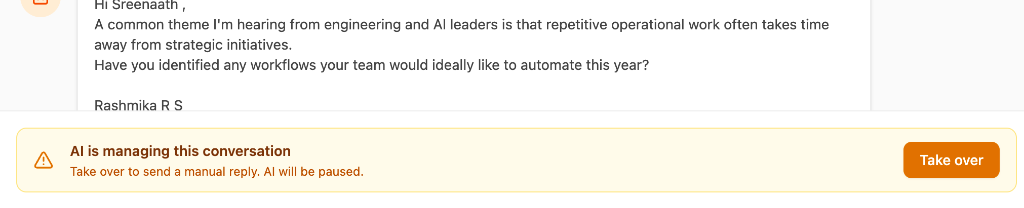
AI is managing this conversation Take over to send a manual reply. AI will be paused.
Click Take over to:
- Pause all automated follow-ups for this lead
- Enable the manual message composer
- Gain full control of the conversation
Once you take over, a green Managing badge appears next to the lead's name to confirm you are in control.
Messaging the lead directly on LinkedIn, outside Ragworks, does not take over unless the campaign has Take over the lead when you reply yourself turned on. See How Takeover Works for what stops the sequence and what pauses AI replies.
Taking over only affects the specific lead you select. All other leads in the campaign continue to be managed by the AI.
Sending Messages
After taking over a conversation, the composer appears at the bottom of the conversation pane.
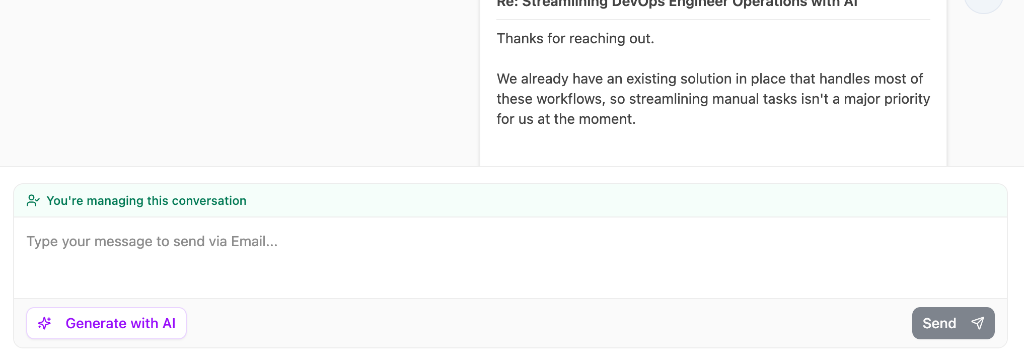
Writing a Reply
- Select the channel tab you want to send on (LinkedIn, Email, WhatsApp, or SMS)
- Type your message in the text area
- Click Send to deliver the message through the selected channel
The message is sent directly through your connected account — you do not need to log in to LinkedIn, Gmail, or any other platform separately.
AI Message Generation
Click Generate with AI to have the AI draft a contextual reply based on the conversation history and the campaign's playbook.
- The AI analyzes the full conversation and generates a reply
- The generated text appears in the composer for you to review and edit
- You can optionally provide a prompt or notes to guide the generation
- Click Send when you're happy with the message, or edit it first
Use AI generation as a starting point — the AI drafts a reply using your playbook guidelines, but always review before sending to add a personal touch.
Viewing Campaign Details
Click the campaign name button in the conversation header to open the Campaign Overview panel.
The Campaign Overview shows:
Connected Channels
Which accounts are connected to this campaign — LinkedIn, Email, WhatsApp, or Phone — displayed with channel icons and account names.
Playbook
The name of the playbook driving the campaign's messaging and AI reply behavior.
CRM Integration
If a CRM is connected, shows the integration type (e.g., HubSpot, GoHighLevel).
Workflow Progress
For campaigns using graph-based sequences, the Campaign Overview panel displays an interactive workflow graph showing where the lead is in the outreach sequence.
The graph shows each step in the outreach sequence:
- Green checkmark — step completed, with timestamp
- Grey circle — step pending (not yet executed)
- Red ✕ — step failed
Click the expand icon to view the graph in full-screen mode.
Replies & Interruptions
Below the workflow graph, a timeline shows key events that occurred during outreach for this lead:
| Event | What it means |
|---|---|
| LinkedIn Reply | The lead replied on LinkedIn |
| Email Reply | The lead replied via email |
| Sequence Stopped | The outreach sequence was paused because the lead replied |
| Human Takeover | A user took over the conversation. You replied on LinkedIn or You replied by email underneath means your own message outside Ragworks did it, because the campaign has Take over the lead when you reply yourself on |
| Automation Resumed | Automation was turned back on for this lead |
Tips
- Take over high-value leads — when a lead shows real buying intent, take over to give them a personal touch
- Check all channel tabs — a lead may have replied on email while you're looking at LinkedIn
- Export transcripts for your records — use the conversation export to share thread history with your team
- Use the campaign overview to quickly understand which playbook and accounts are driving the outreach for a specific lead