Generate with AI
Use Generate with AI to create a complete outreach playbook in minutes. Ragworks researches your business, understands your goals, and generates messaging, sequences, and response guidelines automatically.
For an overview of playbooks and when to use AI vs manual creation, see Playbook. After generation, use Best Practices to review outreach sequence and response guidelines.
Overview
The AI playbook flow includes:
- Navigate to Playbooks and start creation
- Complete a 4-step setup wizard (Basics → Target → The Sequence → Sources)
- Generate the playbook with AI
- Review and publish the result
What the AI generates:
- Outreach messaging
- Value proposition
- Audience targeting
- Communication workflows
- Follow-up sequences
- Objection handling recommendations
Before You Begin
Prepare the following information to avoid interruptions during setup:
| Item | Required | Notes |
|---|---|---|
| Playbook name | Yes | Short, campaign-related name |
| Playbook description | No | What you sell, who you help, and campaign goal |
| Target personas | Yes | Up to 20 job titles or roles |
| Main outreach message | Yes | Core value proposition for prospects |
| Published sequence | Yes | Create one first in Sequences if you don't have one |
| Company website | Yes | Public, official URL |
| LinkedIn company page | No | Official company page (not personal profile) |
| Playbook language | Yes | Language for generated content |
Step 1: Open Playbooks
- Log in to Ragworks and open AI SDR from the profile/settings menu.
- In the left sidebar, click Playbooks.
- Click Create New + in the top-right corner.
Step 2: Select Generate with AI
On the Choose a starting point screen:
- Select Generate with AI.
- Click Get started.
You will enter the guided 3-step setup flow.
Step 3: Complete the 3-Step Wizard
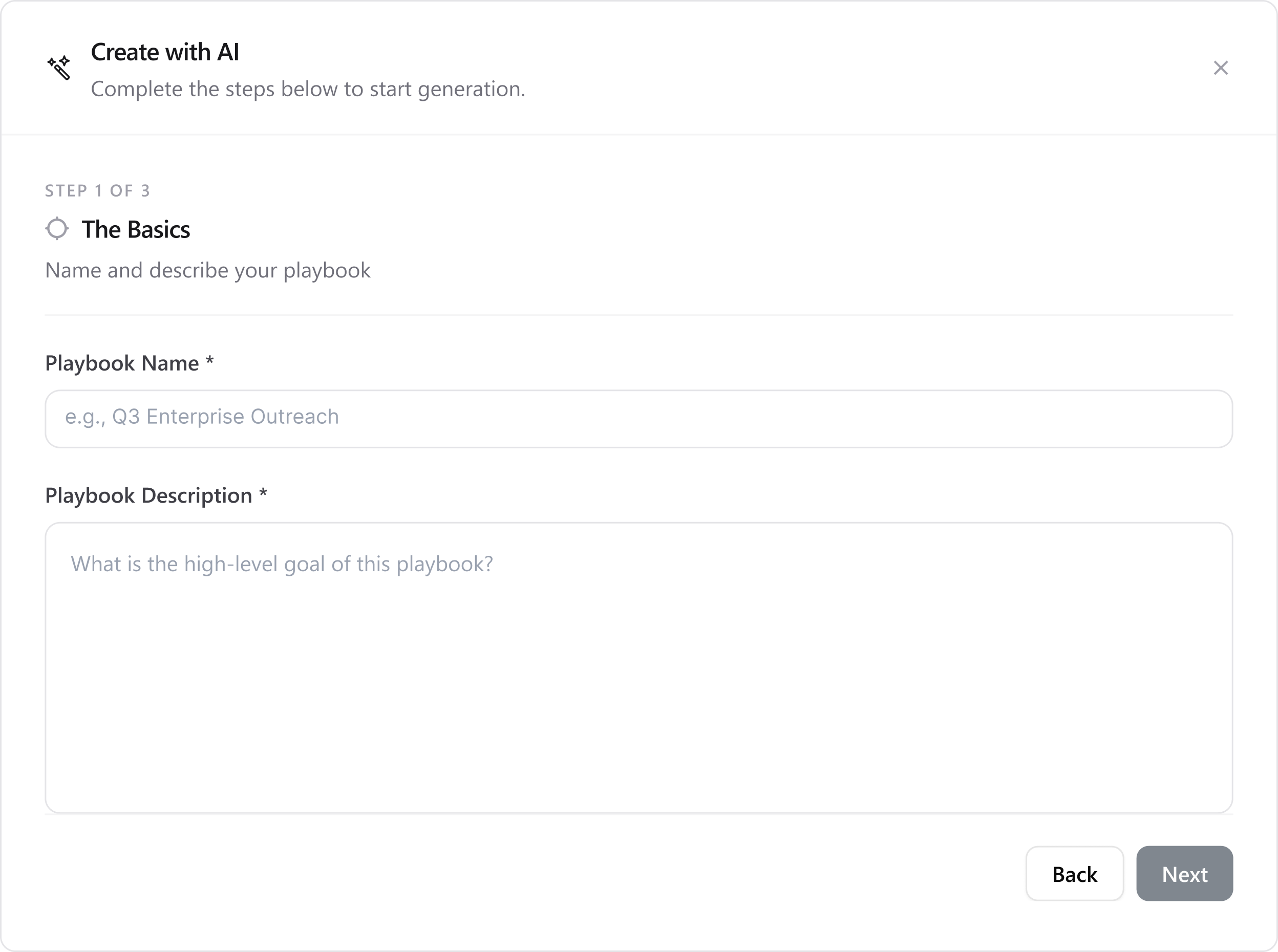
Step 1 of 3: The Basics
Define the foundation of your outreach strategy.
Playbook Name
Enter a clear name for your playbook.
Good examples:
- Q3 Enterprise Outreach
- Manufacturing SDR Campaign
- SaaS Lead Generation
Keep the name short and tied to a real campaign. Avoid generic names like Playbook 1 or Test.
Playbook Description
Describe the high-level goal of this outreach.
Include:
- What your company does
- What problem you solve
- Why you are reaching out
- What outcome you want from leads
Example:
Ragworks helps companies automate outbound sales outreach using AI agents that manage prospecting, follow-ups, and engagement tracking to improve lead generation efficiency.
A strong description improves AI messaging, positioning, follow-ups, and targeting accuracy.
When both fields are complete, click Next to continue to Step 2 of 3: The Target.
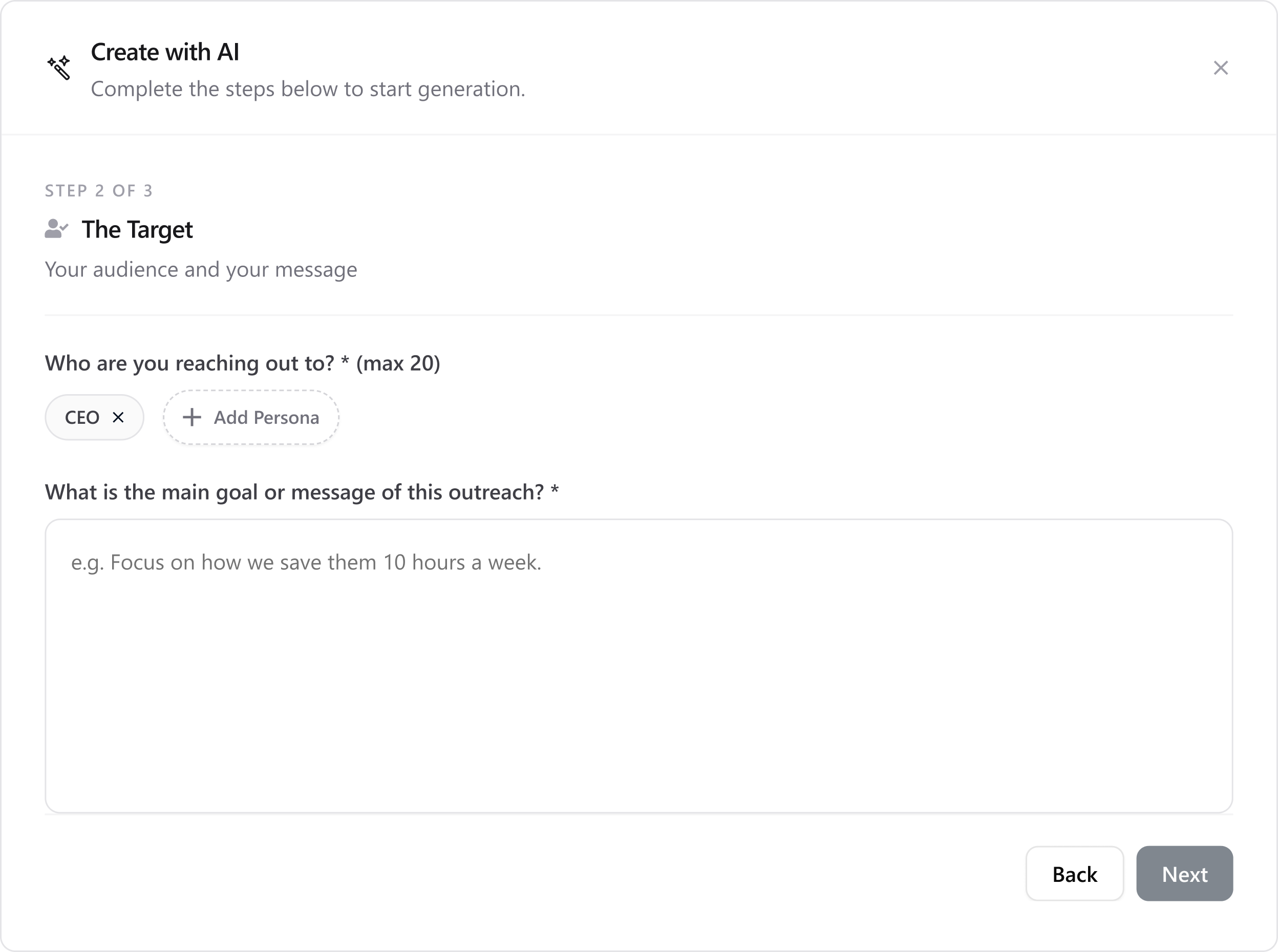
Step 2 of 3: The Target
Define who you are reaching out to and what message they should hear.
Who are you reaching out to?
Add target personas for your campaign.
- Click Add Persona to add each role.
- You can add up to 20 personas.
Examples:
- CEO
- Founder
- Head of Sales
- Operations Manager
- Marketing Director
Add roles that make buying decisions, influence purchases, or feel the problem you solve. Skip unrelated titles.
Main Goal or Message of the Outreach
Describe the primary value prospects should understand.
Examples:
- Help sales teams save 10 hours per week
- Reduce manual outreach work
- Automate follow-ups using AI
- Improve lead conversion rates
Keep this clear and outcome-focused. Emphasize business value, not technical jargon.
When finished, click Next to continue to Step 3 of 4: The Sequence.
Step 3 of 4: The Sequence
Choose the outreach sequence that defines the channels, step order, and timing for this playbook.
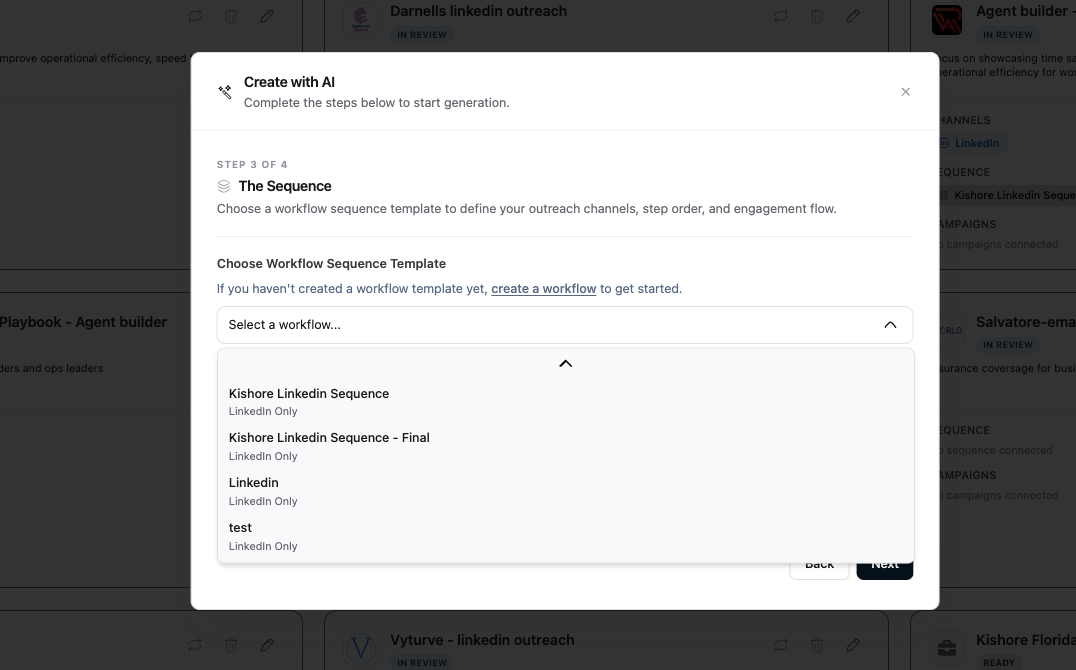
Choose Workflow Sequence Template
Select a published sequence from the dropdown. The sequence you choose determines which channels (LinkedIn, email, or both) the AI will generate message content for.
The dropdown only shows published sequences. If you haven't created one yet, click the create a workflow link in the modal to go to the Sequences builder, then return here.
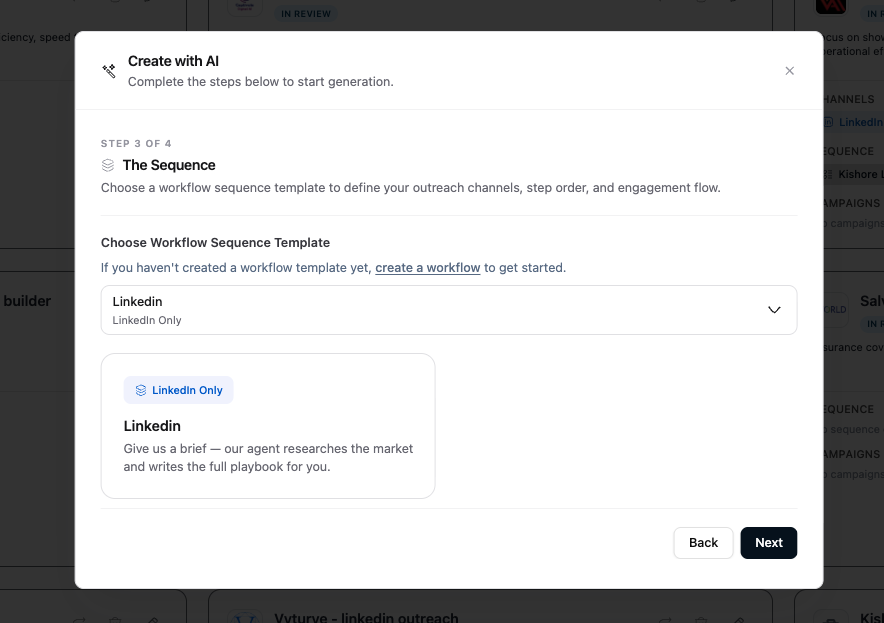
After selecting a sequence, a preview card shows the sequence name and channel type. Click Next to continue.
Step 4 of 4: The Sources
Provide sources so the AI can research your business accurately.
Company Website
Enter your official website URL.
Example: https://www.ragworks.ai/
The AI uses your site to understand your product, services, industry, and value proposition.
Use a live, public website. Broken or login-only pages reduce generation quality.
LinkedIn Company Profile
Enter your official company LinkedIn URL.
Example: https://www.linkedin.com/company/ragworks-ai
The AI uses LinkedIn to understand positioning, audience, and brand tone.
Use the company page, not a personal LinkedIn profile.
Playbook Language
Select the language for generated playbook content.
Examples: English, Spanish, French, German, Arabic, Hindi, and more.
Match the language your prospects use. For mixed regions, English is a common default.
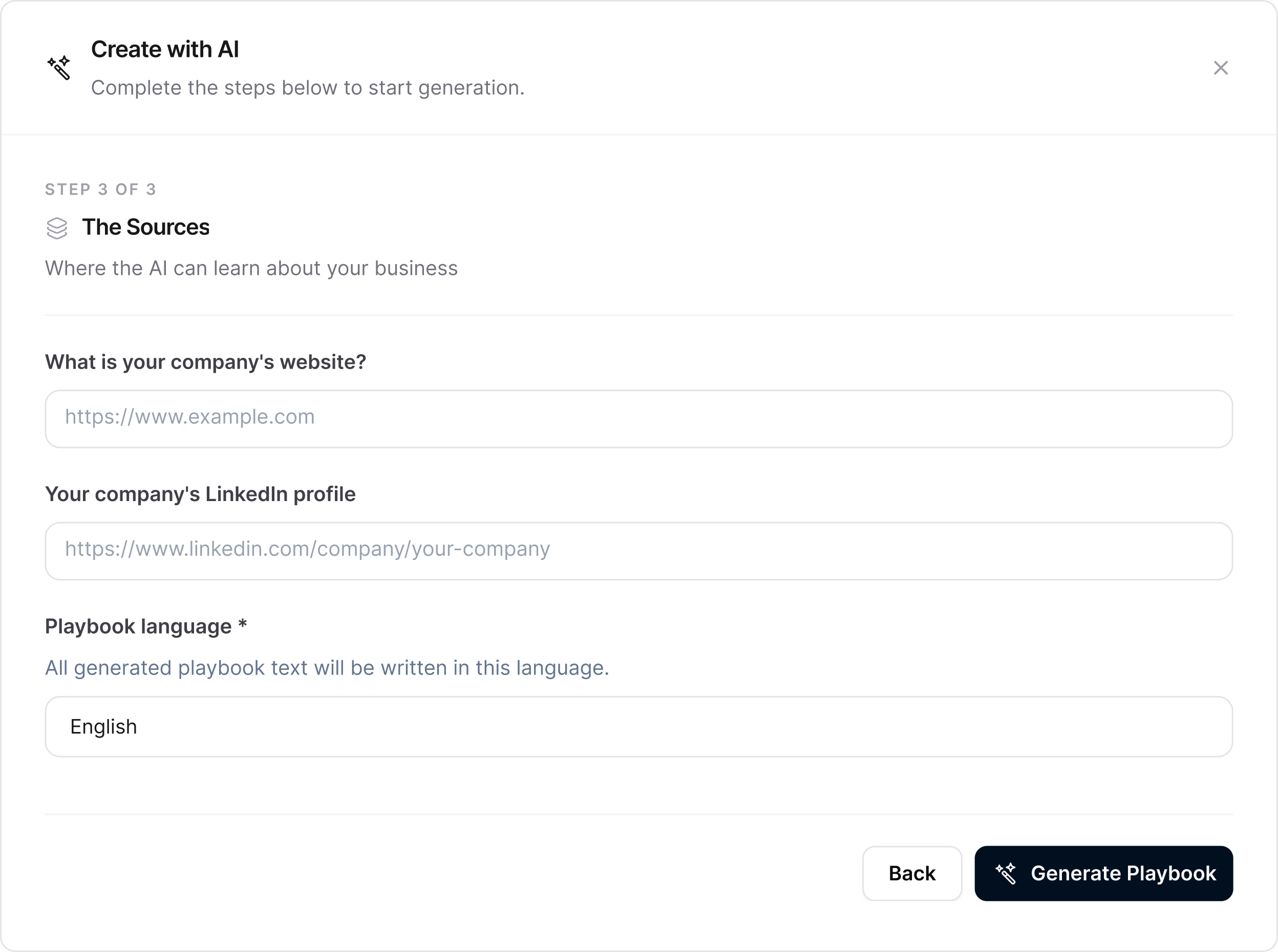
When all required fields are filled, click Generate Playbook.
Step 4: Generate Playbook
After you click Generate Playbook, Ragworks AI will:
- Research your website
- Understand your campaign goals
- Analyze target personas
- Build outreach strategy and sequences
- Create objection handling guidance
Progress indicators may include:
- Reviewing website
- Understanding goals
- Researching audience
- Building outreach strategy
- Creating sequences
Generation can take a few minutes. Do not close the browser tab until the process completes.
Step 5: Review the Generated Playbook
When generation finishes:
- Click Review Playbook.
- Read each section carefully.
- Edit anything that does not match your brand or strategy.
- Click Publish (or save) when you are satisfied.
Verify these areas (see Best Practices for examples and templates):
| Section | What to check |
|---|---|
| Outreach sequence | Sequence attached, all messaging blocks filled, generation mode is correct |
| Messaging blocks | Each step has a mode (Template or Agentic) and message content |
| Research depth | Each Agentic step has a Research choice (Basic, Standard or Deep). Pick the depth and price you want. See Research depth and hooks |
| Response guidelines | Interested, not interested, calendar, signatures |
| Messaging tone | Professional, on-brand, not overly generic |
| Target audience | Personas and rules match your ICP |
| Value proposition | Accurate benefits and positioning |
| Objection handling | Handle objections before exit; soft re-entry when leaving |
| Call-to-actions | Clear next steps for interested prospects |
Messaging Block Modes
Each messaging block in the Outreach Sequence tab uses one of two generation modes:
| Mode | How it works |
|---|---|
| Template | Exact messages with {{variable}} placeholders — AI fills variables at send time |
| Agentic | Instructions and resonance goals — the AI agent writes the full message at send time |
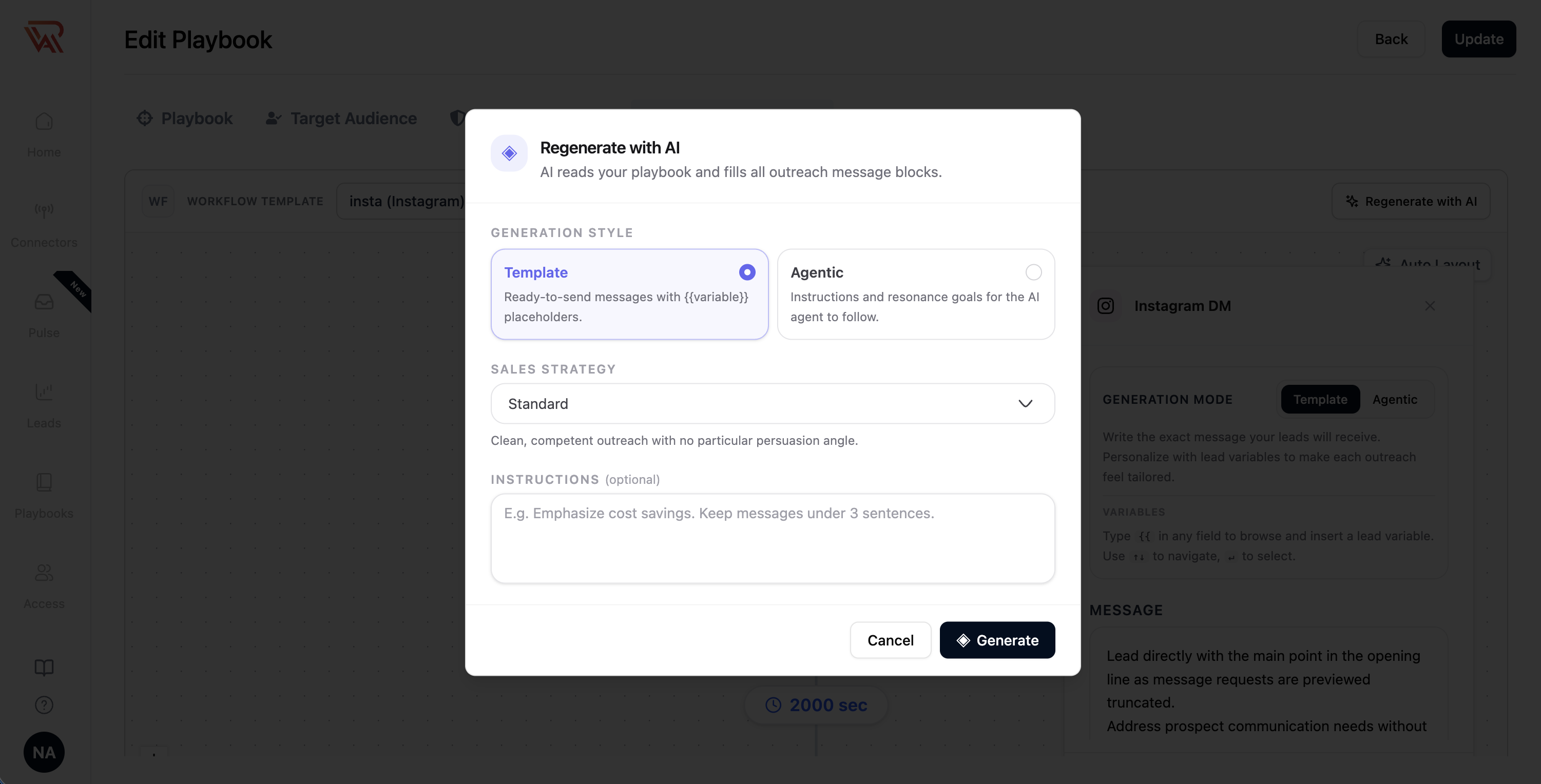
Review each block and switch the mode if needed. If you want to rewrite all blocks at once using your playbook context and a specific persuasion angle, use Regenerate with AI:
- In the Outreach Sequence tab, click Regenerate with AI.
- Choose Template or Agentic style.
- Select a Sales strategy (e.g., Standard, Pain–Agitate–Solve, Value-First, Social Proof, Challenger, Trigger-Based, Straight-Shooter). The strategy determines how the narrative arc unfolds across all steps. See Predefined Sales Strategies for full details.
- Optionally add custom instructions in the text area (e.g., "Keep messages under 3 sentences. Focus on ROI."). Custom instructions override strategy rules where they conflict.
- Click Generate and review all blocks.
Response Guidelines
Response guidelines apply only in the reply handler, not the outreach sequence. Verify:
- Interested reply is clear, includes next steps and calendar link
- Not Interested reply is respectful and handles the objection before exiting
- Signature blocks define sign-off rules for LinkedIn
Always review AI-generated content before using it in live campaigns. You are responsible for final messaging accuracy.
Step 6: Use Your Playbook in a Campaign
After publishing:
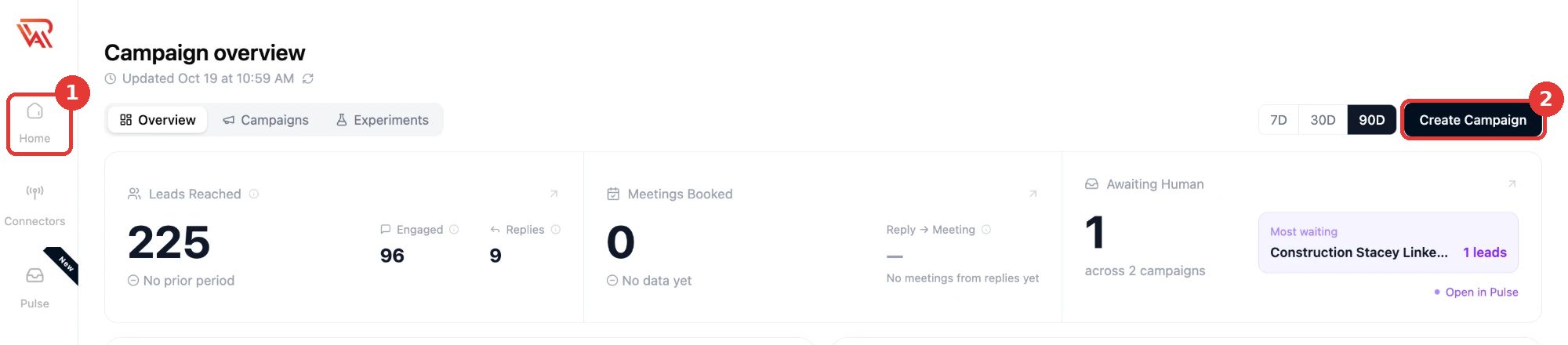
-
Click Home in the left sidebar.
-
Click Create Campaign (top right).
-
On the playbook selection step, choose your newly created playbook.
-
Complete remaining campaign settings and launch.
See Create a Campaign for the full campaign setup guide.
Troubleshooting
| Issue | What to do |
|---|---|
| Generation fails or stalls | Refresh the page and retry. Confirm website and LinkedIn URLs are valid. |
| Weak or generic messaging | Improve playbook description and main goal fields, then regenerate. |
| Wrong language in output | Re-run flow and select the correct Playbook Language. |
| Personas not reflected | Add specific personas in Step 2; avoid vague titles. |
| Cannot find published playbook | Return to Playbooks list and confirm status is published, not draft. |
Related Documentation
- Predefined Sales Strategies — complete guide to sequence sales strategies
- Best Practices for Creating Playbooks
- Playbook overview
- Build Manually if you need full control after AI generation
- Create a Campaign