Build Manually
Use Build Manually to create a playbook section by section in the Playbook Editor. You control every field, sequence step, and response guideline.
For an overview of playbooks and when to use manual vs AI creation, see Playbook. For cadence scripts, objection handling, and signature rules, see Best Practices.
Overview
The manual playbook editor includes five sections:
| # | Section | Purpose |
|---|---|---|
| 1 | Playbook | Name and primary objectives |
| 2 | Target Audience | Personas and eligibility rules |
| 3 | Value Proposition | Product value and positioning |
| 4 | Outreach Sequence | LinkedIn and email workflow steps |
| 5 | Response Guidelines | AI reply behavior and signatures |
Work through each section in order. Save progress as you go, then Publish when complete.
Before You Begin
Prepare the following before starting:
- A published Sequence — the outreach flow (steps, channels, timing) must exist before you can attach it to a playbook. See Create a Sequence.
- Playbook name and campaign objectives
- List of target personas and any eligibility rules (role, location, etc.)
- Value proposition and positioning notes
- Message instructions for each sequence step (tone, key points to hit)
- Reply templates for interested / not interested prospects
- Calendar link and signature preferences
If you are unsure where to start, create a draft with Generate with AI first, then switch to manual editing for fine-tuning.
Step 1: Open the Playbook Editor
- Log in to Ragworks and open AI SDR from the profile/settings menu.
- In the left sidebar, click Playbooks.
- Click Create New + in the top-right corner.
- On Choose a starting point, select Build Manually.
- Click Get started.
You will be redirected to the Playbook Editor.
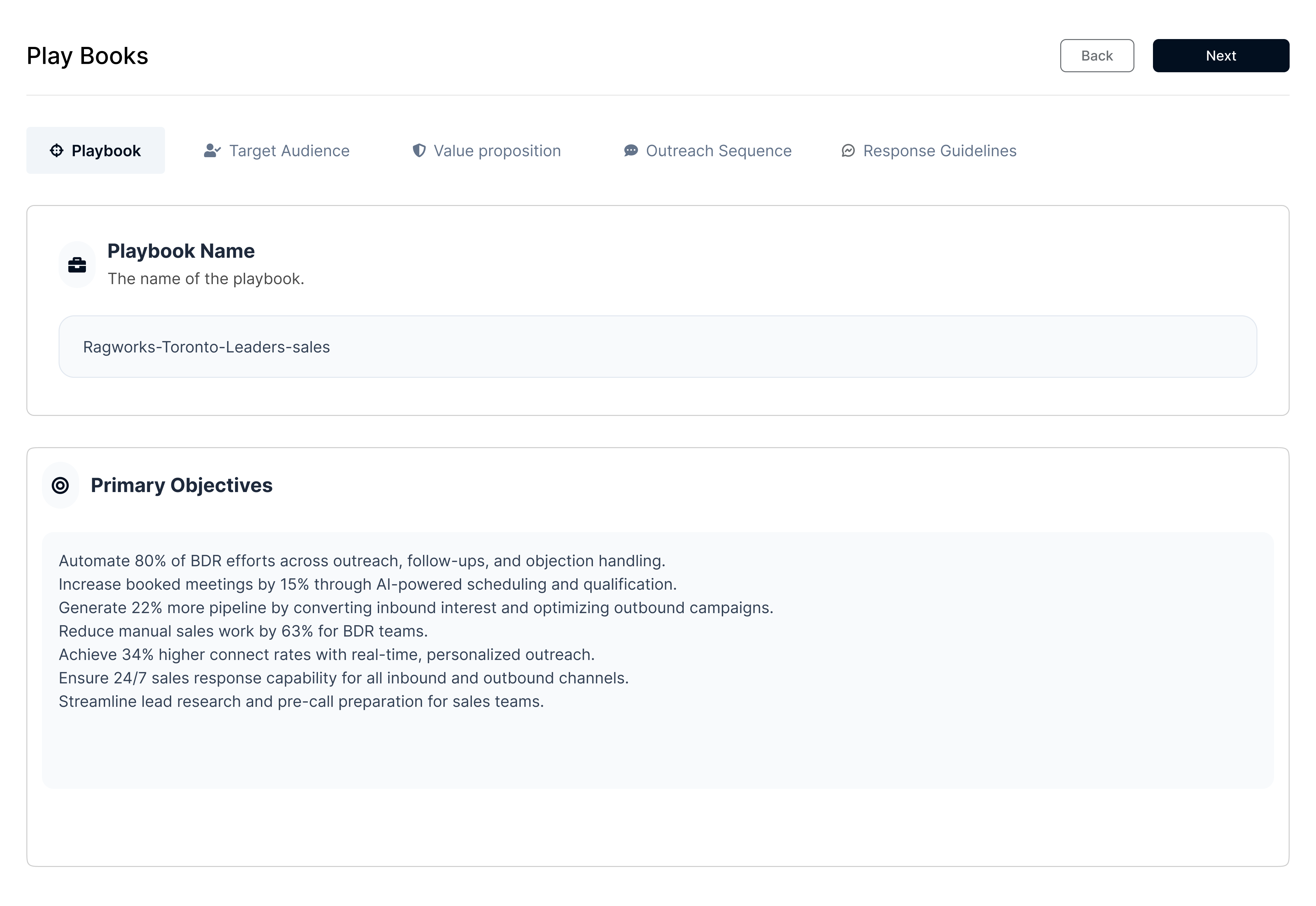
Section 1: Playbook
Enter the basic information for your outreach playbook.
Required Fields
Playbook Name
Add a descriptive name for this playbook.
Example: Q3 Enterprise LinkedIn Outreach
Primary Objectives
Define the main goals of your outreach campaign.
Example: Identify enterprise prospects, qualify interest, and book discovery calls with decision-makers.
Objectives should be measurable and tied to a real campaign outcome (meetings booked, replies, pipeline created).
When this section is complete, navigate to Target Audience using the section tabs or sidebar in the editor.
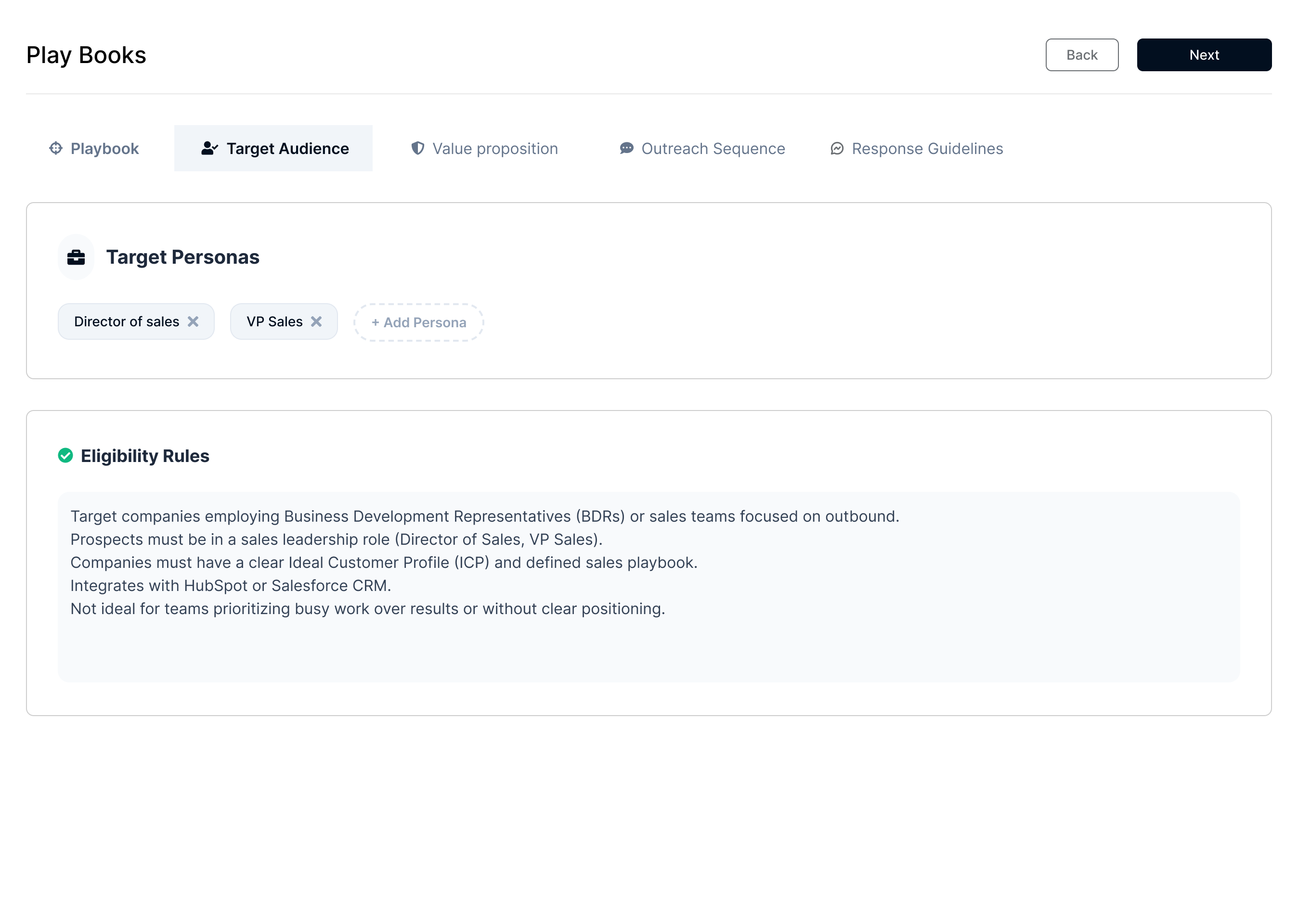
Section 2: Target Audience
Define who your outreach is intended for.
Target Personas
- Click Add Persona.
- Enter each target role or segment.
Examples:
- Decision Makers
- CTOs
- HR Managers
- Enterprise Buyers
You can add multiple personas to cover different buyer types in one playbook.
Eligibility Rules
Define rules that limit who should receive outreach.
Examples:
- Job title contains
DirectororVP - Location: United States
- Industry: SaaS
Tight eligibility rules improve reply quality and reduce wasted outreach on poor-fit leads.
Navigate to Value Proposition when finished.
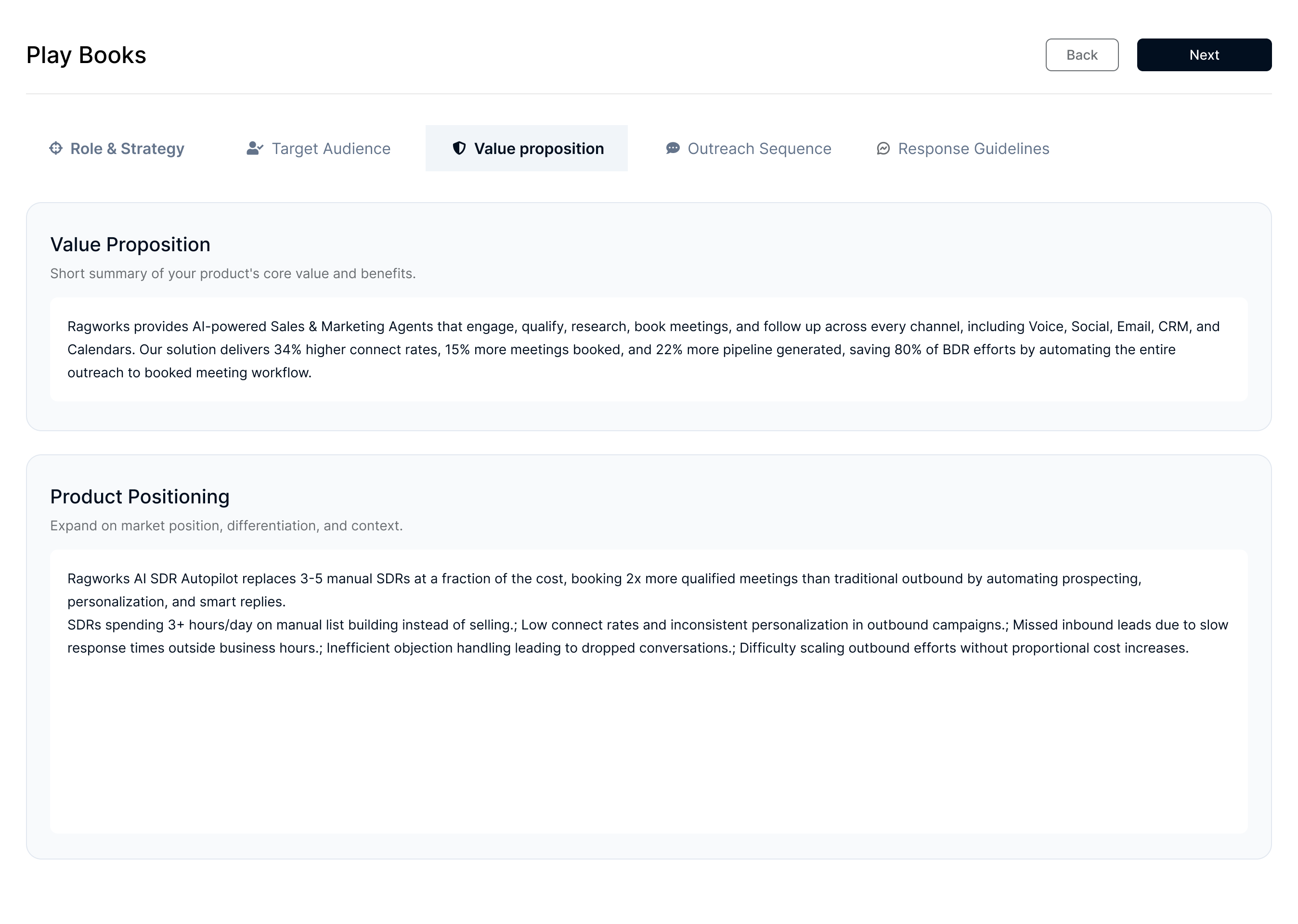
Section 3: Value Proposition
Define how your product should be positioned in outreach.
Value Proposition
Add a short summary of your product’s core value and benefits.
Example:
Ragworks automates outbound prospecting and follow-ups so sales teams spend less time on manual outreach and more time closing deals.
Product Positioning
Expand on:
- Market positioning
- Competitive differentiation
- Product context and use cases
Write as if explaining to a busy executive in two sentences. Avoid long feature lists without context.
Navigate to Outreach Sequence when finished.
Section 4: Outreach Sequence
Attach a published Sequence and configure the messaging blocks for each step.
The outreach sequence is built in the Sequences section of AI SDR, not inside the playbook editor. You must create and publish a sequence first, then select it here.
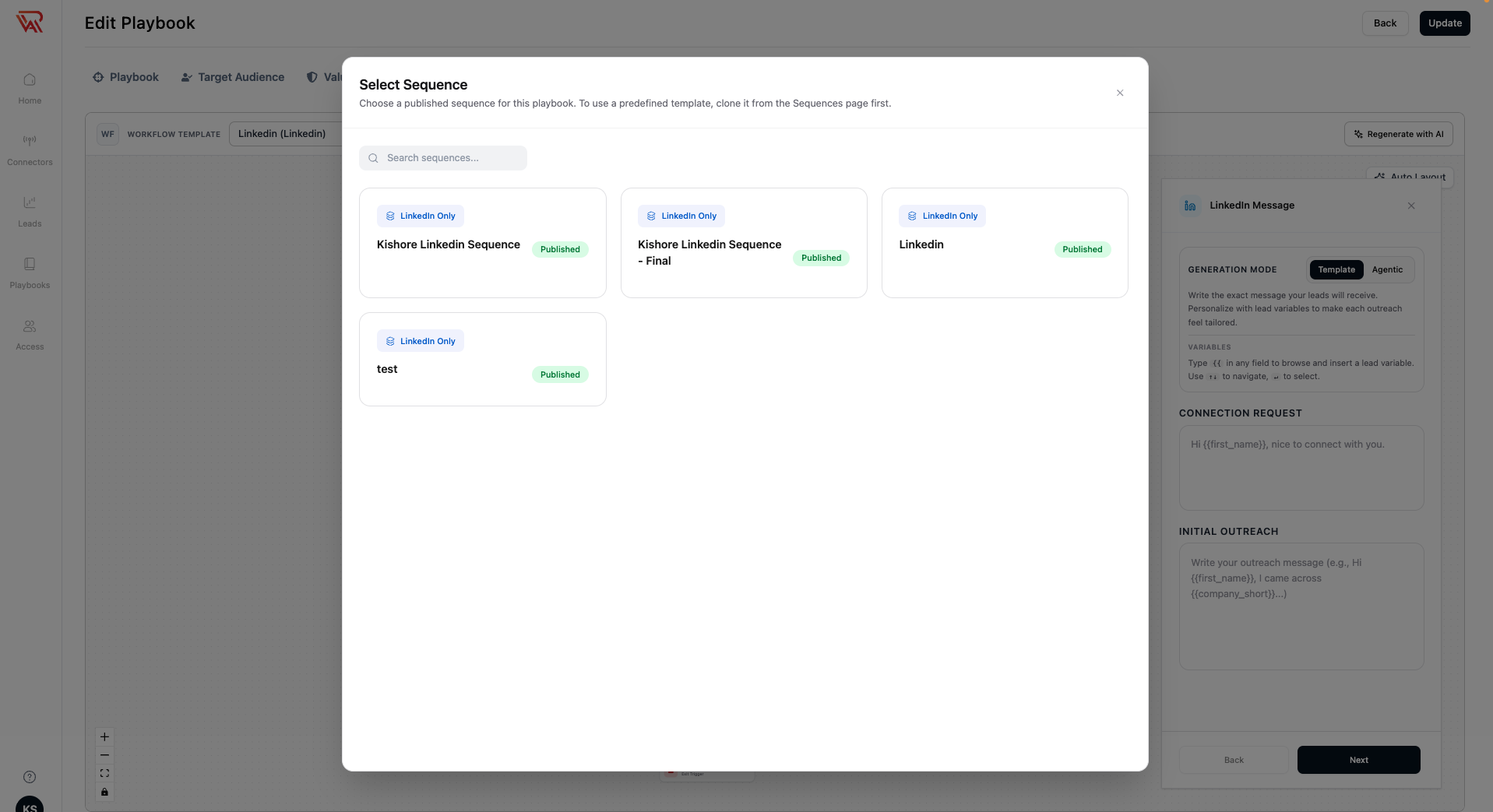
Attach a Sequence
- In the Outreach Sequence tab, open the sequence selector dropdown.
- Select a published sequence from the list.
- The predefined templates are always available, one for each channel mix.
- Your own sequences appear here once published.
The steps defined in the sequence (channels, order, time delays) are displayed as messaging blocks in the editor.
Messaging Blocks
Each step in the attached sequence has a messaging block where you configure what the AI will say. The fields shown depend on the step type and outreach role.
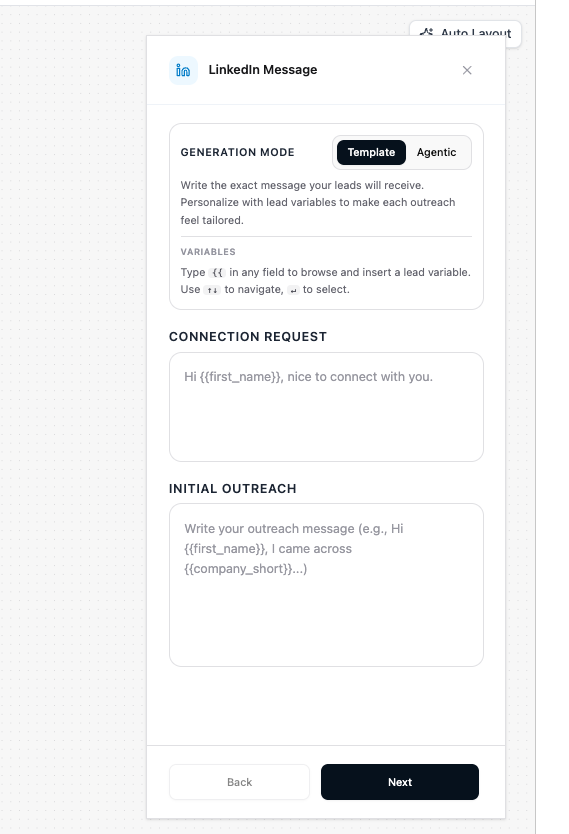
LinkedIn Message — Initial outreach:
- Connection Request — the brief note sent with the LinkedIn connection request
- Initial Outreach — the message sent after the connection is accepted
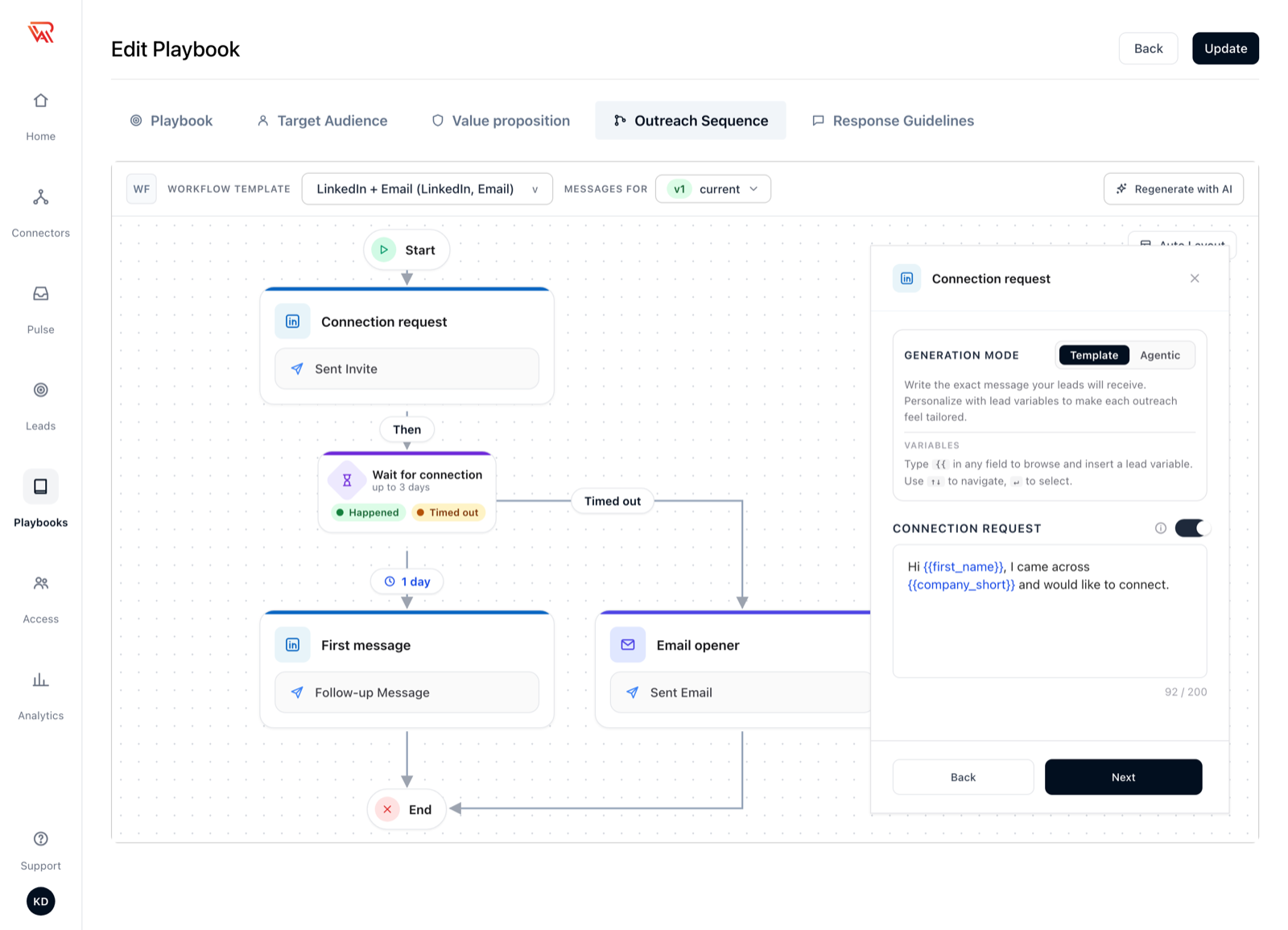
Connection request:
- Connection Request — the brief note sent with the invite. It is the only field: the step sends the invite and nothing else. Use the switch to send the invite with no note. A note is only sent when the LinkedIn account has an active Sales Navigator (LSN) subscription
LinkedIn Message — Follow-up:
- Outreach Message — the follow-up message content
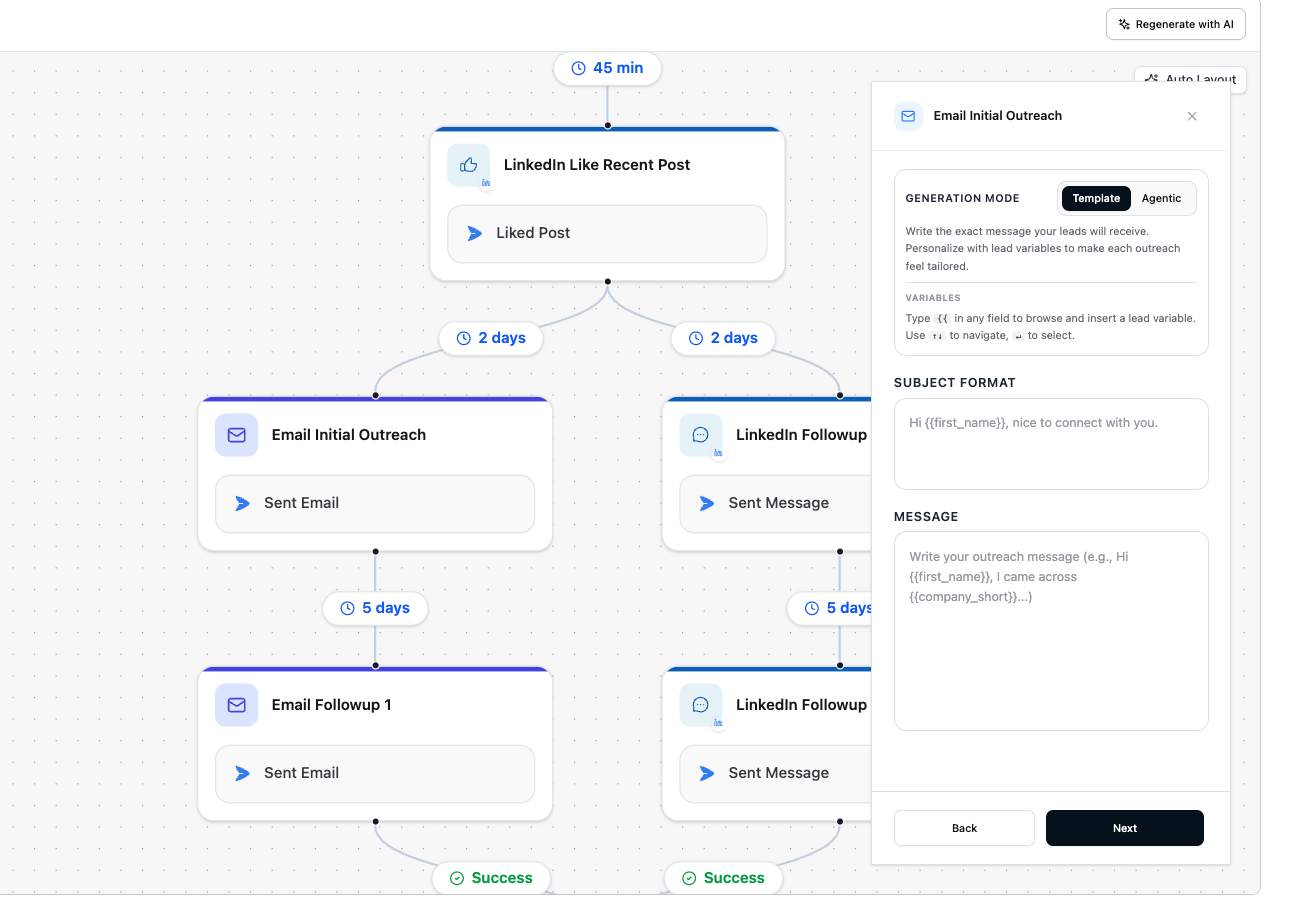
Email Message:
- Subject Format — the email subject line
- Message — the email body
WhatsApp Message and Instagram DM:
- Message — the message content
Phone Call:
- First Message — what your AI voice agent says when the call is answered
- Call Script — the agent's instructions for the call: its goal and the points to cover
Condition and Wait for steps send nothing, so they have no messaging block.
Attachments (email, LinkedIn message, WhatsApp, Instagram):
- Attachments — files from the Asset Library to send with this step, within the channel's size limit
Generation Mode
Each messaging block has two modes. Select the mode that fits your workflow:
| Mode | How it works | Best for |
|---|---|---|
| Template | You write the exact message using {{variable}} placeholders. The AI fills in variables at send time. | Tight control over exact wording |
| Agentic | You write instructions and resonance goals. The AI agent writes the full message at send time. | Natural variation, flexible tone |
Research and Advanced (Agentic only)
An Agentic block adds a Research row under the mode: Basic (free), Standard (3.5 credits per lead) or Deep (6 credits per lead). It sets how much Ragworks finds out about each lead before the agent writes. A new Agentic block starts at Standard. Open Advanced to choose which facts the message may open on (hooks), its tone, and anything it must never mention.
Template blocks have no Research row, because nothing is written for them.
→ For what each depth finds, the ten hooks and the plan limits, see Research depth and hooks.
Using Variables
In Template mode, type {{ in any message field to browse available lead variables. Use ↑↓ to navigate and ↵ to insert.
Common variables:
| Variable | What it inserts |
|---|---|
{{first_name}} | Prospect's first name |
{{company_short}} | Short company name |
{{company}} | Full company name |
Example connection request (Template mode):
Hi {{first_name}}, nice to connect with you.
Example initial outreach (Template mode):
Hi {{first_name}}, I came across {{company_short}} and thought what we're building at Ragworks might be relevant...
Auto-fill Messaging Blocks with AI
Instead of writing each block manually, use Regenerate with AI to fill all messaging blocks at once. The AI reads your playbook — value proposition, target audience, objectives — and generates a unified multi-step sequence governed by your chosen sales strategy.
-
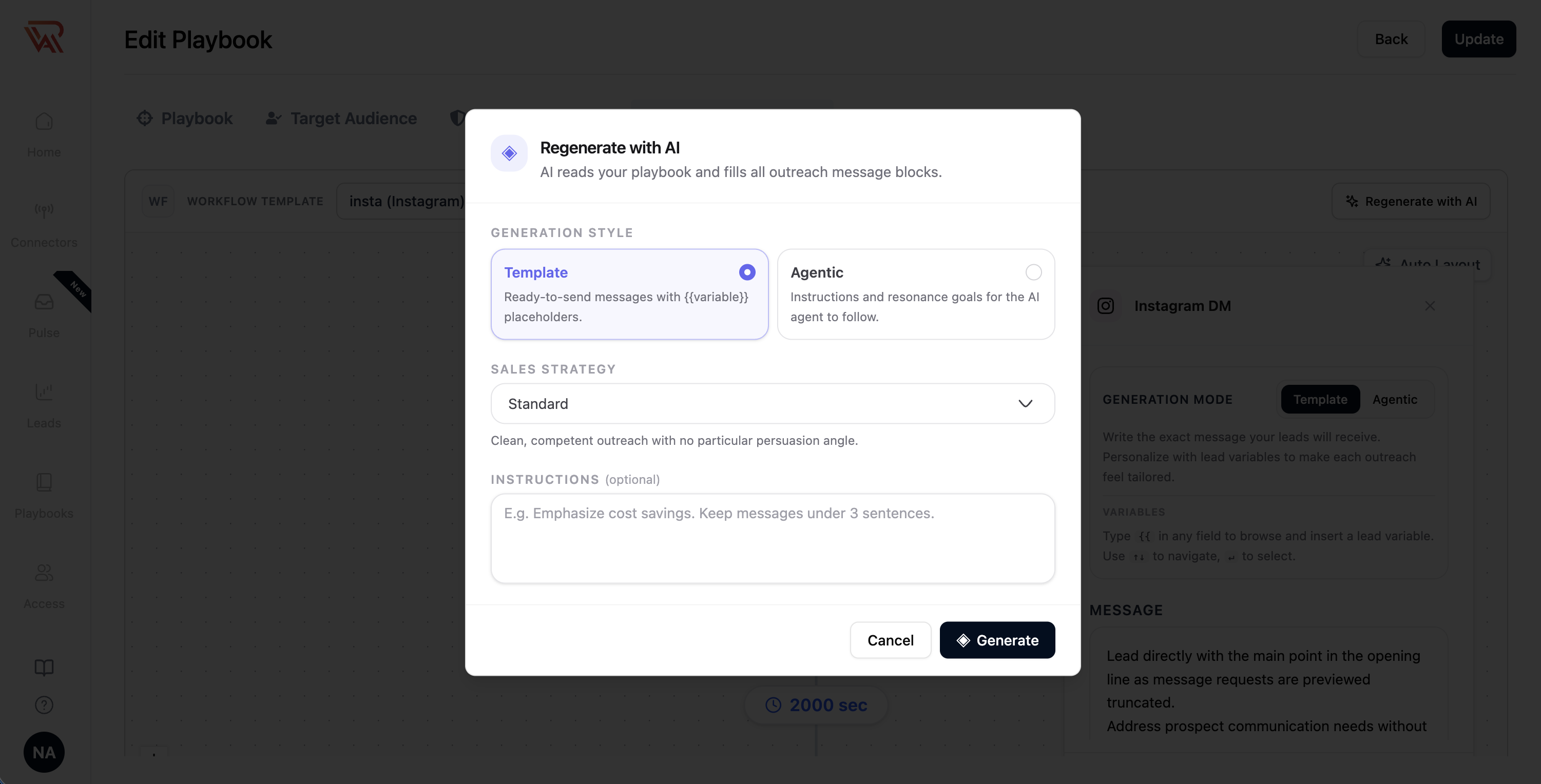
Click Regenerate with AI at the top of the Outreach Sequence tab.
-
In the modal, choose a Generation style:
- Template — generates ready-to-send messages with
{{variable}}placeholders - Agentic — generates instructions and resonance goals for the autonomous AI agent to follow
- Template — generates ready-to-send messages with
-
Select a Sales strategy from the dropdown (defaults to Standard):
- Standard — clean, competent outreach with no particular persuasion bias (~70–90 words/email)
- Pain–Agitate–Solve — names a concrete pain point, agitates consequences, resolves with value prop (~80–100 words/email)
- Value-First — delivers standalone insights, benchmarks, or teardowns before asking (~90–110 words/email)
- Social Proof — anchors outreach on comparable customer metrics and outcomes (~80–95 words/email)
- Challenger / Reframe — challenges conventional industry assumptions and teaches something non-obvious (~90–110 words/email)
- Trigger-Based — builds the opening on recent events (funding, hiring, launches) and explains "why now" (~80–95 words/email)
- Straight-Shooter — candid, ultra-direct outreach skimmable in under 10 seconds (under 60 words/email)
→ For an in-depth breakdown of each strategy, see Predefined Sales Strategies.
-
Optionally add Instructions to guide or override the output (e.g., "Emphasize cost savings. Keep messages under 3 sentences."). Custom instructions strictly override strategy rules where they conflict.
-
Click Generate.
-
Review every generated block and edit as needed before publishing.
Always review AI-generated messaging before publishing. You are responsible for the accuracy and tone of outbound content.
Messages for each sequence version
When the sequence has more than one version in use, the tab shows which one you are writing for.
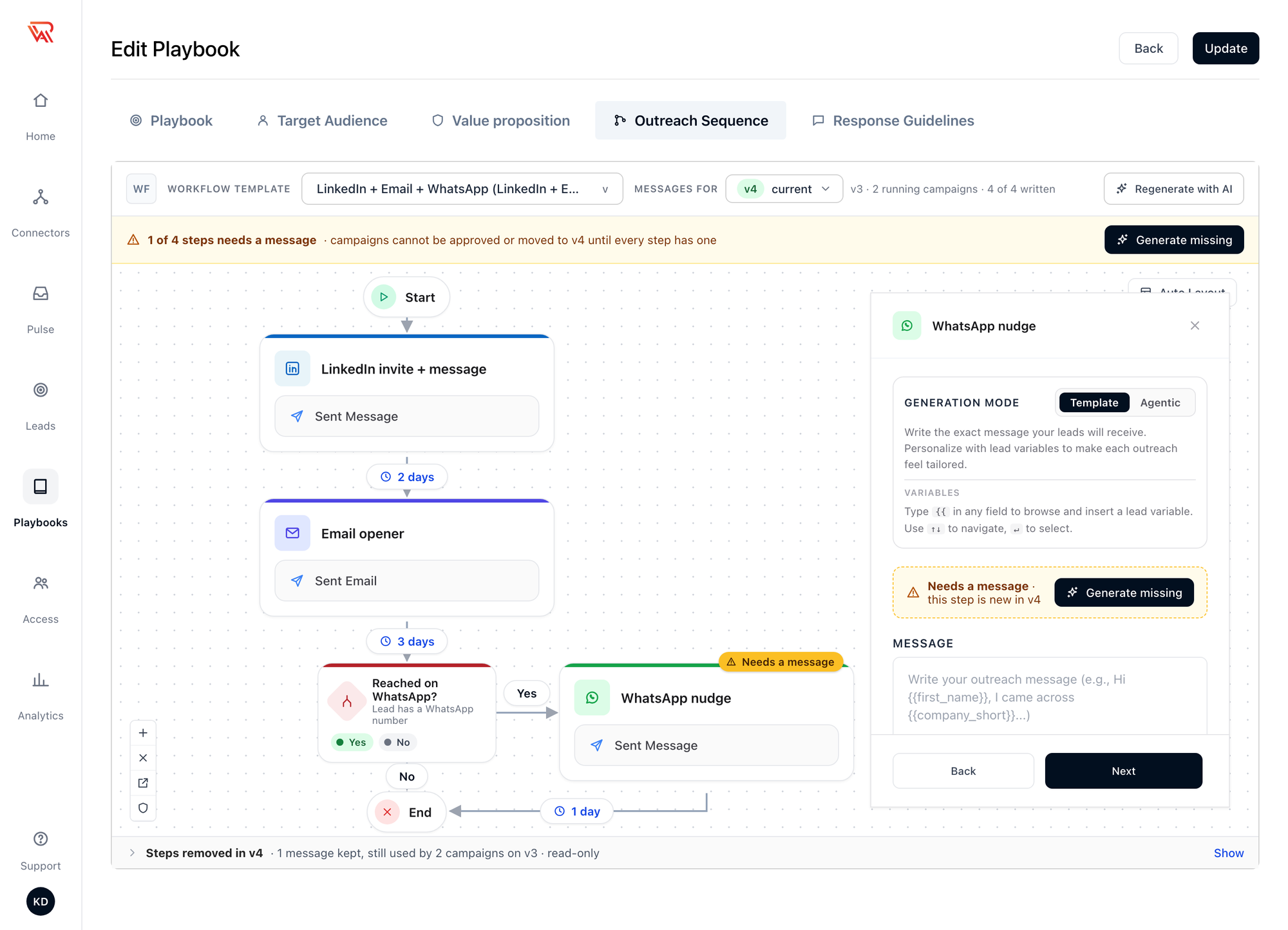
- Messages for picks the version: the current one, plus any version a running campaign still uses.
- A strip counts steps with no message yet, for example 1 of 4 steps needs a message. Generate missing writes only those, from your playbook, and leaves the rest alone.
- A step new in this version is marked Needs a message.
- Steps removed in v4 keeps, read-only, the messages of steps an older version still runs for a campaign.
A campaign can't be approved or moved to a version until every step of that version has a message. See Versions and moving campaigns.
Navigate to Response Guidelines when finished.
Section 5: Response Guidelines
Response guidelines control how the AI replies to prospects — they apply only in the reply handler, not in the outreach sequence steps. These blocks do not affect the cadence or outbound messages.
Response guidelines have two types of blocks, both added from the Response Guidelines tab:
| Block type | Button | Purpose |
|---|---|---|
| Response block | Add response block | Defines how the AI replies to a specific prospect intent (interested, not interested, etc.) |
| Signature block | Add LinkedIn signature block | Defines sign-off rules for LinkedIn messages |
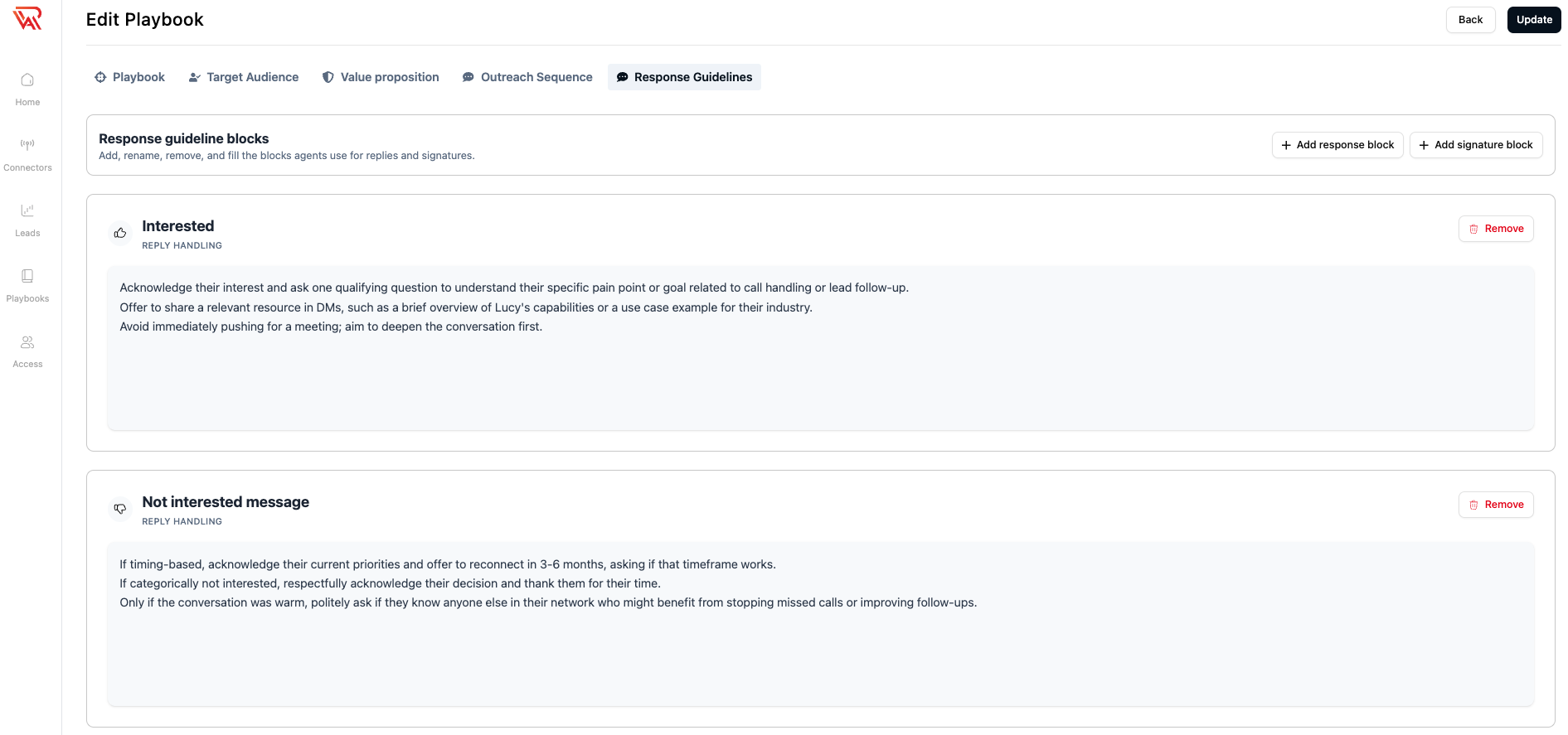
Response Blocks
Interested
Define how the AI responds when a prospect shows interest. Include:
- Acknowledgment tone
- Qualification questions (if any)
- Next step toward a meeting or call
- Calendar link (if applicable)
Not Interested Message
Define how the AI handles objections or declines. Best practice:
- Clarify the objection before assuming
- Handle one angle per reply — do not stack arguments
- Exit only after clear resistance, not the first "no"
- Leave a soft re-entry when exiting
See Best Practices for full objection-handling and exit-rule guidance.
Signature Blocks
Signature blocks define sign-off rules for LinkedIn messages. An email signature is set on the connected email account and added after the message as-is; Ragworks adds no closing line of its own.
| Scenario | Rule |
|---|---|
| Email with a signature configured on the account | The signature is added after the message as-is |
| Email without a signature configured | Nothing is added after the message |
| LinkedIn initial outreach | Follow configured LinkedIn sign-off settings |
| LinkedIn follow-ups | No signature — do not repeat footer on thread replies |
Step 2: Publish the Playbook
After all five sections are complete:
- Review the full playbook from top to bottom.
- Confirm sequences and response guidelines match your campaign plan.
- Click Publish to make the playbook available for campaigns.
Draft playbooks cannot be used in live campaigns. Publish only when every required section is filled and reviewed.
Step 3: Use Your Playbook in a Campaign
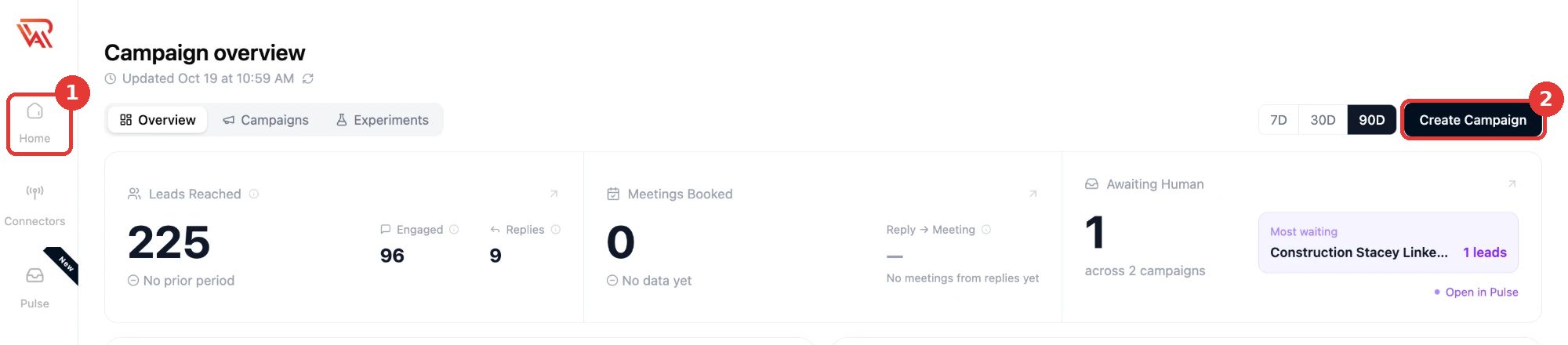
-
Click Home in the left sidebar.
-
Click Create Campaign (top right).
-
Select your published manual playbook.
-
Configure leads, datasources, schedule, and launch.
See Create a Campaign for detailed campaign setup steps.
Section Checklist
Use this checklist before publishing:
- Playbook name and objectives are filled
- At least one target persona is added
- Eligibility rules match your ICP (if used)
- Value proposition and positioning are clear
- A published Sequence is attached in the Outreach Sequence section
- Interested and not interested responses are defined
- Calendar message and links are correct
- Email and LinkedIn signatures are configured
- Full playbook read-through completed
Troubleshooting
| Issue | What to do |
|---|---|
| Publish button disabled | Check each section for required empty fields. |
| Playbook not visible in campaign | Confirm status is Published, not draft. |
| Sequence steps not executing | Confirm a Published sequence is attached to the playbook and the campaign type matches the channels in your sequence (LinkedIn vs email). |
| AI replies feel off-brand | Refine Response Guidelines and interested/not interested templates. |
| Too many personas causing confusion | Reduce to core ICP roles; split into separate playbooks if needed. |
Related Documentation
- Predefined Sales Strategies — full guide on sequence copywriting strategies
- Create a Sequence — build the outreach flow before creating a playbook
- Best Practices for Creating Playbooks
- Playbook overview
- Generate with AI — faster alternative for first-time setup
- Create a Campaign