Connect OpenAI
Connect Ragworks to ChatGPT as a custom MCP server, or to Codex, OpenAI's coding agent for your terminal and editor. The OpenAI API can't be used.
Connector address: https://ai-sdr-mcp.ragworks.ai/mcp
ChatGPT
ChatGPT calls a connected MCP server a plugin. Ragworks isn't in ChatGPT's plugin directory, so you add it yourself as a custom MCP server.
Not every ChatGPT plan can add custom MCP servers, and workspace administrators can restrict them. If you don't see Add custom MCP server below, ask your workspace administrator.
Add the connector
-
Open ChatGPT Plugins, click Add, and choose Add custom MCP server.
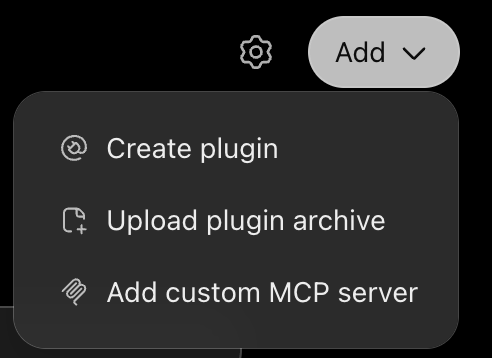
-
Fill in the form:
- Name: Ragworks AI SDR
- Description (optional): a few words on what it does. ChatGPT uses it to decide when to call the plugin.
- Connection: keep Server URL and enter the connector address above.
- Authentication: keep OAuth.
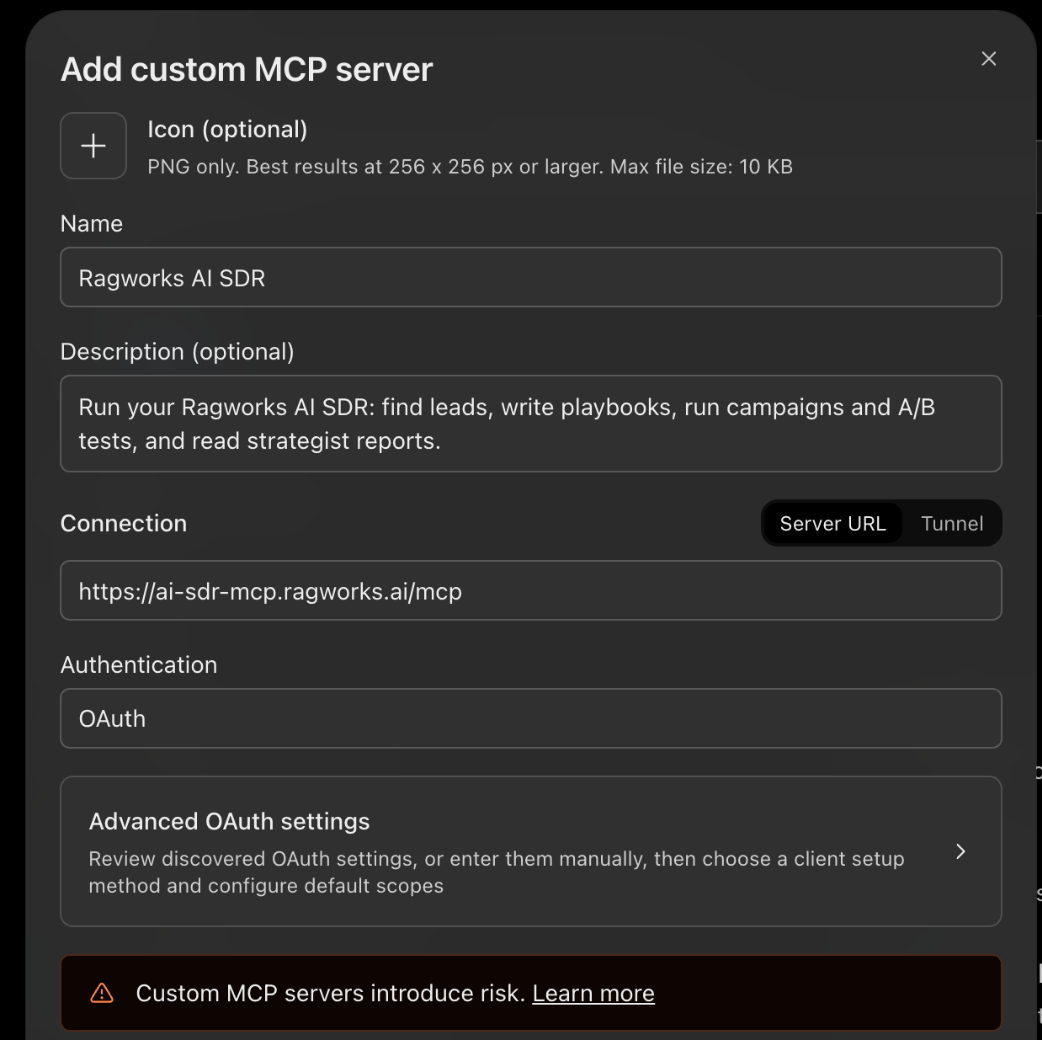
-
Optional: open Advanced OAuth settings to see how ChatGPT will sign in. Leave the defaults. ChatGPT chooses Client Identifier Metadata Document (CIMD) by itself and shows the callback address it will use.
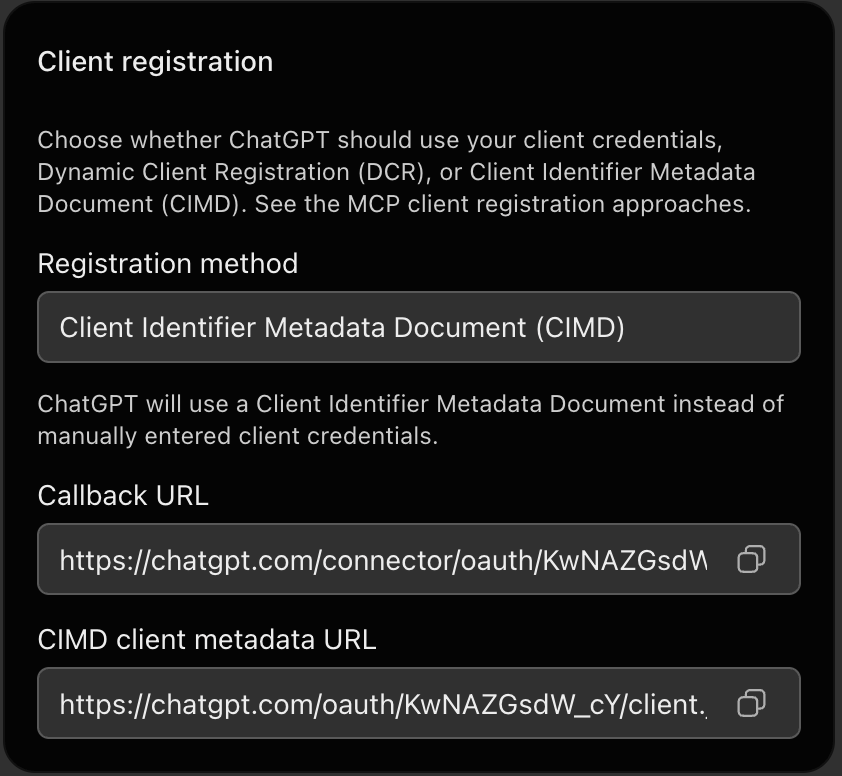
-
Read ChatGPT's warning, which it shows for every custom MCP server. Tick I understand and want to continue, then click Create as a plugin.
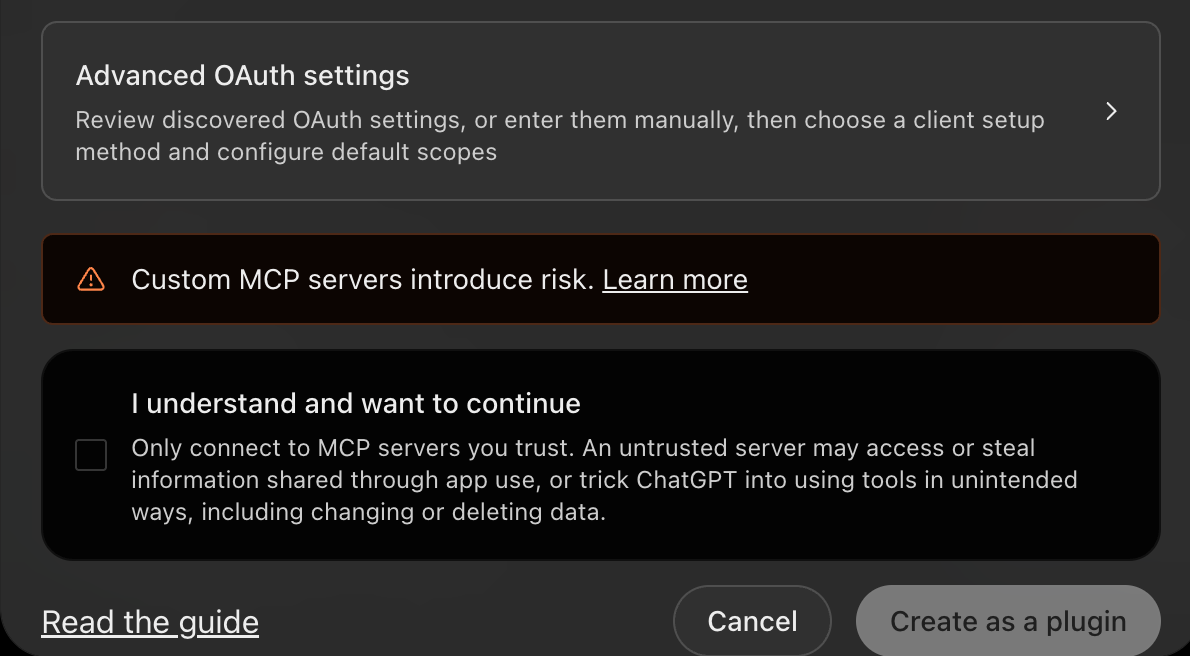
Sign in
-
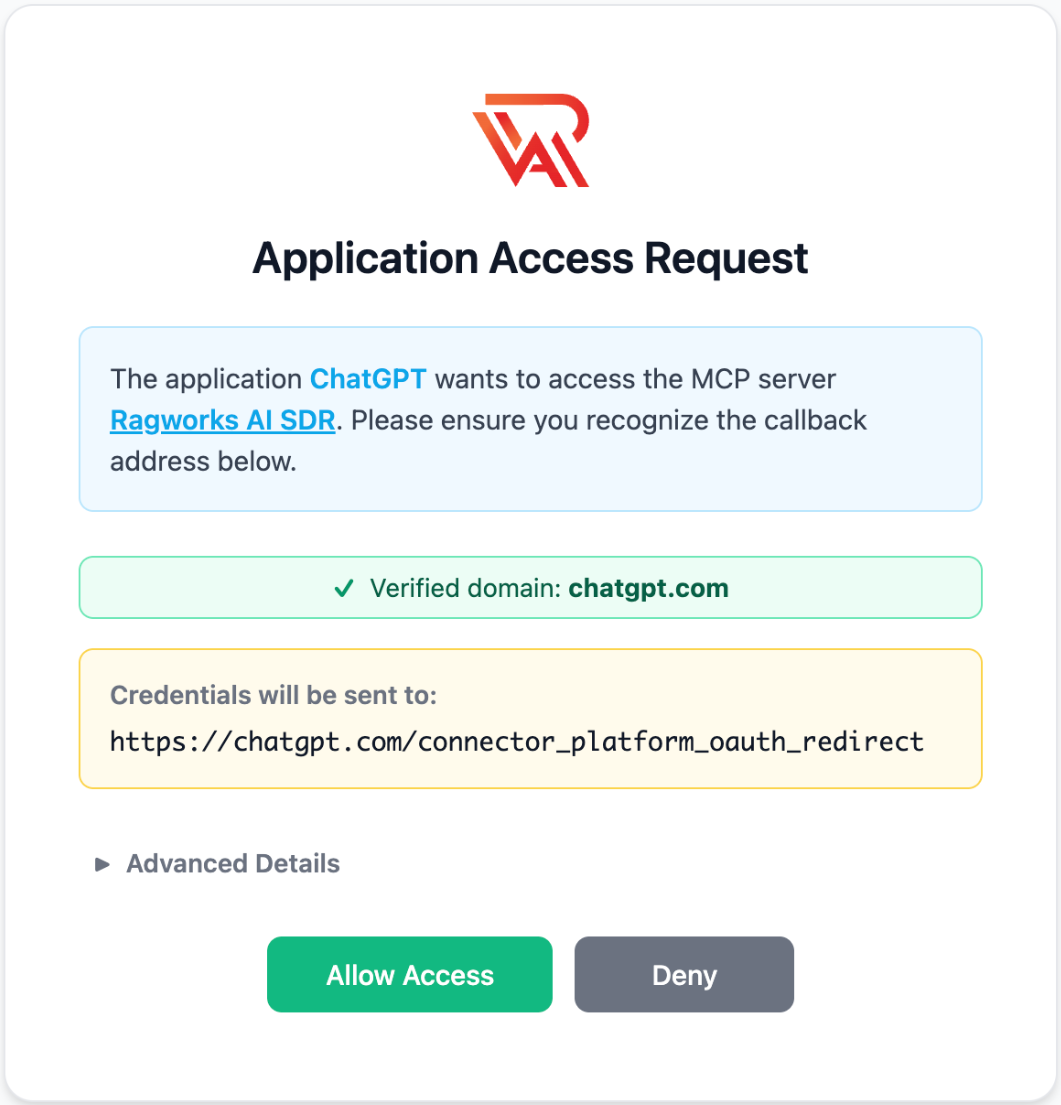
ChatGPT opens the Ragworks sign-in, a page called Application Access Request.
-
Check that the green line says Verified domain: chatgpt.com and that Credentials will be sent to starts with
https://chatgpt.com/. The address can end with an ID that belongs to your connector, as inhttps://chatgpt.com/connector/oauth/followed by the ID. If anything looks different, click Deny. -
Click Allow Access, then log in with your Ragworks email and password.
-
ChatGPT shows Ragworks AI SDR under Installed on the Plugins page.
Use it in a chat
Start a new chat, type @, and choose Ragworks AI SDR. You can also open the plugin on the Plugins page and click Try in chat. Then ask for what you want. Sample questions has ideas.
Choose when ChatGPT asks for approval
Open the plugin on the Plugins page, click Manage, and open Permission.

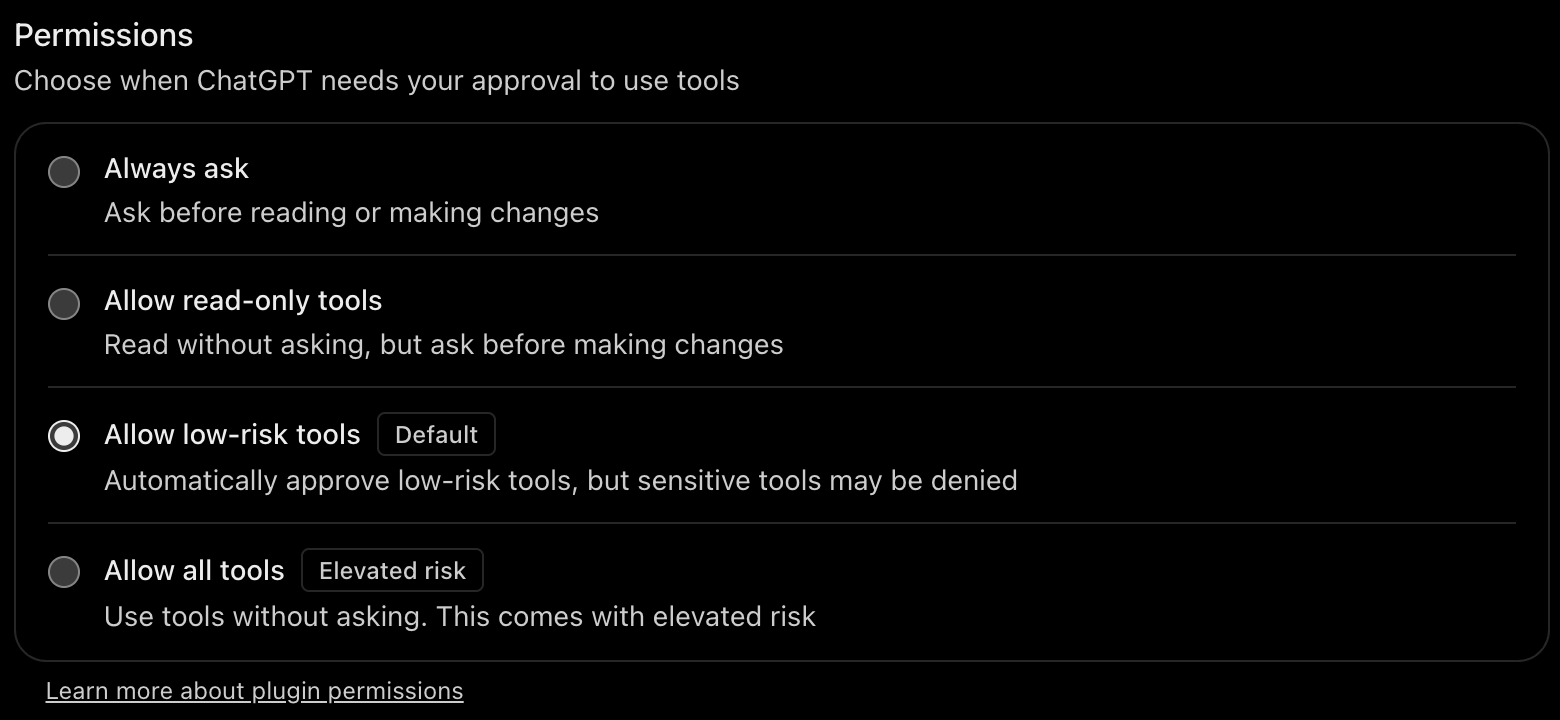
ChatGPT offers four settings:
| Setting | What ChatGPT does |
|---|---|
| Always ask | Asks before reading or making changes. |
| Allow read-only tools | Reads without asking, but asks before making changes. |
| Allow low-risk tools (the default) | Approves low-risk tools automatically. Sensitive tools may be denied. |
| Allow all tools | Uses tools without asking. This comes with elevated risk. |
We suggest Allow read-only tools: ChatGPT can look things up freely and asks before it changes anything. Use Always ask if you want to see every call. Don't use Allow all tools: four Ragworks tools reach real people or can't be undone (see Available tools). With the default setting, ChatGPT may deny tools it considers sensitive instead of asking you. If it tells you it can't do something that changes your workspace, check this setting.
Update the tools
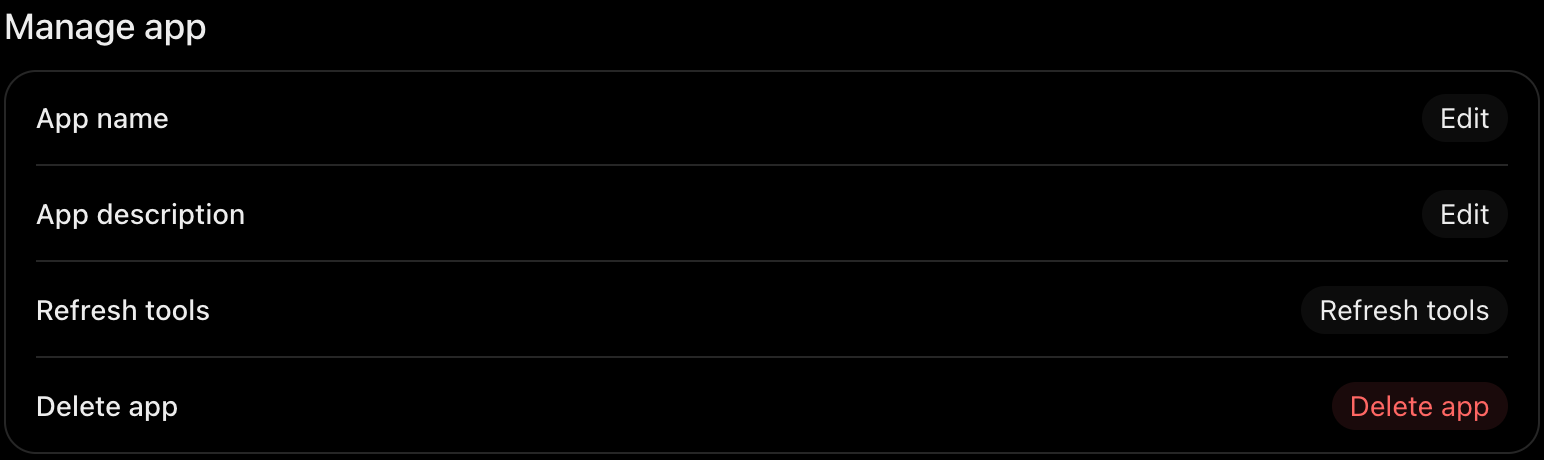
When Ragworks adds a tool, ChatGPT doesn't see it until you refresh. Open the plugin, click Manage, and under Manage app click Refresh tools.
Disconnect
Open the plugin on the Plugins page, click Manage, and click Uninstall.
Good to know
- ChatGPT lists the plugin with the version dev mode and the review status DEVELOPMENT. That is normal for a custom MCP server that isn't in the plugin directory.
- ChatGPT's notice on the plugin page says it may share relevant chats and memories with a plugin to give it context. Check your ChatGPT data controls and your Memory setting if that matters to you. The Ragworks connector itself stores no conversation data.
- Everything the plugin returns becomes part of your ChatGPT conversation, so it is handled under OpenAI's terms and your ChatGPT settings.
Codex
Codex runs on your computer, which is what lets it start a Ragworks sign-in. These steps work for the Codex CLI and the Codex IDE extension.
Add the connector and sign in
-
Add the connector:
codex mcp add ragworks --url https://ai-sdr-mcp.ragworks.ai/mcp -
Sign in:
codex mcp login ragworksYour browser opens a Ragworks page called Application Access Request. Credentials will be sent to must start with
http://127.0.0.1orhttp://localhost, which is your own computer. If it is anything else, click Deny. Otherwise click Allow Access, then log in with your Ragworks email and password. -
Check the connection with
codex mcp list, or type/mcpin the Codex terminal. Then ask, for example, "What's my Ragworks credit balance?"
Give slow steps more time
Codex stops waiting for a tool after 60 seconds unless you tell it otherwise. Some Ragworks steps use AI or save many leads and can take up to two minutes. Raise the limit in ~/.codex/config.toml:
[mcp_servers.ragworks]
url = "https://ai-sdr-mcp.ragworks.ai/mcp"
tool_timeout_sec = 180
disabled_tools = ["launch_campaign", "complete_campaign", "start_experiment", "complete_experiment", "send_lead_message"]
The disabled_tools line is optional. It keeps Codex from launching, ending or sending outreach, which is useful when you only want research and drafts. Available tools explains these five tools. To turn the connector off, set enabled = false in the same section.
If a tool times out, don't ask for it again straight away. The step may have finished, and it may have been charged. Ask the assistant to check the list or your credit usage first.
OpenAI API and Agents SDK
The OpenAI API's MCP tool doesn't sign anyone in: your own application has to supply an access token. Ragworks doesn't issue API keys or service tokens for this connector, and every connection starts with a person logging in, so it can't be used from the API.