Connect Gemini
Connect Ragworks to the Gemini app as a custom app, or to Gemini CLI, Google's command-line assistant. Gemini Enterprise and Antigravity can't connect yet.
Connector address: https://ai-sdr-mcp.ragworks.ai/mcp
Gemini app
The Gemini app calls a connected MCP server a custom app. Ragworks isn't in Google's list of apps, so you add it yourself with the connector address. You add it once on the web at gemini.google.com, and it then works in the Gemini mobile app too.
Google decides who can add custom apps, and can change the rules. Today you need a personal Google Account (a work or school account can't add them), you must be 18 or over and in the US, you must use Gemini in English, and Keep Activity must be on. If you don't see + Custom below, one of these is probably the reason. See Google's help page.
Add the connector
-
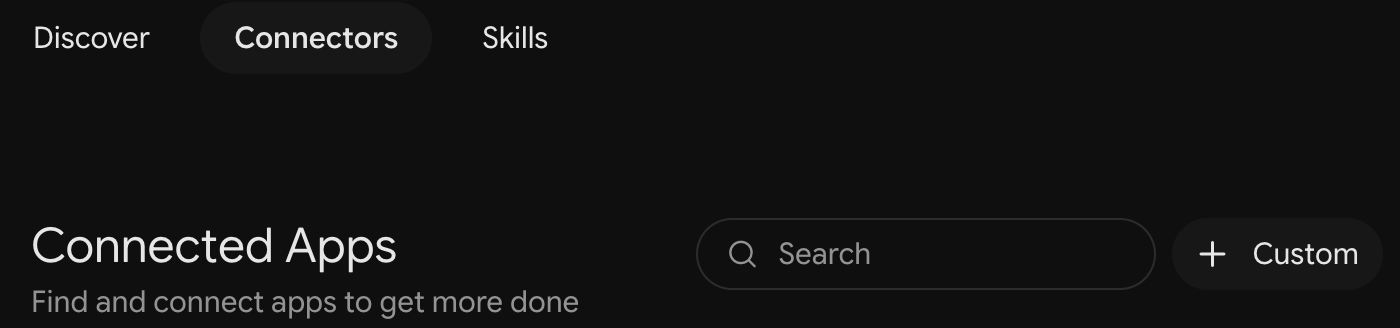
Open gemini.google.com, click Customize, open the Connectors tab, and click + Custom.
-
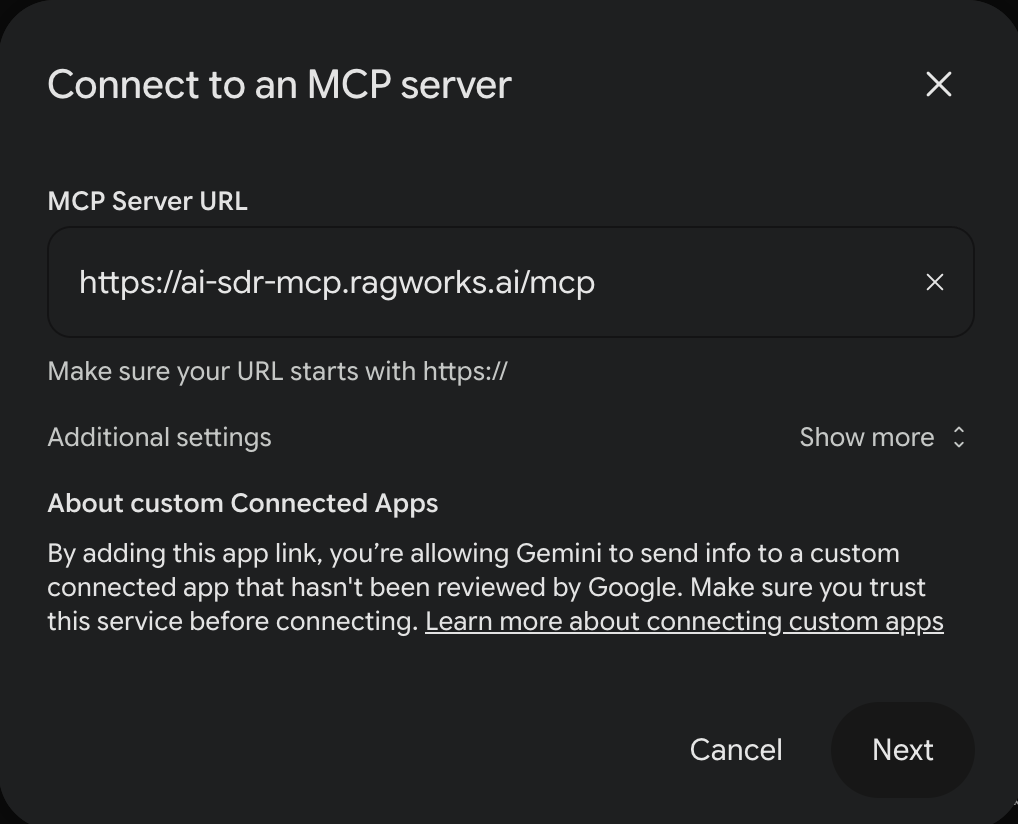
Enter the connector address above under MCP Server URL and click Next. Leave Additional settings alone: Gemini registers itself with Ragworks, so there is no client ID or secret to enter. There is no name to type either, because Gemini takes the name from the connector.
Sign in
-
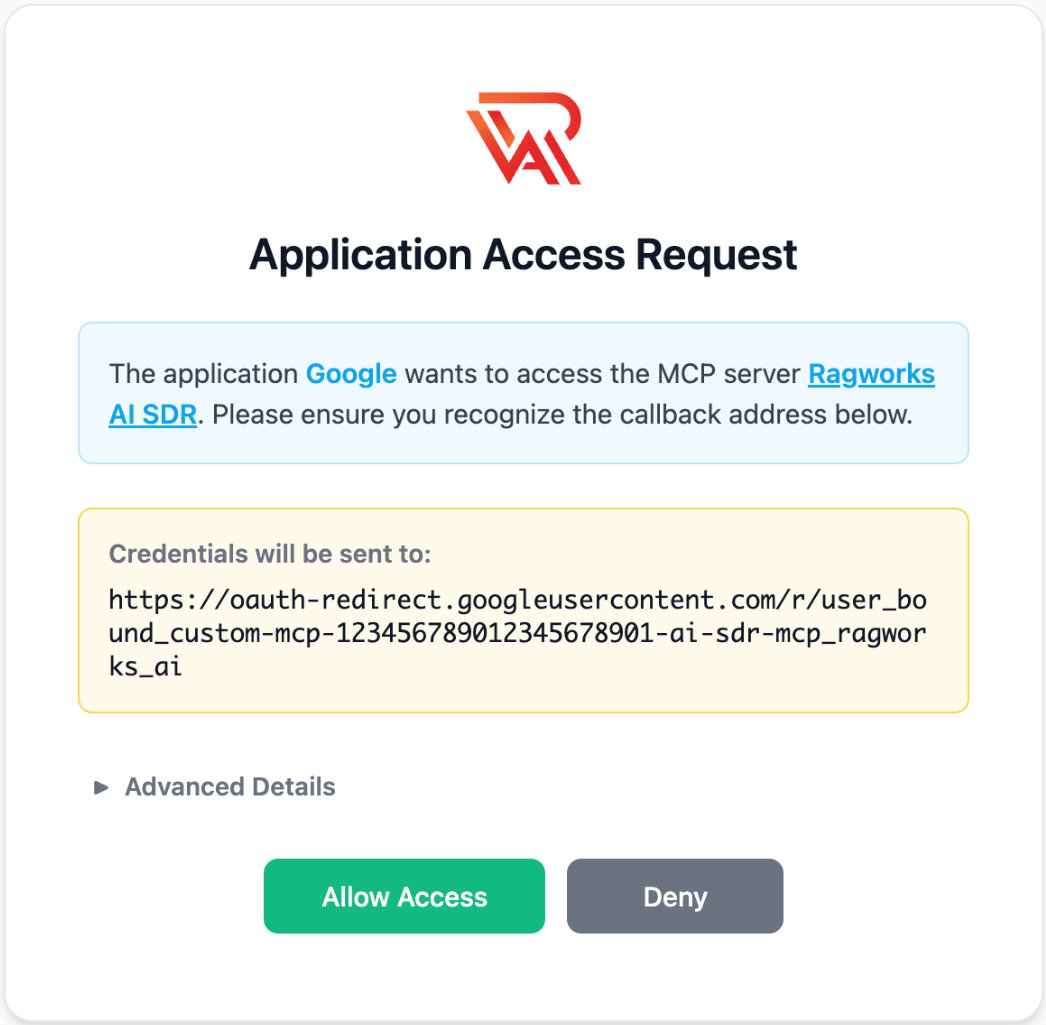
Gemini opens the Ragworks sign-in, a page called Application Access Request.
-
Check that Credentials will be sent to starts with
https://oauth-redirect.googleusercontent.com/. The rest of the address is an ID that belongs to your Google Account and this connector. The page calls the application Google, and unlike the Claude and ChatGPT sign-ins it has no green Verified domain line. If anything looks different, click Deny. -
Click Allow Access, then log in with your Ragworks email and password.
-
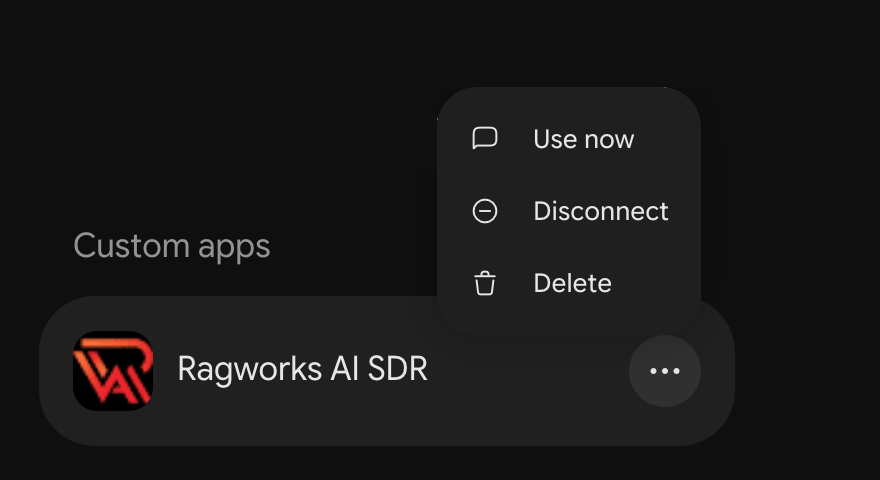
Gemini lists Ragworks AI SDR under Custom apps, at the bottom of the Connected Apps page. The three-dot menu next to it, shown open here, has Use now, Disconnect and Delete.
See what Gemini found
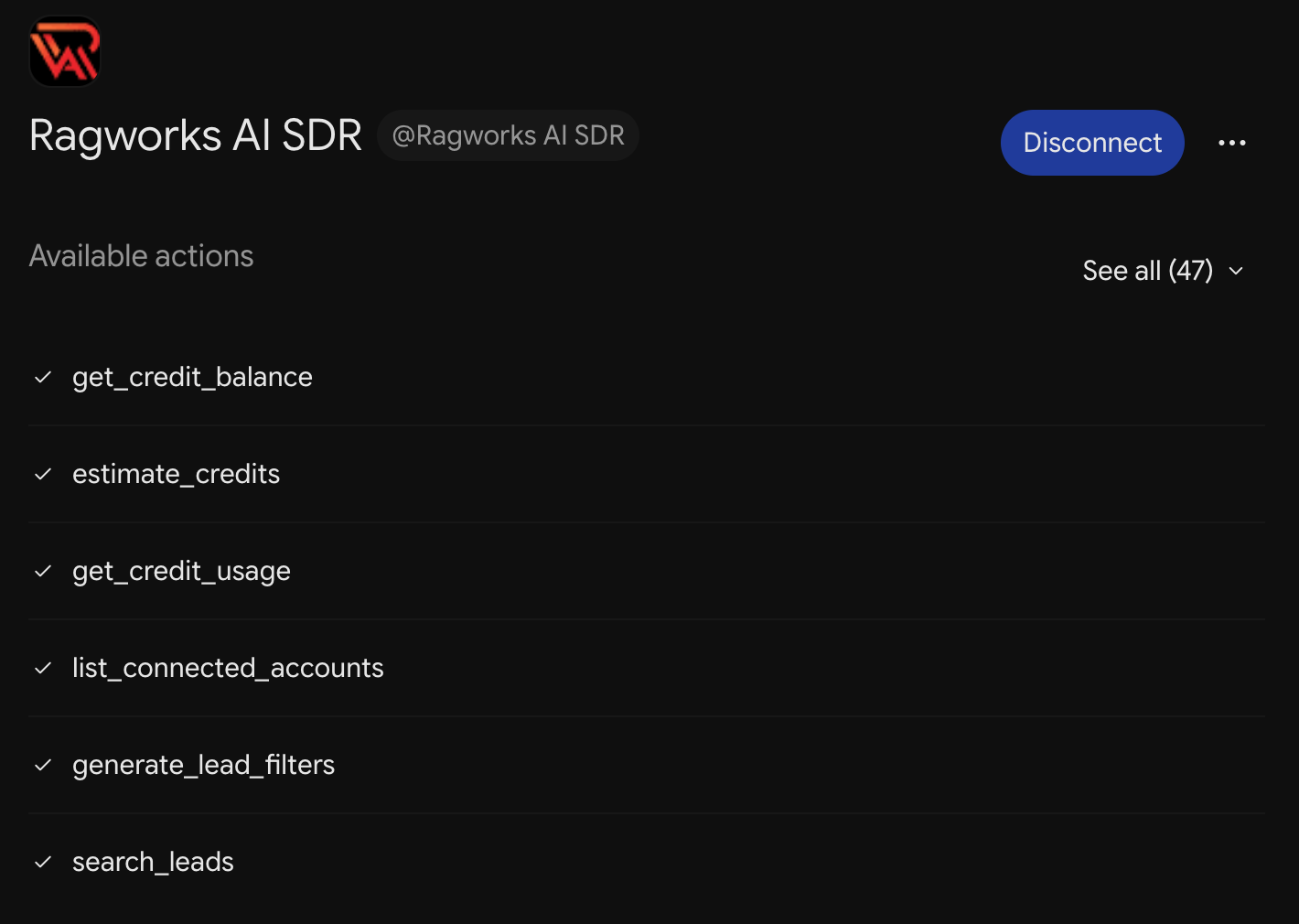
Click Ragworks AI SDR under Custom apps to open its page. Available actions lists the tools Gemini found: See all shows every one, and the page says when Gemini last synced them. Available tools explains what each one does.
Use it in a chat
-
Start a new chat, type
@, and choose Ragworks AI SDR under Connectors.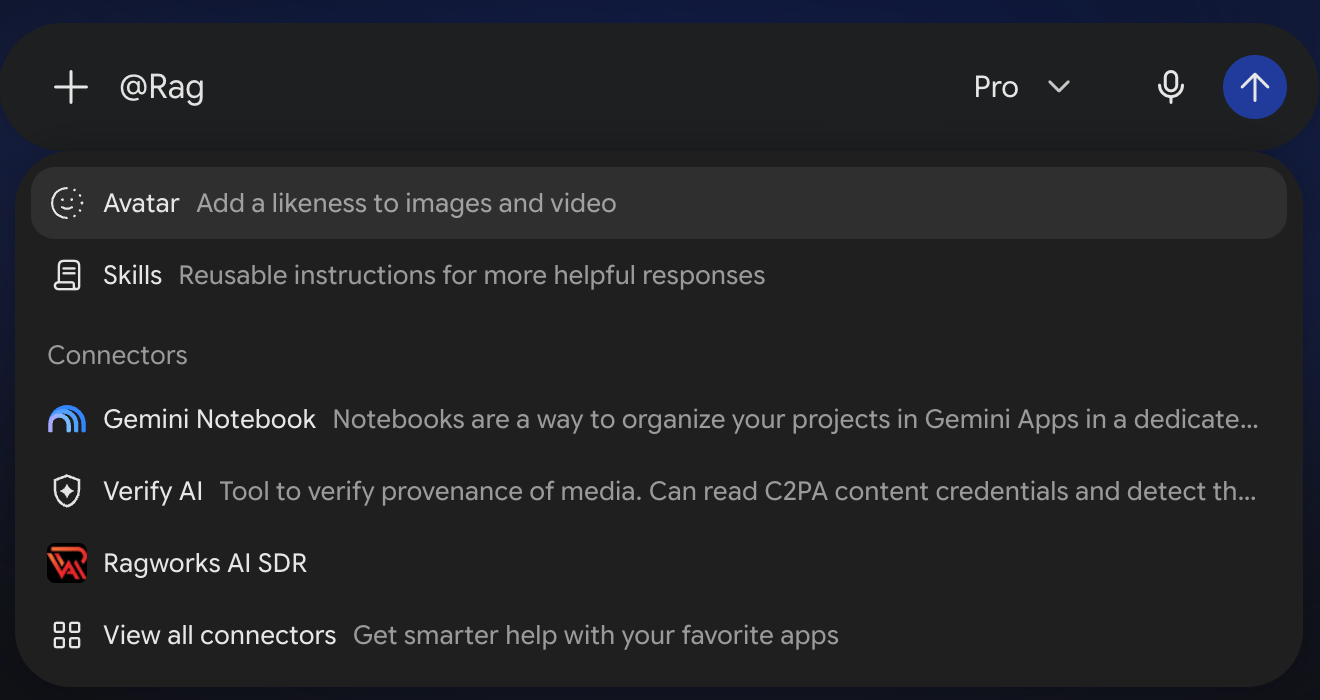
-
Ask for what you want, for example
@Ragworks AI SDR What's my credit balance?Sample questions has more ideas.
Naming the app with @ is how you make sure Gemini uses it for that prompt. You can also click Use now in the app's three-dot menu, which starts a new chat with the app already named.
Approval
Google says Gemini asks you to confirm any action that changes something before it runs. The app's page has no setting for choosing which tools need approval, as Claude and ChatGPT have, so read what Gemini proposes before you confirm. Take particular care with anything that launches or completes a campaign or an A/B test: four Ragworks tools reach real people or can't be undone (see Available tools).
Disconnect or remove
Open the app's three-dot menu on the Connected Apps page. Disconnect (also the blue button on the app's own page) stops Gemini from using Ragworks until you connect again, and keeps the app in your list. Delete removes the app.
Good to know
- You can only add a custom app in the Gemini web app. Once it is connected, you can use it in the mobile app too.
- Gemini warns that a custom app "hasn't been reviewed by Google". That is true of every app you add by its address.
- Google says that when you use a custom app, Gemini may share information from your chat and from other sources, such as Connected Apps, Personal Intelligence, skills and tasks, with it. Check your Gemini privacy settings if that matters to you. The Ragworks connector itself stores no conversation data.
- Everything the app returns becomes part of your Gemini conversation, so it is handled under Google's terms and your Gemini settings.
Gemini CLI
Gemini CLI runs on your computer, which is what lets it start a Ragworks sign-in. It needs a browser on the same computer, so it can't sign in from a server or a container that has none.
Google offers Gemini CLI with a paid Gemini API key or an enterprise licence, and has moved individual Gemini plans to the Antigravity CLI. Check Google's guidance for your plan. If Gemini CLI isn't available to you, use Claude.
Add the connector and sign in
-
Add the connector for every project you work in:
gemini mcp add --transport http --scope user ragworks https://ai-sdr-mcp.ragworks.ai/mcpWithout
--scope userit is added to the current project only. You can also add it yourself in~/.gemini/settings.json:{"mcpServers": {"ragworks": {"httpUrl": "https://ai-sdr-mcp.ragworks.ai/mcp"}}} -
Start
geminiand run:/mcp auth ragworksYour browser opens a Ragworks page called Application Access Request. Credentials will be sent to must start with
http://localhostorhttp://127.0.0.1, which is your own computer. If it is anything else, click Deny. Otherwise click Allow Access, then log in with your Ragworks email and password. -
Run
/mcpto see the connector and its tools. Then ask, for example, "What's my Ragworks credit balance?"
Things to know
- Gemini CLI shows Ragworks tools with the prefix
mcp_ragworks_, for examplemcp_ragworks_get_credit_balance. - Gemini CLI asks before it runs a tool. Don't set
"trust": truefor this connector: it skips every confirmation, including the ones before outreach is launched. - To sign in again after your connection expires, run
/mcp auth ragworksagain. Gemini CLI keeps your sign-in in~/.gemini/mcp-oauth-tokens.json, so treat that file like a password. - To remove the connector, run
gemini mcp remove ragworks.
Gemini Enterprise and Antigravity
These can't connect to Ragworks today. They start their sign-in from Google's own web addresses, and Ragworks accepts only sign-ins that start from Claude, from ChatGPT, from the Gemini app or from a tool running on your own computer. Use one of those for now.