Search profile
Tell AI Search what you sell once, and every search starts from that. The Search profile is a short description of your business and your buyer. AI Search reads it each time you select AI Search, so you don't have to repeat "founders, not agencies, 11–50 people" every time.

The profile works with LinkedIn and the Ragworks Database. Instagram has no profile: it takes a typed request, as in Instagram AI Lead Search.
AI Search needs a profile to plan from, so step 1 comes first and the other steps wait for it. Searching filters you set by hand needs no profile.
Step 1: What you sell
Step 1 of AI Search is the profile. It shows the profile's name and where it came from: From your site, Playbook or Described.
- Choose Change to start again from your website, a playbook or a short description.
- Choose Edit to review or change the profile you have.
- Each playbook can have its own profile. The default profile, Your business, is shared by your whole organisation.
- The profile you saved last is the one AI Search uses, until you change it.
A change you save is used by the next AI Search. If the column still holds filters from an earlier search, they were built from the old profile, so they are cleared and the next search starts from the new one. Filters you typed yourself, and a reopened saved search, are left alone.
When the profile has no buyer titles and no industries, step 1 says so: AI Search can then only search by company size and region. Choose Edit to add them.
On the earlier AI Search layout, the profile appears as the Selling chip under the search box instead: open it to pick another profile, choose Edit to review it, and Skip for now runs a search without one. It is the same profile.
Creating a profile
Choose one of three ways to start. The first time, step 1 shows them inline; later, Change opens them as What are you selling? Ragworks reads what you give it and drafts a profile. Nothing is saved until you review it and choose Save profile.
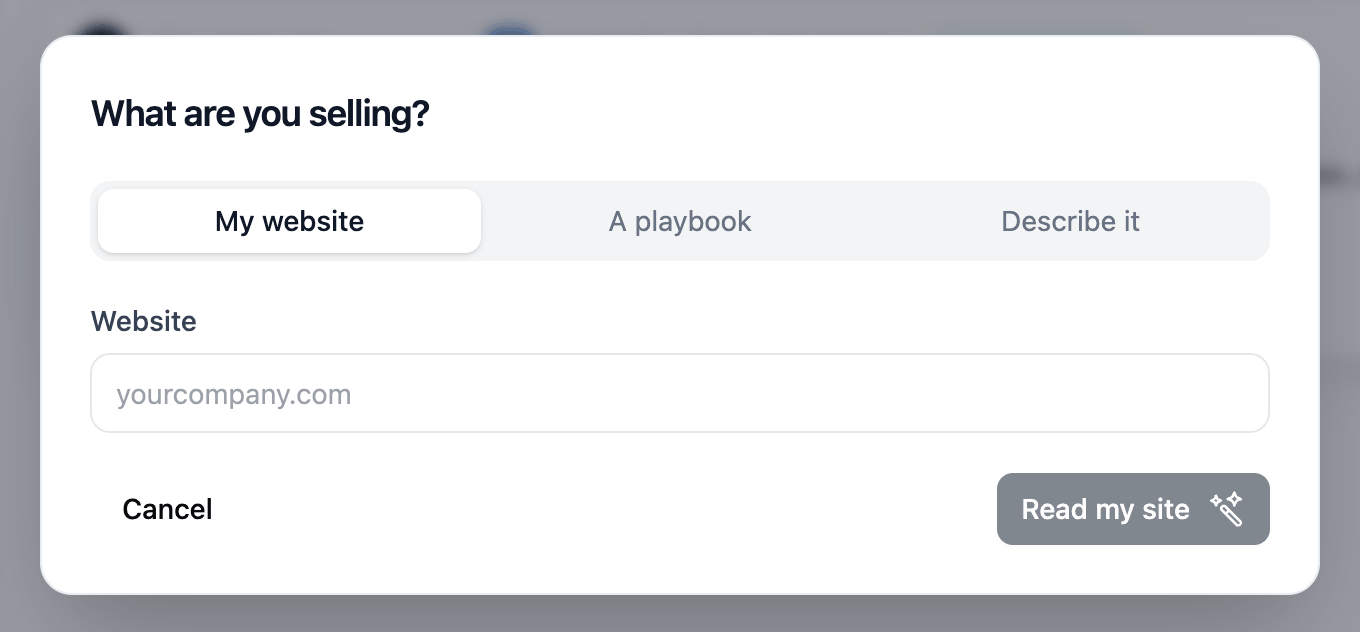
| Way | What it reads |
|---|---|
| My website | The homepage text of the site you enter (Read my site) |
| A playbook | The playbook's name, description, value proposition, target personas, positioning and eligibility rules (Read playbook) |
| Describe it | A few sentences you type (Read it) |
Reading a profile uses AI and is charged to your credits like any other AI call. Each organisation can read 20 profiles a day.
Ragworks only fills in what it can support from the source. It never invents customers or competitors: the never-include company lists start empty, and you add the names.
Reviewing the profile
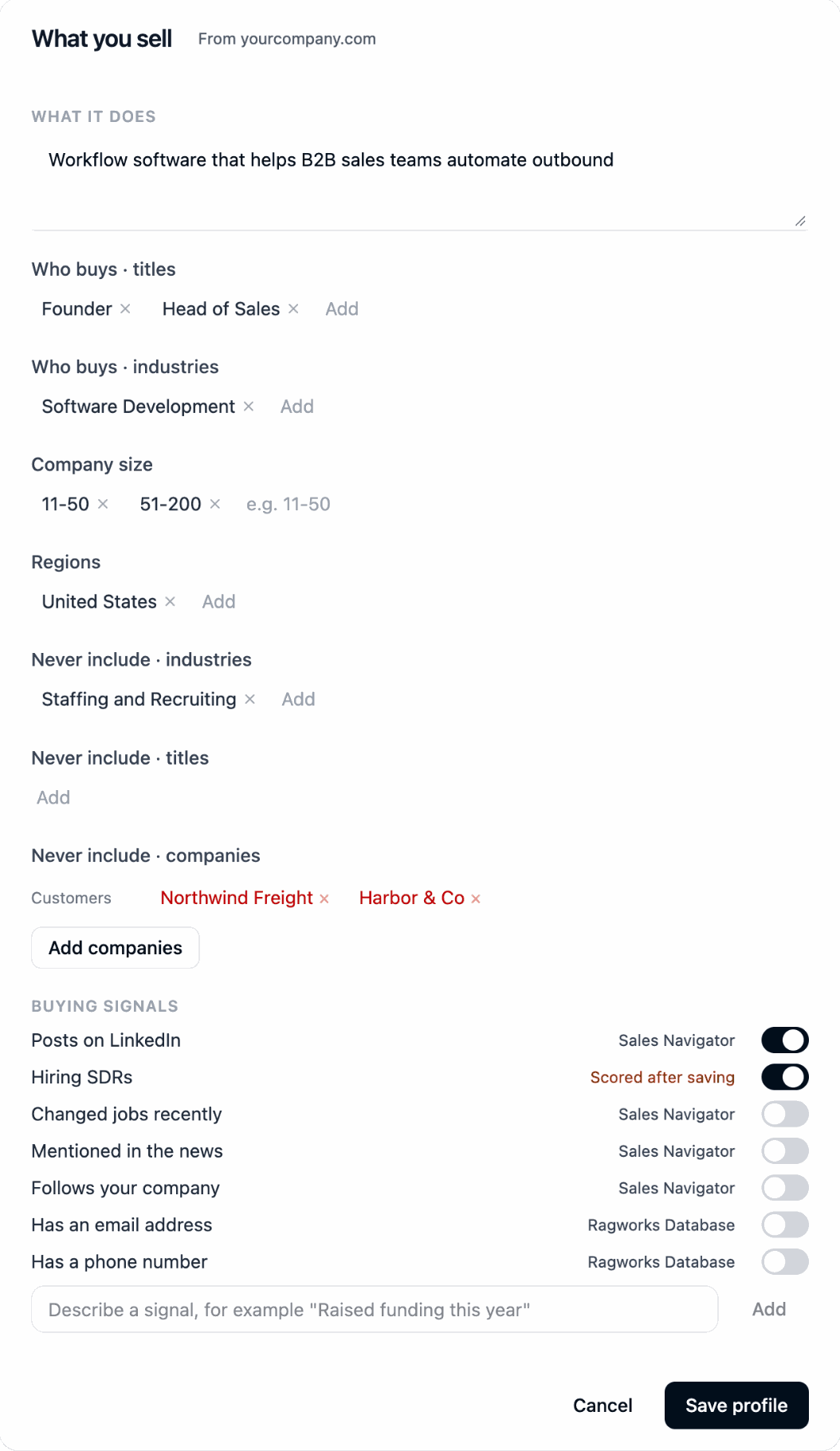
The review shows everything that will shape your searches. Edit any of it before you save.
| Section | What it does |
|---|---|
| What it does | One or two sentences about your offer. AI Search uses it to choose which titles and industries fit. |
| Who buys · titles and industries | The job titles and industries you sell to |
| Company size | The bands you sell to, for example 11-50 |
| Regions | Where your buyers are |
| Never include | Industries and titles to exclude from every search, and companies to exclude by name: your customers and your competitors |
| Buying signals | The yes/no signals a search can use. See below. |
Never-include companies
Add your customers and competitors so you never prospect them. The names are sent to the search as excludes where the search type supports them. The whole list is also applied by company name after the search, so a name over the limit, or one the provider can't match, is still removed. Classic and Ragworks Database have no excludes, so this is how they honour the list. A note under the filters tells you when a list is applied.
Buying signals
Each signal is a switch. The tag beside it says where it is used:
- Sales Navigator or Ragworks Database: the signal becomes a real filter on that search type. For example Posts on LinkedIn turns on the Posted on LinkedIn filter.
- Scored after saving: no search type can filter it (for example Hiring SDRs), so it is checked against each lead when you save the list. See Not filterable.
You can add your own with Describe a signal, for example "Raised funding this year".
Signals read from your website or playbook start off. Every signal that is on narrows every search it joins, so on a broad search four of them at once can return nothing. Switch on the ones you want. Signals you type yourself start on.
What AI Search adds on its own
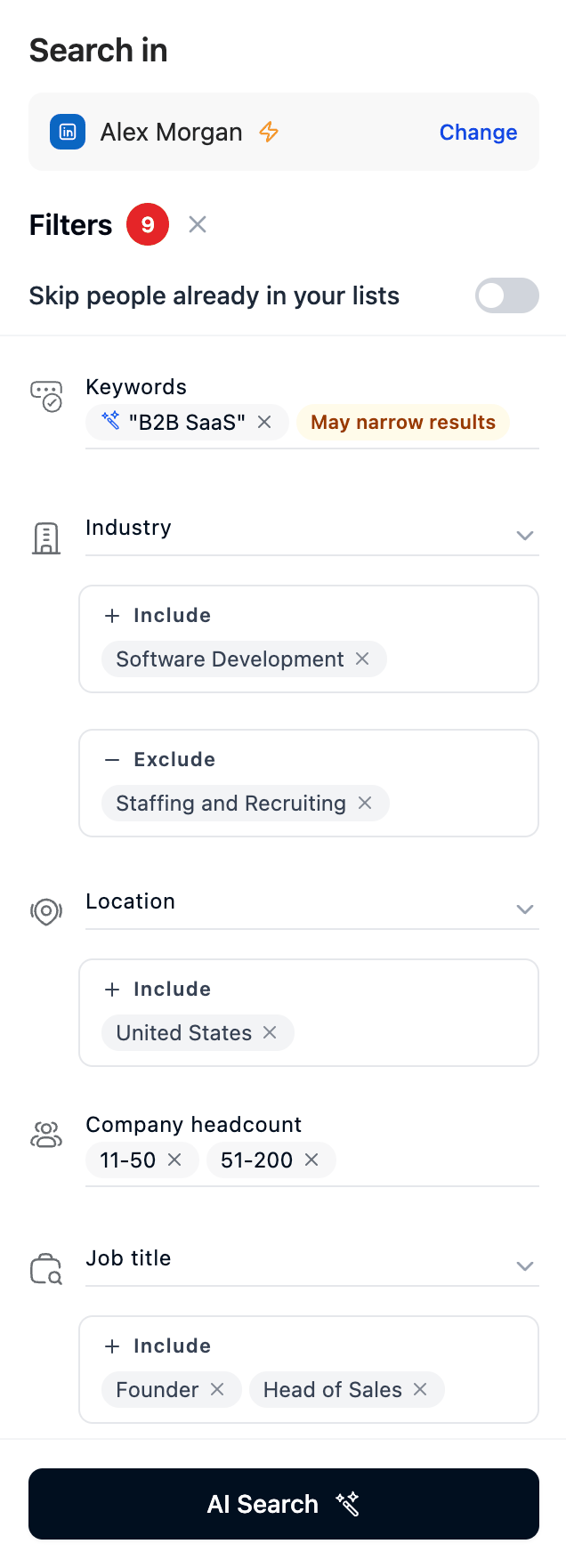
When you select AI Search, it builds the filters from your profile. A small blue sparkle marks what came from your profile or what AI Search read between the lines, such as a keyword or a signal it switched on.
Why a filter is there
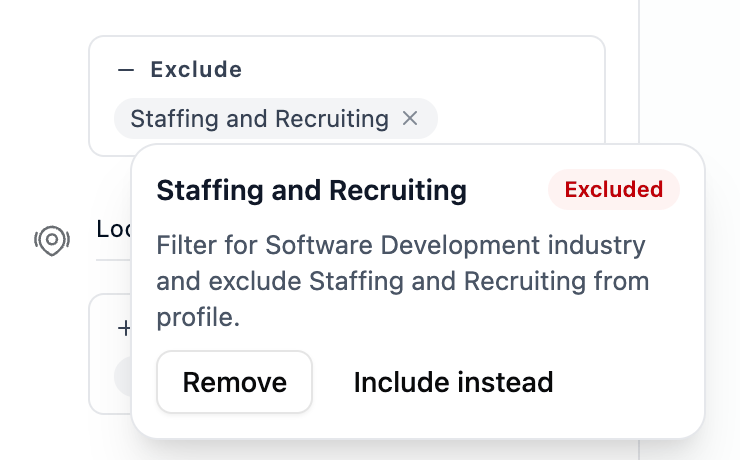
Select a chip to see why it is there. The popover gives a short reason and, when there is none to give, says where the value came from: From your profile, From your search or Read from your search. It has Remove, and an excluded value also carries an Excluded tag and Include instead.
Removing a filter
Select the chip and choose Remove, or use the × on the chip. Search again to see the new results.
Keywords
Keywords are used only for what no filter can express, and every keyword can only shrink the results. Each one carries May narrow results. See what each search type can filter for the syntax.
Not filterable and Score for this
Some things can't be turned into a filter on the search type you are using. Rather than drop them silently, AI Search lists them under Not filterable, in the filter column just under Search in.
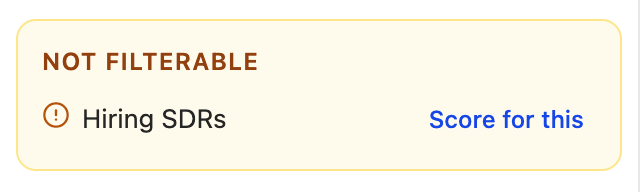
Common examples are "hiring SDRs", "uses a competitor's tool", and an exclude on a search type that has no excludes. See what each search type can filter for what each one supports.
Choose Score for this beside an item to use it as a scoring criterion. When you save the list, Ragworks scores every lead on it, so you can see which leads match. The button changes to Scoring on this; choose it again to turn it off.
- Scoring happens when you save, not in the preview.
- It is not added to a list that already qualifies its leads.
Too few or too many results
A search that returns very little, or far too much, is rarely what you want. On LinkedIn searches, AI Search says so and suggests what to change. Ragworks Database doesn't show these suggestions.
Too few
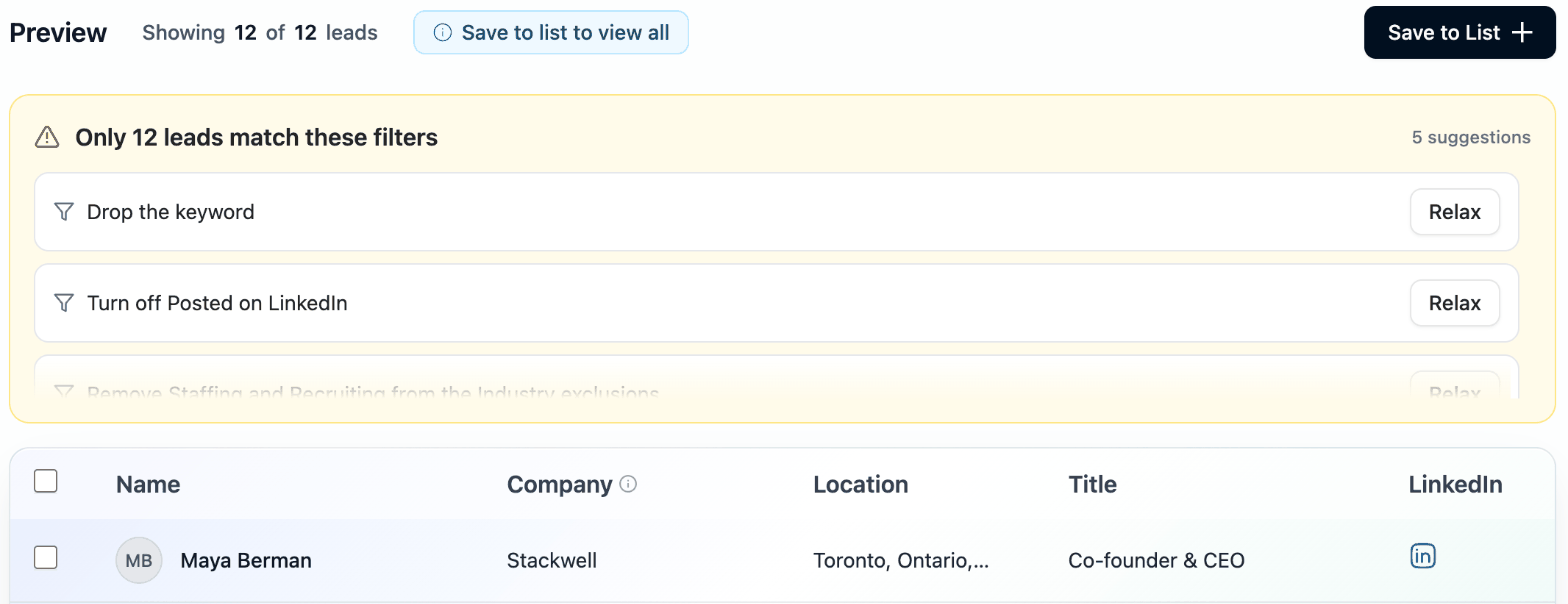
Under about 50 leads, a banner says Only 12 leads match these filters and lists filters to loosen, keywords first. Each has a Relax button, for example Drop the keyword or Turn off Posted on LinkedIn.
Too many
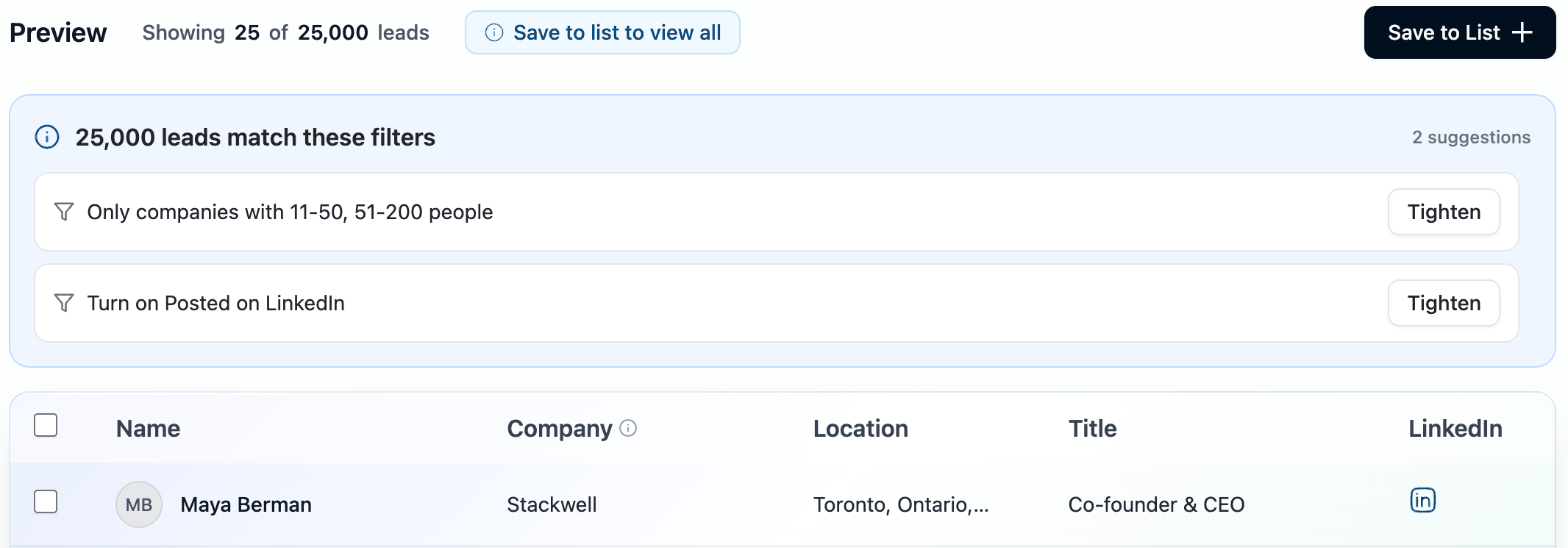
When a search matches 10,000 or more leads, the banner says so, for example 25,000 leads match these filters, and offers filters to Tighten, for example Only companies with 11-50, 51-200 people or Turn on Posted on LinkedIn.
Both banners work the same way:
- One click changes the filter and runs one search. Choose Undo to go back.
- Every click is a search, so it counts against your LinkedIn account's daily search limit. Nothing runs automatically.
- Suggestions come from rules, not from a new AI call, so they cost no credits.