Profile Visitors
Profile Visitors turns your connected LinkedIn account into a passive lead source: instead of searching for prospects, Ragworks watches who views your profile and automatically sorts, scores, and saves the ones worth following up with.
A profile view is a real intent signal, someone looked you up, on purpose, but not every viewer is a lead. Profile Visitors is built to separate the buyer who checked your pricing page from the recruiter who glanced at a headline, without you reviewing every viewer by hand.
A connected LinkedIn datasource is required before setting up Profile Visitors. See LinkedIn Datasource.
Overview
Profile Visitors enables you to:
- Automatically collect who viewed your LinkedIn profile, once a day
- Sort visitors into multiple named lists using your own rules
- Score visitors against an ideal customer profile before they're saved
- See scoring performance at a glance, with a set of at-a-glance charts
- Keep rejected visitors visible, with the reason they were turned away
- Optionally enrich accepted visitors with a work email and phone number
- Route accepted visitors straight into a connected campaign
How It Works
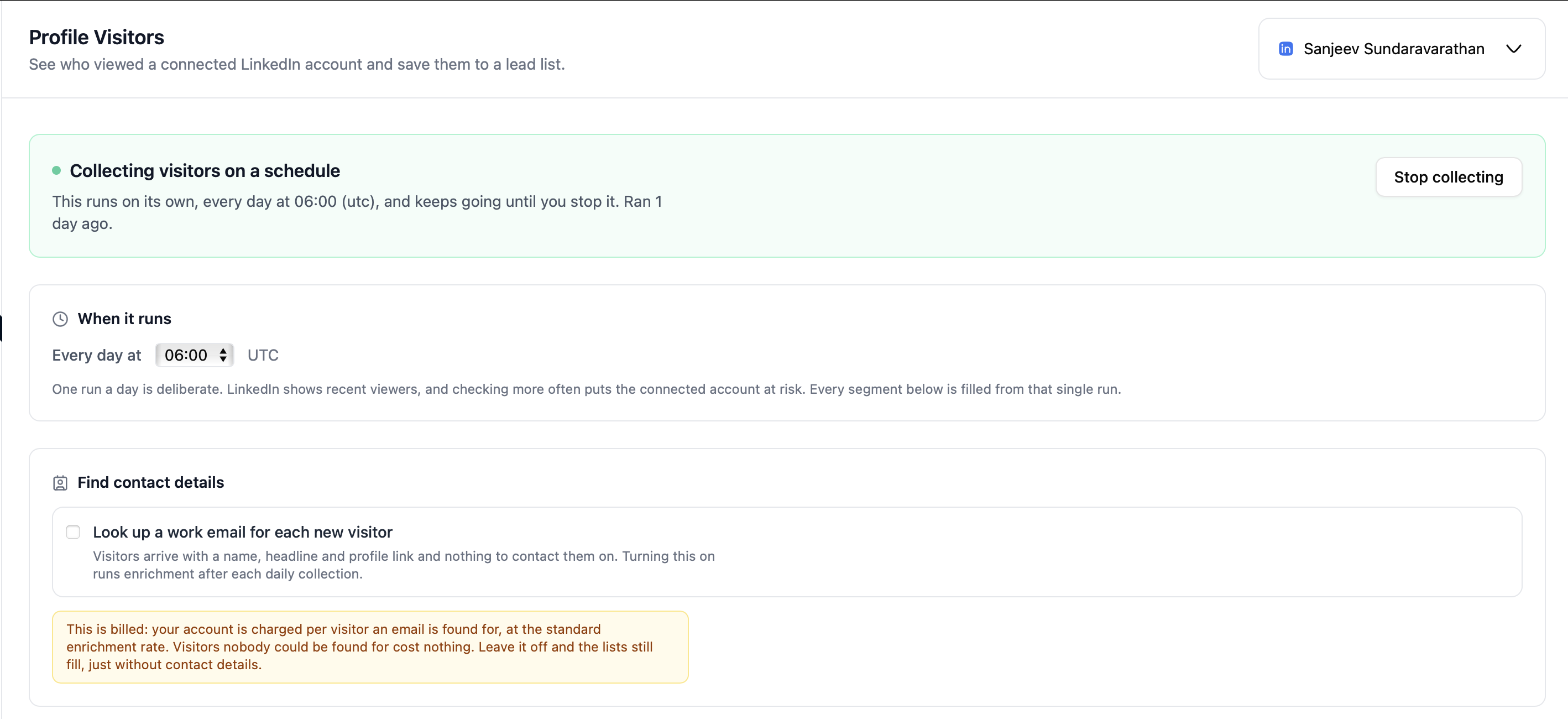
Once turned on, Profile Visitors runs as a recurring daily job for the connected account:
- Once a day, Ragworks checks who has viewed the connected profile since the last run.
- Each visitor is matched against the lists you've configured, using cheap rule filters (how recently they viewed, connection degree, headline keywords).
- If an ideal customer profile is set for the matching list, the visitor is scored against it; only visitors clearing the minimum score stay in the list.
- Accepted visitors are saved. If contact enrichment is on, they're queued for a work email (and optionally a phone number) lookup.
- If the list is connected to a campaign, newly accepted visitors are synced into it automatically.
One run a day is deliberate. LinkedIn only shows recent viewers, and checking more frequently puts the connected account at risk of LinkedIn's own anti-automation limits. Every list is filled from that single daily run.
Turning It On
Profile Visitors has its own page, alongside AI Search and Saved List:
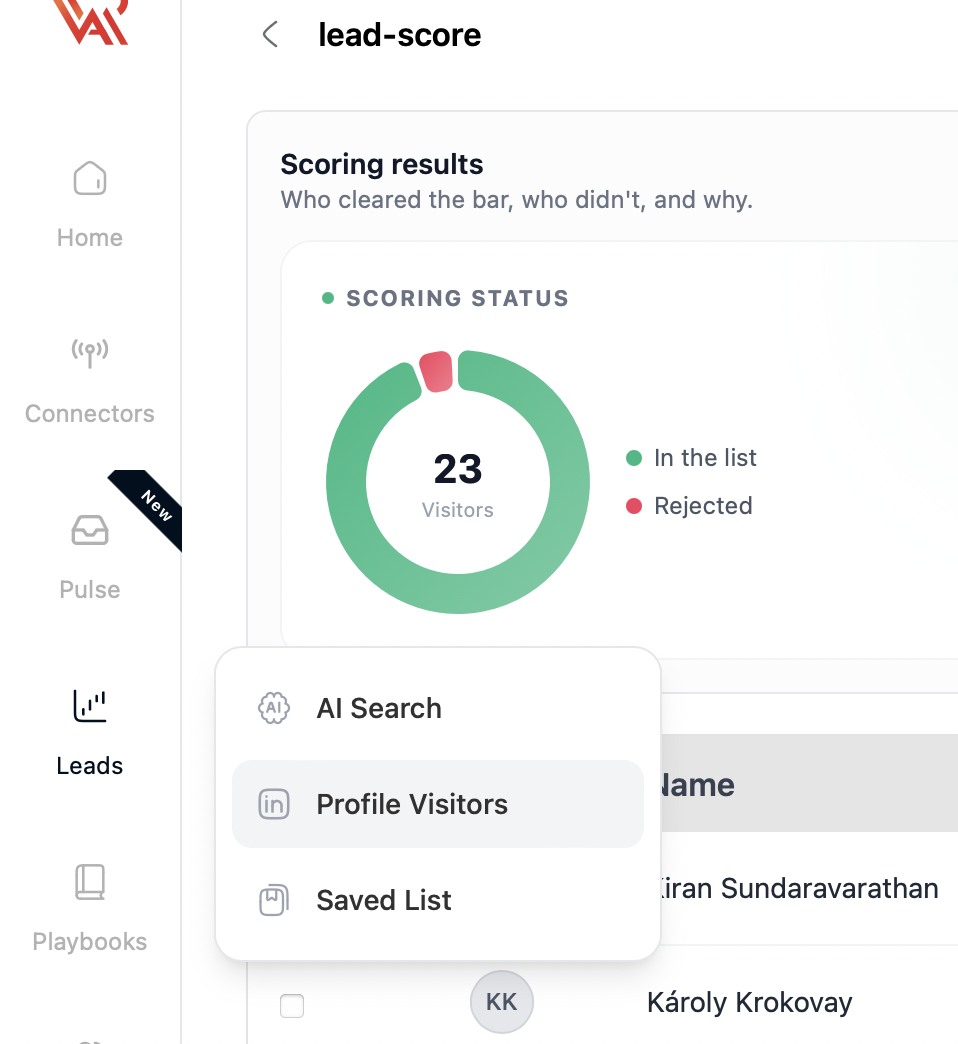
From Leads → Profile Visitors, pick the connected LinkedIn account from the picker at the top of the page (if you have more than one), set the time it runs each day (in your account's timezone), and start collecting.
Collection can be stopped at any time. Visitors already saved stay in their lists; stopping only pauses future collection.
Lists and Segments
A LinkedIn account can feed one list, or be split into several. Each list you add is a segment: a name, its own routing rules, and its own scoring bar. Every visitor from the daily run is checked against every segment; a visitor matching more than one goes to the segment it scores highest against, so a rule like "developers into one list, CXOs into another" splits a single visitor stream automatically.
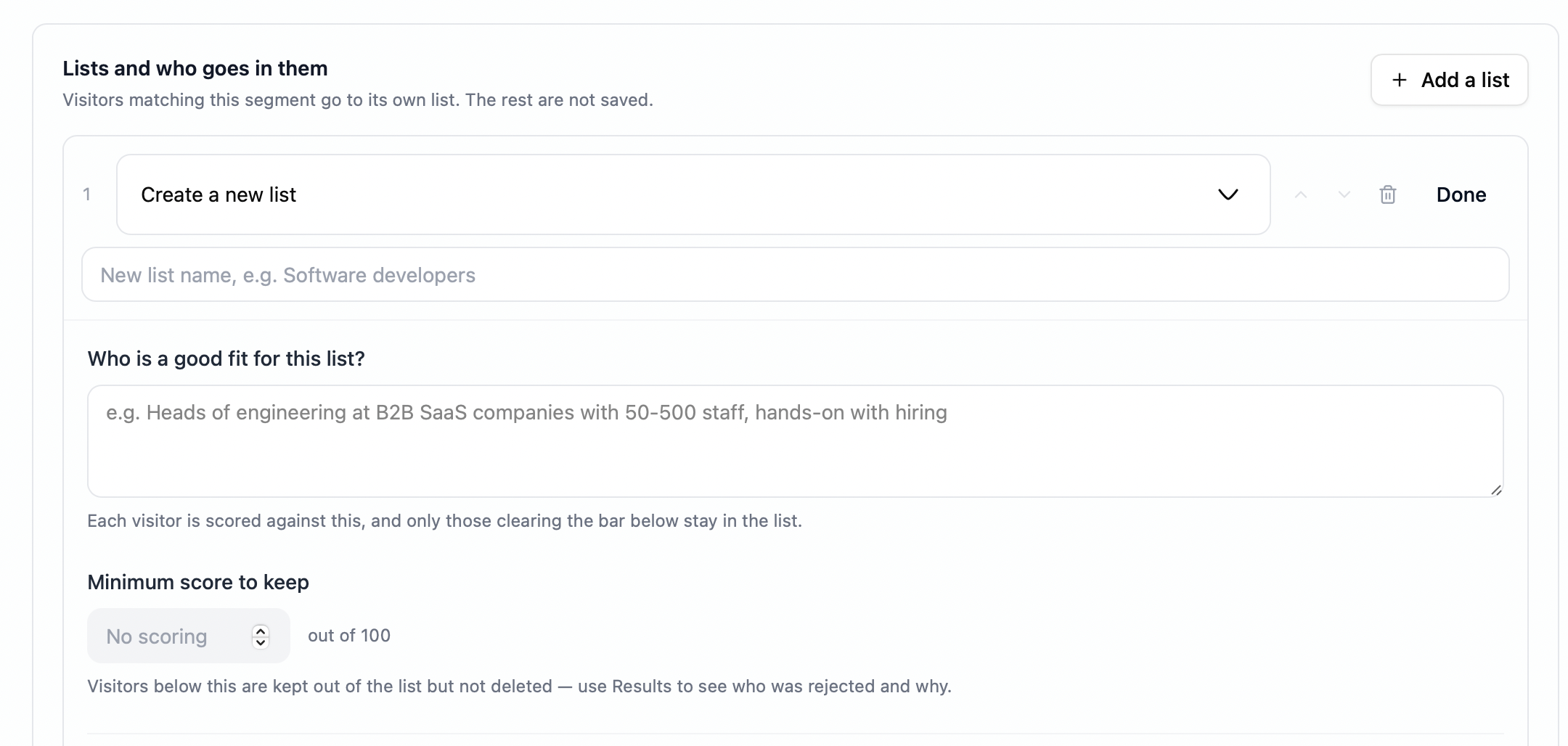
For each list, you can either:
- Create a new list — give it a name, and Ragworks creates a dedicated list for it.
- Use an existing list — point the segment at a lead list you already have, including one built from AI Search or a CSV import. Visitors this segment accepts are added alongside whatever is already there; nothing already in the list is affected.
Which Visitors Reach a List
Before scoring runs, cheap filters decide whether a visitor is even a candidate for a given list:
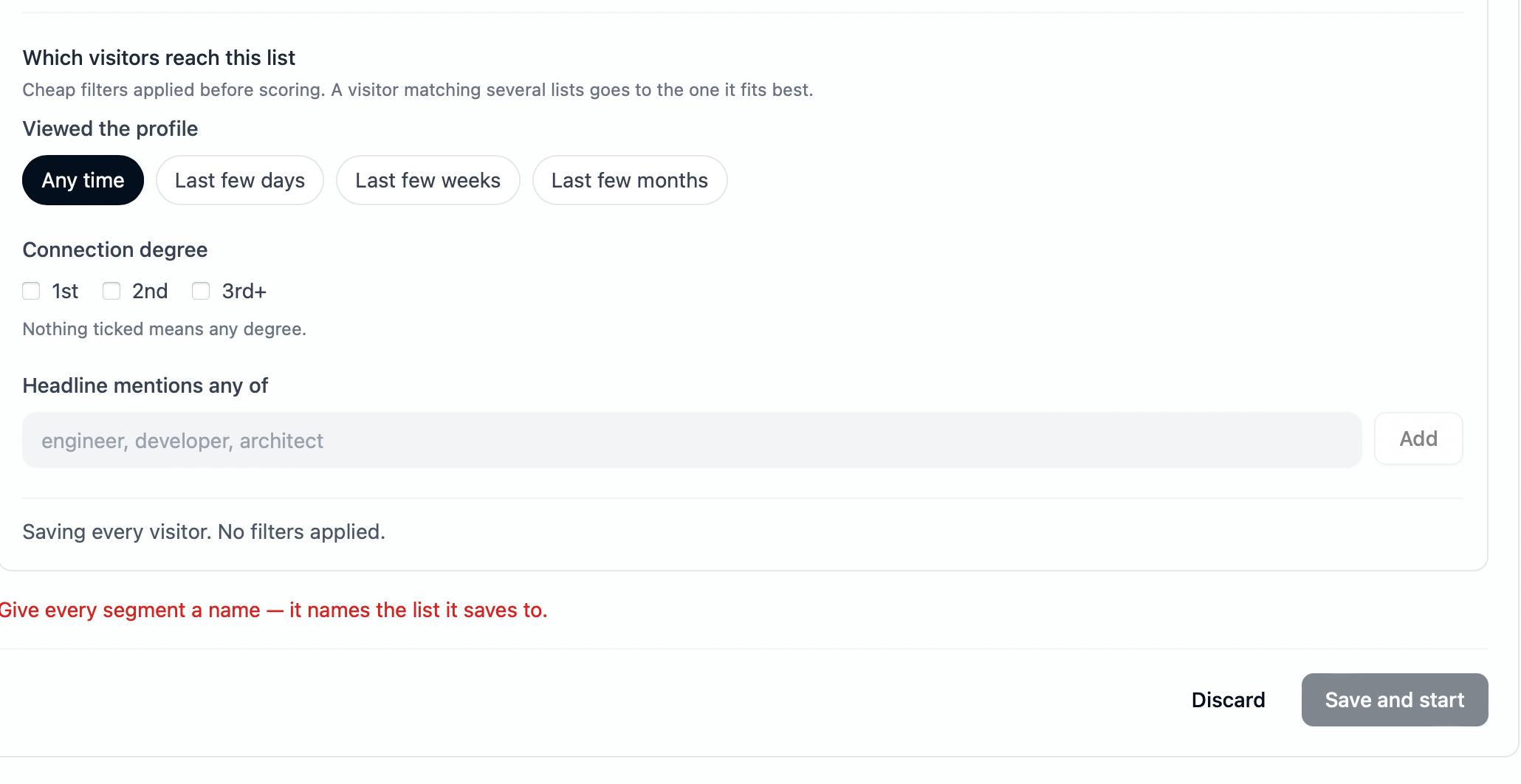
- Viewed the profile — any time, or only within the last few days, weeks, or months.
- Connection degree — 1st, 2nd, and/or 3rd+. Leave everything unticked to allow any degree.
- Headline mentions any of — a list of keywords; a visitor whose headline contains at least one is a match.
Leaving every filter at its default saves every visitor with no filtering, which is a valid setup when you just want one list per account with no splitting.
Scoring Against an Ideal Customer Profile
A list can optionally score every visitor who reaches it against an ideal customer description, the same scoring engine used by Lead Scoring on campaigns.
Describe who's a good fit in plain language, then set a minimum score to keep (0–100). Only visitors at or above that score stay in the list.
Visitors below the bar are not deleted. They're kept out of the list, and their score along with the model's reasoning is available from Scoring results.
Visitor Insights
Every list a segment writes into shows a Visitor Insights panel, on the list itself and inline while you're setting a segment up. Three charts are visible by default:
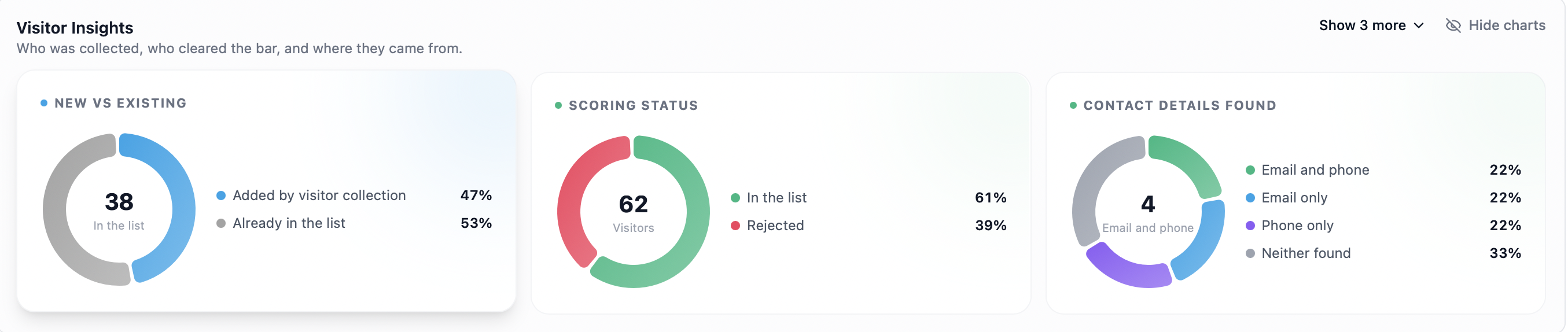
- New vs existing — of everyone currently in the list, how many the visitor pipeline itself added versus how many were already there (relevant for a segment pointed at an existing list).
- Scoring status — accepted, rejected, and not-yet-scored, as a share of everything collected.
- Contact details found — of visitors the pipeline added, how many have an email, a phone number, both, or neither, if contact enrichment is on.
Show 3 more expands the same panel to three further charts:
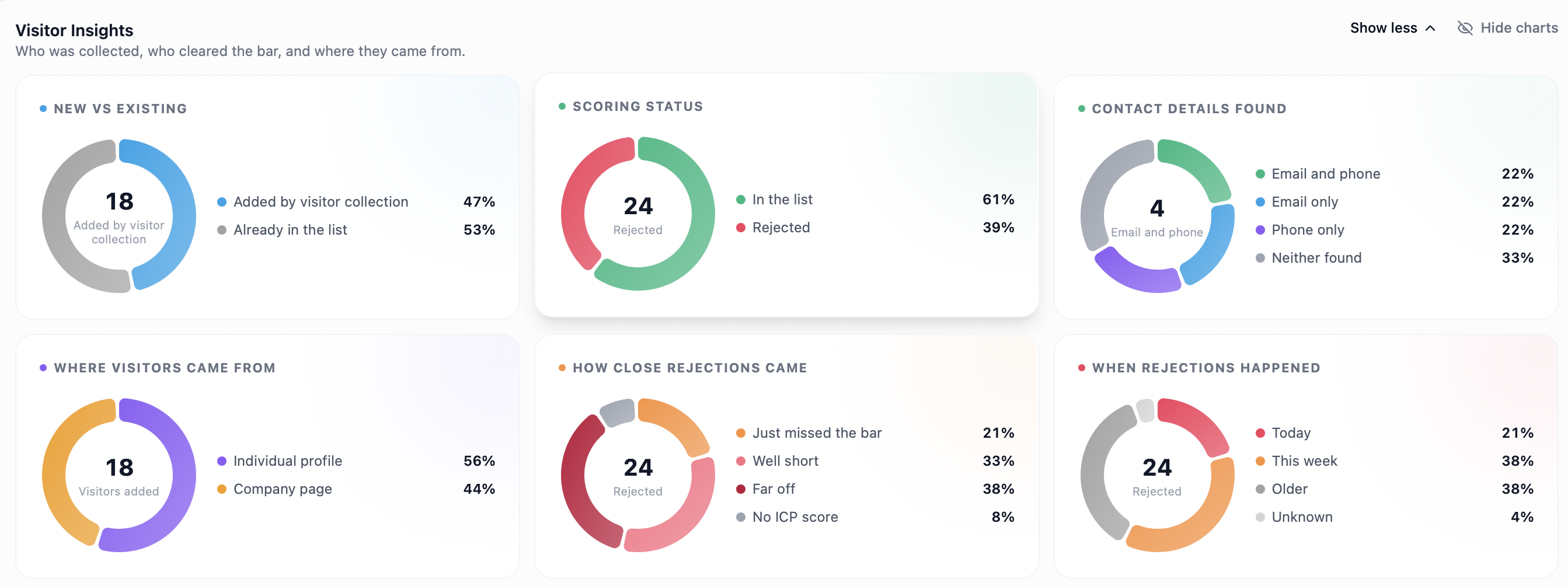
- Where visitors came from — individual profile views versus visits to a connected company page.
- How close rejections came — whether rejected visitors mostly just missed the bar, or came in far below it, so you can tell a bar set too high from a source that's simply the wrong fit.
- When rejections happened — today, this week, or older, so you can tell an ongoing trickle of rejections from a one-time batch (e.g. right after tightening a bar).
Hide charts collapses the whole panel away if you just want the list itself; Show charts brings it back.
On accounts where saved lists have tabs, Visitor Insights is its own tab and shows all six charts at once. See Visitor Insights tab.
Rejected Leads
The names behind the "Rejected" count are one click away: open Actions → Rejected leads on the list. It opens as a two-pane view — the list on the left, name and score only, and the detail behind whichever lead is selected on the right: their headline and company, the score against the bar they needed to clear, and the model's reasoning. Clicking a different lead just updates the right-hand pane, no back-and-forth between screens. A long list loads in batches as you scroll, so opening a list with a large number of rejections stays fast.
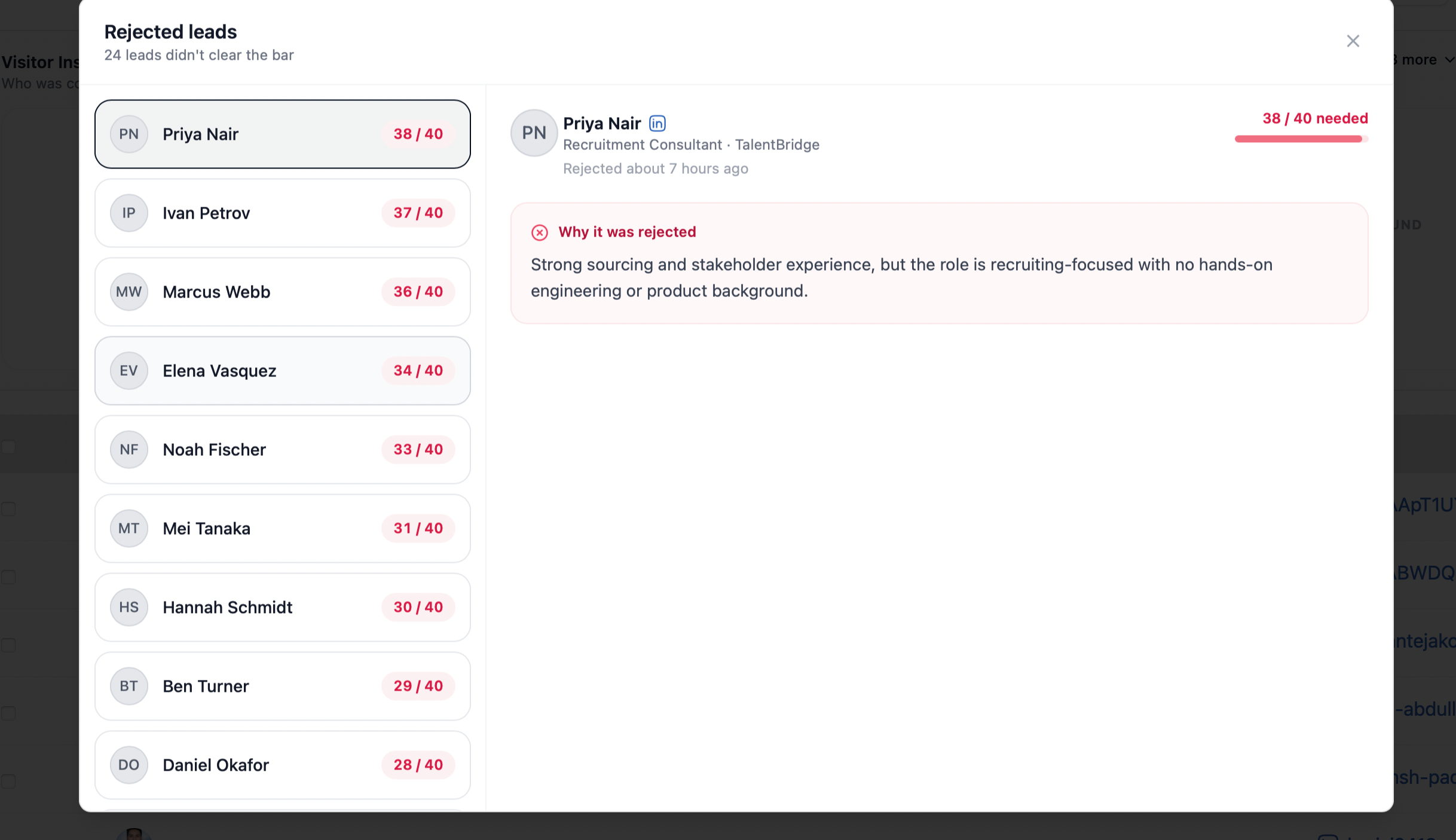
This is how you tell whether the bar is set too high or the source itself is thin, rather than treating scoring as a black box.
On accounts where saved lists have tabs, the rejected visitors are on the list's Qualification tab instead, with the same filters and Qualify anyway. See Rejected leads and Qualify anyway.
Leaving both the ideal customer description and the minimum score empty means every visitor who passes the routing filters is saved with no scoring bar.
Contact Enrichment
Visitors arrive with only a name, headline, and LinkedIn profile link, nothing to contact them on directly. Profile Visitors can look up contact details automatically after each daily collection.
This is off by default and opt-in per schedule:
- Work email — billed at the standard enrichment rate, only for visitors an email is actually found for.
- Phone number — an additional tier on top of email lookup, billed at a higher rate since it charges whenever either a phone or an email is found.
Leaving enrichment off still fills your lists on schedule, just without contact details, so turning it on later doesn't require redoing anything.
Campaign Integration
A list, whether newly created or an existing one you pointed a segment at, can be connected to a campaign the same way any other lead list can. Once connected, every subsequent daily run automatically syncs newly accepted visitors into that campaign; you don't need to re-trigger a sync after each run.
A visitor that a list's scoring bar rejects is never synced to the campaign; only accepted visitors are.
Best Practices
- Start with one broad list before splitting into segments, so you can see the raw signal before layering rules on top of it.
- Keep the ideal customer description specific; a vague description scores everyone about the same and defeats the purpose of a bar.
- Check Scoring results after the first few runs to confirm the bar is doing what you expect before turning on enrichment.
- Only enable phone enrichment once email enrichment is already giving you the coverage you need, it's the more expensive tier.
- Route a segment at an existing, already-connected-to-a-campaign list when you want visitor leads to reinforce a campaign you're already running, instead of standing up a parallel one.