Cleaning up a list
After enrichment, some leads in a saved list may still have no email, phone number or LinkedIn profile. If your campaign only sends emails, those leads can't be reached. On a saved list's Leads tab you can find every lead that is missing a contact detail, select all of them, and delete or export them in one go.
Nothing is removed automatically. A list that feeds a LinkedIn campaign and an email campaign can keep every lead; you decide, list by list.
Filter by missing contact details
Open Filter and choose Contact details:
- Missing email
- Missing phone number
- Missing LinkedIn
- Missing Instagram, on lists of Instagram leads
Each option shows how many leads in the list are missing it.
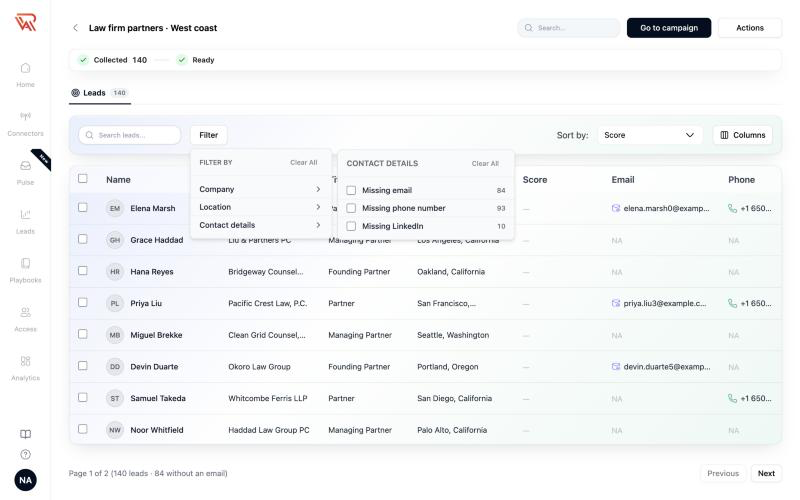
Tick two options to see the leads missing both, for example no email and no phone number.
A lead counts as missing an email when a campaign could not email it: no address, a placeholder such as "enriching…", or an address that isn't valid. It is the same rule a campaign uses, so the count in the pager ("84 without an email") and the filter always agree.
Filters you apply show as chips above the table. Click × on a chip to remove it, or Clear all. Filter shows how many filters are on.
Select every match
Tick the box in the table header to select the leads on this page. If more leads match than fit on one page, the bar above the table offers Select all N leads missing an email (or "matching the filters" when you combined filters). Click it to select every match, on every page.
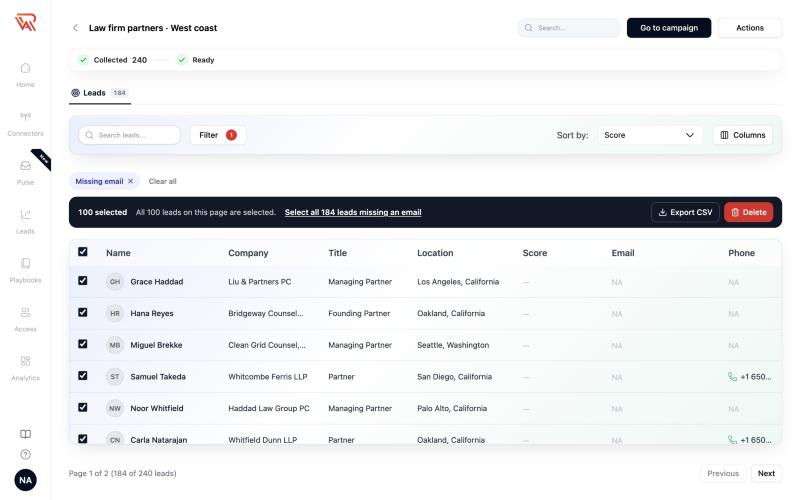
The selection stays while you page through the list. Changing a filter or the search clears it, so you never act on leads you can no longer see.
Delete the selection
Click Delete in the selection bar. The confirmation says how many leads will be deleted, from which list, with which filters, and how many stay in the list.
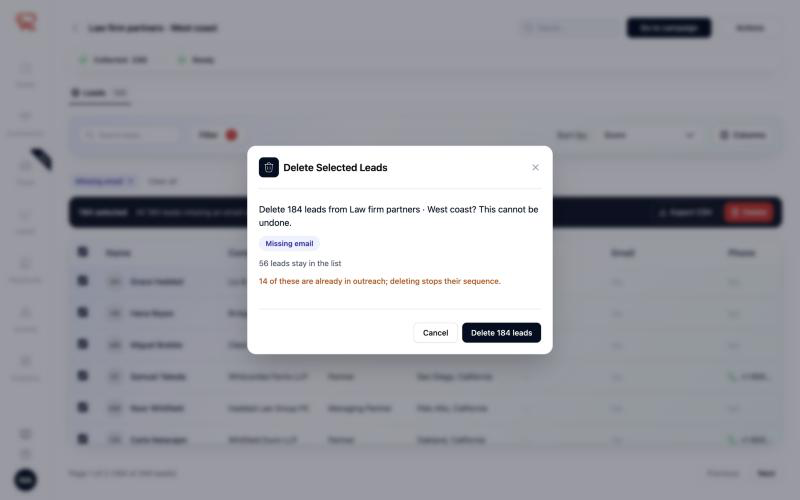
Deleting a lead here does exactly what deleting one lead does:
- The lead is removed from the list. This cannot be undone.
- If the list is used by a campaign, the same person is removed from the campaign too, and any sequence still running for them stops. The confirmation tells you how many of the selected leads are already in outreach.
- The list's lead count updates.
Large selections are deleted in batches of 1,000. Keep the page open until the toast confirms. If some leads can't be deleted, the toast says how many; they stay in the list, and you can run the delete again.
A deleted lead can be found again by a later AI Search or import.
Export the selection
Click Export CSV in the selection bar to download the selected leads, or every match. One export holds up to 5,000 leads; if more match, narrow the filter and export in parts.
To export the whole list, use Actions › Export leads with nothing selected.
Related
- Qualifying a list: the Leads tab, the progress strip and Columns.
- Lead sourcing budget: enrichment and what it costs.