Ragworks Database
Find leads without connecting a LinkedIn account. The Ragworks Database was called Advanced Sourcing before October 2026.
LinkedIn search needs a connected account, and the best of it needs a Sales Navigator seat. The Ragworks Database searches a separate business dataset instead, so you can build a list on your first day, before any account is connected.
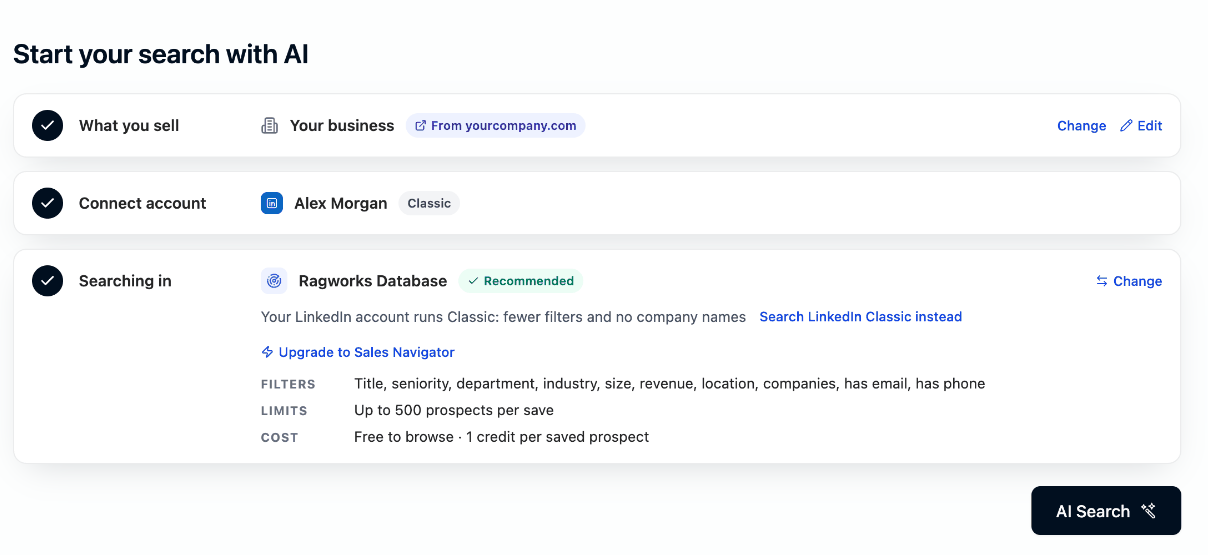
When AI Search uses it
AI Search chooses where to search from the account you connected. It picks the Ragworks Database when:
| Your account | Searching in |
|---|---|
| LinkedIn Classic, with no Sales Navigator seat | Ragworks Database |
| LinkedIn with an expired Sales Navigator seat | Ragworks Database, until you reconnect the seat |
| An Instagram account, or no account | Ragworks Database |
Step 3, Searching in, says why in one line. You can pick it yourself at any time: select Change in step 3, choose Ragworks Database, then Use this source. With a Sales Navigator seat, LinkedIn stays the recommendation and the database is the other choice.
Quickstart makes the same choice for the first list it builds, and its How we find them note says which one is about to run.
Run a search
- Open Leads and select AI Search.
- Check step 1, What you sell. AI Search fills the filters from your Search profile, so this is where you describe the buyer. The first time, you start from your website, a playbook or a few sentences.
- Step 2, Connect account, is optional here. Connect a LinkedIn account when you are ready; nothing waits for it.
- Step 3, Searching in, shows Ragworks Database with its filters, its limit and its cost.
- Select AI Search. The filters appear in the column on the left as chips you can edit, and the preview follows.
- Review the preview, adjust any filter, and select AI Search again to search the changed filters.
- Select Save to List when the audience looks right.
There is no search bar: your profile is the search. To look for something different, edit What you sell or change the filters by hand.
What it can filter
AI Search fills in what it can from your profile, and you can change any of it or add your own. A filter left empty is one AI Search could not infer from your profile: add it by hand rather than assuming it was understood.
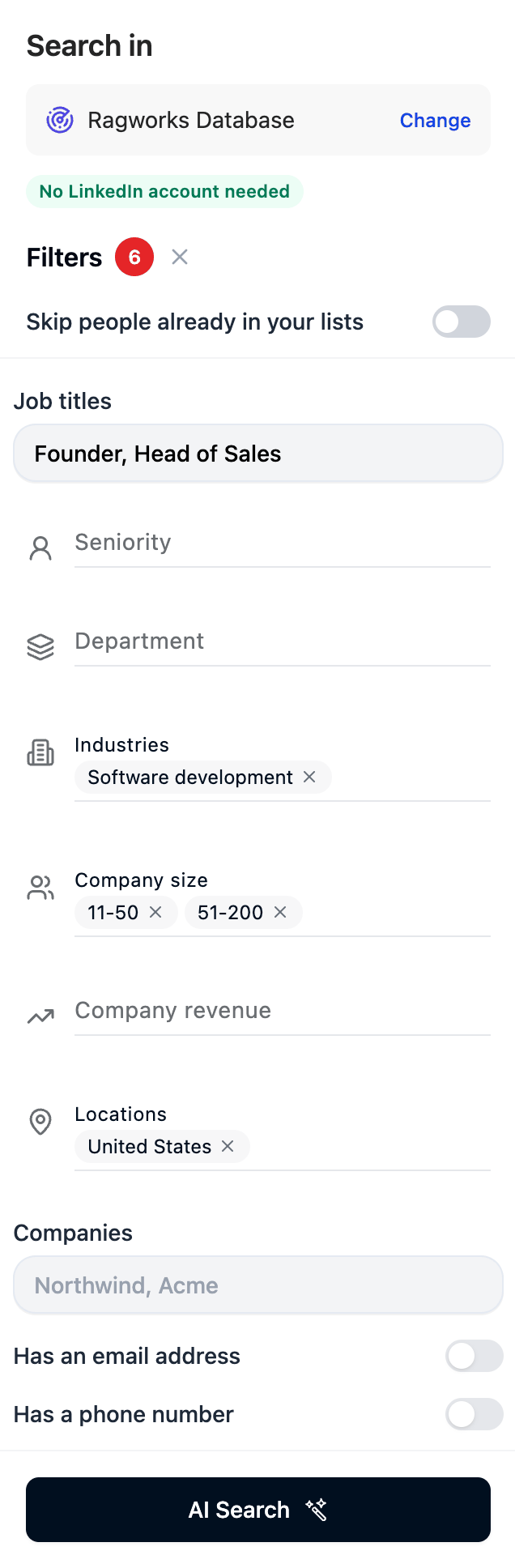
| Filter | How you set it | What it takes |
|---|---|---|
| Job titles | Type titles, separated by commas | Any title, for example Head of Operations, VP Supply Chain |
| Seniority | Pick from the list | owner, founder, c-suite, president, vice president, director, senior manager, manager, partner, board member, advisor, freelancer, senior non-managerial, non-managerial, junior |
| Department | Pick from the list | administration, c-suite, creative, customer success, data, design, education, engineering, finance, healthcare, human resources, IT, legal, logistics, manufacturing, marketing, operations, partnerships, procurement, product, public service, R&D, real estate, retail, sales, security, strategy, support, trade |
| Industries | Type, then pick a suggestion | The dataset's own industry names, matched exactly, so a made-up word such as "saas" finds nobody |
| Company size | Pick one or more bands | 1-10, 11-50, 51-200, 201-500, 501-1000, 1001-5000, 5001-10000, 10001+ |
| Company revenue | Pick one or more bands | 0-500K up to 10T+ |
| Locations | Type, then pick a suggestion | A country, a state code, or a city as City, CC |
| Companies | Type names, separated by commas | The companies to look in |
| Has an email address and Has a phone number | Switch on | Only prospects with that contact detail on record |
There are no excludes, keywords or LinkedIn activity signals on this search type. See what each search type can filter for the full comparison.
"Under 50 people" and "in Canada" in your profile become real filters. "Fast-growing" and "innovative" do not: there is no field for them, so they narrow nothing. AI Search lists what it could not filter under Not filterable, where Score for this turns it into a scoring criterion when you save. See Search profile.
Values AI Search could not settle
When a value AI Search chose is not in the dataset's list, for example an industry written the way people say it rather than the way the dataset names it, the chip is amber. The search waits: select the chip to Edit the words and look again, or Remove it, and then search. See Values AI Search could not settle.
The preview
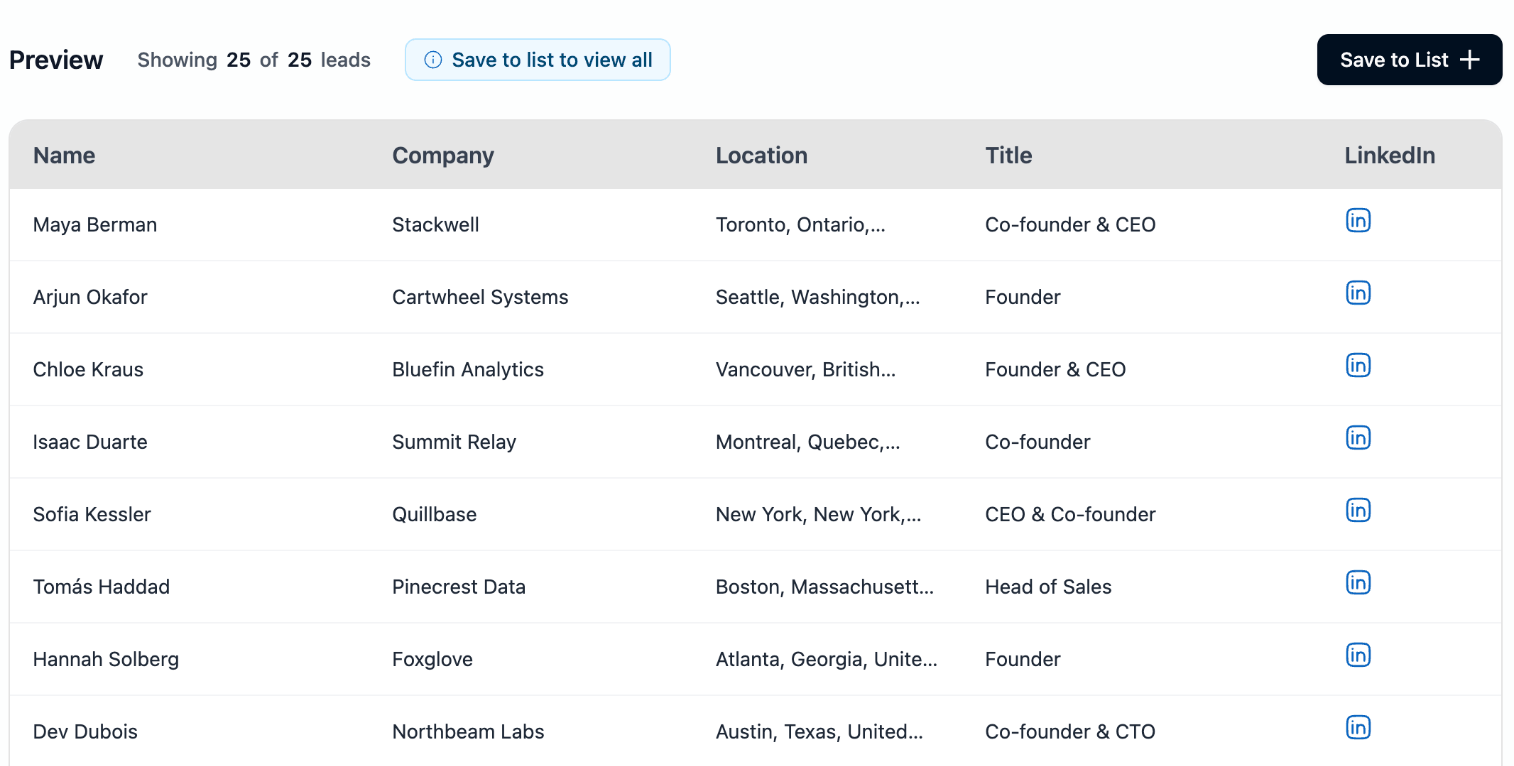
The preview lists up to 25 prospects, so you can check the audience before any credit is spent. It shows name, company, location, title and LinkedIn. Email and phone are not in the preview: they are looked up when you save.
What it costs
Reading your profile and previewing results is free. You are charged 1 credit for each unique prospect you save.
- Duplicates are stored but not charged for: a prospect already in your organisation costs nothing the second time
- Step 3 shows the limit for one save: up to 500 prospects
- The save panel shows the credits for this save and what you have left before you confirm. The largest count it allows is the smallest of that limit, the number of prospects the search found and what your lead sourcing budget still covers
- In quickstart, the lead slider is the cap: set it to 50 and you are charged for at most 50
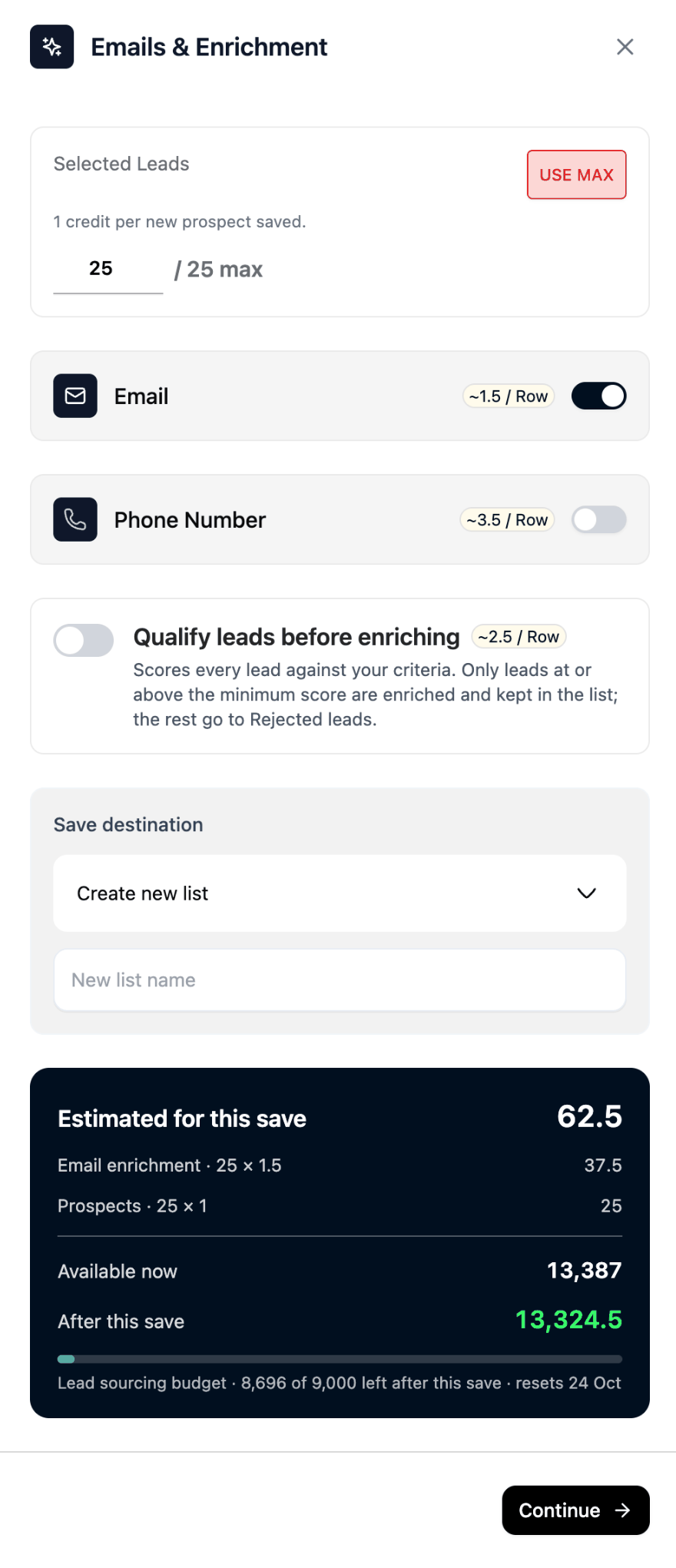
Email and phone are looked up when you save. Email is on by default and Phone Number is off; each switch shows its rate per row, and you are charged for what is found. The estimate lists each part: the prospects at 1 credit each, and email and phone at their rate per row when they are on. To score leads before you pay to enrich them, switch on Qualify leads before enriching: see Qualifying a list.
How it differs from LinkedIn search
| Ragworks Database | LinkedIn / Sales Navigator | |
|---|---|---|
| Connected account needed | No | Yes |
| Sales Navigator seat needed | No | For the full filter set |
| Source | Business dataset | LinkedIn's own index |
| Charged | 1 credit per unique prospect saved | Free to search |
| Limit for one save | Up to 500 prospects | Up to 2,000 leads on Sales Navigator, 1,000 on Classic |
| Best for | Starting from nothing, or firmographic targeting | Finding people by LinkedIn activity and connections |
Neither is better everywhere. The Ragworks Database is stronger on company attributes: size, industry, revenue, location. LinkedIn search is stronger on the person: what they post, who they know, how they describe themselves. Compare sources in step 3's Change list puts every source side by side, including the channels you can reach.
After sourcing
A saved list behaves like any other: use it to create a campaign, or let quickstart do it for you. Enrichment of missing email addresses happens only if your campaign sends email, so a LinkedIn-only campaign enriches nothing and spends nothing on it.
To come back to the search later, open the list and choose Actions → Add leads → AI Search: the filters return exactly as saved. See Reopening a saved search.