Move Mailboxes from Instantly
If you send cold email from Instantly today, you can connect the same mailboxes to Ragworks. This page shows where to find the connection details for each one.
What Instantly Can and Cannot Give You
Instantly does not hand a mailbox's server settings or password back to you. Its email account export lists addresses, status, and tags, not passwords or IMAP and SMTP details.
Those details live with whoever hosts the mailbox: Google, Microsoft, your domain host, or the company you bought the mailbox from. You collect them there, then enter them in Ragworks.
Step 1: Choose the Right Connector
Match each mailbox to the Ragworks connector for its provider.
| Mailbox provider | Connect it with | Why |
|---|---|---|
| Google Workspace or Gmail | Sign in with Google. No server settings or password needed. | |
| Microsoft 365 or Outlook | Outlook | Sign in with Microsoft. No server settings or password needed. |
| Any other provider | IMAP / SMTP | Enter the mailbox's server settings and password. |
Use the Google or Outlook connector for those mailboxes even if you connected them to Instantly another way. You skip the settings hunt below, and IMAP accounts have no calendar, so meeting booking only works with Google or Outlook.
The rest of this page is for mailboxes that go through IMAP / SMTP.
Step 2: Gather the Connection Details
For each mailbox, you need:
- IMAP username and password
- SMTP username and password
- IMAP host and port
- SMTP host and port
- Encryption type
For most providers, the username is the full email address and both passwords are the mailbox password. If the mailbox has two-factor authentication on, the provider may ask for an app-specific password instead.
Look for these details in the place the mailbox was set up:
- Your domain or hosting provider: open the mailbox settings, or the help page on connecting an email app. It usually lists the IMAP and SMTP hosts.
- A mailbox vendor you bought it from: check the vendor's dashboard for the mailbox's connection or credential details. If you cannot find them, ask the vendor for the IMAP and SMTP settings.
Common Providers
These are the settings Instantly publishes for the providers most often used with business domains. Check them against your provider's own help page before you rely on them.
| Provider | IMAP host | IMAP port | SMTP host | SMTP port |
|---|---|---|---|---|
| GoDaddy | imap.secureserver.net | 993 | smtpout.secureserver.net | 465 |
| Hostinger | imap.hostinger.com | 993 | smtp.hostinger.com | 465 |
| Titan | imap.titan.email | 993 | smtp.titan.email | 465 |
| IONOS | imap.ionos.com | 993 | smtp.ionos.com | 465 |
| Zoho (free) | imap.zoho.com | 993 | smtp.zoho.com | 465 |
| Zoho (paid, domain email) | imappro.zoho.com | 993 | smtppro.zoho.com | 465 |
| Namecheap Private Email | mail.privateemail.com | 993 | mail.privateemail.com | 465 |
Use SSL for the encryption type with these ports.
If a mailbox is managed through GoDaddy but runs on Titan, ask GoDaddy for its settings.
If your provider is not listed, find its IMAP and SMTP settings on its website or ask its support team.
Step 3: Connect the Mailbox in Ragworks
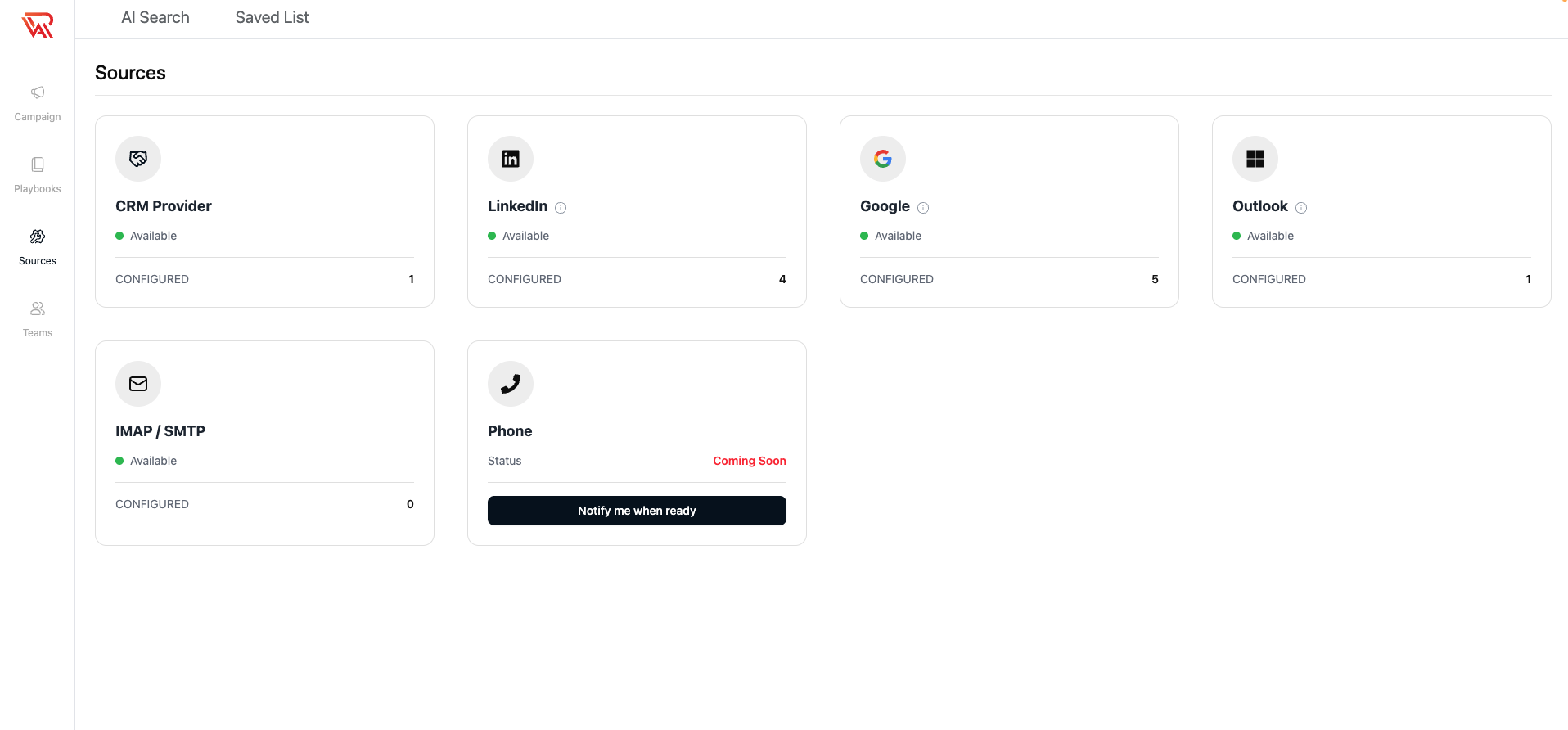
- Open the Ragworks dashboard and click Connectors.
- Select IMAP / SMTP, then click Add Account.
- Enter the details you gathered and click Connect.
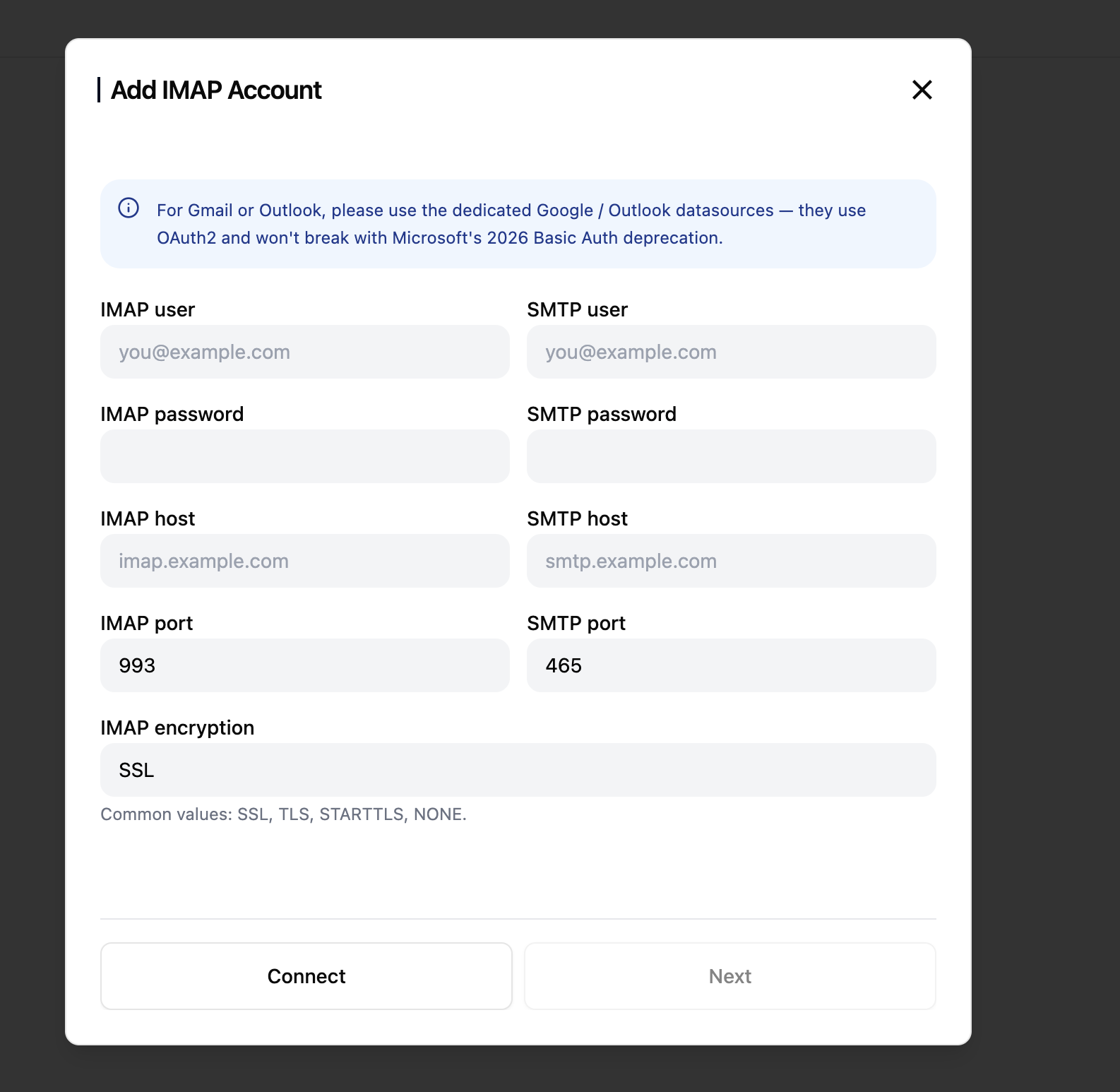
Ragworks checks the connection before it moves on. For every field and the sending limits, see the IMAP / SMTP guide.
You connect mailboxes one at a time. Each one counts toward your plan's account limit, which is listed on the Datasources page.
Step 4: Set Sending Limits
A mailbox you move over already has sending history, but Ragworks starts its own daily limits. Set the ramp-up settings to match what the mailbox can safely send.
If the mailbox stays connected to Instantly, remember that both tools send from the same account. Count the emails from both when you set a limit.
If the Connection Fails
- Check the username. It is usually the full email address.
- Check the password. If two-factor authentication is on, use an app-specific password.
- Check the host, port, and encryption against your provider's help page.
- Make sure IMAP access is turned on for the mailbox. Some providers keep it off until you enable it.