Connect your LinkedIn account to source leads, enrich profiles, identify buying signals, and trigger personalized multi-channel outreach.
Overview
Connect LinkedIn to Ragworks to power AI-driven lead sourcing, prospect research, and outbound automation. Build highly targeted prospect lists, enrich contact intelligence, identify buying signals, and launch personalized outreach workflows across LinkedIn, email, and other channels, all from a single unified platform.
How to Connect LinkedIn
Follow these steps to connect your LinkedIn account:
Step 1: Navigate to Connectors
- Open the Ragworks dashboard.
- In the left sidebar, click Connectors.
- Select LinkedIn from the available options.
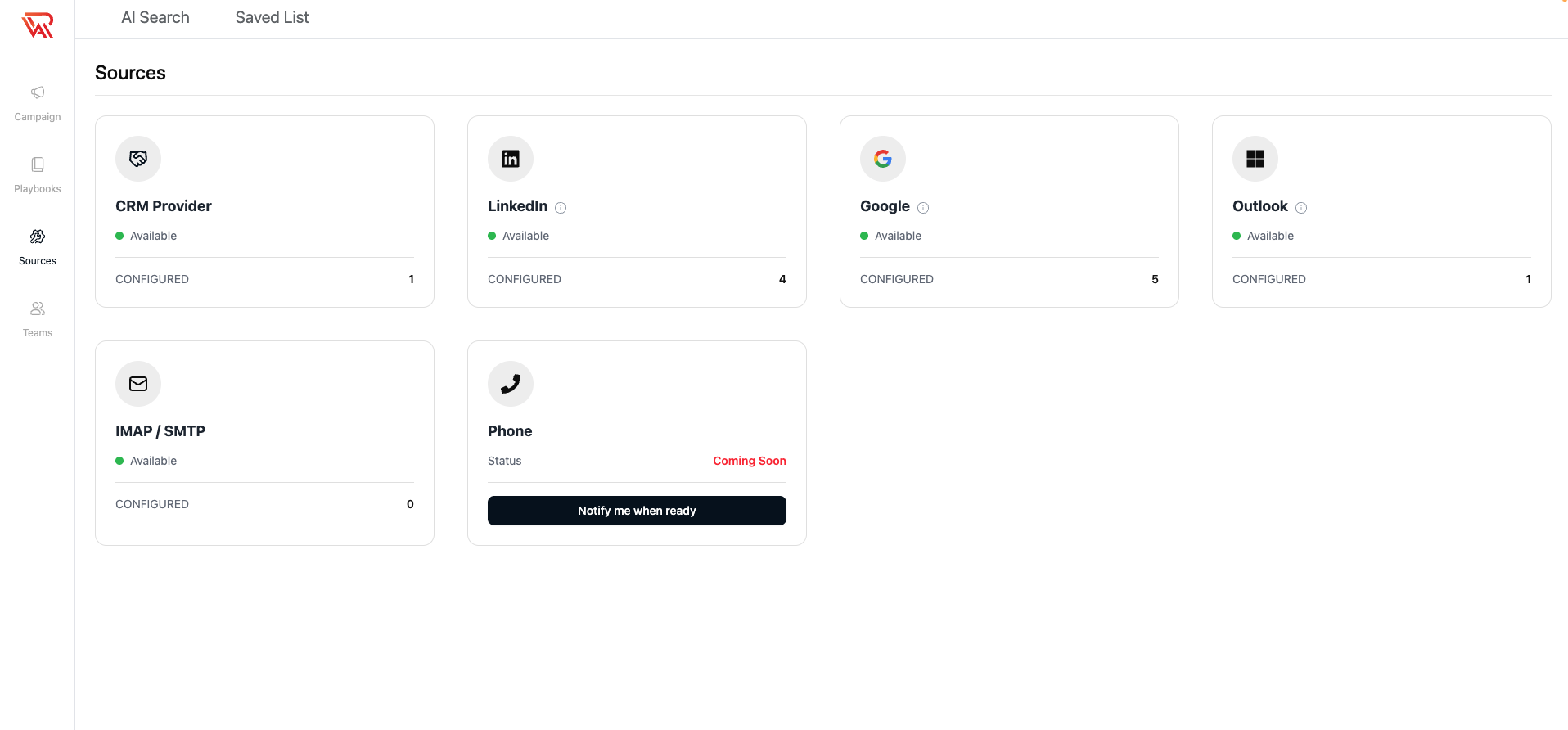
Step 2: Add a LinkedIn Account
- Click Add Account.
- A popover will appear with the following options:
- Sync profile information
- Track connections and engagement
- Automate outreach workflows
- Click Connect with LinkedIn.
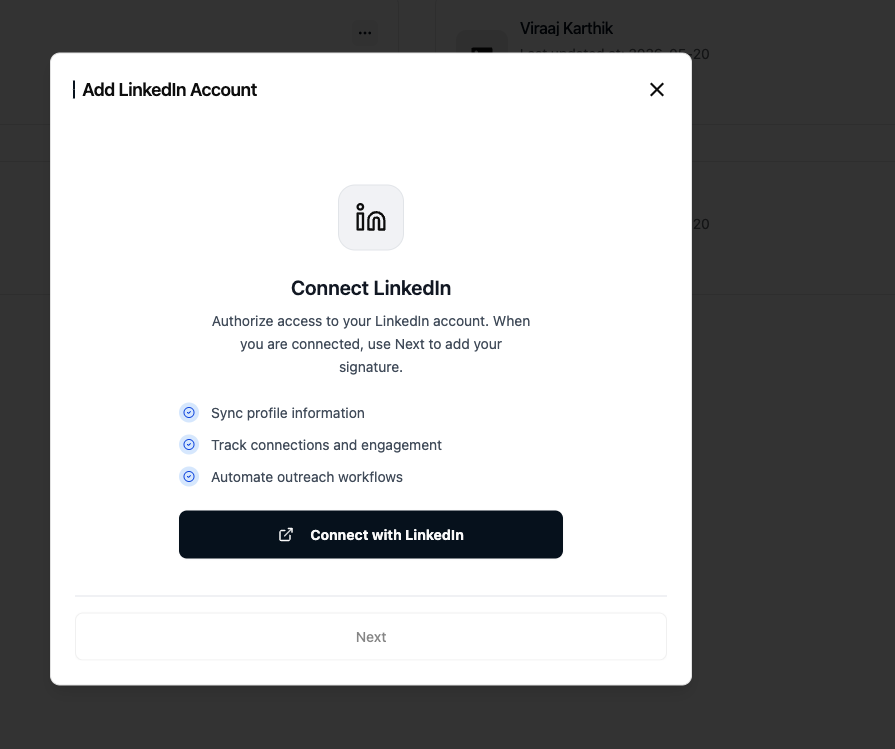
Step 3: Choose a LinkedIn login method
After clicking Connect with LinkedIn, a new page will open for authentication. You can connect with either your LinkedIn credentials or your LinkedIn browser cookies.
We recommend using the Cookies method because it connects through your existing LinkedIn browser session instead of asking for your LinkedIn password.
Option A: Login with cookies (recommended)
- Select the Cookies tab.
- Copy your LinkedIn
li_atcookie into the Enter your li_at value field. - If your account has a Recruiter or Sales Navigator subscription, copy your
li_acookie into the optional Enter your li_a value field. - Keep Synchronize chats and Synchronize messages enabled if you want Ragworks to sync LinkedIn conversations.
- Choose a localization option before logging in.
- Click Login to connect your account.
For the best connection stability, use a proxy server country location that matches where you normally use your LinkedIn account. This helps LinkedIn see logins from a familiar country and reduces the chance of extra verification prompts.
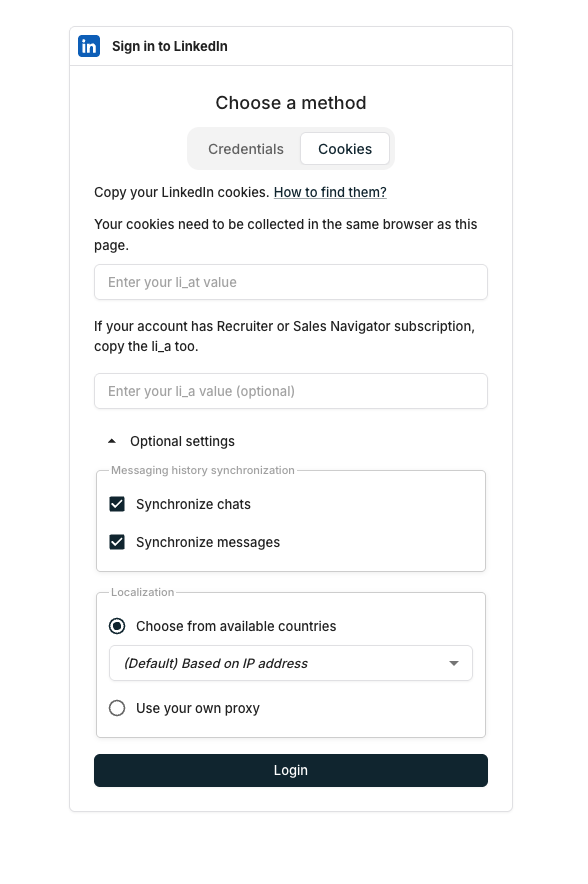
Option B: Login with credentials
- Select the Credentials tab.
- Enter your LinkedIn email address.
- Enter your LinkedIn password.
- Choose a localization option before logging in.
- Click Login to connect your account.
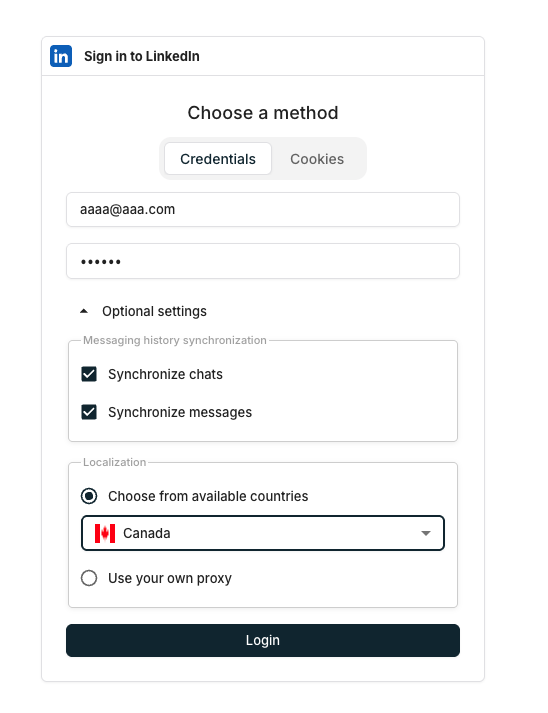
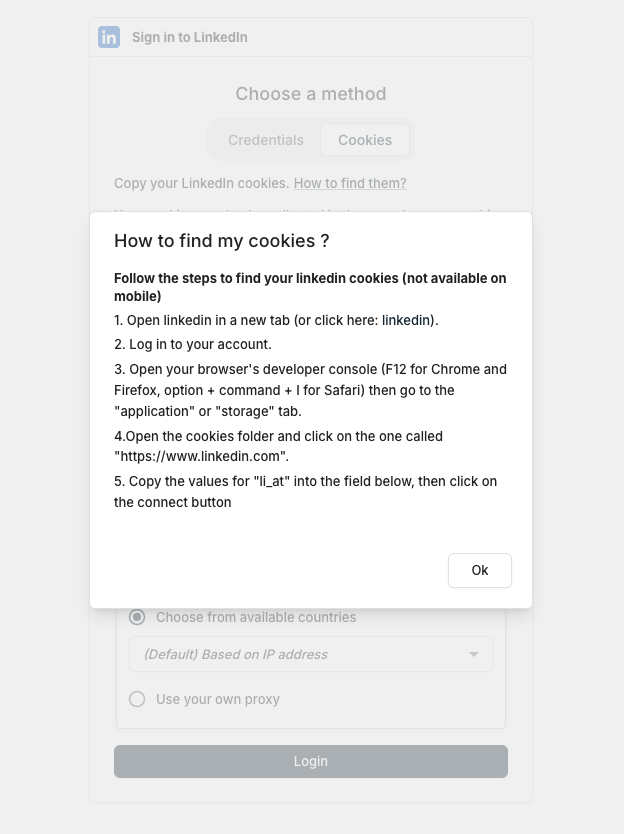
Step 4: Find your LinkedIn cookies
Your cookies must be collected in the same browser where you are logged in to LinkedIn.
- Open LinkedIn in a new browser tab and make sure you are logged in.
- Open your browser's developer tools:
- Chrome or Firefox: press F12.
- Safari: press Option + Command + I.
- Go to the Application tab in Chrome, or the Storage tab in Firefox or Safari.
- Open Cookies and select
https://www.linkedin.com. - Copy the value for
li_at. - If you use Recruiter or Sales Navigator, also copy the value for
li_a. - Return to the Ragworks LinkedIn login page, paste the cookie values, choose the recommended proxy country, and click Login.
Step 5: Continue Setup
After authorization is completed:
- Return to the platform.
- Click Next to enter signature or rate limit information.
Your Linkedin datasource is now ready to use.
Account Settings
To open the settings for a LinkedIn account:
- Click the ... (three dots) on the LinkedIn account card.
- Select the settings icon.
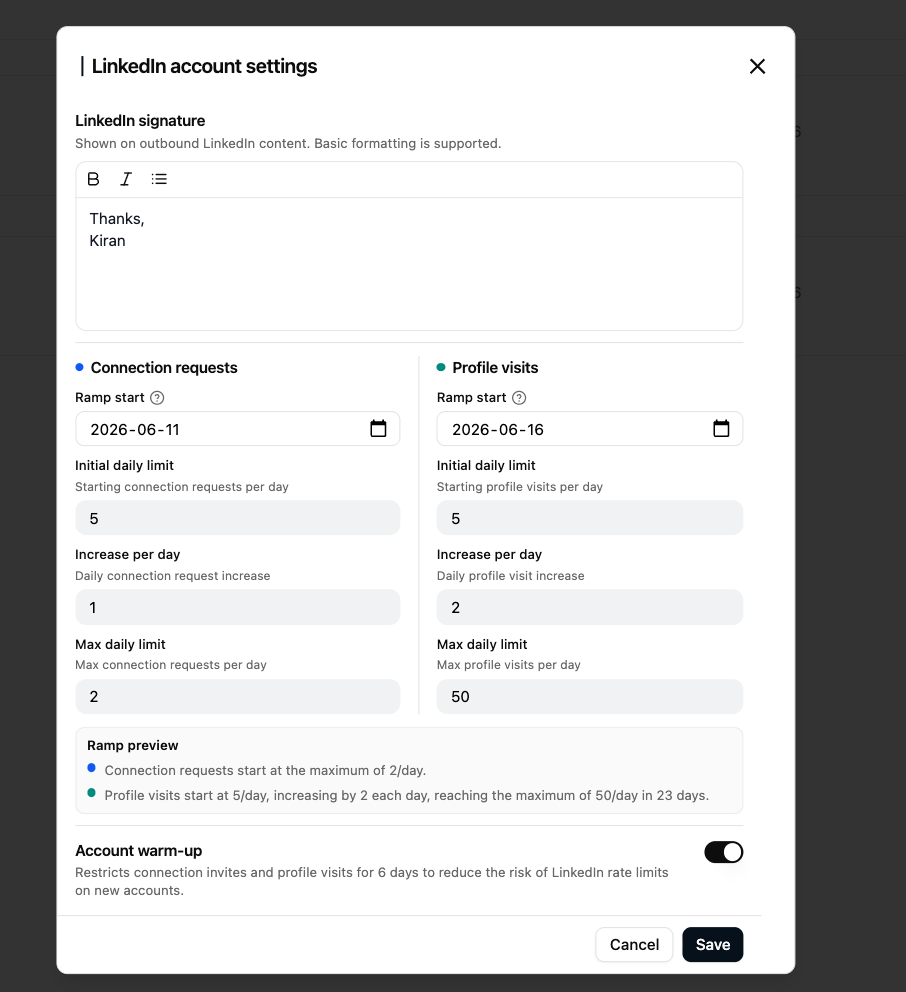
The settings panel contains signature, rate limits, and account warm-up configuration.
LinkedIn Signature
The signature is shown on outbound LinkedIn content. Basic formatting (bold, italic, bullet list) and signature image uploads up to 10 MB are supported.
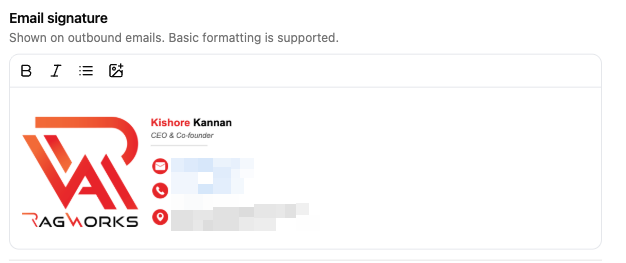
Add or update the signature text and click Save.
Rate Limit Settings
Ragworks uses a ladder (ramp-up) model for both connection requests and profile visits. The daily limit starts low and increases by a fixed amount each day until it reaches the configured maximum. This creates a gradual, natural-looking activity pattern that reduces the risk of LinkedIn flagging the account.
Both limits share the same four fields:
| Field | Description |
|---|---|
| Ramp Start | The date the ramp-up begins for this activity type |
| Initial Daily Limit | How many actions are sent on Day 1 |
| Increase Per Day | How many additional actions are added each day |
| Max Daily Limit | The ceiling — the daily count stops increasing once this is reached |
A Ramp Preview at the bottom of the section summarises both settings in plain language before you save. For example:
- "Connection requests start at the maximum of 2/day."
- "Profile visits start at 5/day, increasing by 2 each day, reaching the maximum of 50/day in 23 days."
Connection Requests
Controls the daily ladder for LinkedIn connection requests (invitations sent with or without a note).
Recommended values:
| Account type | Initial limit | Increase per day | Max limit |
|---|---|---|---|
| New or inactive account | 2–5 | 1 | 10–20 |
| Established account | 5–10 | 2 | 25–30 |
| Sales Navigator | 5–10 | 2 | 30–48 |
Separately from the ladder, Ragworks pauses an account's new connection requests on a campaign when too few of them are accepted. See LinkedIn invites paused.
Profile Visits
Controls the daily ladder for LinkedIn profile visits. Profile visits are non-message warm-up actions (used in sequences before sending a connection request).
Recommended values:
| Account type | Initial limit | Increase per day | Max limit |
|---|---|---|---|
| New or inactive account | 5 | 2 | 20–30 |
| Established account | 10 | 5 | 50–80 |
Account Warm-Up
The Account Warm-Up toggle restricts connection invites and profile visits for 6 days to safely onboard new or inactive LinkedIn accounts before running a campaign.
| Phase | Days | What happens |
|---|---|---|
| Phase 1 | Days 1–3 | Profile visits only — visits a small number of profiles from attached campaigns. No connection requests are sent. |
| Phase 2 | Days 4–6 | Minimal profile visits and a very small number of connection requests are sent. |
| Phase 3 | Day 7+ | Warm-up ends. The account falls back to the configured ladder rate limits. |
When warm-up is active, a status banner is shown on the account card:
Warming up — invites capped Ends Jun 22 · 6 days to go
Enable Account Warm-Up for any LinkedIn account that:
- Is newly created
- Has been inactive for more than a few months
- Has previously been flagged or restricted by LinkedIn
Running campaigns on a cold account without warm-up increases the risk of LinkedIn applying rate limits or temporary restrictions.
Cancel Pending Invites
When a campaign is marked as completed or deleted, its LinkedIn connection requests that were sent but never accepted are still outstanding on LinkedIn. Ragworks tracks these and lets you withdraw them in bulk instead of leaving them stuck open indefinitely.
This keeps the account clean and within LinkedIn's outstanding invite limits, which LinkedIn enforces as a platform-wide cap.
If a LinkedIn account has pending invites from a completed or deleted campaign, a banner appears on the account card:
N pending invites on paused/completed campaigns — open settings to cancel
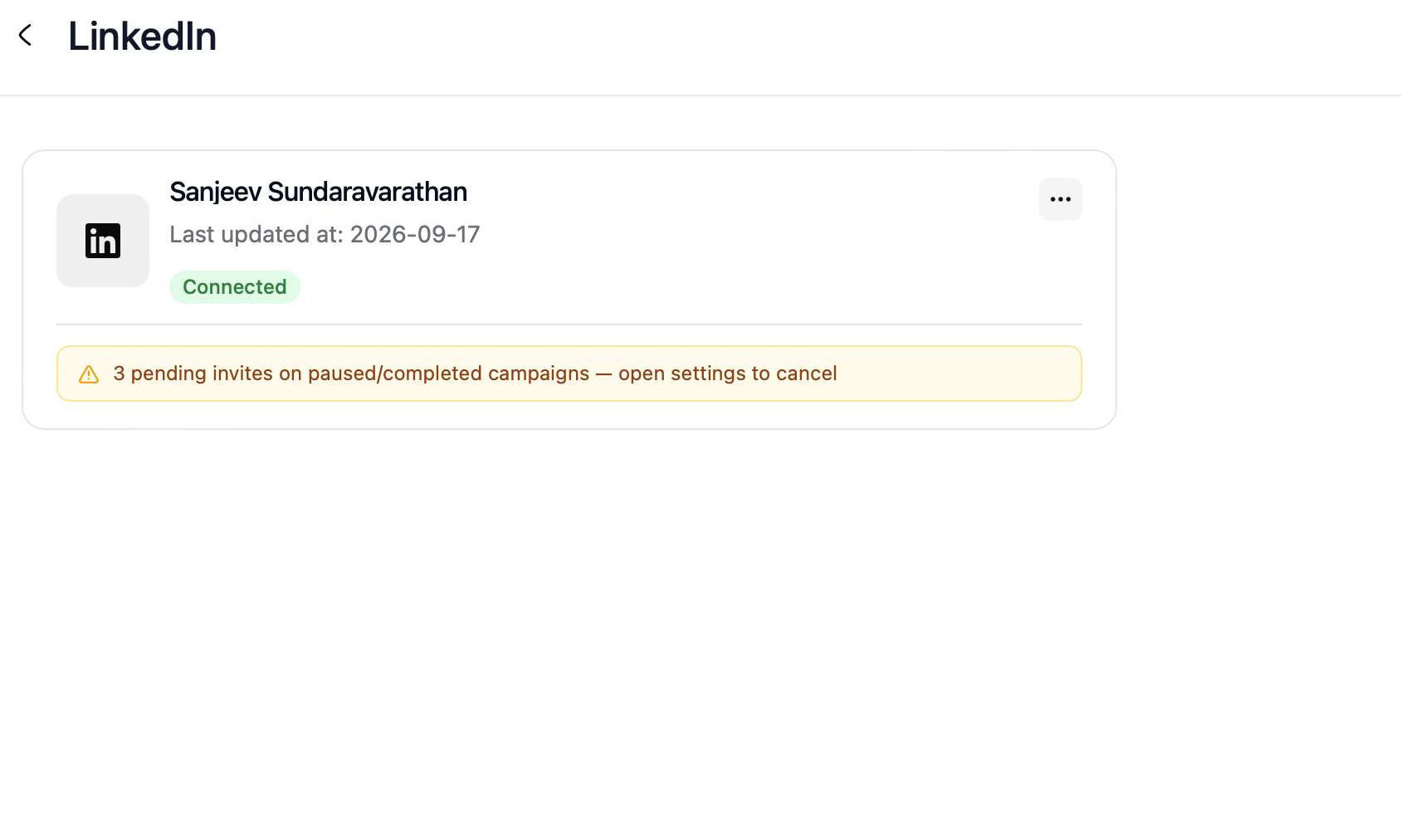
To cancel them:
- Open the account's settings (the ... menu, then the settings icon).
- Scroll to the Pending Connection Invites section, below Account Warm-Up. It shows how many invites are pending from completed or deleted campaigns.
- Click Cancel All and confirm. This immediately withdraws every remaining pending invite from those campaigns.
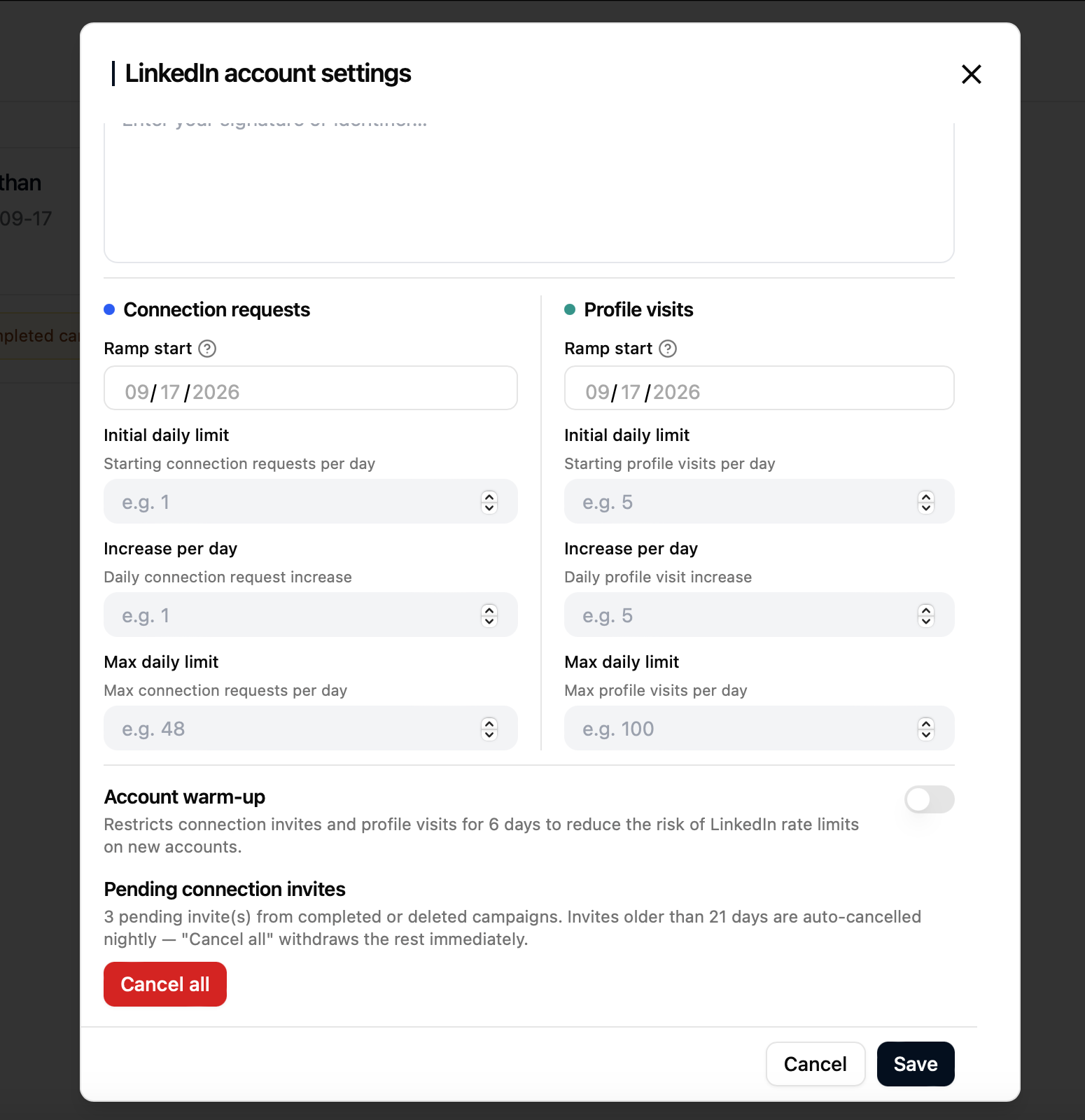
Invites older than the configured stale threshold (21 days by default) are also auto-cancelled automatically overnight, even if you never click Cancel All.
Reconnect deactivated account
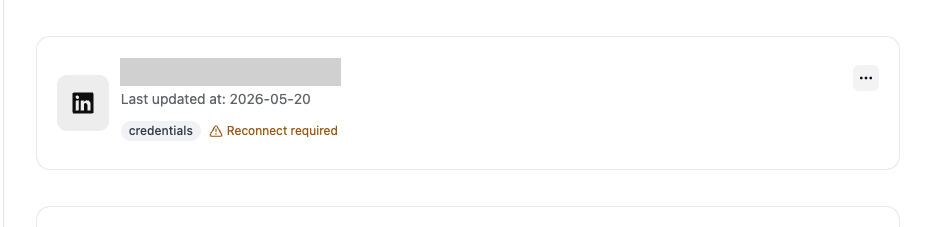
You can see status of the source which requires reconnecting in the source card view.
- Select triple dots (...) of the linkedin source you would like to reconnect.
- Select reconnect icon
 . This will take you to the credentials page.
- Follow the login procedure and reconnect your source successfully.
Delete the Linkedin source
A LinkedIn source cannot be deleted while it is being used in an active campaign.
- Select triple dots (...) of the linkedin source you would like to delete.
- Choose trash icon
 to delete a datasource.
Rate Limits
Connection Requests (Invitations)
- For a paid and active LinkedIn account, you can send between 80 and 100 invitations per day, and approximately 200 per week (with a message of up to 300 characters).
- For a free account, you can send around 5 invitations per month (with a 200-character message) and 150 invitations per week without adding a note.
Search Results
There are two separate limits to keep in mind:
-
Per-search cap (LinkedIn limit)
- Standard LinkedIn: max 1,000 profiles returned for a single search query
- Sales Navigator / Recruiter: max 2,500 profiles returned for a single search query.
- Even if the UI shows more total results, LinkedIn only returns the first 1,000 (or 2,500) for that query.
-
Daily usage (Ragworks recommendation, not limited)
- We recommend limiting the total number of profiles you retrieve per day to 1,000 (standard) or 2,500 (Sales Navigator/Recruiter)
- This refers to the sum of result line actually fetched in a day, not the number of requests