GoHighLevel
Connect GoHighLevel (GHL) to synchronize contacts, opportunities, campaign engagement activity, and outbound workflows between Ragworks and your CRM.
Overview
The GoHighLevel datasource enables Ragworks to:
- Sync contacts and opportunities
- Push outbound engagement activity into GHL
- Track campaign interactions
- Centralize CRM updates and conversations
- Automate lead lifecycle workflows
Ragworks connects to GoHighLevel using a Private Integration Token (PIT) with restricted scopes.
Before You Begin
Before connecting GoHighLevel, ensure you have:
- Access to a GoHighLevel account with admin permissions
- Permission to create private integrations
- Access to your Location ID
Create a Private Integration in GoHighLevel
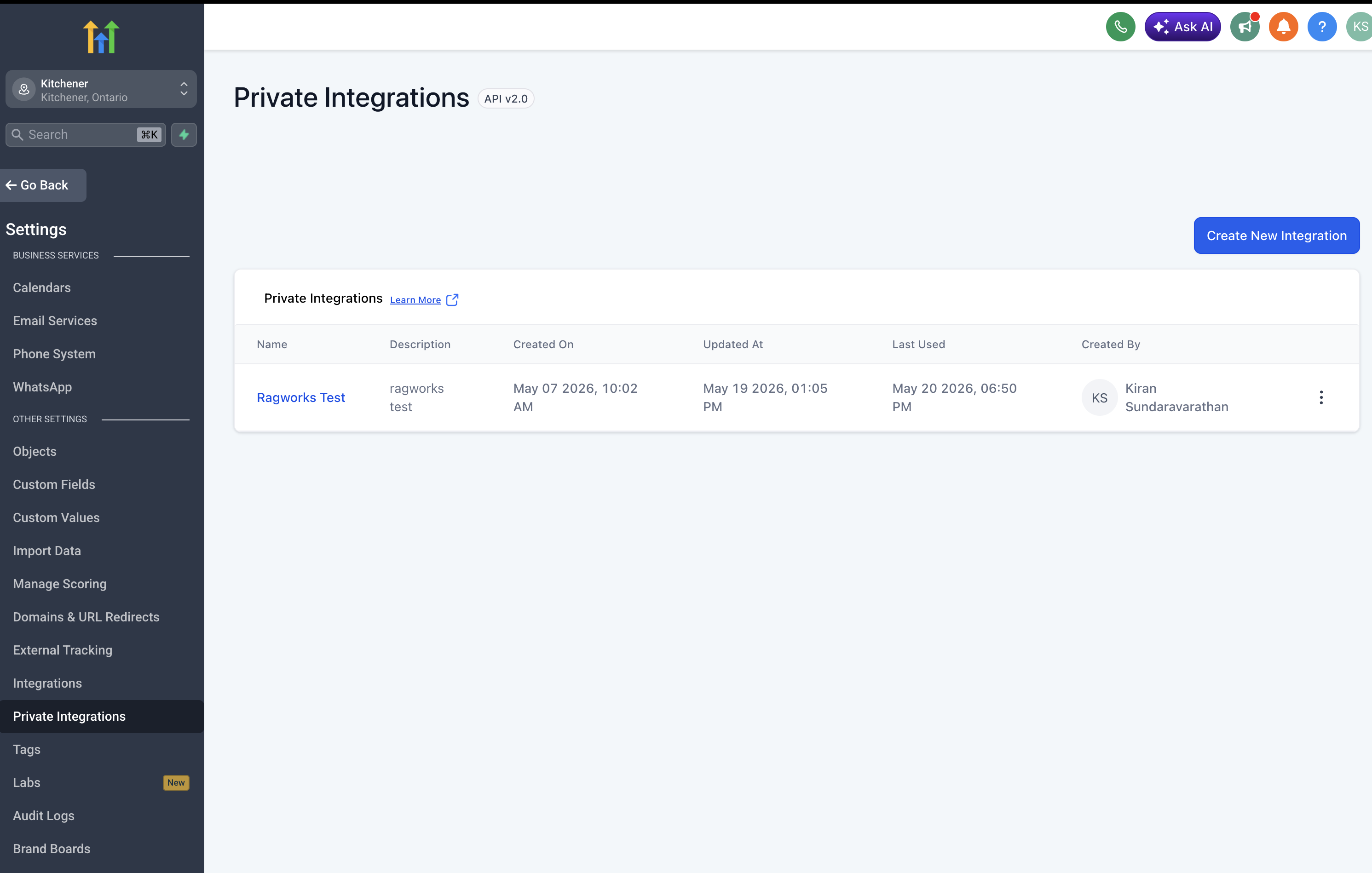
Step 1: Open Private Integrations
- Log in to your GoHighLevel account.
- Navigate to:
Settings → Private Integrations
- Click Create Integration.
Step 2: Configure Integration Scopes
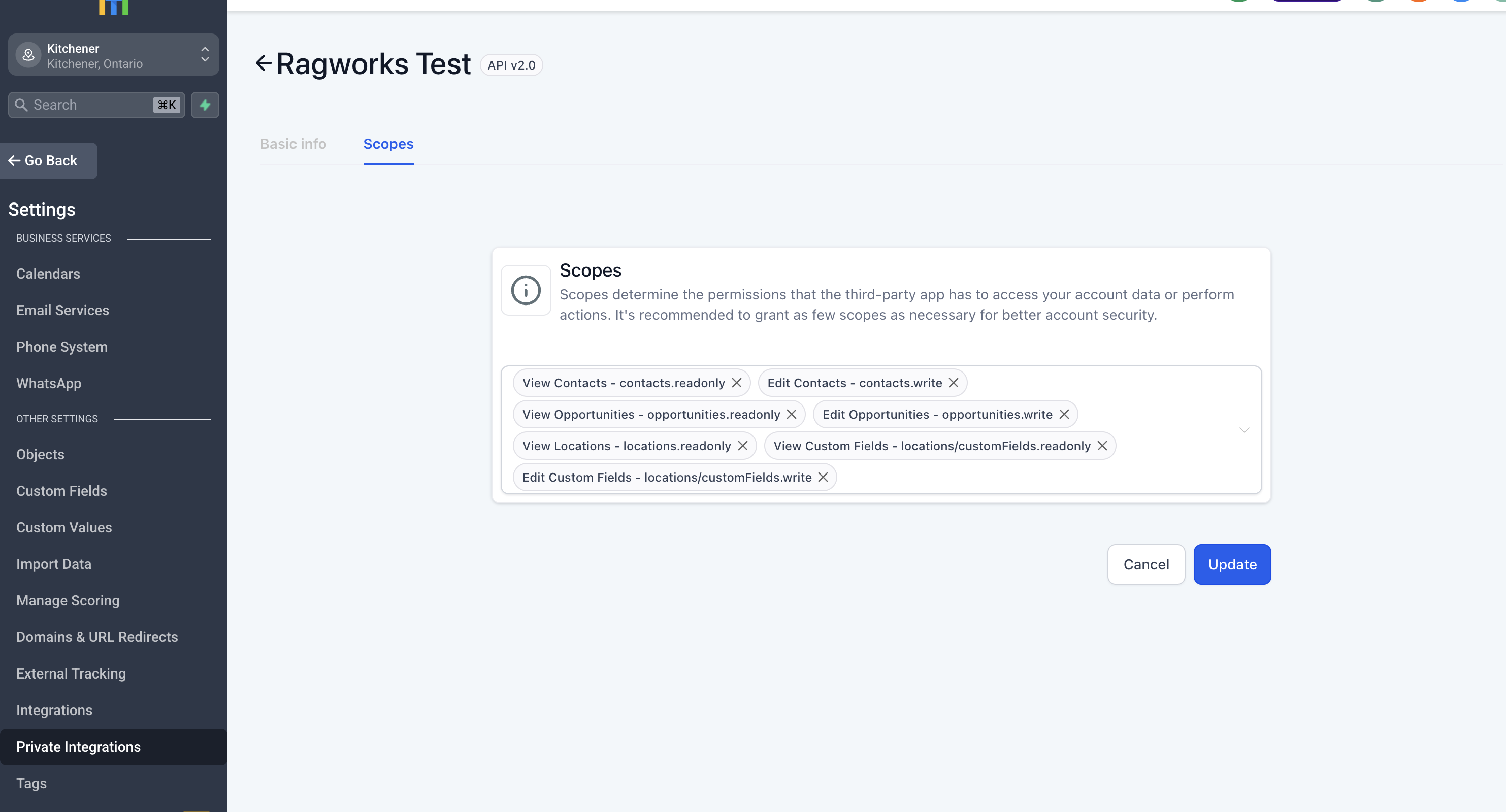
Create the integration with restricted scopes.
Recommended scopes:
- View Contacts
- Edit Contacts
- View Opportunities
- Edit Opportunities
- View Locations
- View Custom Fields
- Edit Custom Fields
These permissions allow Ragworks to synchronize contacts, opportunities, and engagement workflows securely.
Step 3: Copy the Private Integration Token
After creating the integration:
- Copy the generated Private Integration Token (PIT).
- Store it securely.
You will use this token inside Ragworks during datasource setup.
Treat the Private Integration Token like a password. Do not share it publicly or expose it in frontend applications.
Find Your Location ID
The Location ID can typically be found:
- In the browser URL while inside a location
- Or within GoHighLevel location settings
Example:
https://app.gohighlevel.com/v2/location/LOCATION_ID/dashboard
Copy the LOCATION_ID value.
Connect GoHighLevel in Ragworks
Step 1: Navigate to Connectors
- Open the Ragworks dashboard.
- From the left sidebar, click Connectors.
- Select CRM Provider.
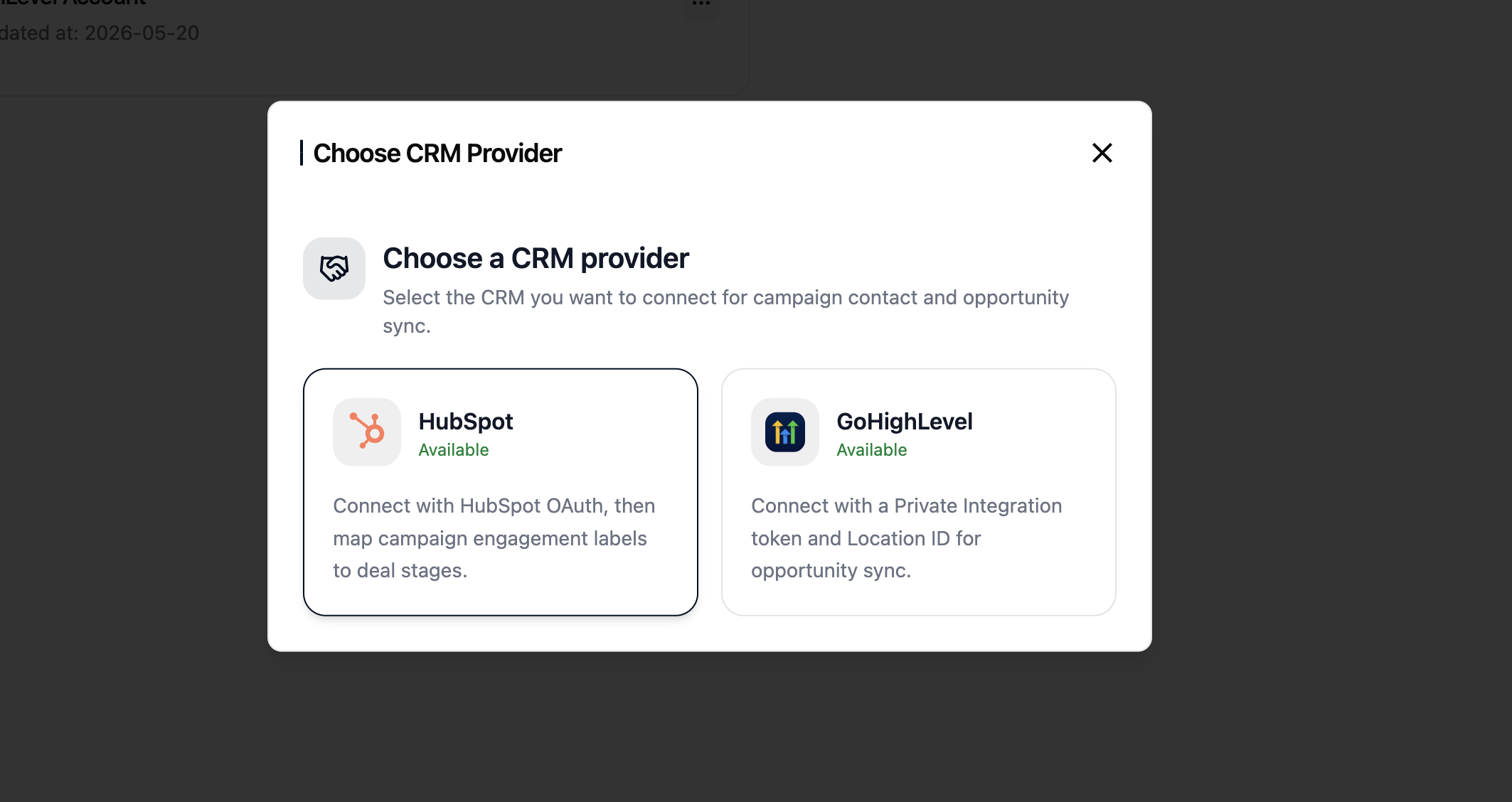
Step 2: Choose CRM Provider
- Click Add Account
- Select GoHighLevel from the CRM provider list.
Step 3: Enter GHL Credentials
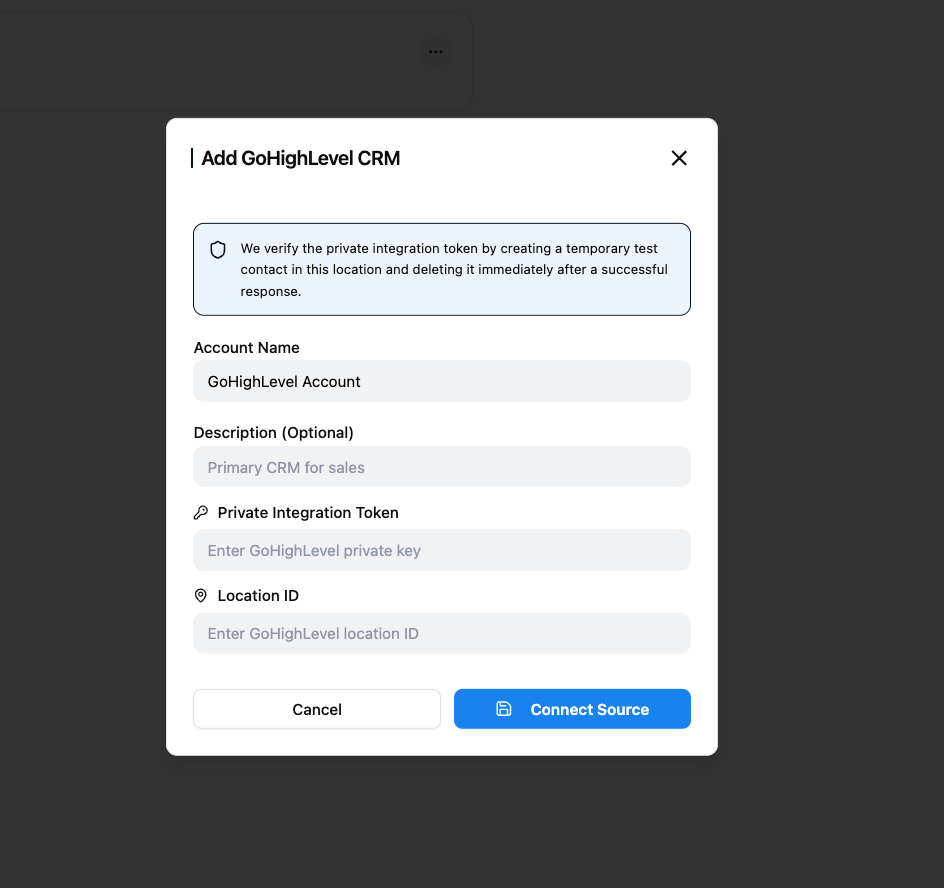
Fill in the required fields:
| Field | Required | Description |
|---|---|---|
| Account Name | Yes | A label for this GHL connection (e.g., GoHighLevel Account) |
| Description | No | Optional note (e.g., Primary CRM for sales) |
| Private Integration Token | Yes | The token generated in GHL Settings → Private Integrations |
| Location ID | Yes | The GHL location ID from the URL or location settings |
Then click Connect Source.
Connection Validation
During setup, Ragworks validates the integration by:
- Creating a temporary test contact
- Verifying API access permissions
- Removing the temporary contact after successful validation
This helps ensure the integration is configured correctly before syncing production data.
What Gets Synced
Once connected, Ragworks can synchronize:
- Contacts
- Opportunities
- Campaign engagement activity
- Conversation updates
- Lead lifecycle activity
- CRM workflow updates
This allows outbound actions performed inside Ragworks to remain visible and centralized inside GoHighLevel.
Recommended Best Practices
-
Use restricted scopes whenever possible and only grant permissions required for your workflows.
-
Use dedicated private integrations for production environments to simplify credential management and auditing.
Troubleshooting
If the connection fails:
- Verify the Private Integration Token is valid
- Confirm required scopes are enabled
- Ensure the Location ID is correct
- Verify the integration is active
- Retry the connection process