Edit a Running Campaign's Sequence
Sometimes a campaign is already running and you want to change it: a better first message, an extra follow-up, a longer wait. You can. Change the steps, change the messages, and save. The change applies to this campaign only, and only to the leads who join it from then on. Leads who are already in the campaign finish the way they started.
What happens to your leads
When you save, this is exactly who gets what:
| Who | What they get |
|---|---|
| Leads already in the campaign | They stay on the version they are on, messages included. A lead who was going to get your old second email still gets the old second email. |
| Leads added after you save | They get your edited version. |
| Other campaigns using the same playbook or sequence | Nothing changes. They keep their version. |
| The original sequence and the playbook | Not touched. Your edit is saved as its own copy for this campaign. |
Each time you save, the campaign moves up one version (v2, v3 and so on). The panel tells you the version you are about to save before you click.
You can see a campaign's version in three places:
- Campaign details: the Sequence row on the campaign shows the sequence's name with its version, for example v2.
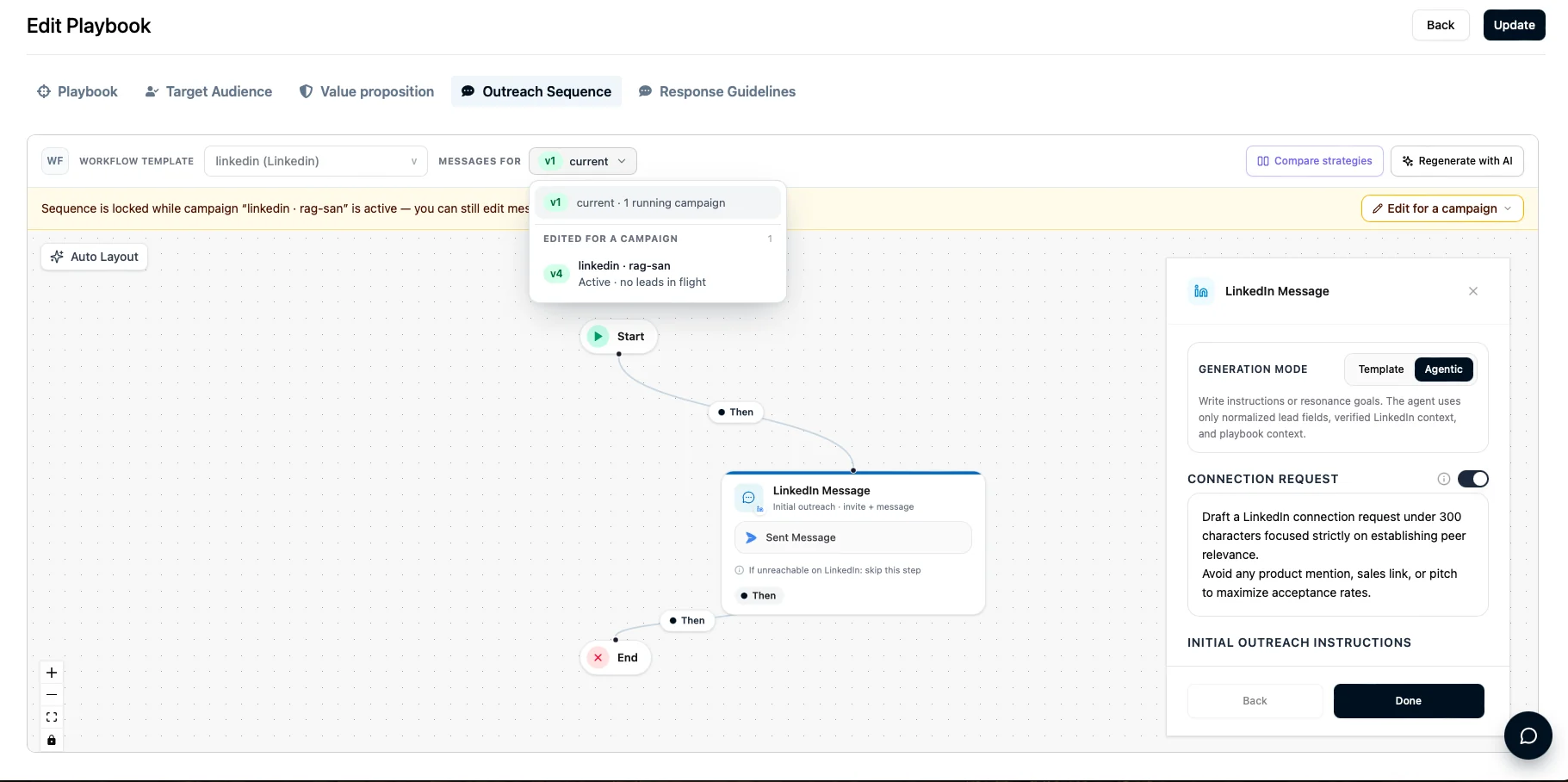
- The playbook's Outreach Sequence tab: the Messages for menu lists each campaign's edit under Edited for a campaign, with its version, how many leads are in flight and your note. Pick one to look at it, exactly as you would look at v1. The playbook itself still shows the original sequence (v1), because your edit belongs to the campaign, not the playbook.
- The sequence's version menu (on the Sequences page): the same Edited for a campaign list. Click one to open that edit, read-only.
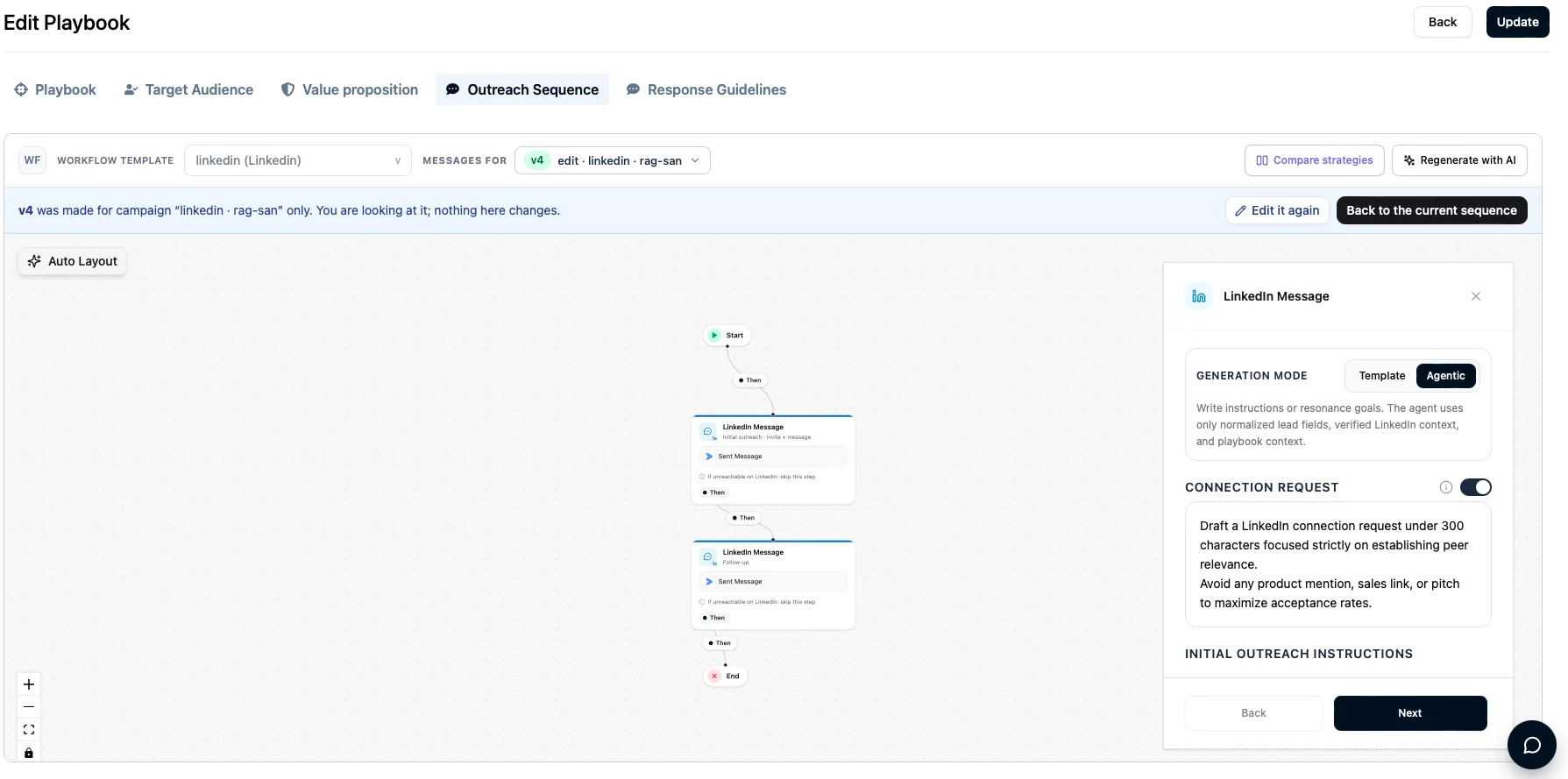
When you pick an edit, you see it in the same screen as v1: the steps on the canvas and the message of each step. It is read-only. The blue note at the top says which campaign it was made for and shows your note. Edit it again opens the editor, and Back to the current sequence returns to v1.
The sequence and the playbook are shared by every campaign that uses them. If an edit changed them in place, it would also change campaigns you didn't mean to touch, and leads halfway through would suddenly get different messages. A separate copy for this campaign keeps everything else exactly as it was.
Which campaigns get it
By default only the campaign you opened. On the Review screen, Give it to other campaigns too lists the other running or paused campaigns that use the same playbook and are on the same version as this one. Tick the ones that should get the same edit, or use Select all.
- With six or more campaigns the list gets a search box, the busiest campaigns come first, and the list scrolls. Select these ticks only the campaigns the search shows, so you can search for "Agencies" and tick them all in one click.
- Each ticked campaign gets its own copy. You can change them separately later.
- Leads already in those campaigns stay on the version they are on, just like in this one.
- Campaigns that are on a different version, belong to an experiment or are not running aren't offered. The screen says how many.
- If one campaign can't take the edit (for example, you added a LinkedIn step and it has no LinkedIn account), it is skipped and named in the message after saving. The others still get it.
Open it
You can start from three places. They all open the same editor.
- Campaign page: open the ⋯ menu and choose Edit sequence. It shows for active and paused campaigns.
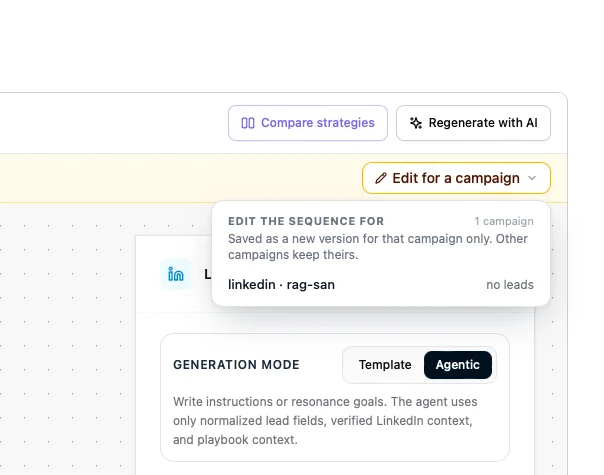
- Playbook page: when a campaign is running on the playbook, the yellow note at the top of the Outreach Sequence tab has an Edit for a campaign button. It opens a list of the playbook's running and paused campaigns, and you pick the one to edit it for.
- Playbook library: the playbook card has a small Edit button next to its sequence, with the same list. Campaigns inside an experiment show at the bottom of the list, greyed out, and can't be picked. With six or more campaigns the list has a search box (press Enter to pick the first match) and groups running and paused campaigns.
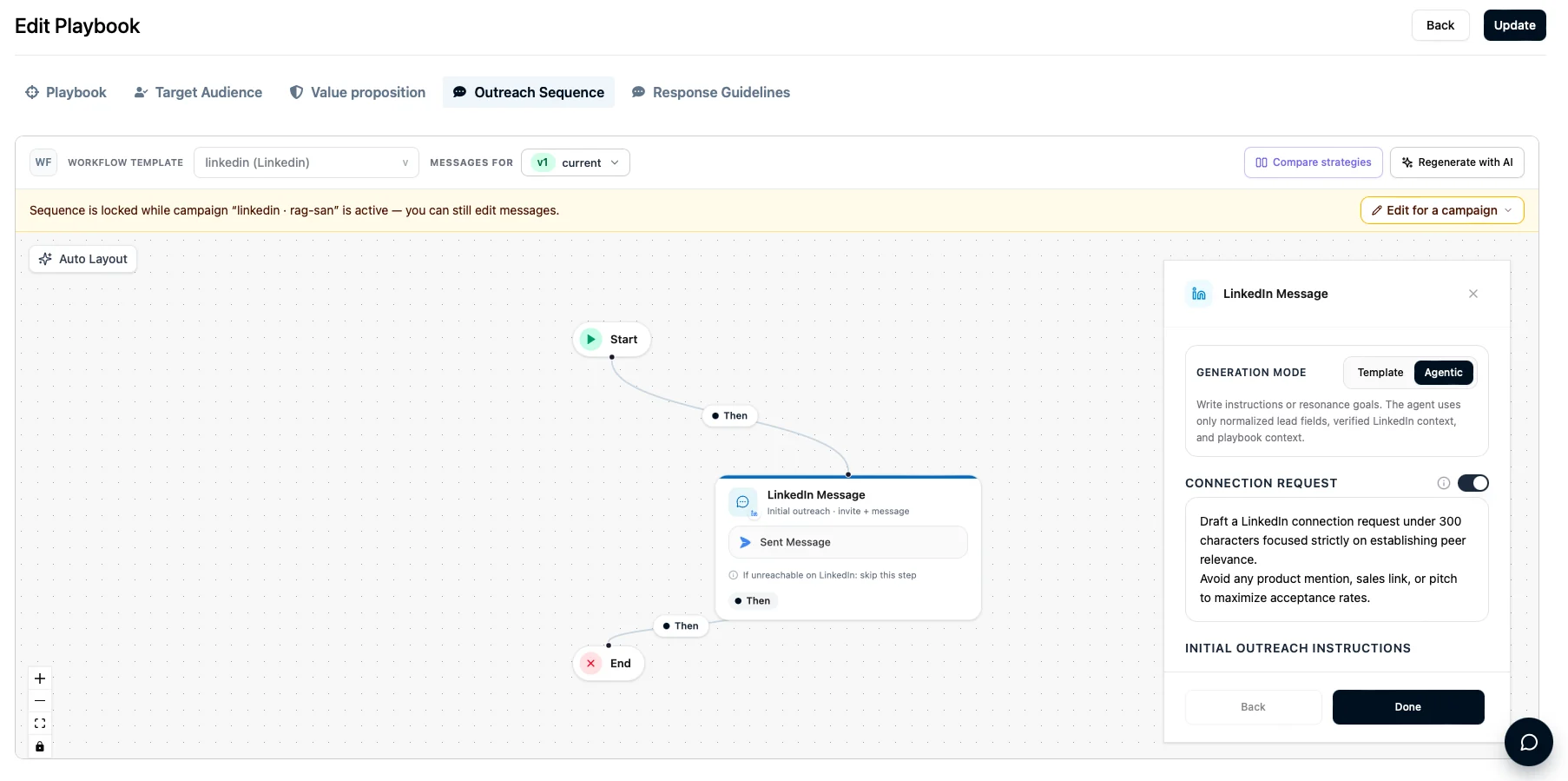
Click Edit for a campaign (or the Edit button on the playbook card) to see the playbook's campaigns and pick one:
A campaign that hasn't started yet still uses the playbook editor. Change it there, as before.
The three steps
The editor walks you through three screens. Nothing is saved until the last one.
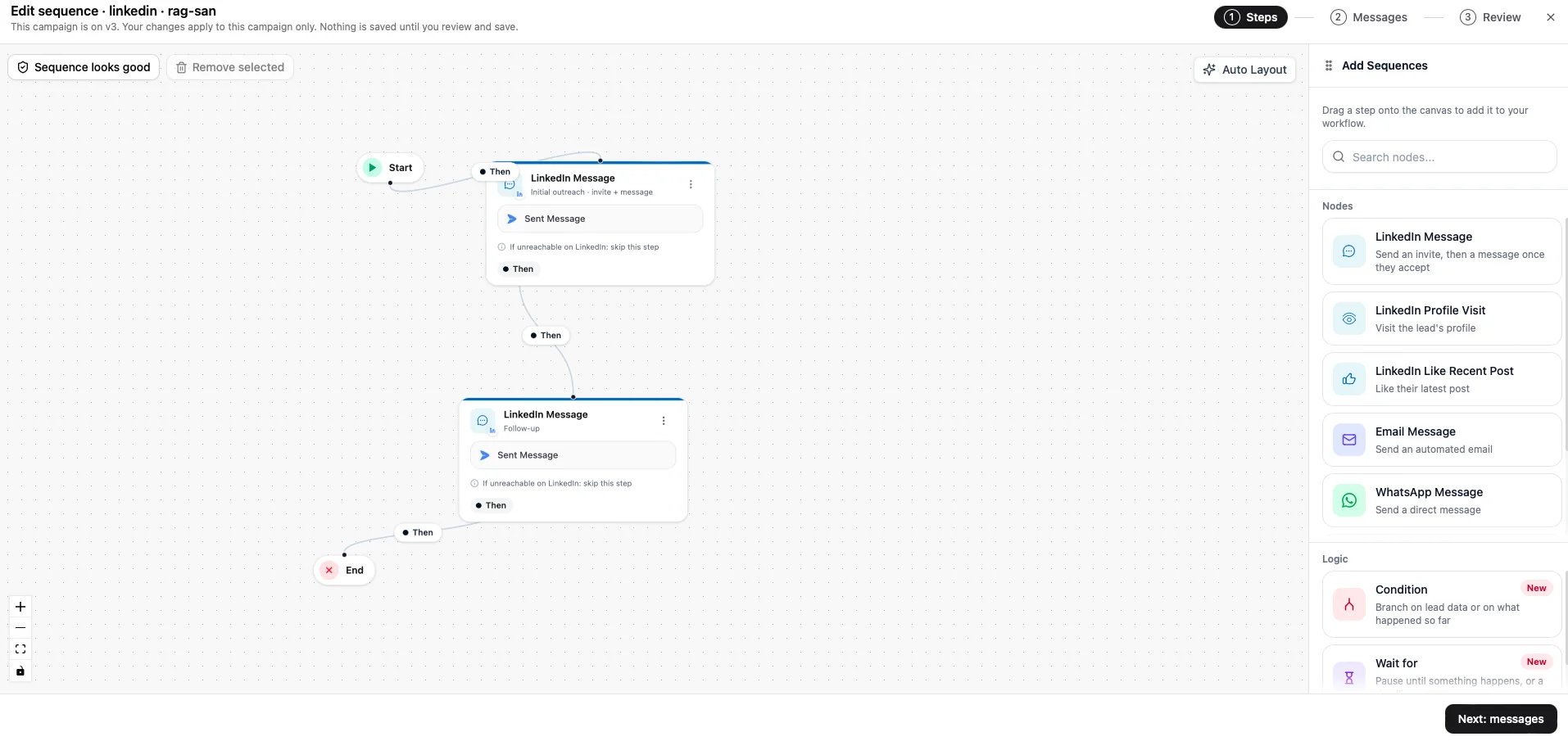
1. Steps
This is the same canvas as the sequence editor. Add a step from the panel on the right, move things around, change a wait, connect steps differently, or take a step out. The button at the top left tells you whether the sequence works ("Sequence looks good") or how many problems there are. Open it to see what each problem is and which step it is on. You can't go on while a problem is open.
2. Messages
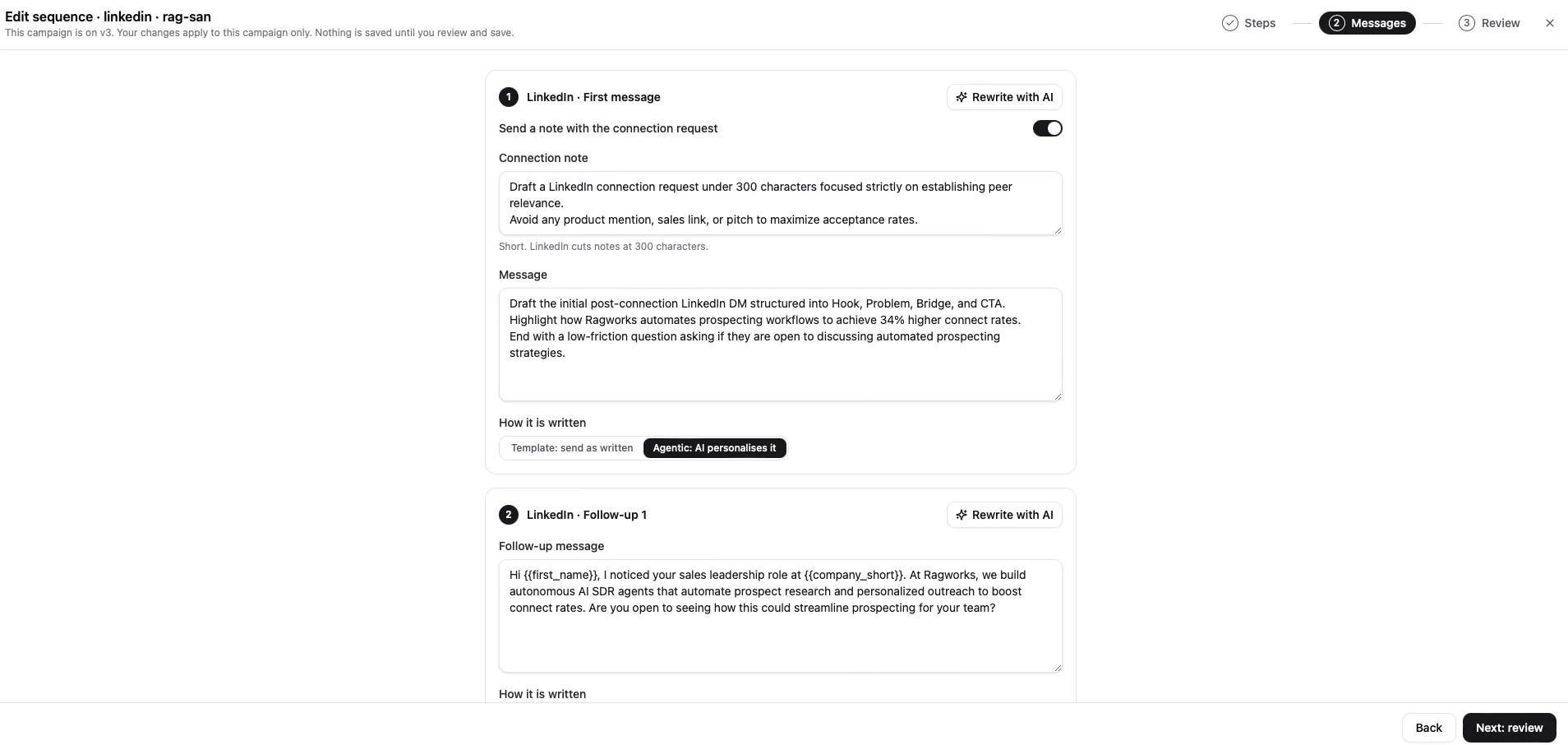
Every step that sends something gets a card, in order. Write or change what it says:
- Email: a subject line and the message.
- LinkedIn: the connection note (you can switch it off) and the message.
- Phone: the opening line and the call script.
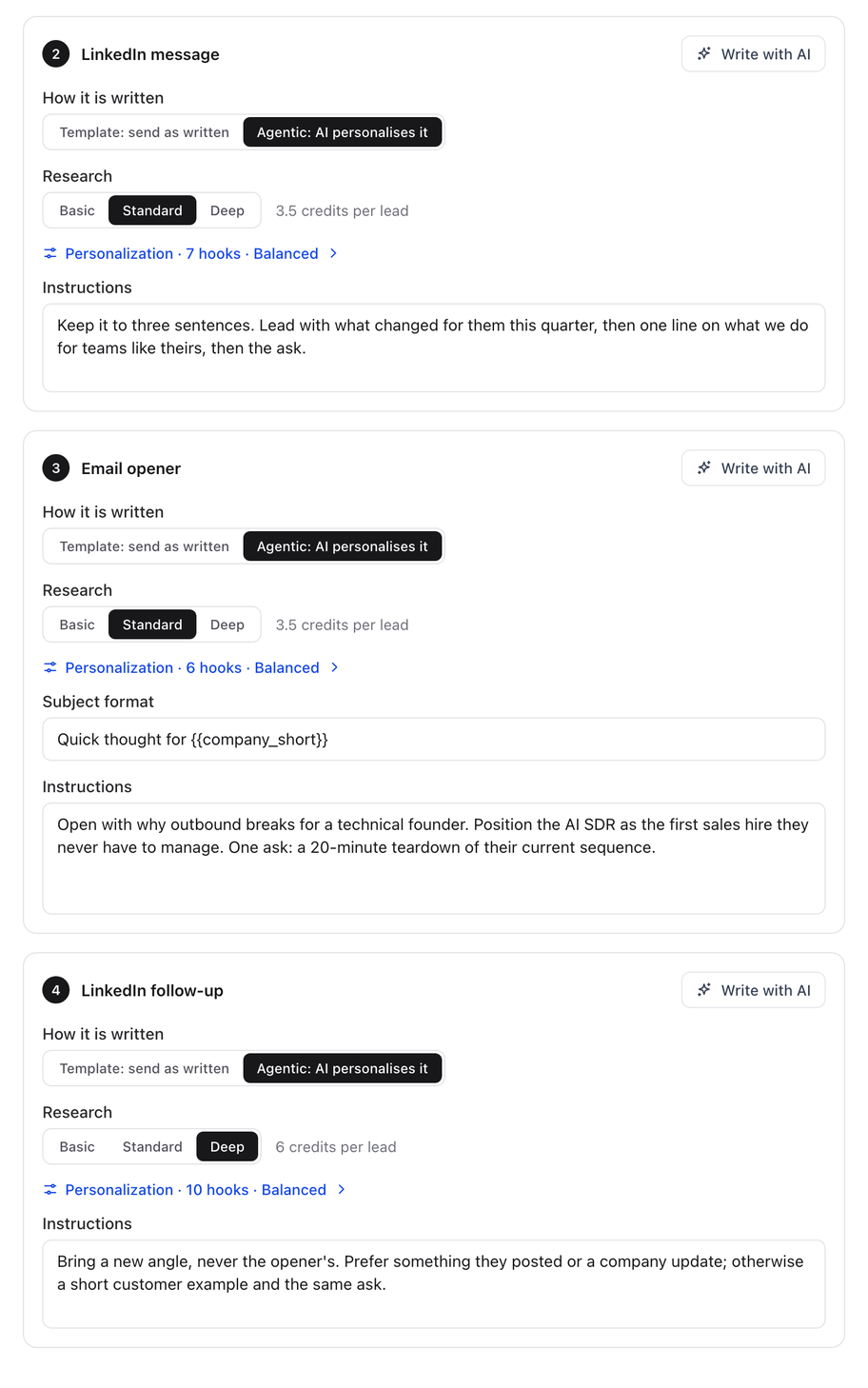
- How it is written: Template sends your text as written. Agentic lets the AI personalise it for each lead.
- Research (agentic steps only): Basic, Standard or Deep, with the price per lead beside it. It sets how much Ragworks finds out about each lead before the AI writes.
- Personalization (agentic steps only): which hooks the step may open on, its tone, and what it must never mention. It shows as a link, for example Personalization · 7 hooks · Balanced. Click it to change them.
See Research depth and hooks for what each choice does.
Use {{first_name}} where you want the lead's name. A step you just added has no message yet, so it is marked Needs a message, and you can't go on until it has one.
An agentic step also shows its research depth and personalization:
Let the AI write it. Every email and LinkedIn step has a Write with AI button (it says Rewrite with AI once the step has text, and asks before replacing it). When steps are missing a message, a yellow note at the top offers Write them with AI for all of them at once. The AI writes in the same sales strategy as the playbook and in the mode you picked for each step, and you can edit anything it writes. It uses credits, the same as Regenerate with AI on a playbook. Phone steps are written by hand.
What the AI writes only fills in the boxes. It becomes part of the campaign when you save on the Review screen.
3. Review
The last screen lists what you changed ("1 step added", "Messages changed in 2 steps"), says how many leads stay on the current version, and lets you add a few words about the change if you want. Click Save v2 (or the next number). Leads who join from now on get the new version.
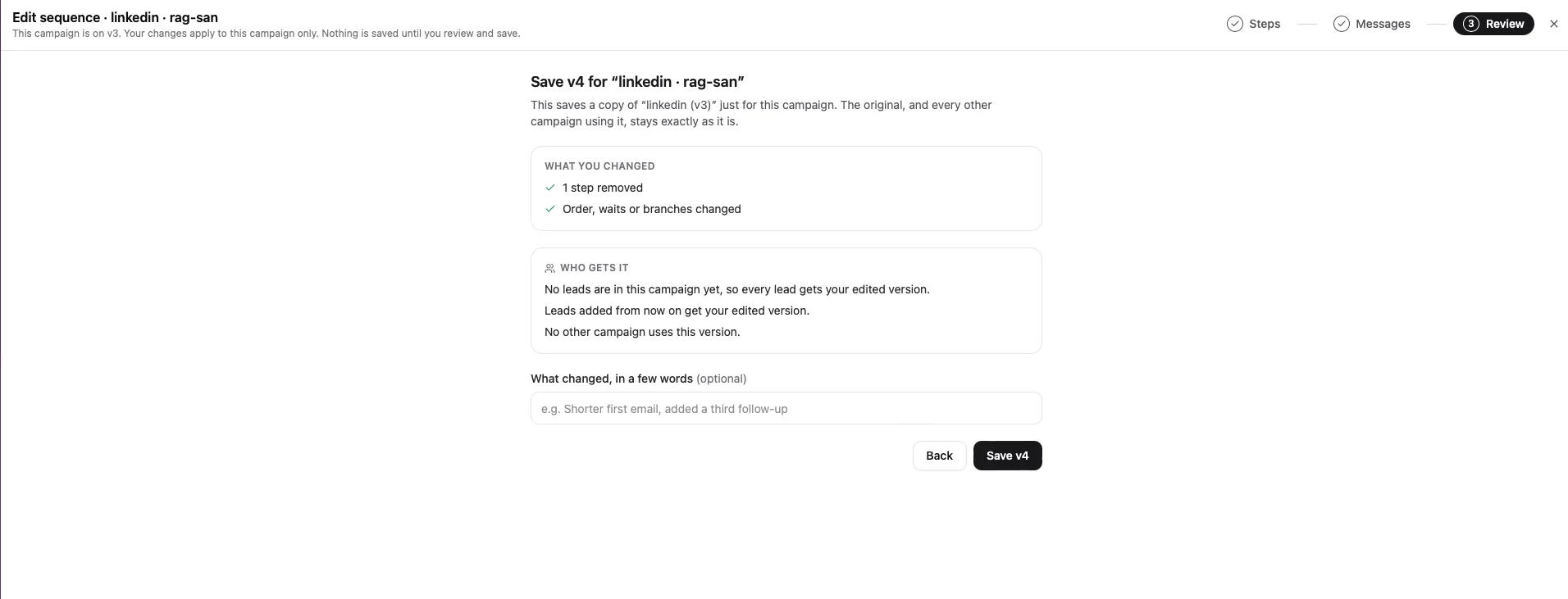
If you changed a step's research depth, the review lists it under What you changed (for example, "research Standard → Deep") and adds a line under Who gets it with the cost: "Research rises to Deep for the 212 leads entering from now on · +2.5 credits per lead ≈ 530 credits. Leads in flight are not charged again."
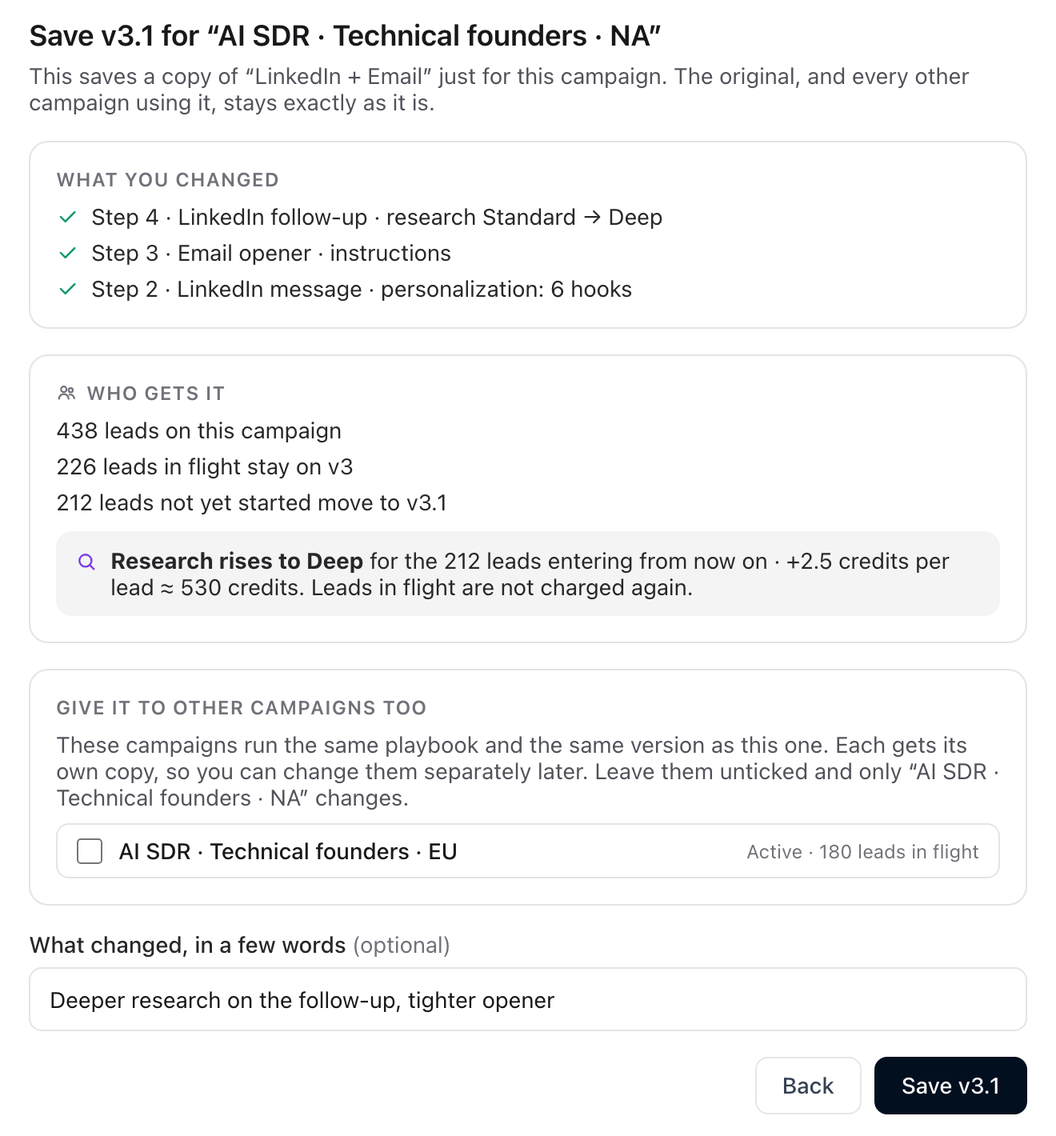
A research change follows the same rule as any other edit. Leads already in flight keep the research they have and stay on their version. Leads that have not started yet, and leads who join later, get the new depth.
If something goes wrong
| What you see | What it means |
|---|---|
| This campaign's sequence changed while you were editing | Someone else saved a change to this campaign, or it moved to another version, while your editor was open. Close the editor, open it again and redo your edits. |
| Nothing has changed yet | You haven't edited a step or a message. Change something first. |
| Write the message for: … | A step has no message. Go back to the Messages screen and fill it in. |
| Only a running or paused campaign can be edited here | The campaign is a draft, finished or stopped. |
| This campaign has no … account connected | You added a step on a channel the campaign has no account for. Connect that account to the campaign, or take the step out. |
| This campaign is part of an experiment | Campaigns inside a running experiment can't change their sequence, because that would break the comparison. |
| A problem listed under the sequence check | The steps don't join up. Open the check, find the step it names and connect or fix it. |
Good to know
- Leads in the middle of a send. A lead whose next message was already queued sends it from the version they were on.
- Going back. You can't switch a campaign back to the original sequence yet. To undo a change, edit it again and put the old wording back.
- Deleting the original sequence. Ragworks won't let you delete a sequence while leads from a campaign are still running on it. A campaign's own copy can only be changed from that campaign.
- Playbook changes later. Once you have saved, this campaign keeps its own copy of the messages. Editing the playbook's messages afterwards doesn't change what this campaign sends.