Campaigns
Campaigns automate outbound engagement across LinkedIn, email, and CRM systems. Each campaign is driven by a Sequence (outreach steps and timing), a Playbook (messaging, personas, and reply handling), and a Saved Lead List (who to reach out to).
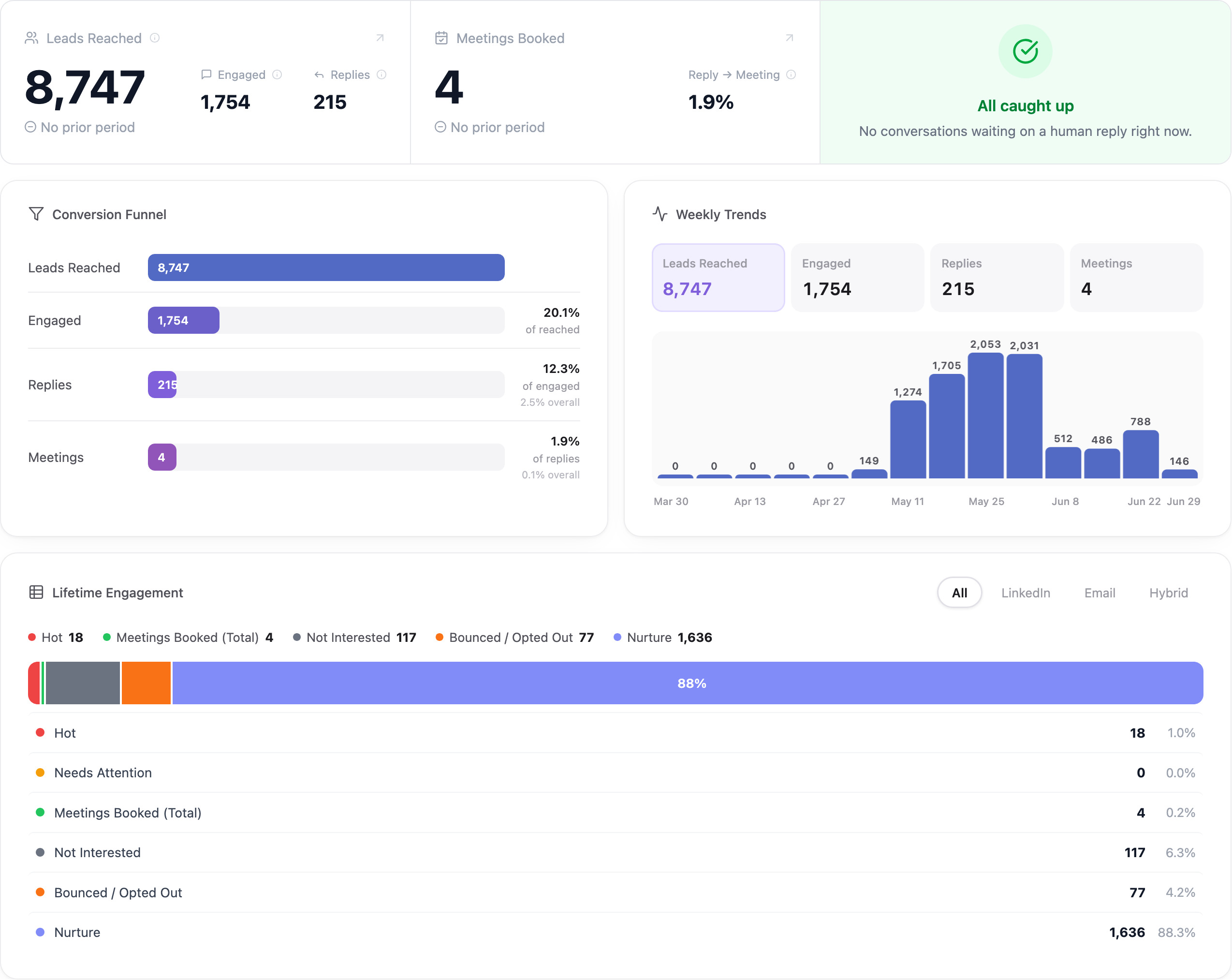
Campaigns live under Home in the left sidebar. Home opens on the multi-channel Campaign Dashboard; click Create Campaign at the top right to start one, or the Campaigns tab to open a single campaign.
Overview
The Campaign module lets you:
- Launch LinkedIn outreach campaigns
- Run cold email sequences
- Combine LinkedIn and email into multi-channel workflows
- Automate AI-powered follow-ups and reply handling
- Sync engagement activity to CRM systems (HubSpot, GoHighLevel)
- Control sending schedule, working hours, and response pacing
- Monitor lead engagement and workflow progress in real time
How Campaigns Work
A campaign is the runtime that executes the strategy you already built:
Saved Lead List  →  Playbook  →  Campaign
                       ↑
                   Sequence (step order, channels, timing)
| Component | What it controls |
|---|---|
| Sequence | Outreach channels, steps, waits, and the branches that route each lead |
| Playbook | Messaging, target personas, value proposition, AI reply behavior |
| Lead List | Who receives the outreach |
| Campaign | Which datasources to use, AI model, schedule, CRM mapping |
The outreach channels a campaign sends on — LinkedIn, email, WhatsApp, Instagram, phone — are determined by the sequence attached to the playbook, not configured in the campaign itself. The campaign supplies an account for each.
Campaign Lifecycle
Pending → Active → Paused → Completed
| Status | What it means |
|---|---|
| Pending | Created and waiting for your approval. Nothing is sent. |
| Active | Campaign is running outreach according to the schedule. |
| Paused | Campaign has been manually paused. No outreach is sent. |
| Completed | The campaign has ended: all leads went through the sequence, or you marked it complete. |
Campaigns are created as Pending. No outreach is sent until you choose Approve campaign → Approve & Launch. A campaign built by Quickstart shows Generating while it is being built.
Supported Outreach Channels
LinkedIn
Automate LinkedIn outreach via connected LinkedIn accounts.
Supported workflows:
- Profile visits (warm-up before connecting)
- Connection requests with message notes
- Initial outreach messages
- Follow-up messages
- Post engagement (like recent posts)
LinkedIn campaigns work best for relationship-driven outbound, founder-led outreach, and strategic account engagement.
Email
Send cold email sequences via connected Google, Outlook, or IMAP accounts.
Supported workflows:
- Cold outbound sequences
- Automated follow-ups
- AI-assisted personalization
- Reply tracking and inbox sync
Email campaigns support sending limits, working hour scheduling, and deliverability controls.
WhatsApp, Instagram and phone
Sequences can also send WhatsApp messages and Instagram DMs from your connected accounts, and place calls with your AI voice agent from a connected phone number.
Multi-channel
Combine channels in one campaign with a multi-channel sequence. Each lead gets the steps it can receive: a lead without an email skips the email steps, and a lead no step can reach is kept as Not reachable until a channel arrives. Branches can follow up on the channel a lead engaged on — LinkedIn for connections, email for everyone else. See Sequence and the predefined templates.
AI-Powered Reply Handling
Every campaign uses the selected playbook's response guidelines to handle replies automatically.
When a prospect replies, the AI:
- Classifies the reply intent (interested, not interested, objection, out of office, etc.)
- Assigns an engagement label with a confidence rating
- Generates a reply based on the playbook's response guidelines
- Updates the CRM stage (if CRM is connected)
- Flags the conversation for human review if confidence is low
Out-of-office messages and other autoresponders are labelled Out of office or Automated response but not answered, and they don't end the sequence.
See Engagement Labels for all fourteen labels.
You can manually override any engagement label from the lead's Account Information panel.
CRM Integration
Campaigns can sync outreach activity directly to CRM systems.
Supported CRM providers:
- HubSpot
- GoHighLevel
When a CRM is connected, Ragworks:
- Creates or updates contacts / deals automatically
- Moves deals through pipeline stages based on engagement labels
- Syncs lead status in real time as conversations progress
CRM pipeline stage mappings, owner assignments, and deal values can be edited at any time from Edit Campaign Settings → CRM settings.
Schedule and Sending Controls
Campaigns operate within a configurable schedule that controls when outreach is sent:
| Control | Description |
|---|---|
| Timezone | The timezone used to evaluate allowed sending windows |
| Work Hours | Start and end time for daily outreach |
| Work Days | Days of the week outreach is allowed |
| Min / Max Delay | Randomized pause between actions (simulates human timing) |
Outreach activity outside the configured windows is automatically paused until the next valid sending window.
Step-level timing (time delays between sequence steps — e.g., wait 2 days after a connection request before sending follow-up) is configured in the Sequence, not in the campaign schedule. The campaign schedule controls the operating window; the sequence controls the cadence.
Editing Campaign Settings
After a campaign is created, you can change the following settings at any time without recreating the campaign:
| Setting group | What you can change |
|---|---|
| Schedule settings | Timezone, work hours, work days, send delays |
| AI Model | Switch AI provider (OpenAI, Anthropic, Gemini) or model variant |
| CRM settings | Pipeline stage mappings, owner ID, monetary value |
Open the campaign and click Edit Campaign Settings to access these tabs.
Best Practices
- Start with smaller lead batches — validate messaging and AI replies before scaling
- Use verified lead lists — clean data reduces bounces and protects sender reputation
- Set realistic work hours — match the working hours of your target audience's timezone
- Review the playbook before activating — AI reply quality depends on clear response guidelines
- Monitor engagement labels early — check the first few replies manually to confirm classification accuracy
- Avoid aggressive send delays below 60 seconds — too-fast sending patterns increase detection risk
- Map CRM stages before activating — unmapped labels won't update the CRM pipeline retroactively
Next Steps
- Create a Campaign — full 5-step creation guide
- Create a Sequence — define outreach steps before creating a campaign
- Build a Playbook — configure messaging and reply handling
- Best Practices — cadence scripts, objection handling, and signature rules