Billing history and invoices
Billing History lists every payment on your account: your subscription payments and your top-ups. On a quarterly commitment it also lists the monthly payments still to come. Use it to check a charge, to pay one that failed, or to get a receipt for your records.
Open Billing History
- Open Billing.
- Click Billing Information.
Result: Billing History is the first tab.
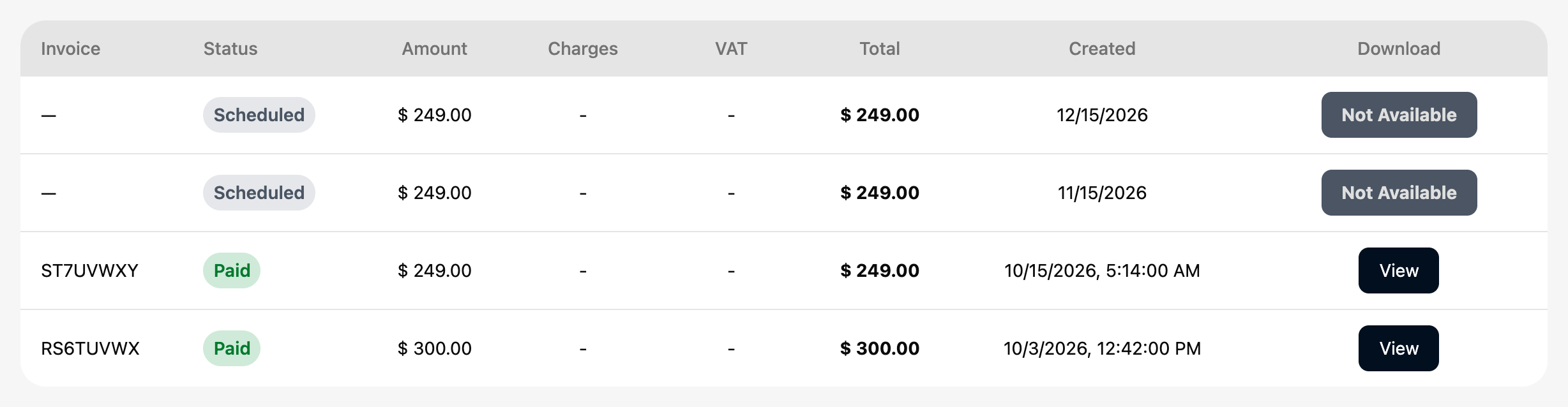
What each column means
| Column | What it shows |
|---|---|
| Invoice | The invoice reference for the payment. Quote it if you contact support. |
| Status | Paid if the payment went through, Failed if the card was declined, Pending while it is still being processed, Scheduled for a monthly payment of your quarterly commitment that hasn't been charged yet. |
| Amount | The price before any charges and VAT. |
| Charges | Transaction charges, if any. A dash means none. |
| VAT | VAT, if it applies. A dash means none. |
| Total | What was charged to your card. |
| Created | The date and time of the payment, in your time zone. For a Scheduled payment, the date it will be charged. |
| Download | View opens the receipt. Pay now appears on a Failed subscription payment. Not Available means there isn't a receipt for this payment, as for a Scheduled one. |
Get a receipt or invoice
- Open Billing History.
- Find the payment and click View in the Download column.
Result: the receipt opens in a new browser tab. Save or print it from there.
Scheduled payments
On a quarterly commitment you pay the Quarterly price three times: when you start and a month and two months later. The payments still to come are listed at the top of the first page as Scheduled, with the date each will be charged in Created and the amount in Amount and Total. They have no invoice reference yet, so Invoice shows a dash. When a payment is charged, its row turns Paid, or Failed if the card is declined.
Cancelling a commitment doesn't remove the payments that are still part of it: see Cancel your subscription.
Pay a failed payment
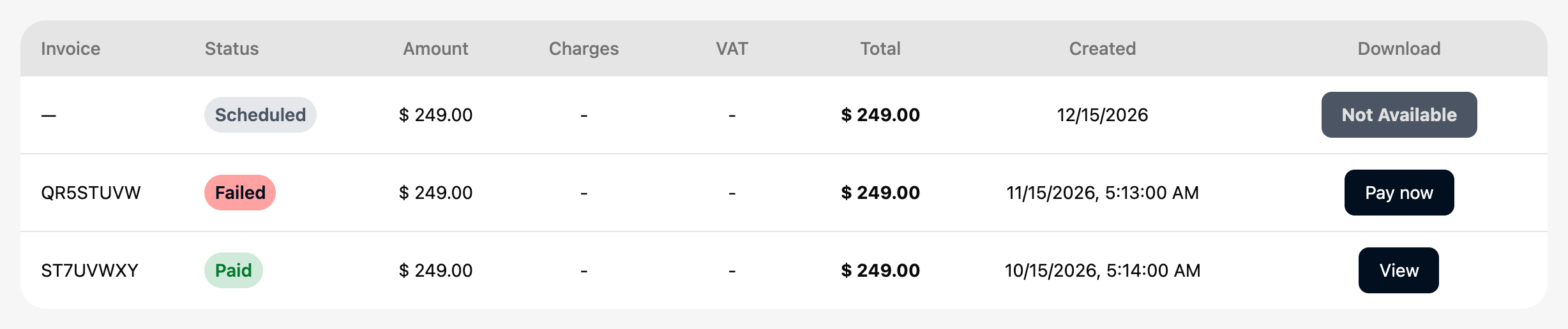
If a subscription payment fails, its row shows Failed and a Pay now button.
- Open Billing History.
- On the Failed payment, click Pay now in the Download column.
- Pay the invoice on the page that opens in a new browser tab.
Result: the payment goes through and the row turns Paid when you come back to Billing History. Reload the page if it still shows Failed. If you can't pay it, change your card first: payment attempts use your default card.
Stripe retries a failed payment for a while and then stops. A subscription with an unpaid payment can be suspended until it is paid, and every unpaid payment has to be settled before it is active again. Pay a failed payment as soon as you can.
Troubleshooting
| Problem | Solution |
|---|---|
| No billing history found. | You haven't made a payment yet. |
| A payment shows Failed. | The card was declined. Add or change a card, then use Pay now if the row has it, or try again. |
| Not Available instead of View. | A Scheduled payment has no receipt until it is charged. For any other payment, contact support with the invoice reference. |
| I see a payment I didn't expect with a future date. | It's a Scheduled monthly payment of your quarterly commitment. See Scheduled payments. |