Create Account
Create your Ragworks account with your work email address. You confirm the address with a six-digit code that we email you, then set up your workspace and start using Ragworks.
Sign up
Step 1: Open the sign-up page
Click the "Get Started" button in the navigation bar at the top of the Ragworks website. This opens the sign-up page.
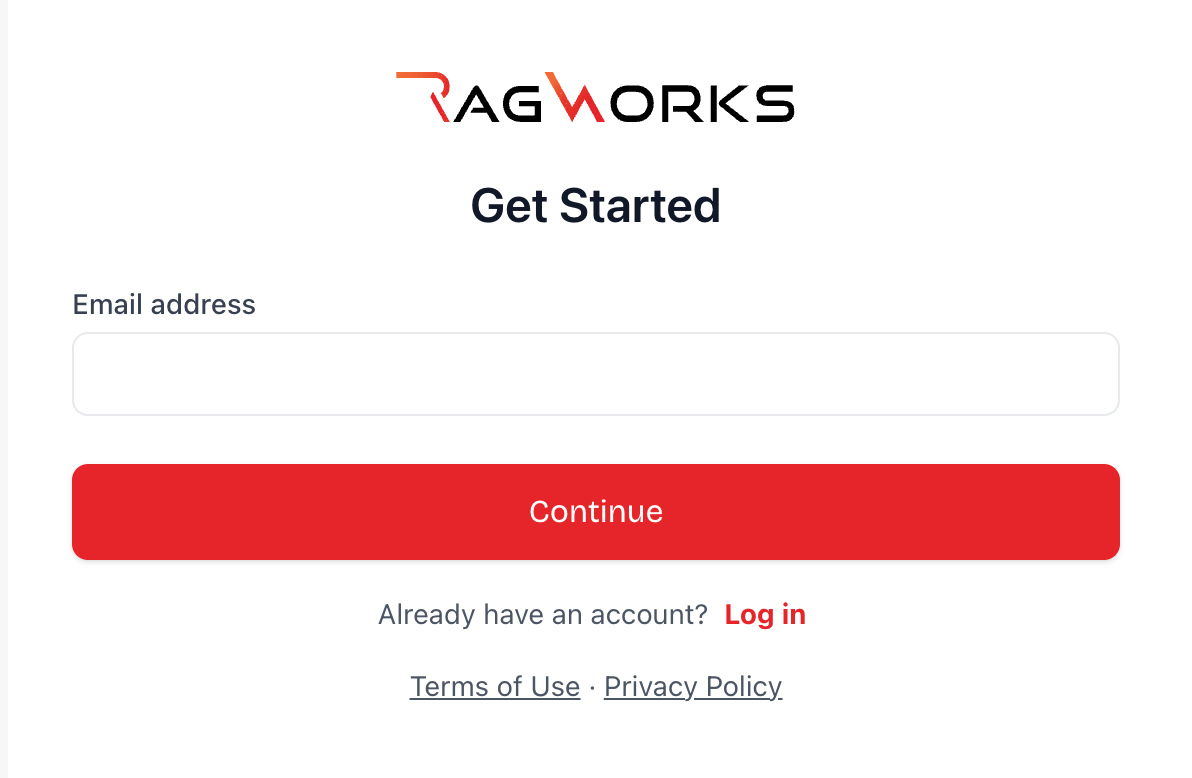
Step 2: Enter your email address
Enter your work email address and click Continue. Use an address you can open right now: for a new account, we send a code to it in the next step. Personal and temporary email addresses may not be accepted.
If the address already has an account, we take you straight to the Log in page with your address filled in, and we do not send a code. Enter your password to continue (see Log in later).
Step 3: Create a password
Create a password and click Continue. It needs at least 8 characters and at least three of these four kinds: lowercase letters, uppercase letters, numbers, and special characters (for example !@#$%^&*). The page lists the requirements and ticks them off as you type. Use the eye icon at the end of the field to show or hide what you typed.
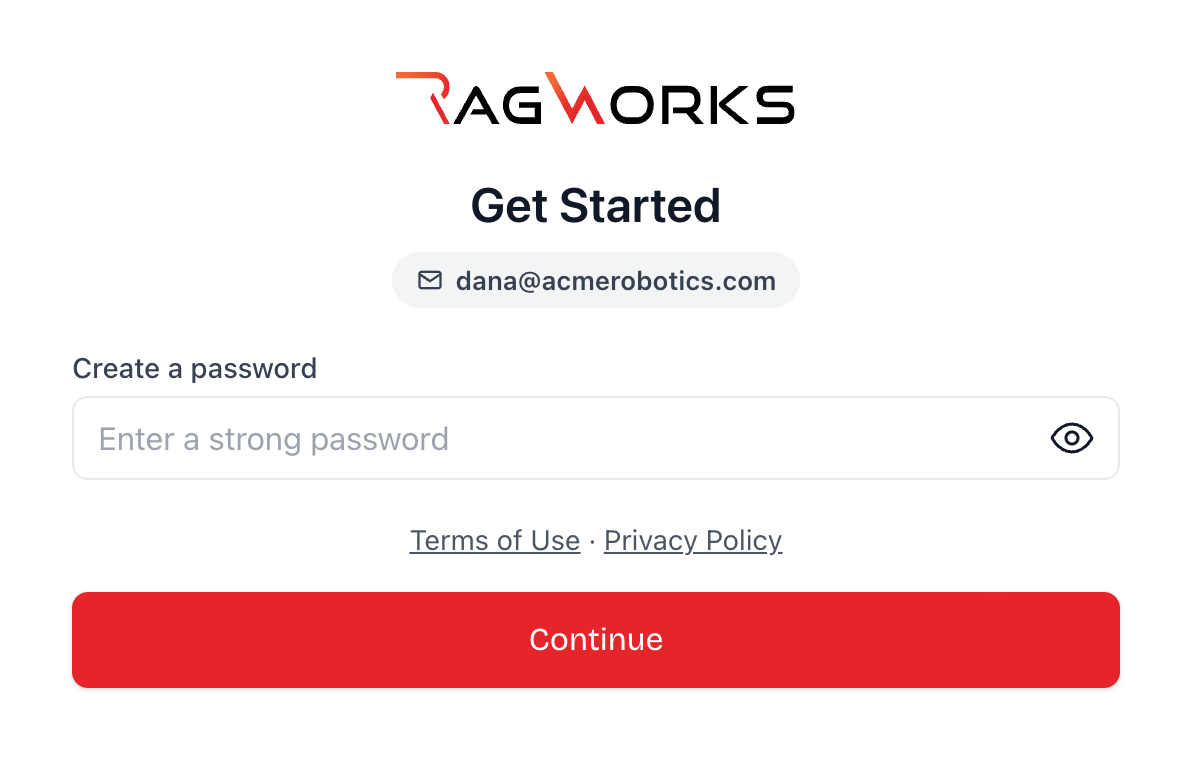
Before you continue, you can read the Terms of Use and the Privacy Policy, linked under the form.
Confirm your email with a code
Check your inbox
We send an email with a six-digit code to the address you entered. It comes from noreply@auth-mail.ragworks.ai.
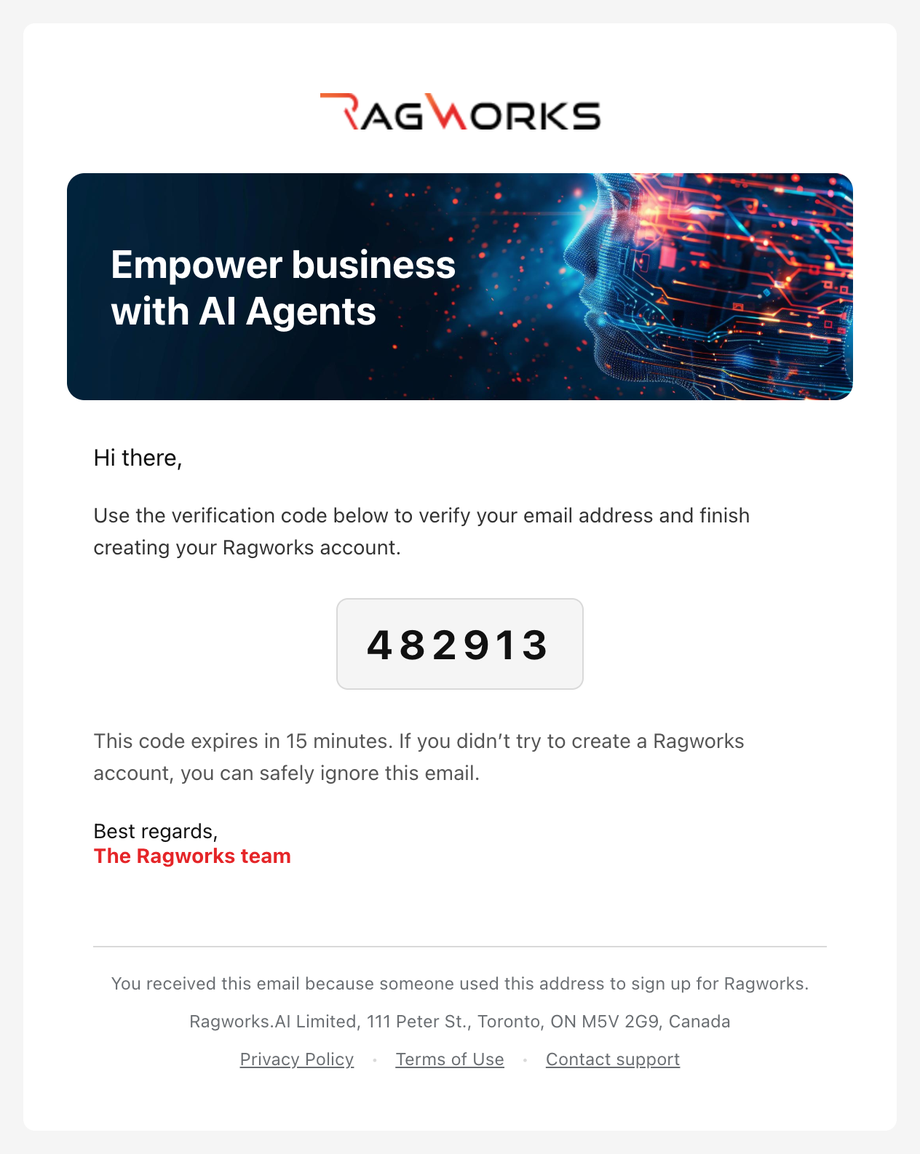
Enter the code
- Open the email and copy the code.
- Type or paste it on the Check your email page.
- When the code is accepted you are signed in. There is no second login.
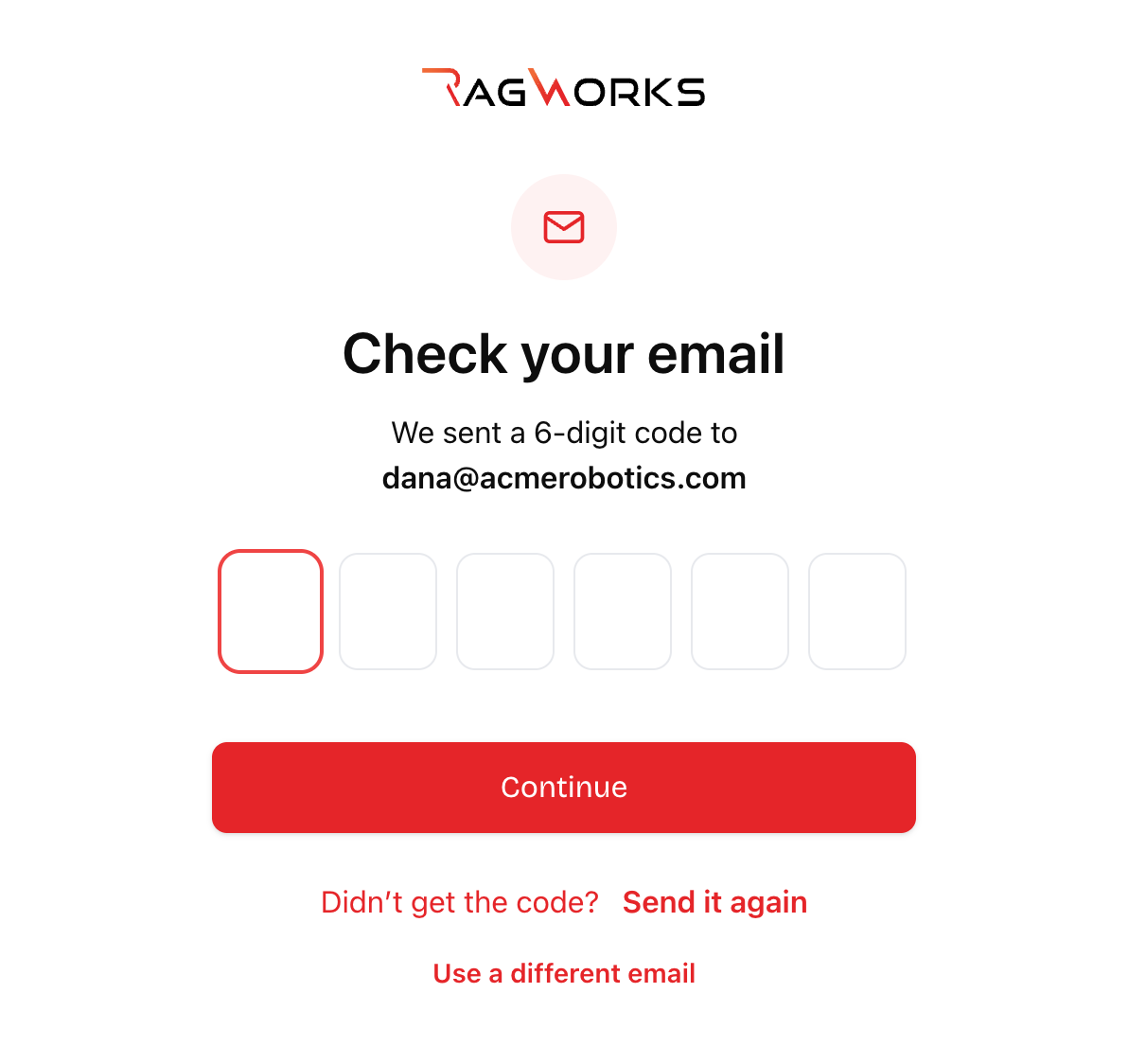
The code expires after 15 minutes. If you type a wrong or an expired code, the page tells you; ask for a new one with Send it again and use the most recent code.
Didn't Receive the Email?
If the email does not arrive within a few minutes:
- Check your spam or junk folder, and look for a message from
noreply@auth-mail.ragworks.ai. - Check that you typed your address correctly. If not, go back and enter it again.
- Click Send it again on the code page to get a new code.
- If you still have nothing, contact us at info@ragworks.ai and tell us the address you used.
Set up your workspace
After the code, you set up your workspace once.
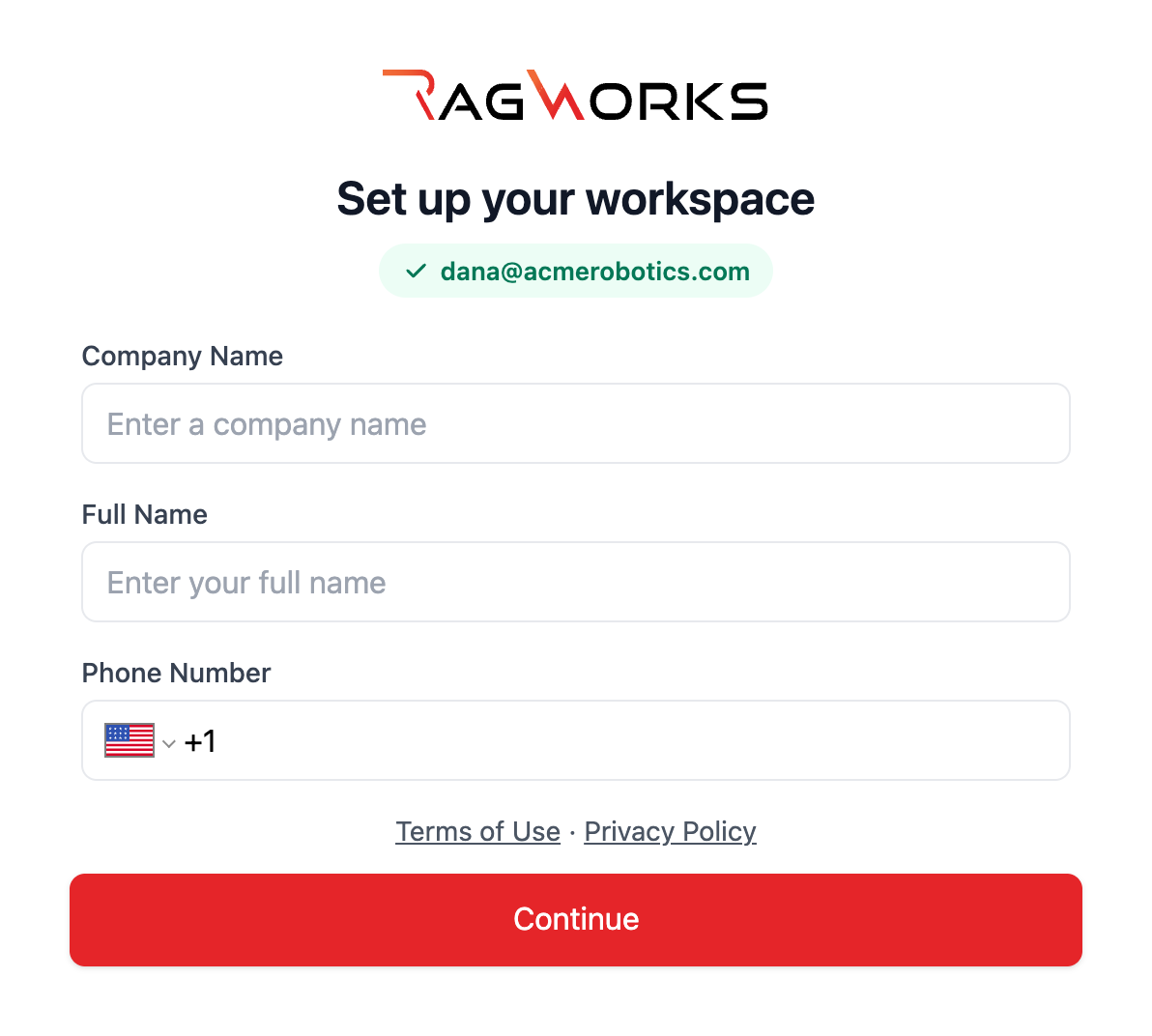
Fill in:
- Company Name: your organization's name (3-50 characters, letters, numbers, and spaces only). It becomes the name of your workspace, and names are compared without capital letters or spacing differences: "Acme Robotics" and "acme-robotics" are the same name. If a workspace with that name already exists you are asked to choose a different one.
- Full Name: your complete name (3-50 characters, letters, numbers, and spaces only).
- Phone Number: your contact number with the country code. It is required. We do not verify it, but a number that another account already uses is refused.
Click Continue. Ragworks creates your workspace, which takes a few seconds, and takes you to onboarding.
If you close the page before this step, nothing is lost: log in again and you land on this page.
Getting Started with Your Account
Once your workspace is set up, you'll have full access to Ragworks with:
- Full Workspace Access: Start building and managing your AI projects
- Support Resources: Access documentation and help materials
Log in later
After you have created your account, log in with:
- Email: Your registered work email address
- Password: The password you chose when you signed up
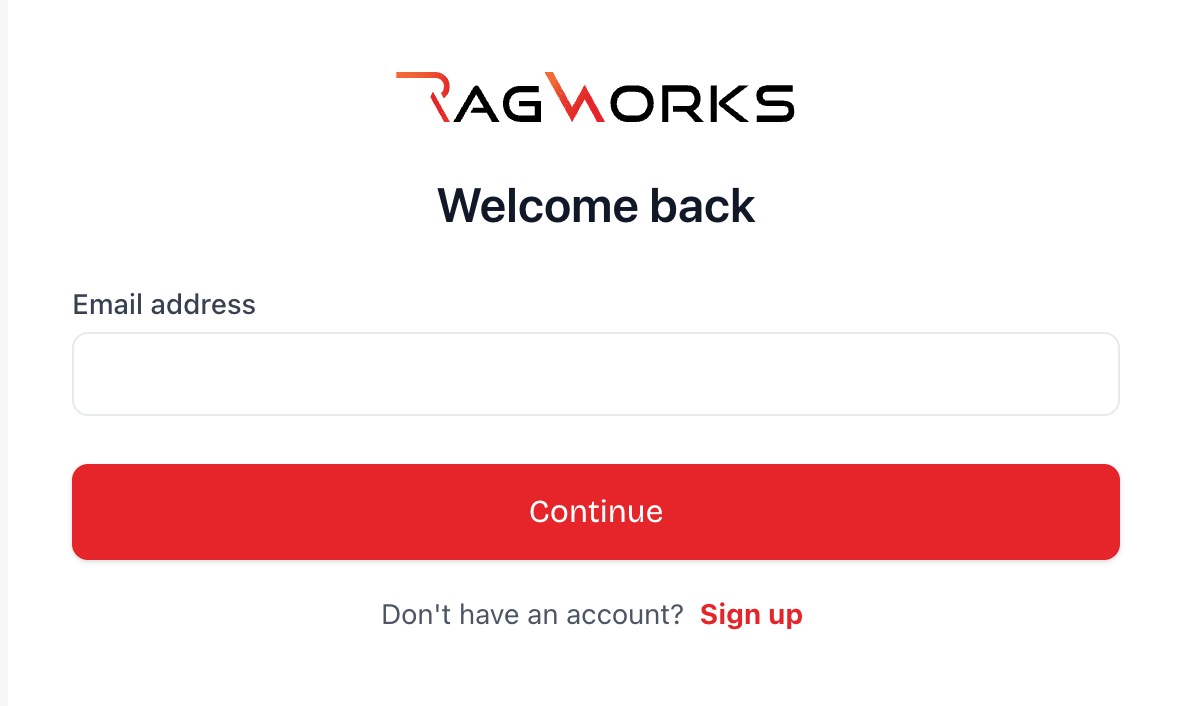
You do not need a code to log in.
Need Help?
If you encounter any issues during account creation:
- Check that your email address is valid and that you can open it
- Check that your password meets the requirements listed under the field
- Look in your spam folder for the code email, or ask for a new code
- Contact support at info@ragworks.ai if problems persist
Welcome to Ragworks! Your AI-powered workspace awaits.