Conditions and waits
Outcome ports route a lead on what one step did. Condition and Wait for go further: a Condition looks at the lead and everything that has happened so far, and a Wait for holds the lead until something happens. Both are in the Logic group of the Add Sequences panel.
Neither sends anything, costs anything, or counts against your sending limits.
Condition
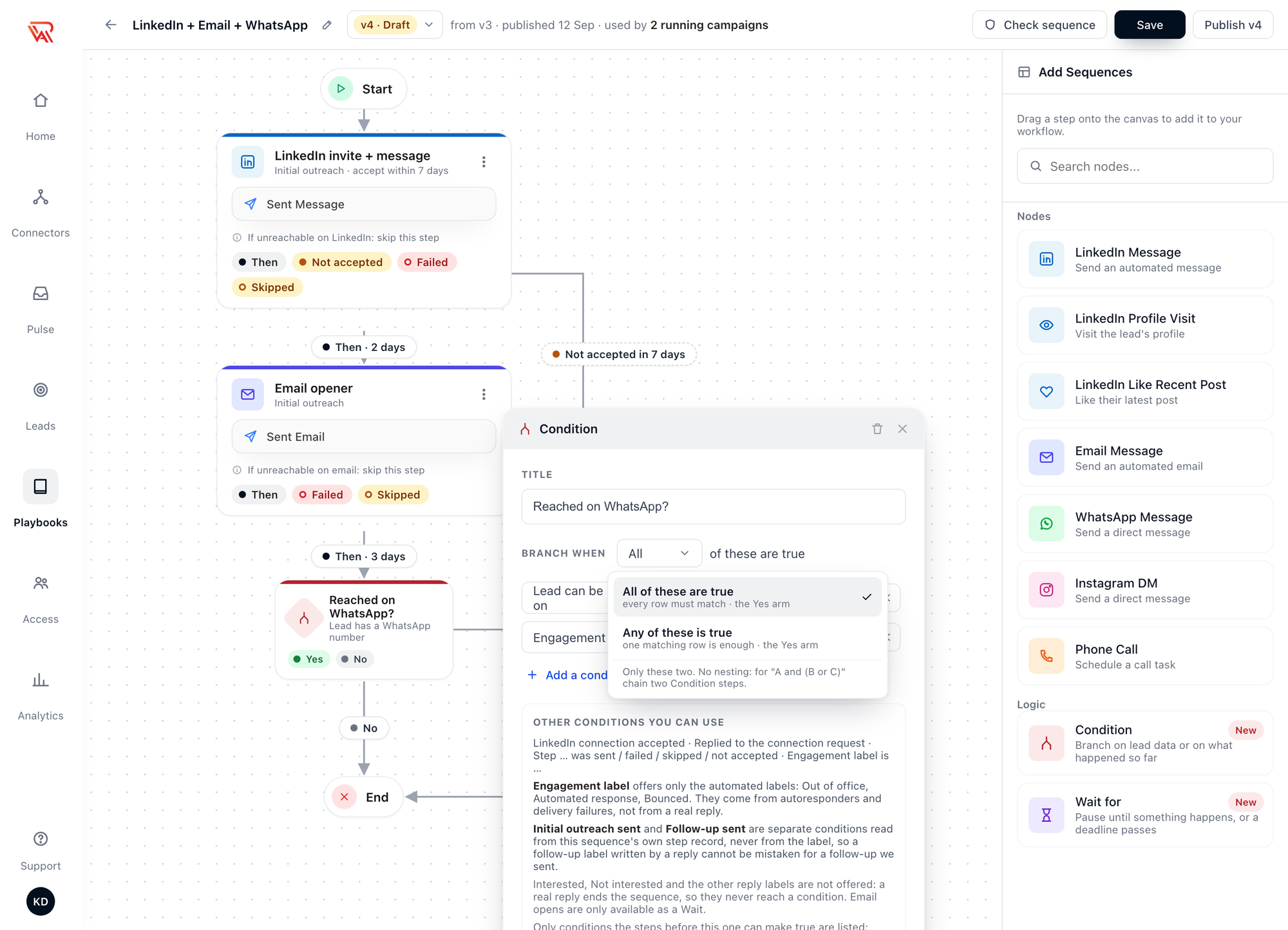
A Condition sends each lead down one of two arms, Yes or No. Connect both, even if one goes straight to End.
Setting it up
- Drag Condition onto the canvas and connect a port into it.
- Click it and give it a Title your team will understand in lead progress, for example
Reached on WhatsApp?. - Under Branch when, choose All (every row must match) or Any (one matching row is enough).
- Add up to five rows with Add a condition.
- Connect Yes and No.
There is no nesting. For "A and (B or C)", chain two Conditions.
What a Condition can check
| Check | True when |
|---|---|
| Lead can be reached on a channel | The lead has what that channel needs and the campaign has an account for it. Only this sequence's channels are offered |
| LinkedIn connection accepted | The lead accepted your connection request. Needs a connection request earlier on the path |
| Replied to the connection request | The lead answered the note on your invite |
| Step … was sent / failed / skipped / not accepted | That earlier step ended that way |
| Initial outreach sent · Follow-up sent | This sequence has sent the lead an initial outreach, or a number of follow-ups |
| Engagement label is | Out of office, Automated response or Bounced |
The editor only lists checks the steps before the Condition can make true. LinkedIn connection accepted, for example, only appears when a connection request comes earlier.
A real reply ends the sequence, so labels that come from replies (Interested, Not interested and the rest) can never be true at a Condition. The three labels you can check come from autoresponders and delivery failures, which don't end the sequence. Email opens are available as a Wait for, not as a Condition.
Examples
| You want | Condition | Yes | No |
|---|---|---|---|
| A WhatsApp nudge only for leads with a number | Lead can be reached on WhatsApp | WhatsApp step | Email follow-up, or End |
| LinkedIn follow-ups for connections, email for everyone else | LinkedIn connection accepted | LinkedIn message | Email follow-up |
| Try again later when the lead is away | Engagement label is Out of office | A Wait for with a longer deadline, then the follow-up | The follow-up now |
Wait for
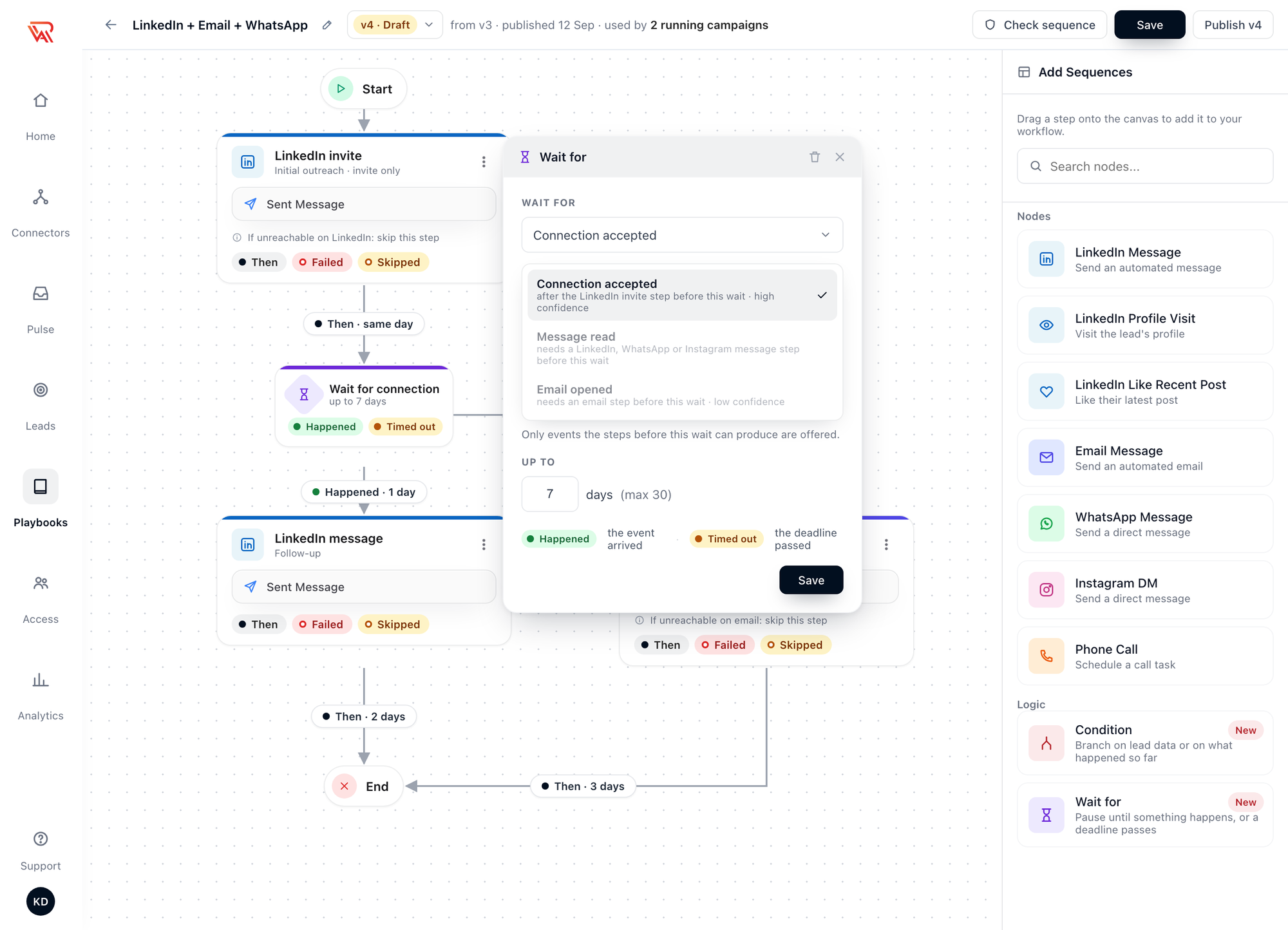
A Wait for holds the lead until an event arrives or a deadline passes, then routes it: Happened if the event arrived, Timed out if the deadline passed first.
| Wait for | Offered after | How reliable |
|---|---|---|
| Connection accepted | A Connection request step or a LinkedIn Message with the Initial outreach role | High |
| Message read | A LinkedIn, WhatsApp or Instagram message, including a connection request with a note | Medium: leads can switch read receipts off |
| Email opened | An email step | Low: some mail apps open every email automatically, others block the signal |
Set Up to N days (1 to 30). The deadline starts when the lead reaches the Wait for. An event that arrives while the lead waits on the line into it still counts, so a message read during a two-day delay before a Message read wait takes Happened straight away.
After a Connection request step, a lead who is already connected passes a Connection accepted wait at once, and the wait's deadline is how long you give everyone else to accept.
Because read receipts and opens are not always reported, route Timed out to something sensible — usually the next touch on another channel — rather than to End.
The acceptance window is a built-in wait
For the most common wait — did they accept my invite? — you don't need a Wait for. Set the connection request's acceptance window in its step settings and route Not accepted.
Out-of-office replies and bounces
In a sequence, an automatic reply is not a reply:
- Out-of-office and other autoresponders are recognised and labelled Out of office or Automated response. The AI agent doesn't answer them and the sequence carries on.
- A bounced email gets the lead the Bounced label, and lead progress shows the email as Failed · bounced. A bounce reported while the email is being sent routes the lead down that step's Failed port.
By default these three labels don't hand the lead over to a person. You can change that in the campaign's takeover settings.
Seeing the decision on a lead
Open a lead from the campaign's Leads tab. Workflow Progress shows each Condition as Decided, with the arm taken and why — for example No · no WhatsApp number on this lead — and Next Scheduled Runs shows what the lead is waiting for and until when, for example Waiting for connection · until Oct 2 · then Not accepted. See Lead progress.
Related
- Sequence overview
- Create a sequence
- Predefined templates — Conditions and Waits in real sequences