Asset Library
The Asset Library is a shared media library for your organization. Upload the files your outreach relies on — case studies, one-pagers, brochures, product screenshots — once, and attach them to any step of a playbook's outreach sequence. When the campaign sends that step, the file goes out with the message.
Overview
The Asset Library helps you:
- Keep every sales asset in one place, visible to everyone in your org
- Organize files into folders by product, persona, or campaign
- Attach the right file to the right touch — for example a case study on the second follow-up
- See which playbooks use each file before you change or remove it
- Stay inside each channel's attachment limit without guessing
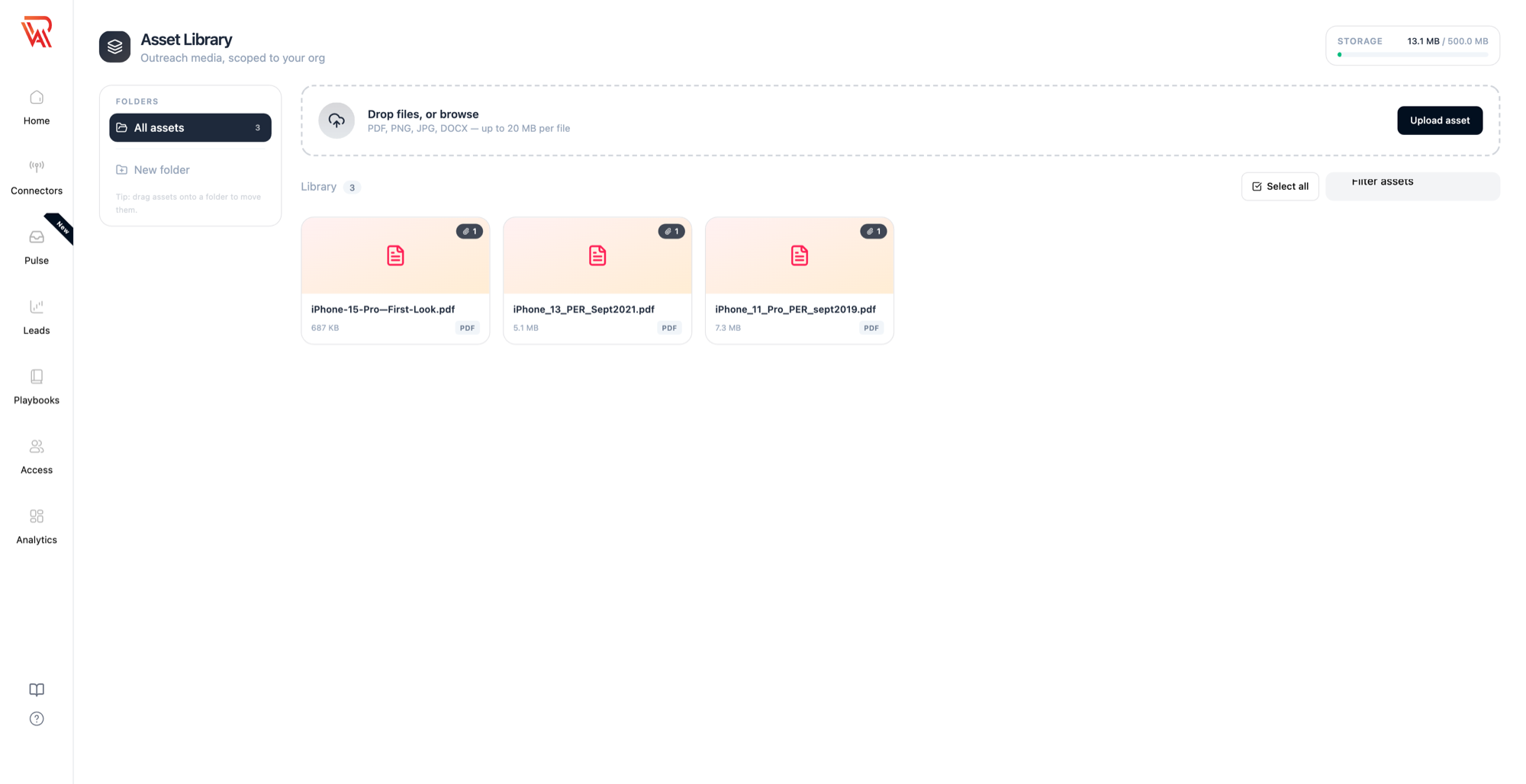
Supported Files and Limits
| Limit | |
|---|---|
| File types | PDF, PNG, JPG, JPEG, DOCX |
| Per file | Up to 20 MB |
| Per organization | 500 MB total storage |
The storage meter in the top-right corner of the library shows how much of your organization's 500 MB is in use.
Open the Asset Library
- Log in to Ragworks and open AI SDR from the profile/settings menu.
- In the left sidebar, expand Playbooks.
- Click Assets.
Manage Assets
Upload files
Drag files onto the upload area at the top of the page, or click Upload asset to browse. You can drop several files at once. If a folder is open, new uploads land in that folder.
Files that are not a supported type, or that are over the per-file limit, are rejected with a message and the rest of the batch continues.
Organize with folders
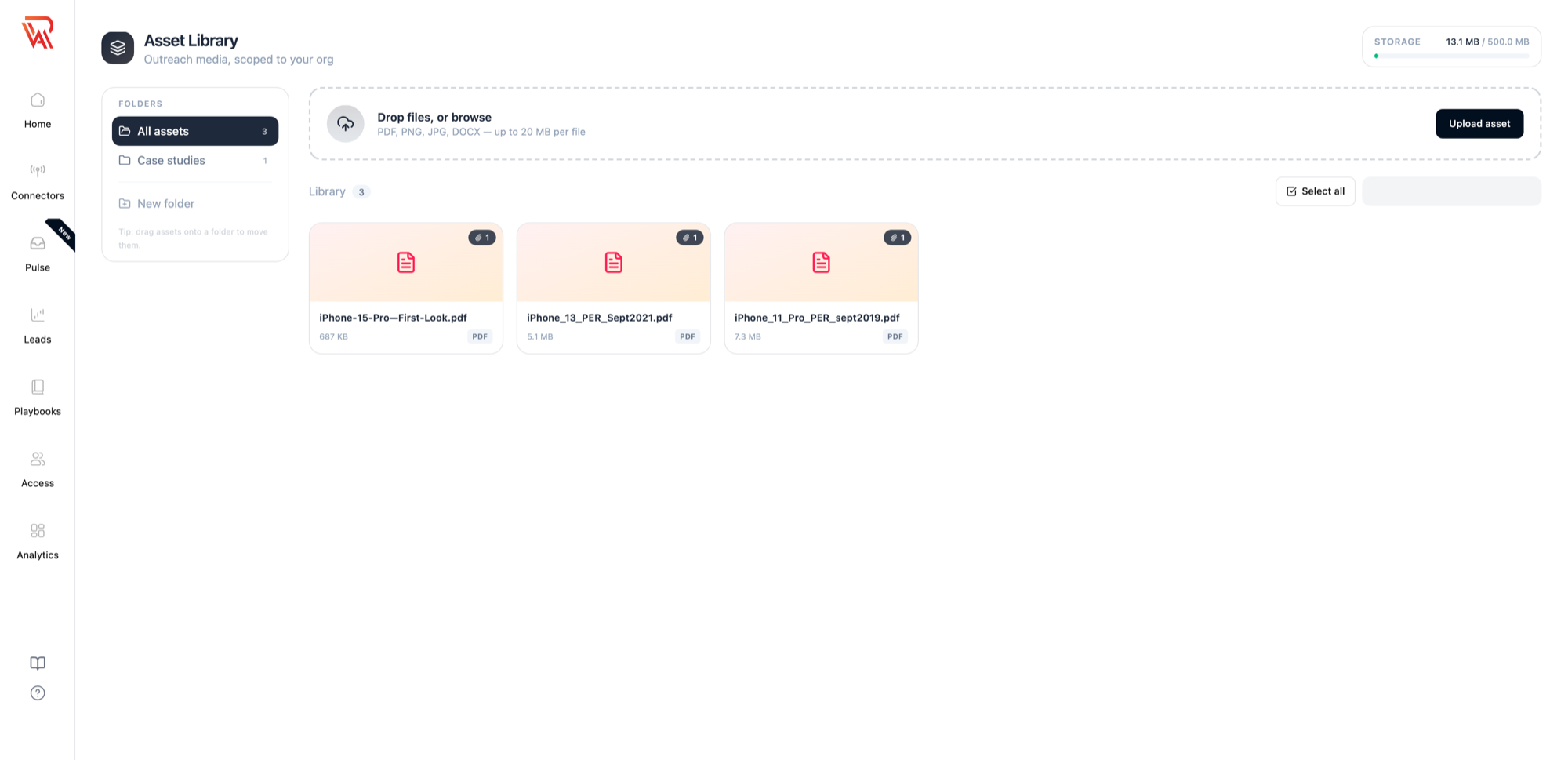
Folders sit in the left rail. Click New folder to create one, then move files into it in either of two ways:
- Drag and drop — drag one or more files onto a folder in the rail.
- Select and move — tick the files, then choose Move to in the action bar that appears at the bottom of the screen.
Click a folder to see only its files. All assets shows everything.
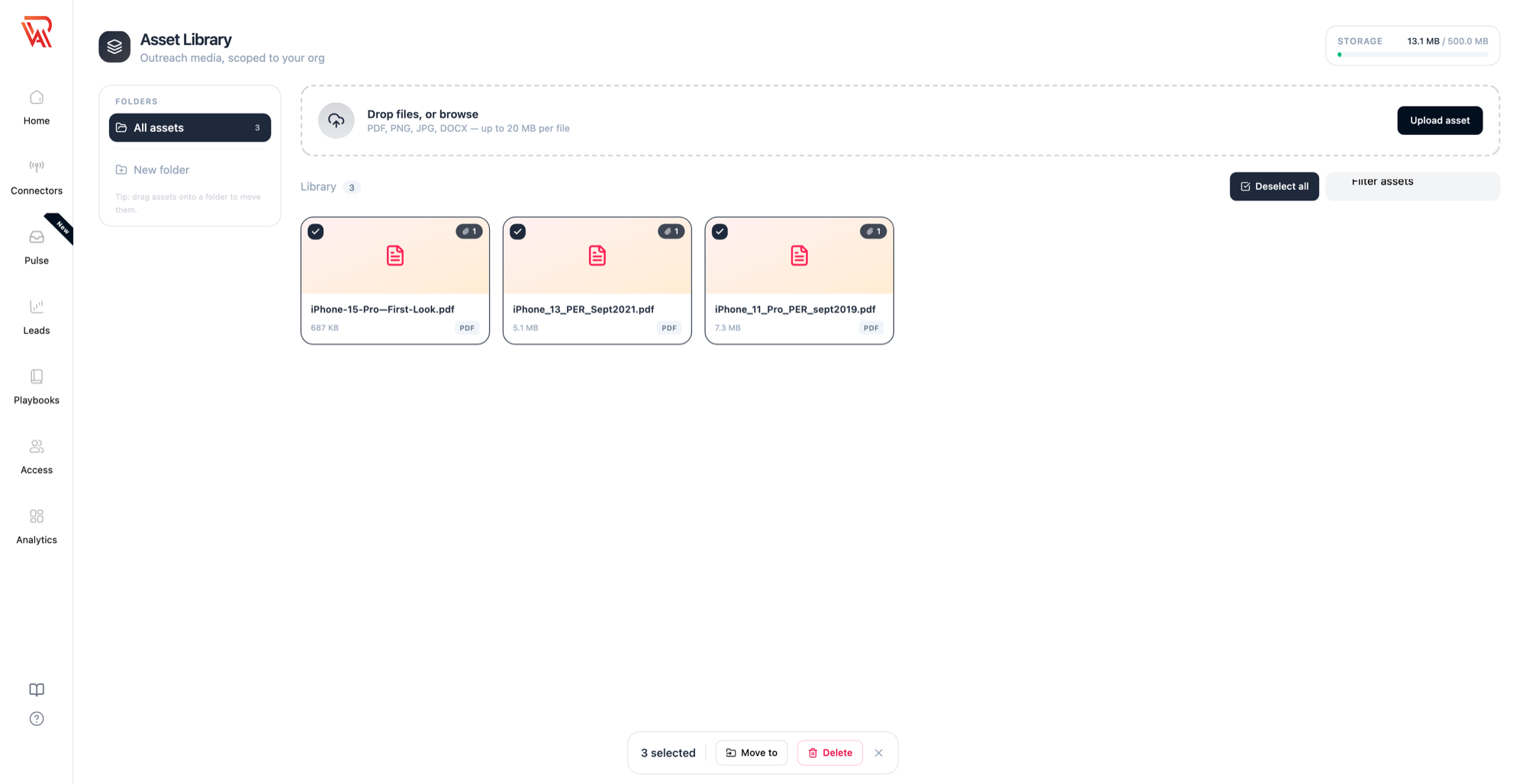
Select several files
Hover over a file and tick its checkbox to select it. Use Select all next to the filter box to select every file currently shown — this respects the open folder and any filter text. With files selected you can move or delete them together from the action bar.
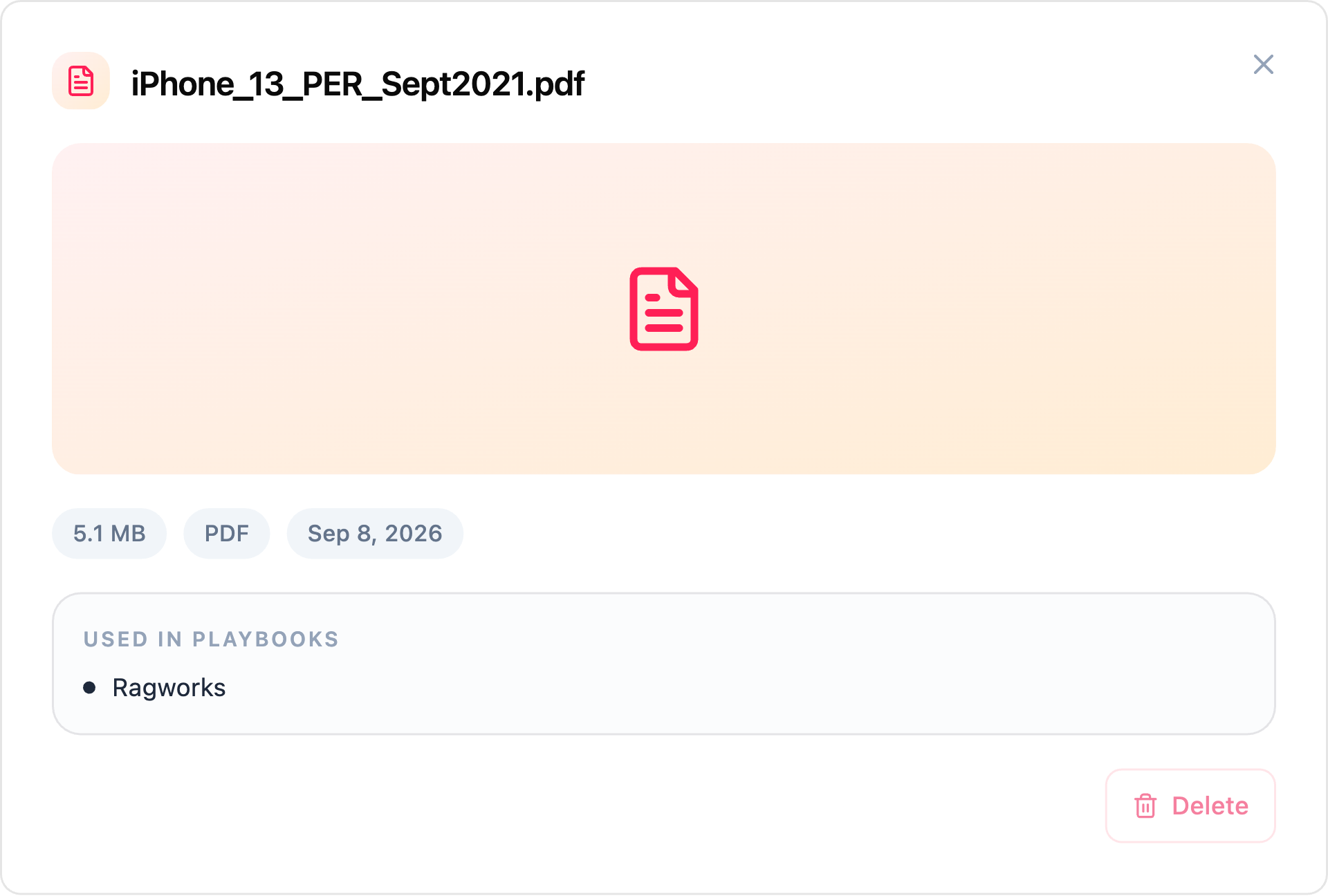
View details and usage
Click a file to open its details: type, size, upload date, and the list of playbooks that currently attach it.
Delete files and folders
A file can only be deleted when no playbook attaches it. If a playbook still references the file, the Delete button is disabled and the details panel tells you which playbooks to update first. This prevents a live campaign from losing an attachment mid-sequence.
Deleting a folder deletes every file inside it, so you are asked to confirm first. The same rule applies: the folder can't be deleted while any of its files is in use.
Attach Assets to a Sequence Step
Attachments are configured per step in the Playbook Editor, under the Outreach Sequence tab. Open any email, LinkedIn message, WhatsApp, or Instagram messaging block and use the Attachments card below the message fields.
- Click Add in the Attachments card.
- Search the library and pick a file. Repeat to add more.
- Save the playbook.
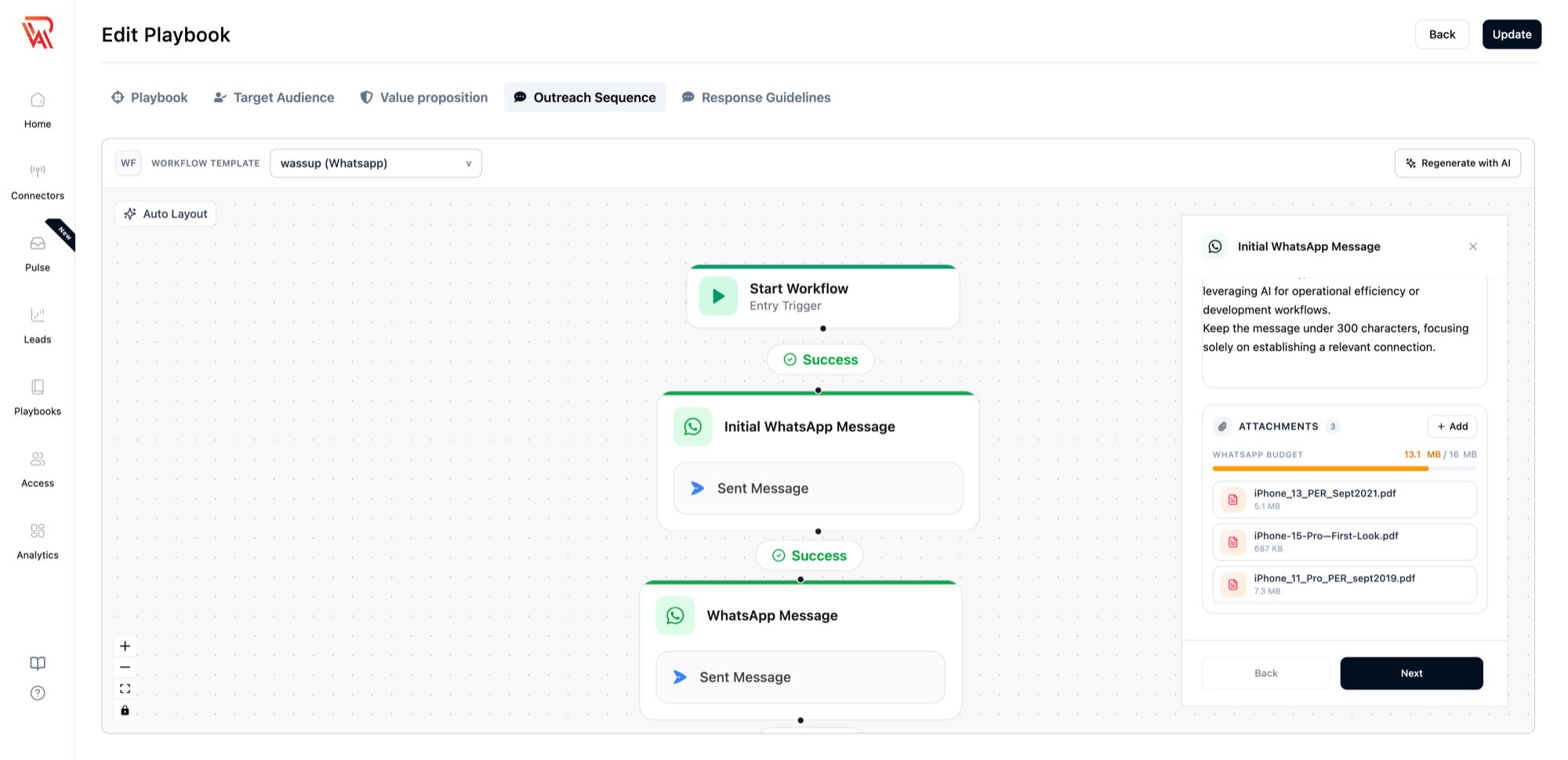
Every send from that step — for every lead in the campaign — includes the attached files.
Channel limits
Each channel has a limit on the total size of all files attached to one step:
| Channel | Total attachment size per step |
|---|---|
| 20 MB | |
| 16 MB | |
| 8 MB | |
| 8 MB |
The Attachments card shows a budget meter for the step, and the picker greys out any file that would push the step over its limit, so you can't attach more than the channel can carry.
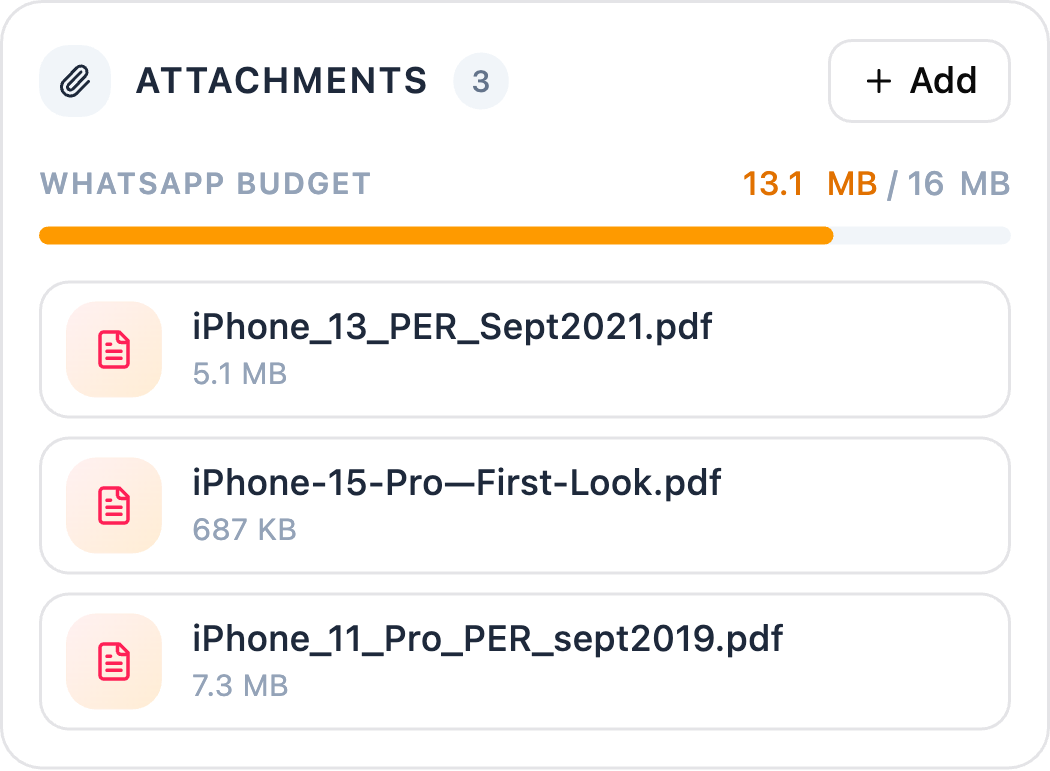
What happens if a file no longer fits
If a step's attachments are over the channel limit at send time, the message is still sent. Files are included in the order they were attached until the limit is reached, and any that don't fit are left off that send. The campaign never stalls because of an attachment.
Best Practices
- One file per purpose. A short case study per persona beats a single 15 MB deck; small files fit every channel.
- Name files for the reader. The recipient sees the filename, so use
Acme-Fintech-Case-Study.pdf, notfinal_v3.pdf. - Use folders by offer or persona, not by campaign — the same file is usually reused across campaigns.
- Attach on later touches. Leading with an attachment on a cold first message lowers reply rates; save proof for the follow-up.
- Check usage before replacing a file. The details panel lists every playbook that attaches it.
Next Steps
- Build a Playbook Manually — configure the messaging block where attachments are added
- Create a Sequence — define the steps you will attach files to
- Create a Campaign — launch the playbook and start sending