Connect Claude
Add the Ragworks AI SDR connector to Claude on the web, in Claude Desktop, or in Claude Code. It takes a couple of minutes.
Connector address: https://ai-sdr-mcp.ragworks.ai/mcp
Menu names in Claude change from time to time. If a label below doesn't match what you see, look for Connectors in Claude's settings.
Claude warns that custom connectors aren't verified by Anthropic. This one is run by Ragworks at ai-sdr-mcp.ragworks.ai, so check that the address you enter is exactly the one above.
Claude on the web and Claude Desktop
You add the connector once to your Claude account. Claude Desktop uses the same connectors as claude.ai, so you don't add it again there. Don't put it in claude_desktop_config.json: that file is for servers that run on your own computer.
Personal plans (Free, Pro and Max)
-
In Claude, open Customize > Connectors.
-
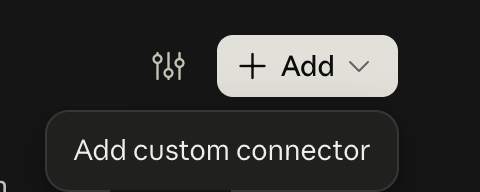
Click + Add, then Add custom connector.
-
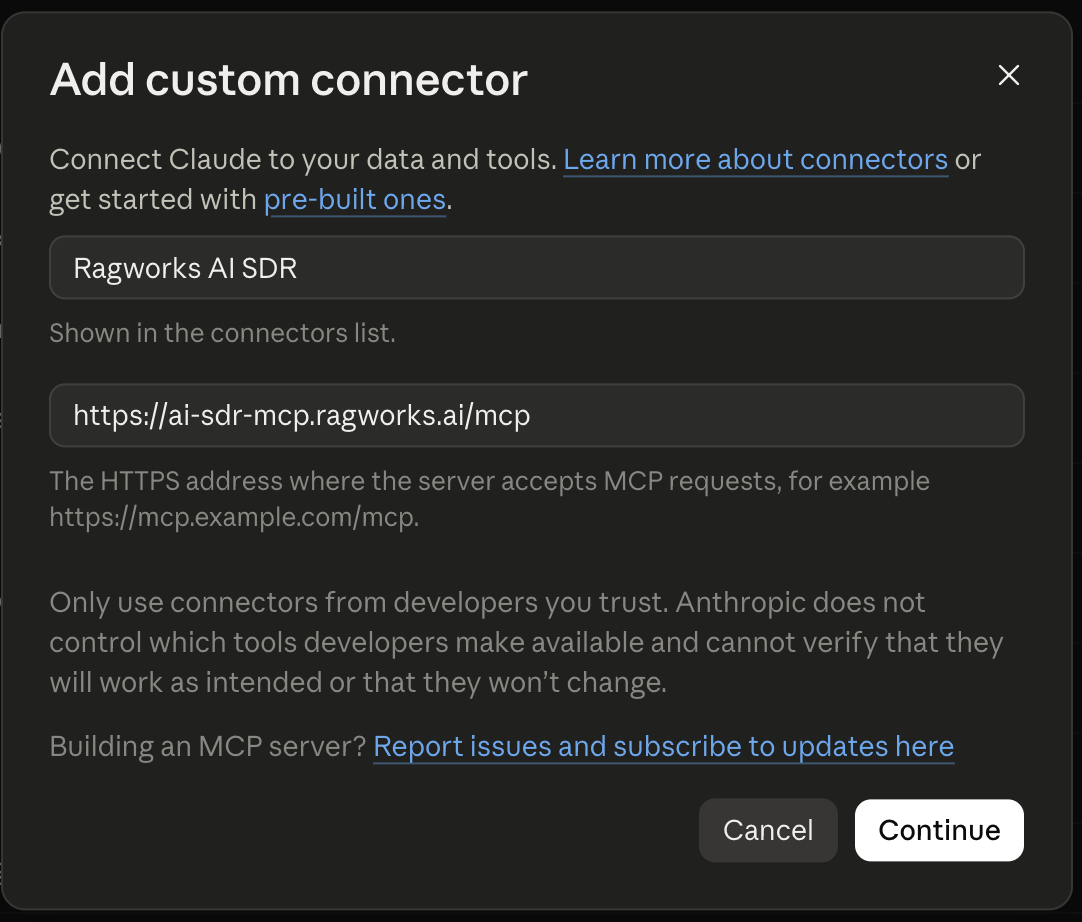
Enter the name Ragworks AI SDR and the connector address above, then click Continue.
-
Review the authentication settings. Leave them as Claude detected them, click Continue, then click Add.
-
Find Ragworks AI SDR under Yours and click Connect. Then sign in.
The Free plan allows one custom connector.
Team and Enterprise plans
An organization Owner adds the connector once for everyone. On Enterprise, Primary Owners and people with a custom role that includes Manage access to Libraries can add it too.
- Open Organization settings > Connectors.
- Click Add, hover over Custom, and select Web.
- Enter the name Ragworks AI SDR and the connector address above, then click Continue.
- Review the detected authentication settings, click Continue, then click Add.
Then each member connects with their own Ragworks account: open Customize > Connectors, find Ragworks AI SDR (it may be labelled Custom), click Connect, and sign in. Adding the connector for the organization doesn't give anyone access by itself, and members can't sign in for each other.
Sign in
-
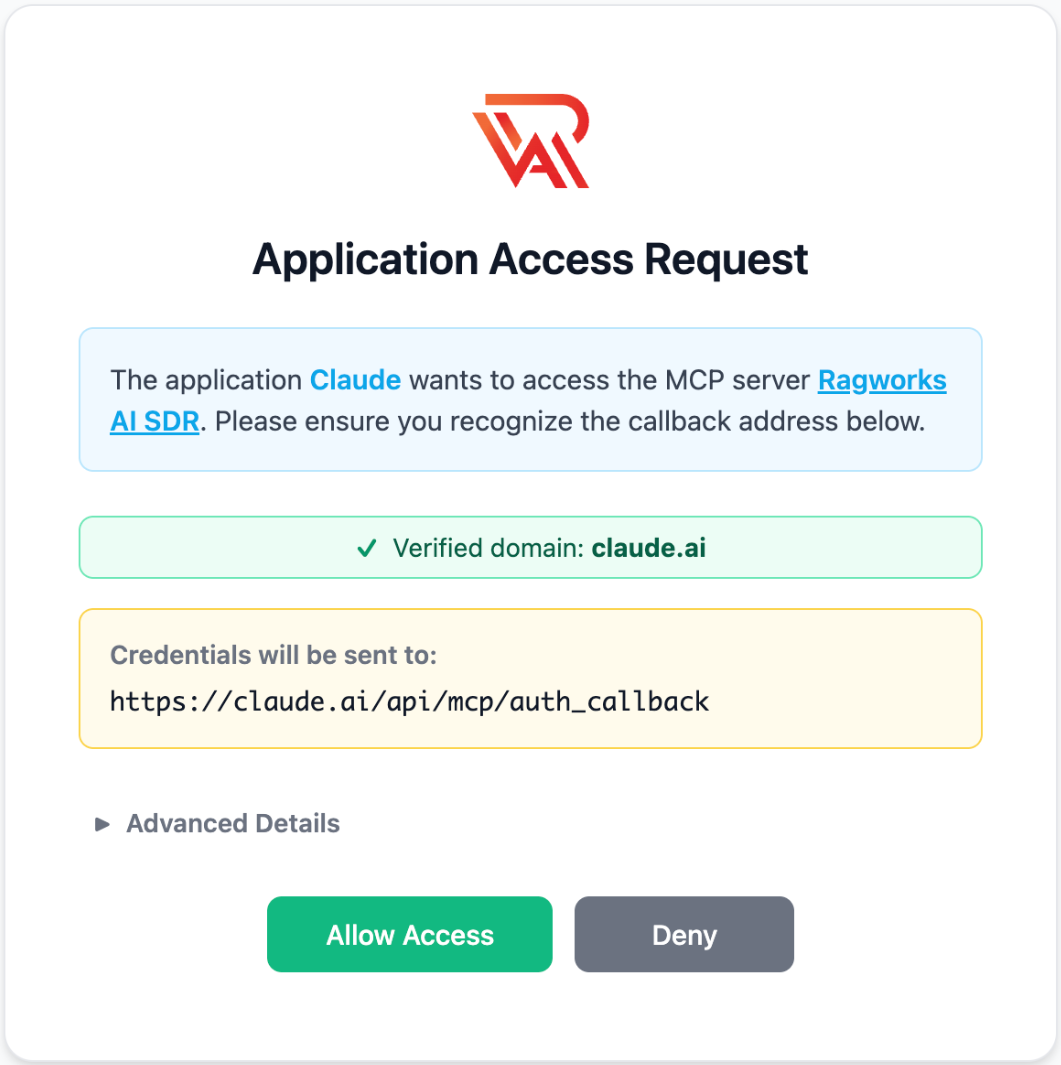
After you click Connect, a Ragworks page called Application Access Request opens.
-
Check Credentials will be sent to. It must be a Claude address, one that starts with
https://claude.ai/orhttps://claude.com/. With Claude's default settings the page also shows a green Verified domain: claude.ai line. If anything looks different, click Deny. -
Click Allow Access, then log in with your Ragworks email and password.
-
Claude shows the connector as connected.
Use it in a chat
-
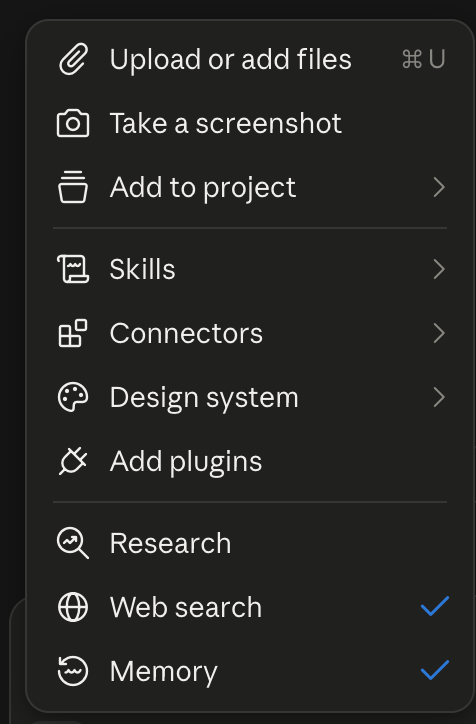
In a chat, click + at the lower left of the message box, choose Connectors, and turn Ragworks AI SDR on.
-
Ask for what you want. Sample questions has ideas.
Choose which tools Claude can use
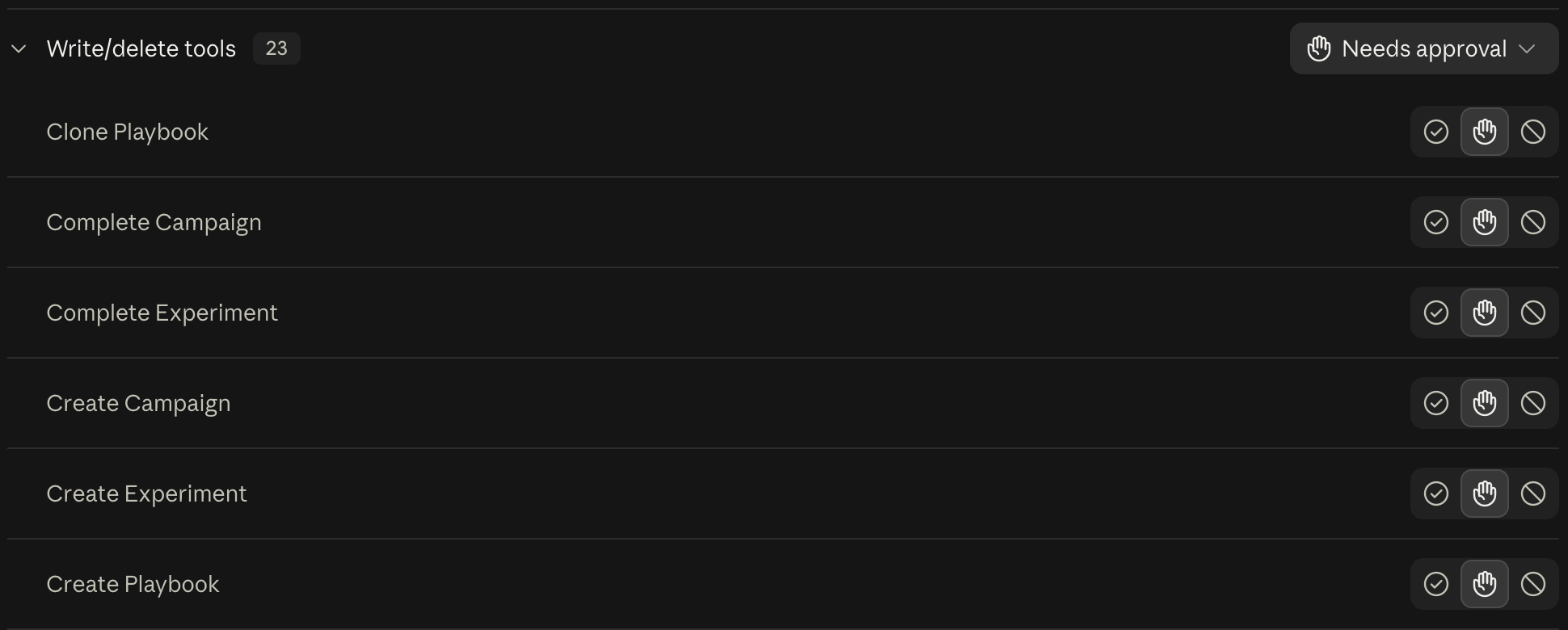
Open Customize > Connectors, select Ragworks AI SDR, and look at Tool permissions. Every tool has three settings: Always allow, Needs approval and Blocked. The tools are in two groups, Read-only tools and Write/delete tools. Set a whole group from the menu at its right, or choose Custom and set tools one by one. Available tools lists every tool.
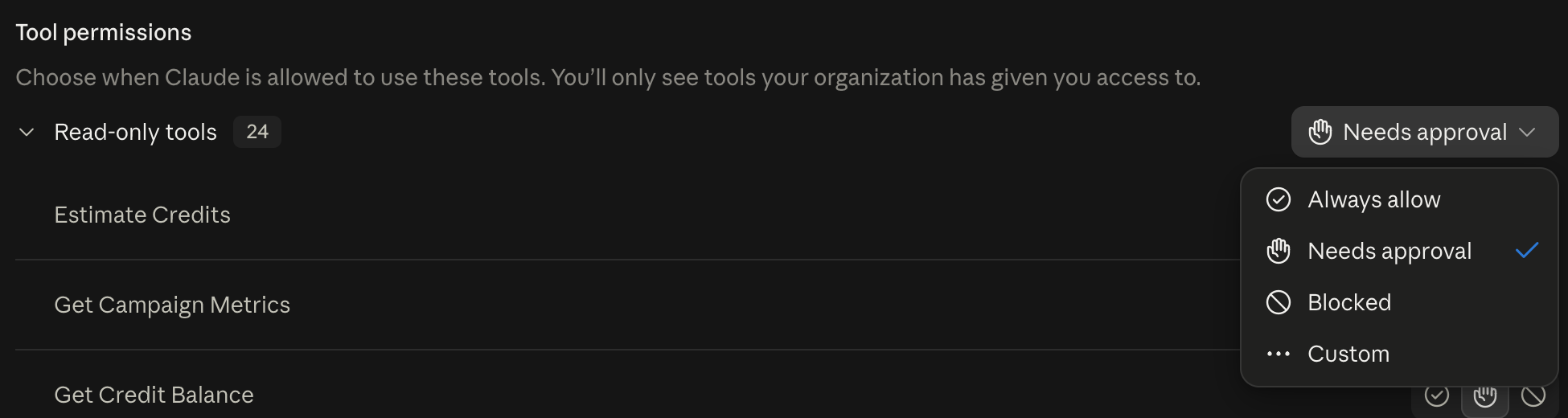
- Read-only tools only look at your workspace. Always allow is reasonable for them if you are happy for Claude to read without asking.
- Keep Write/delete tools on Needs approval, so you see each change before it happens.
- To stop Claude from reaching real people, set Launch Campaign, Complete Campaign, Start Experiment and Complete Experiment to Blocked. You can allow them again whenever you want Claude to run one.
Never set Launch Campaign, Complete Campaign, Start Experiment or Complete Experiment to Always allow. They contact real people or can't be undone.
In Claude's Research mode, connector tools can run without further approval. Before you start a research task, set the write and delete tools to Blocked, or switch the connector off.
Claude Code
-
Add the connector:
claude mcp add --transport http ragworks https://ai-sdr-mcp.ragworks.ai/mcpThis adds it for the current project, for you only. Add
--scope userto use it in every project. -
Start Claude Code, run
/mcp, select ragworks, and sign in in the browser. On the Application Access Request page, Credentials will be sent to must start withhttp://localhostorhttp://127.0.0.1, which is your own computer. Click Allow Access, then log in with your Ragworks email and password. On a computer without a browser, runclaude mcp login ragworks --no-browserand follow the prompts. -
Ask, for example, "What's my Ragworks credit balance?"
To sign in again, run /mcp and choose Re-authenticate. To sign out, choose Clear authentication or run claude mcp logout ragworks. To remove the connector, run claude mcp remove ragworks.
When Ragworks adds a tool, Claude Code doesn't see it until you switch the connector off and on again in /mcp. The connector can't announce changes by itself. In claude.ai, switch it off and on, or refresh the connector, for the same reason.
Disconnect
In claude.ai and Claude Desktop, open Customize > Connectors, select Ragworks AI SDR, and click Disconnect. In Claude Code, use the commands above. Disconnecting ends Claude's access to your workspace. Your campaigns and lists are not touched.