Bring Your Own Leads
Bring Your Own Leads allows you to upload and manage your own lead databases directly inside Ragworks.
This workflow is useful when:
- Importing CRM exports
- Uploading third-party lead databases
- Using externally sourced prospect lists
- Running outbound campaigns with your own contacts
Uploaded leads can immediately be used for:
- Campaign creation
- Multi-channel outbound workflows
- CRM synchronization
- List management
Overview
Ragworks supports uploading:
- CSV files
- JSON files
Uploaded leads are stored inside lead lists and can be reused across campaigns and workflows.
Ragworks does not enrich uploaded leads automatically.
Uploaded contacts are used as-is for outbound workflows.
Create or Open a Lead List
Before uploading leads:
- Open Leads and select Saved List
- Either:
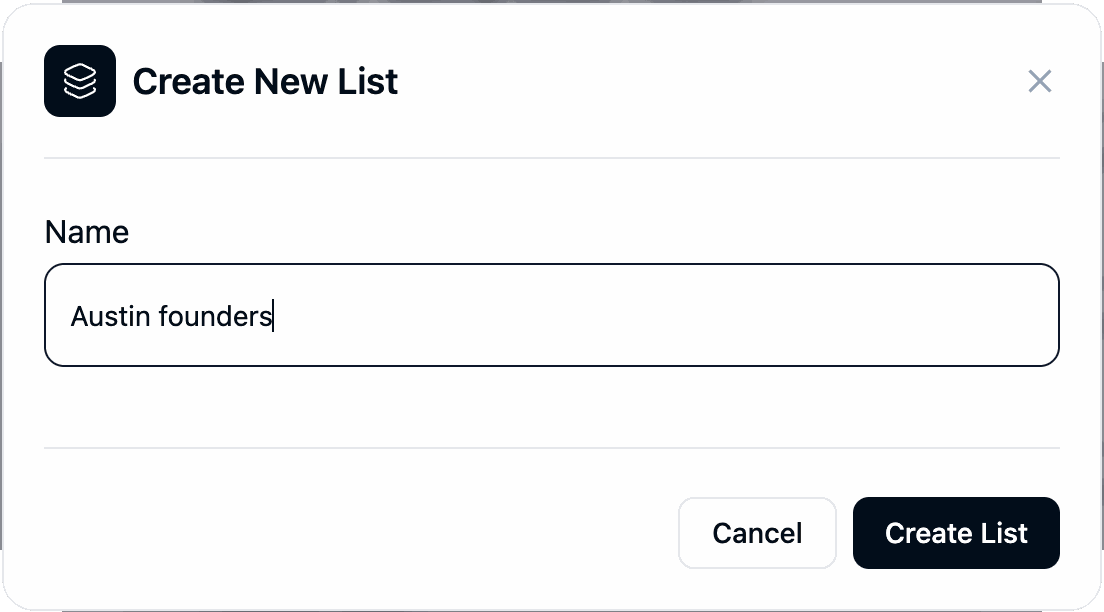
- Select Create List, give it a name and create it
- Open an existing lead list
Upload Leads
After opening a lead list:
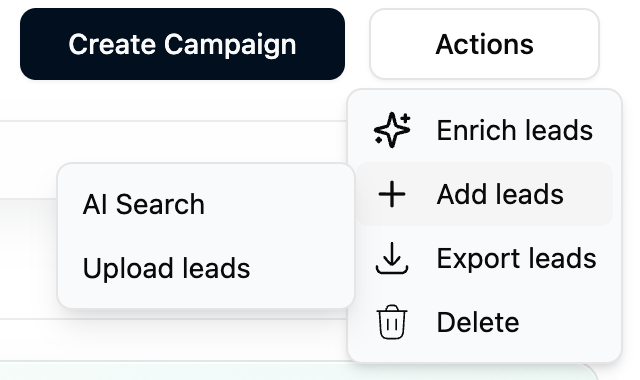
- Select Actions
- Choose Add leads, then Upload leads
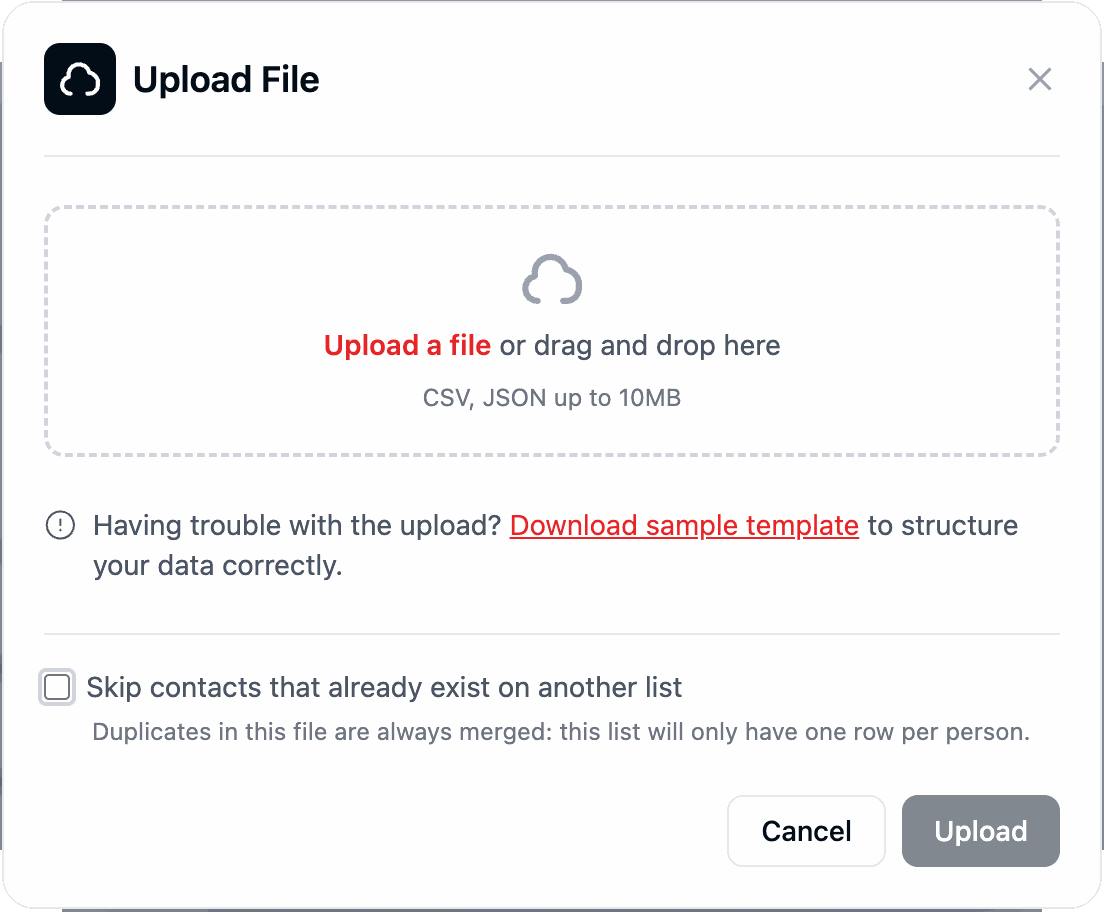
This opens the lead upload modal.
Supported File Formats
Supported upload formats:
- CSV
- JSON
Maximum upload size:
- 10MB
CSV Template Format
To simplify imports, Ragworks provides a sample CSV template with the recommended structure.
Recommended fields may include:
- First Name
- Last Name
- Company
- Job Title
- Location
- LinkedIn URL
Download the sample template here, or use Download sample template in the upload window for the full set of columns.
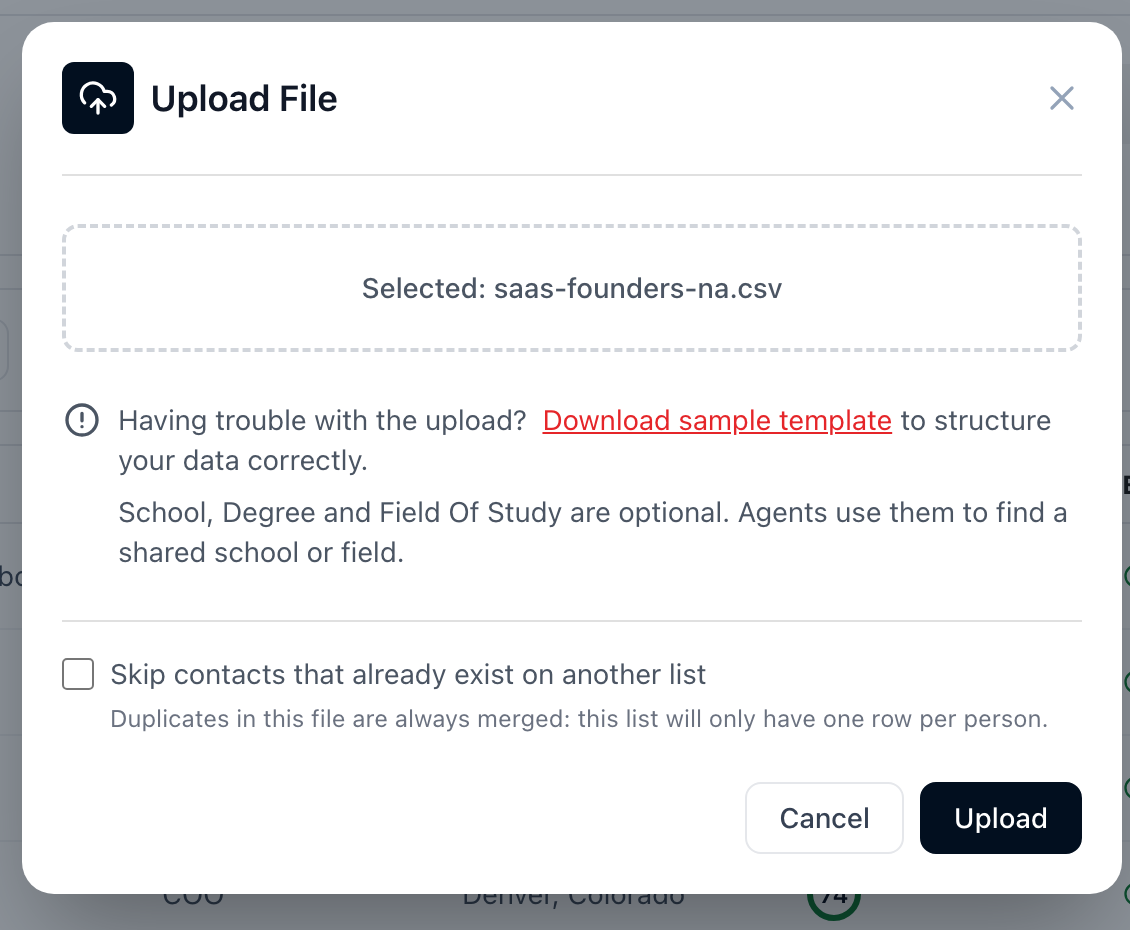
School, degree and field of study
The sample template in the upload window ends with three optional columns, after Headline:
| Column | What to put in it |
|---|---|
| School | The school the lead attended |
| Degree | Their degree |
| Field Of Study | What they studied |

They are optional, and leaving them blank changes nothing. When you fill them in, Ragworks can write a message that opens on a shared school or field of study, the Shared education hook. See Research depth and hooks.
A school you import is kept as you wrote it. Ragworks doesn't overwrite it with what it reads elsewhere.
Duplicate Handling
Duplicates within the file are always merged: the list has one row per person.
The upload also has an option, Skip contacts that already exist on another list. Switch it on to leave out anyone who is already saved in another list, and leave it off to keep them here too.
This helps maintain cleaner lead databases across campaigns.
Lead Validation Responsibility
Ragworks does not validate or enrich uploaded leads automatically.
Customers are responsible for:
- Verifying email accuracy
- Maintaining lead quality
- Reducing bounce rates
- Ensuring outbound deliverability
Uploading outdated or unverified lead lists may increase bounce rates and negatively impact outbound deliverability.
Recommended Best Practices
To improve campaign performance:
- Validate emails before uploading
- Remove inactive or outdated contacts
- Avoid purchased low-quality databases
- Use verified business emails whenever possible
- Segment lead lists by ICP or campaign type
Recommended verification providers:
- Bouncer
- NeverBounce
- ZeroBounce
- MillionVerifier