AI Search
AI Search finds leads on LinkedIn or in the Ragworks Database and fills the search filters for you from what you sell. You describe your buyer once, in a Search profile, and every search starts from it.
Looking for public Instagram profiles? See Instagram AI Lead Search.
Overview
AI Search lets you:
- Start a search from your Search profile, with no filters to configure
- Search LinkedIn with every filter your account type supports, or the Ragworks Database with no account at all
- See why each filter was added, and edit or remove it
- Preview up to 25 matching leads before you save
- Save and enrich leads into lists, and reopen the search that built a list later
A connected LinkedIn account is needed to search LinkedIn. Without one, AI Search uses the Ragworks Database, which needs no account.
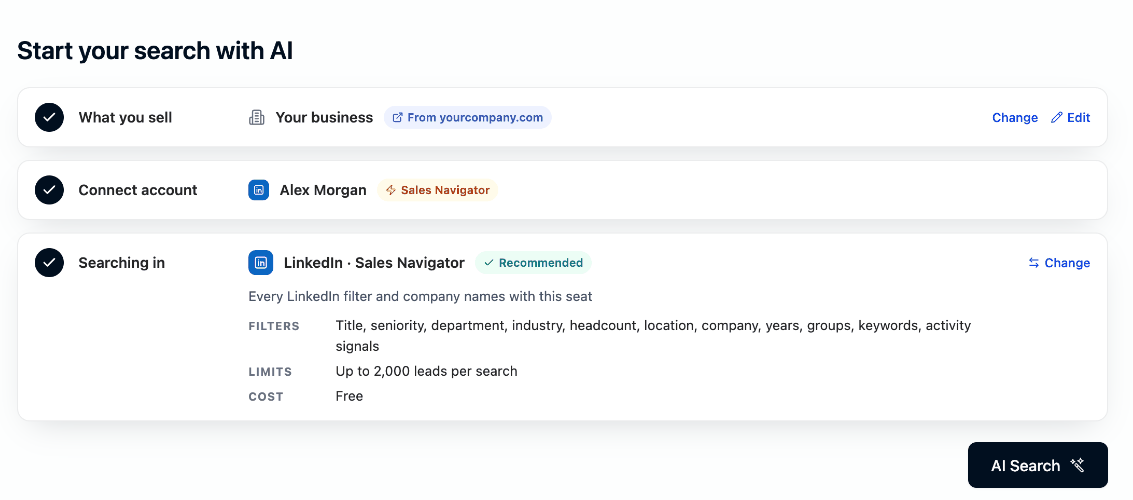
How AI Search picks where to search
Open Leads and select AI Search. The page starts with three steps. Each collapses to one line once it is done, so after your first search the page opens with all three done and one button to select.
- What you sell. Your Search profile, read from your website, a playbook or a short description. It comes first, because AI Search fills the filters from it.
- Connect account. The LinkedIn or Instagram account you search with.
- Searching in. Where the search runs. AI Search chooses it for you from your account.
There is no search bar: your profile is the search. Select AI Search and the filters appear as chips you can edit, then the preview. To look for something different, edit What you sell or the filters.
Step 1: What you sell
The first time, step 1 is open and asks what you are selling. Start from My website (Read my site), A playbook (Read playbook) or Describe it (Read it). Ragworks drafts a profile, you review it, and Save profile finishes the step. Steps 2 and 3 wait until it is saved.
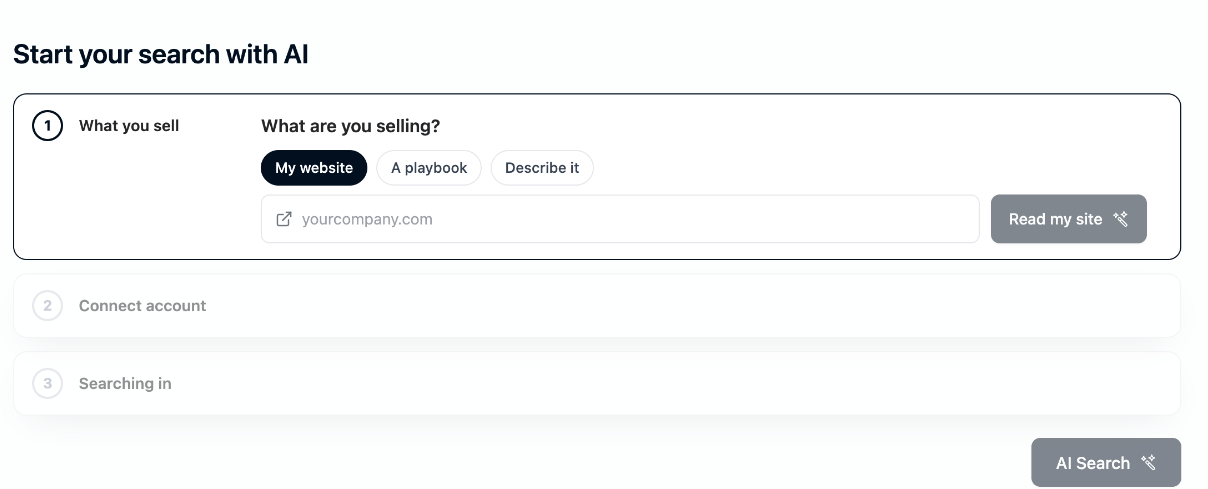
Once you have a profile, step 1 shows its name and where it came from: From your site, Playbook or Described.
- Change starts again from your website, a playbook or a short description. AI Search uses the profile you saved last until you change it.
- Edit opens the review of the profile you have, to adjust it. A change you save is used by the next AI Search: filters from an earlier search that was built from the old profile are cleared, so the new search starts from the new profile.
When the profile has no buyer titles or industries, step 1 says so: AI Search can then only search by company size and region, and Edit is where to add them. See Search profile for everything the profile holds.
Step 2: Connect account
Step 2 shows the account you search with, one at a time:
| What you see | What it means |
|---|---|
| Your name with ⚡ Sales Navigator | A LinkedIn account with a live Sales Navigator seat |
| Your name with Classic | A LinkedIn account with no seat |
| Your name with Sales Navigator expired, and Reconnect | The seat's session lapsed. Select Reconnect to restore it |
| A handle with Instagram | An Instagram account |
| Not connected, with Connect LinkedIn or Connect Instagram | No account yet. You can still search: step 3 is already decided, and the Ragworks Database needs no account |
With two or more accounts connected, Change lists them with a search box. Picking another account updates step 3 and clears the filters on screen.
The seat check takes a few seconds, and until it answers the step reads Checking your accounts…. AI Search waits for it rather than guessing, so it never shows the Ragworks Database first and switches later.
Step 3: Searching in
AI Search chooses where to search from your account:
| Your account | Searching in |
|---|---|
| LinkedIn with a live Sales Navigator seat | LinkedIn, with every Sales Navigator filter and company names |
| LinkedIn Classic, with no seat | Ragworks Database, whose filters AI Search fills from your profile |
| LinkedIn with an expired Sales Navigator seat | Ragworks Database, until you reconnect the seat |
| An Instagram account, or no account | Ragworks Database |
Step 3 gives the reason in one line, shows the source's Filters, Limits and Cost, and marks the pick Recommended:
| Source | Filters | Limits | Cost |
|---|---|---|---|
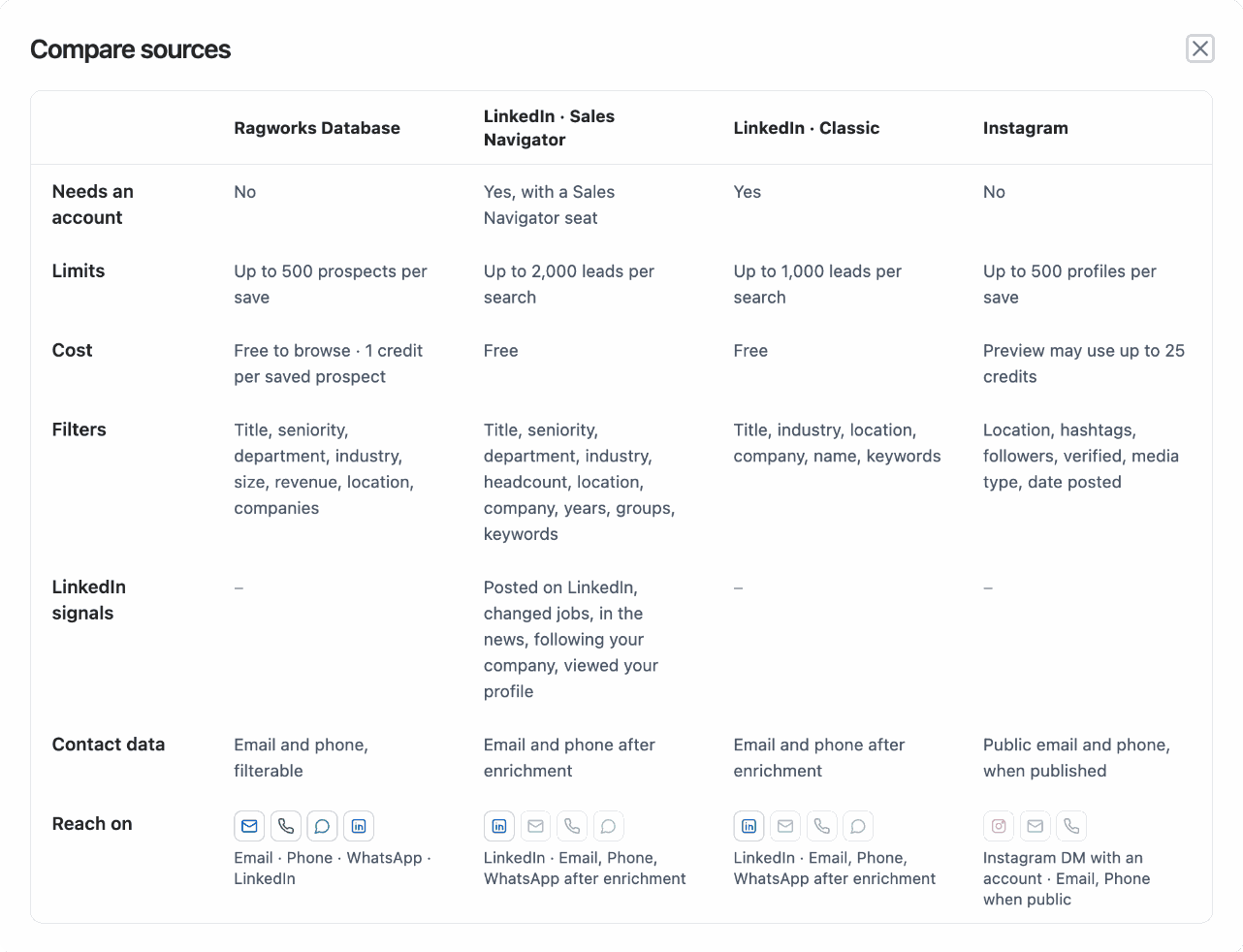
| LinkedIn · Sales Navigator | Title, seniority, department, industry, headcount, location, company, years, groups, keywords, activity signals | Up to 2,000 leads per search | Free |
| LinkedIn · Classic | Title, industry, location, company, name, keywords | Up to 1,000 leads per search | Free |
| Ragworks Database | Title, seniority, department, industry, size, revenue, location, companies, has email, has phone | Up to 500 prospects per save | Free to browse · 1 credit per saved prospect |
| Location, hashtags, followers, verified, media type, date posted | Up to 500 profiles per save | Preview may use up to 25 credits |
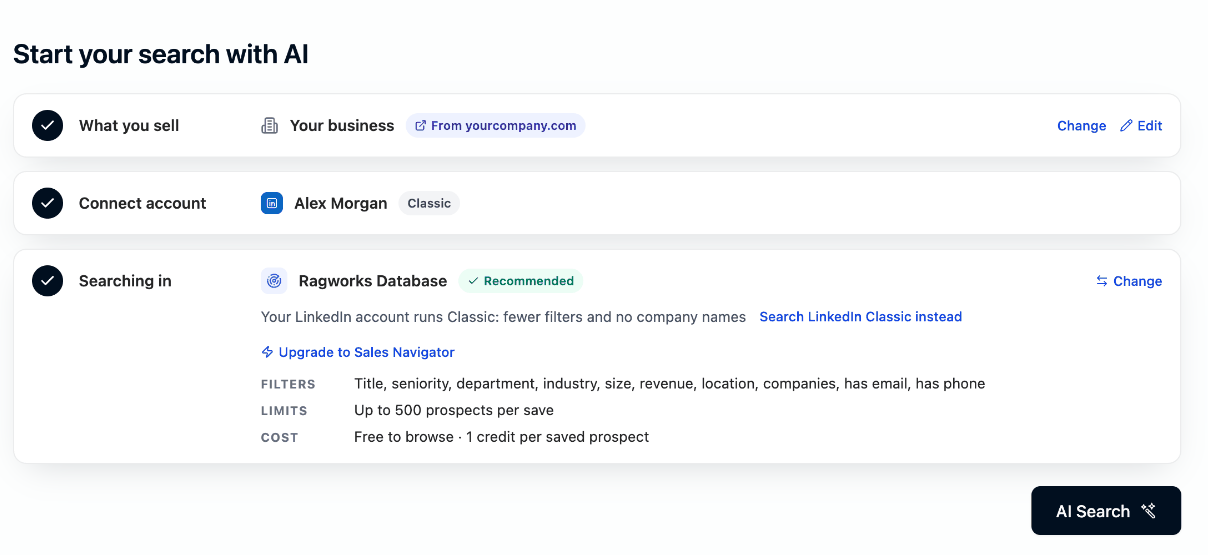
On a Classic account, step 3 also offers Search LinkedIn Classic instead and Upgrade to Sales Navigator. With an expired seat it offers Reconnect Sales Navigator.
Change source
Select Change in step 3 to see the other sources with their account, filters, limits and cost, and which one is recommended. Choose one and select Use this source.
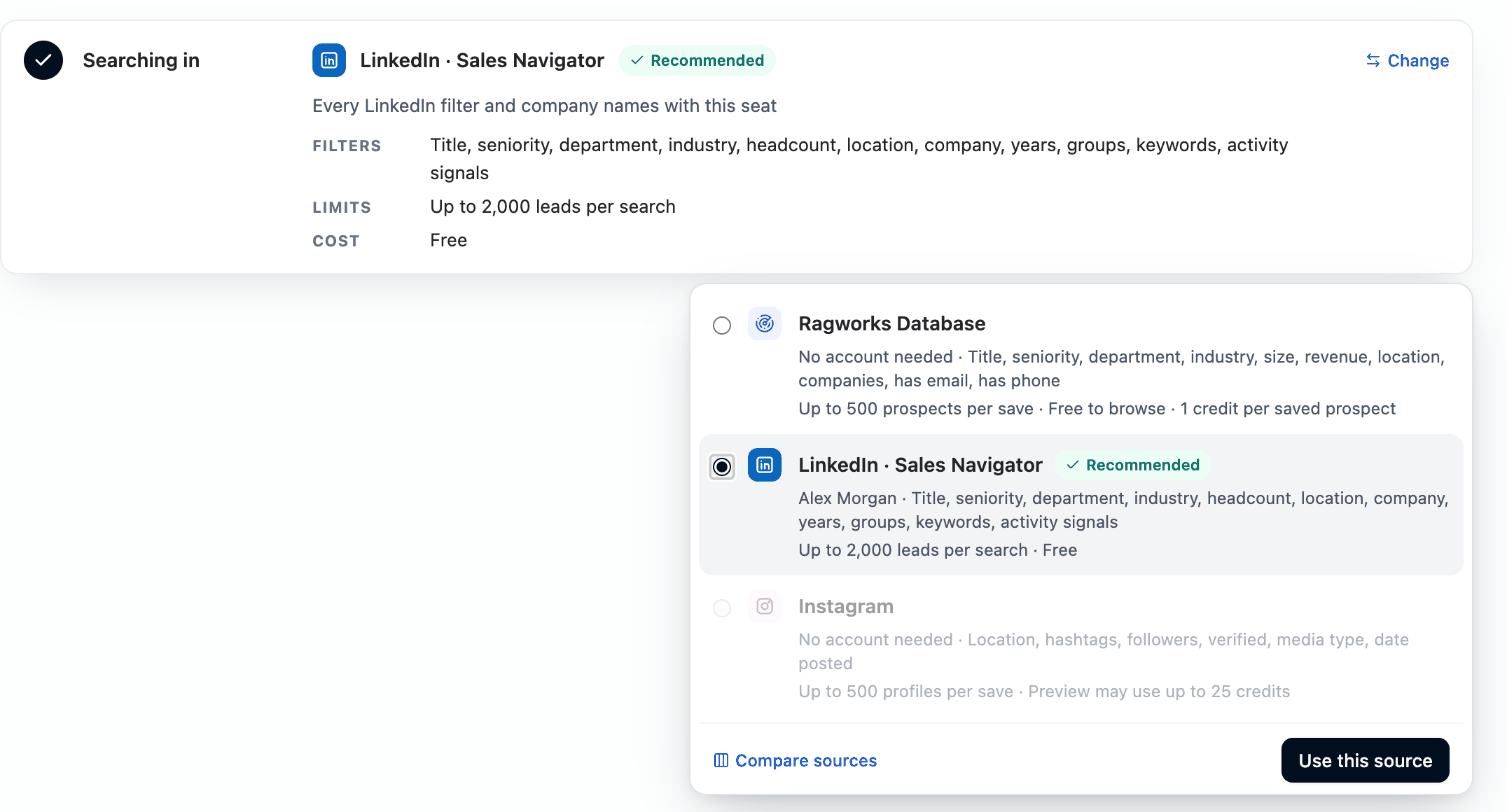
A source your account cannot run is dimmed and cannot be chosen: with a LinkedIn account, Instagram is another audience, not a swap for a LinkedIn search; with no LinkedIn account, LinkedIn needs one. Your choice lasts until you change the account or its seat changes.
After a search, the same list opens from Change under Search in in the filter column. Switching then clears the results and the filters on screen, so the button reads Clear and switch.
Compare sources opens one table with every source side by side: whether it needs an account, its limits, cost, filters, LinkedIn signals, contact data and the channels you can reach.
Run the search
Select AI Search. AI Search reads your profile, builds the filters, and runs the search. There is nothing to type for LinkedIn or the Ragworks Database.
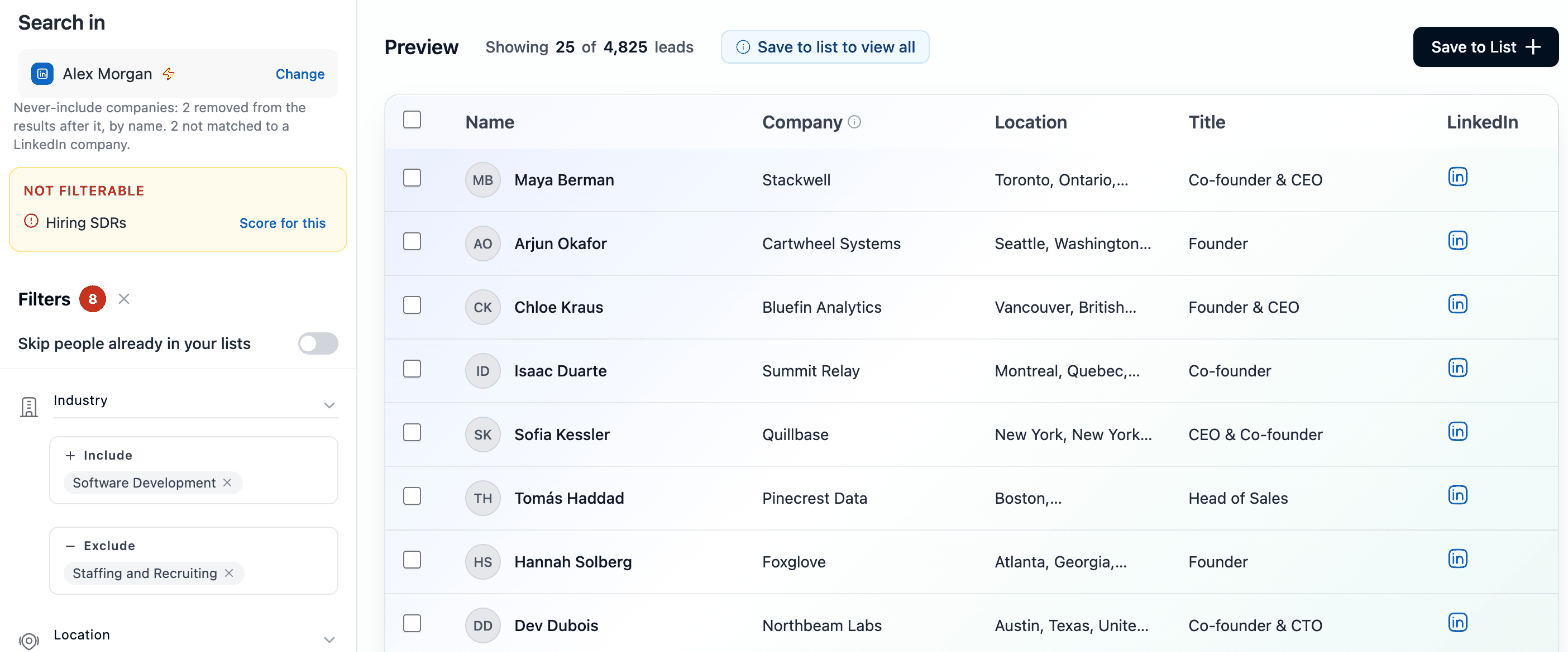
- The filters. They appear in the column on the left as chips. Select a chip to see why it is there, or remove it. A small sparkle marks what came from your profile or what AI Search read between the lines. See Why a filter is there.
- Not filterable. What the search type cannot filter is listed in the column instead of being dropped, with Score for this. See Not filterable and Score for this.
- Never-include companies. The customers and competitors in your profile are left out. A note at the top of the column says how.
- The preview. Up to 25 matching leads, with Showing 25 of N leads and Save to list to view all.
Values AI Search could not settle
When AI Search chose a value that LinkedIn or the Ragworks Database has no match for, for example an industry in your own words, the chip is amber and the search waits. Select the chip: Edit changes the words so it can look again, Remove drops the value. Then select AI Search. If one is left when you search, a message says how many values need a pick or a removal.
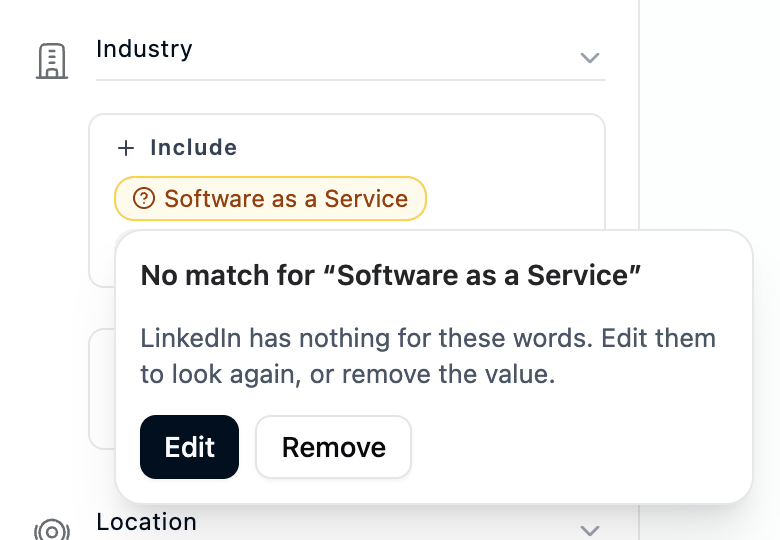
A value that matches more than one thing, such as a company name shared by two companies, is amber too. Its popover lists the matches: pick one and select Use selected, select Use all to keep every match, or Remove the value.
Too few or too many leads
On LinkedIn searches, AI Search says when a search returns very little or far too much, and suggests filters to Relax or Tighten. See Too few or too many results.
Changing filters by hand
AI Search is the quick way in; you can also set the filters yourself in the column on the left. AI Search at the bottom of the column searches the filters as they are, so a filter you changed is searched rather than replaced.
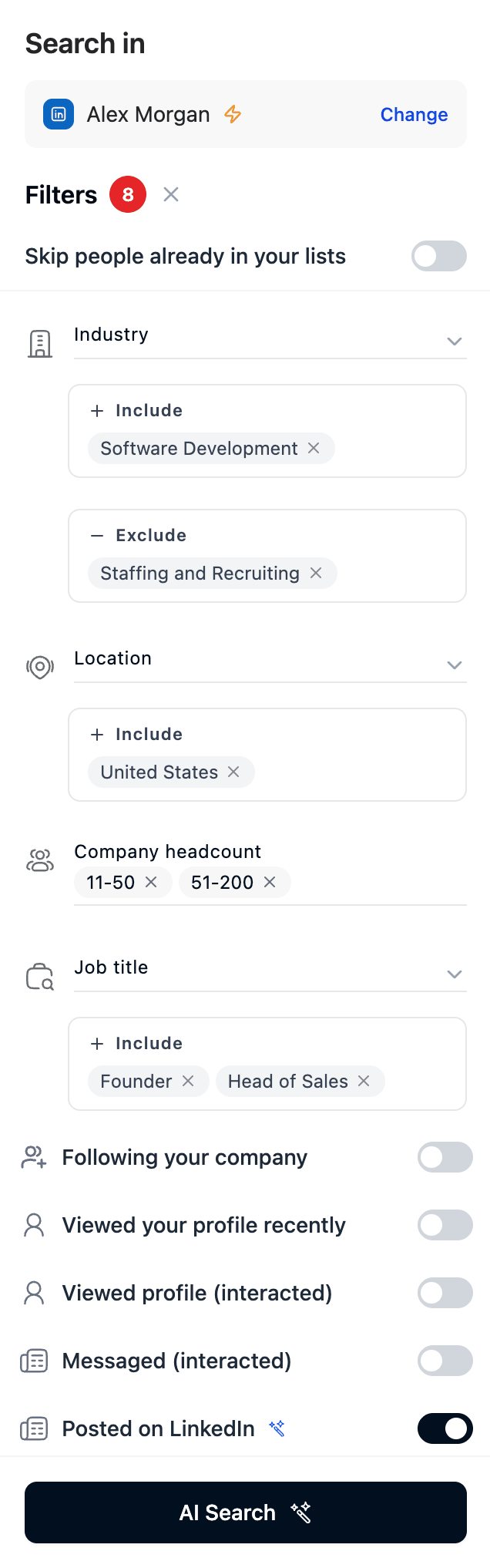
Which filters you see depends on the source. Sales Navigator has the most, Classic the fewest. See What each search type can filter.
Keep Skip people already in your lists on when you want only new prospects.
Saving and enriching leads
Once the preview looks right, select Save to List. The Emails & Enrichment panel opens.
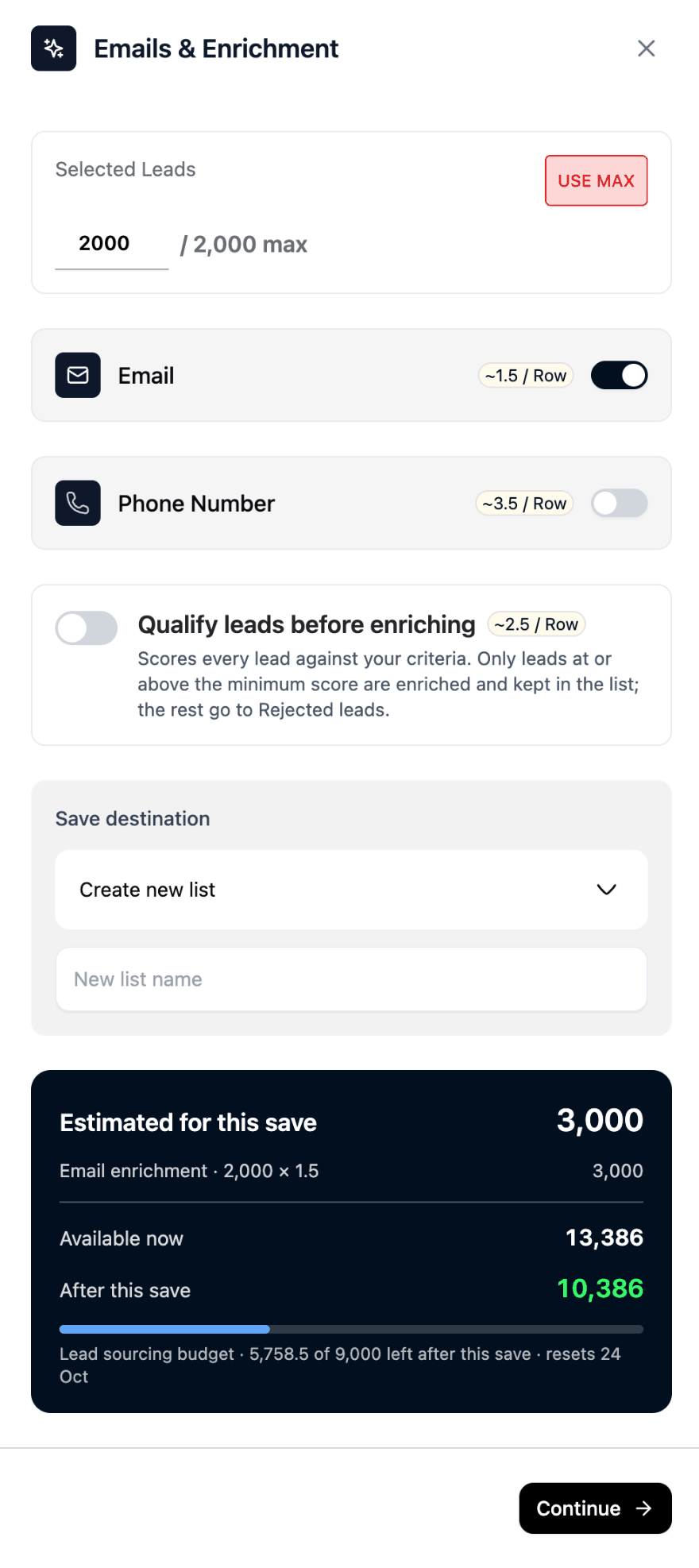
- How many leads. The maximum is shown next to the count, and Use max fills it in. It is the smallest of the limit for one save (2,000 leads on Sales Navigator, 1,000 on Classic, 500 prospects on the Ragworks Database, 500 profiles on Instagram), the number of leads the search found, and what your lead sourcing budget still covers.
- What to look up for each lead.
- Email: work email addresses. On by default
- Phone Number: mobile numbers, for WhatsApp and calls. Off by default, and it needs Email on too
- Save destination. Choose Create new list and give it a New list name, or pick one of your existing lists.
- Credit summary. Check what this save costs and what you have left, then Continue.
Each toggle shows its rate per row, and you are only charged for what is found. If the save would cost more credits than you have, the panel says so: lower the count or add credits.
To score leads before paying to enrich them, switch on Qualify leads before enriching: see Qualifying a list.
LinkedIn searches are free. The Ragworks Database charges 1 credit for each unique prospect you save. See What it costs.
Reopening a saved search
From a lead list, Actions → Add leads → AI Search reopens the search that built the list. Its source and filters come back as they were saved, and the page shows one card instead of the three steps: there is nothing to choose and no profile is needed.
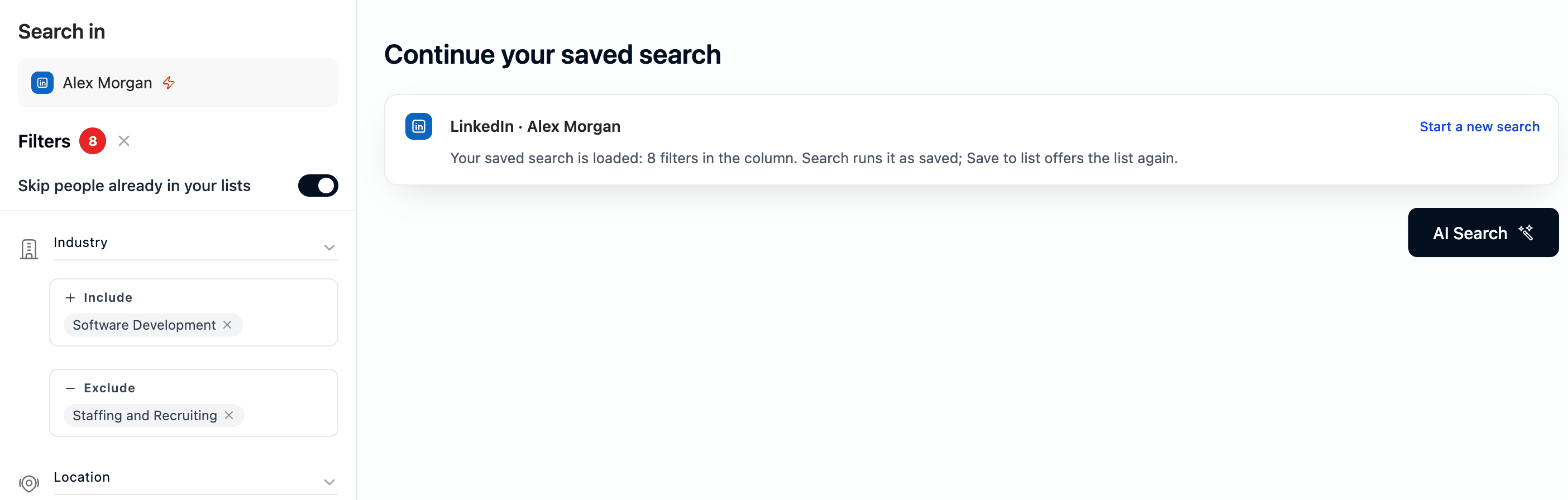
Select AI Search to run the saved filters, and Save to list offers the same list again. AI Search never plans over a saved search; it only plans from your profile when the filters are empty. Select Start a new search to drop it and begin with the three steps.
An Instagram list reopens the same way, with its credit note under the button; see Instagram AI Lead Search.
Supported LinkedIn Account Types
The available search filters depend on the LinkedIn account type connected to Ragworks.
Supported account types:
- LinkedIn Classic
- LinkedIn Sales Navigator (LSN)
- LinkedIn Recruiter
Different LinkedIn products expose different search capabilities and filters.
LinkedIn Classic and Sales Navigator
The Sales Navigator seat decides what a LinkedIn search can do. A seat is bought from LinkedIn, not from Ragworks. Once your account has one, AI Search switches to LinkedIn on its own.
| Sales Navigator | Classic | |
|---|---|---|
| Filters | Title, seniority, department, industry, headcount, location, company, years, groups, keywords, activity signals | Title, industry, location, company, name, keywords |
| Company names in results | Yes | No |
| Excludes | Yes | No |
| Limits | Up to 2,000 leads per search | Up to 1,000 leads per search |
| Cost | Free | Free |
A Classic account is not left with fewer filters: the Ragworks Database has seniority, department, company size and revenue filters and needs no seat, so AI Search recommends it.
Search Filter Availability
Each account type supports a different set of filters. Sales Navigator supports the most, Classic the fewest, and Classic has no excludes. AI Search uses a filter wherever the search type has one and lists the rest under Not filterable.
See What each search type can filter for every filter, which ones take excludes, the yes/no signals and the keyword syntax.
Connecting a LinkedIn Sales Navigator account unlocks the most advanced search and targeting capabilities.
Email Enrichment
Ragworks can enrich leads with verified business email addresses.
Credit Usage
Email enrichment costs:
1.5 Ragworks credits per successful enrichment
Credits are only consumed for successful enrichments.
Email Verification & Bounce Protection
Ragworks validates enriched emails to help reduce bounce rates and improve outbound deliverability.
The enrichment pipeline includes:
- Email verification
- Deliverability validation
- Bounce risk reduction
- Confidence scoring
This helps maintain healthier outbound campaigns and reduces the likelihood of high bounce rates.
Ragworks enrichment workflows are optimized to help maintain bounce rates below 5% whenever possible.
Saved Lead Lists
After enrichment, leads are stored inside lead lists for:
- Campaign creation
- Outbound workflows
- CRM synchronization
- Export workflows
- Multi-channel engagement
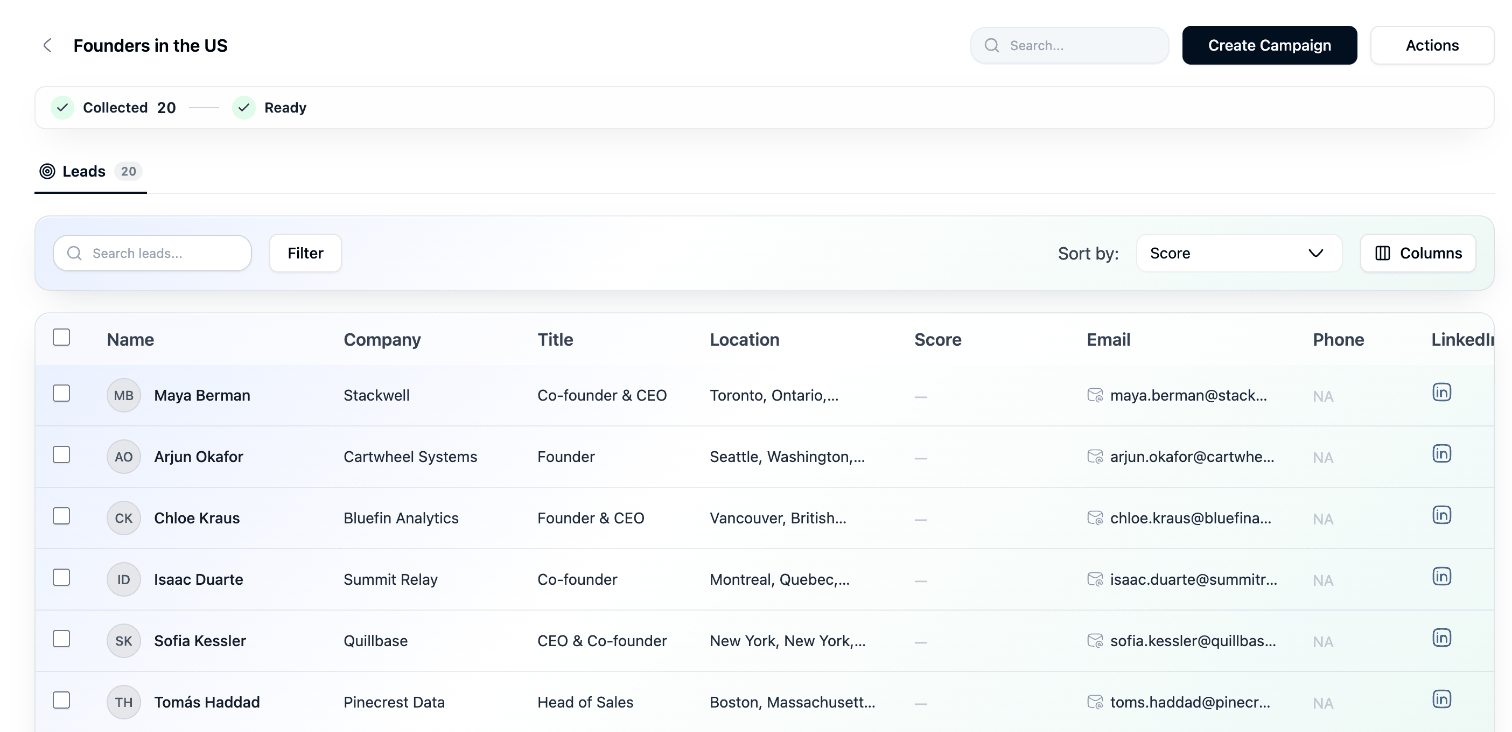
Using a saved list in a campaign
Open the list and click Create Campaign, or pick it in step 1 of the campaign wizard.
- One campaign per list. Once a campaign is created from a list, the list can't start another one until that campaign is deleted. A list that is still enriching can't be used until enrichment finishes.
- The list stays connected. Leads you add to it later join the campaign.
- A list that qualifies can start a campaign before it finishes, once more than half of its leads are scored. See Starting a campaign from a qualifying list.
- No double outreach. A lead who is already in another of your draft, pending, active or paused campaigns is not copied again. Leads are matched on LinkedIn profile, LinkedIn URL or work email.
- Every lead comes along. Leads the campaign's sequence can't reach join as Not reachable and enroll once they have a channel — for example after you enrich the list.
Best Practices
- Keep What you sell specific: the titles, industries, company sizes and regions you sell to become real filters, and "fast-growing" or "innovative" do not.
- Check the chips before you save: remove what you do not want, and settle amber values first.
- Review the preview before enriching at scale. Large enrichment jobs consume credits quickly.
- Edit the profile, not the search box, when you want a different audience: the next AI Search starts from it.