IMAP / SMTP
Connect custom email providers using standard IMAP and SMTP configurations to enable outbound communication, inbox synchronization, and email workflow automation inside Ragworks.
Overview
The IMAP / SMTP datasource allows you to connect custom or self-hosted email providers directly using standard mail server credentials.
This datasource is useful for:
- Private mail servers
- Custom domains
- Hosting providers
- Non-Google or non-Microsoft email providers
For Gmail or Outlook accounts, we strongly recommend using the dedicated Google or Outlook datasources instead of IMAP.
These integrations use modern OAuth2 authentication and are more reliable for long-term connectivity and deliverability.
Moving mailboxes over from Instantly? See Move Mailboxes from Instantly for where to find each mailbox's IMAP and SMTP details.
How to Connect IMAP / SMTP
Follow these steps to connect your email account.
Step 1: Navigate to Connectors
- Open the Ragworks dashboard.
- From the left sidebar, click Connectors.
- Select IMAP / SMTP from the available options.
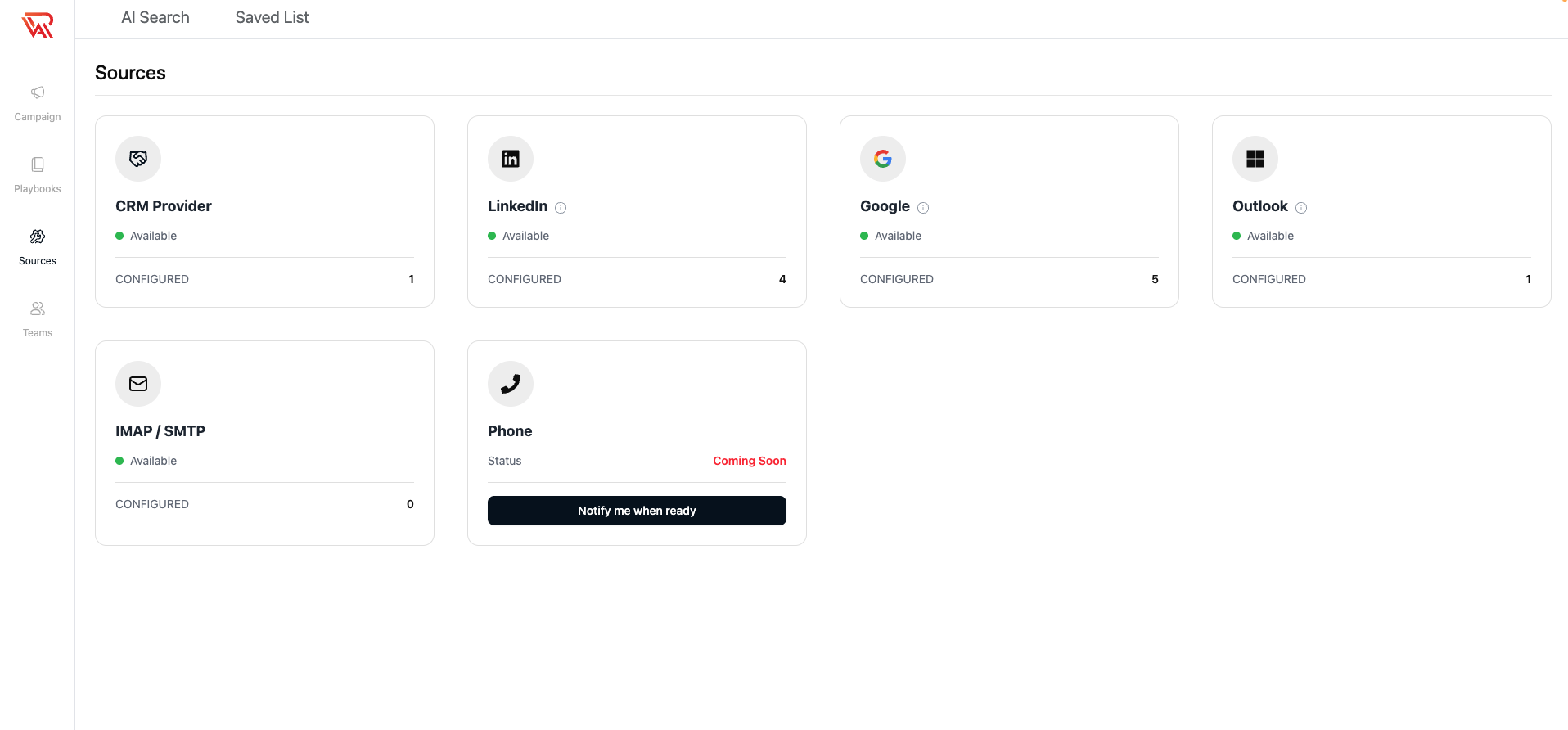
Step 2: Add an IMAP Account
- Click Add Account.
- Enter your email server configuration details.
You will need:
- IMAP username and password
- SMTP username and password
- IMAP host and port
- SMTP host and port
- Encryption type
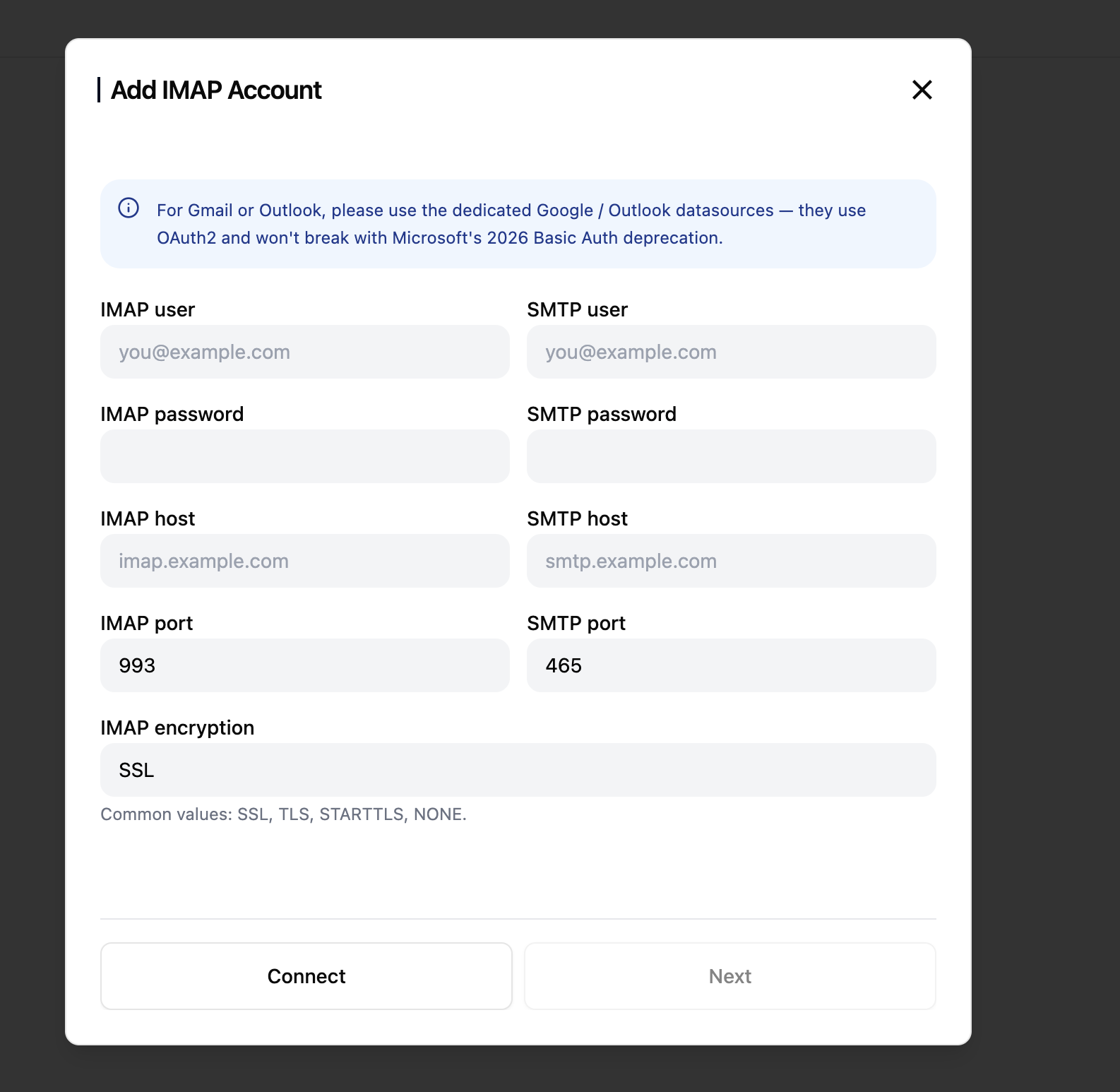
Step 3: Configure Mail Server Settings
Fill in the required configuration fields provided by your email hosting provider.
IMAP User
The email address or username used for receiving emails.
Example:
you@example.com
IMAP Password
The password associated with your IMAP account.
SMTP User
The email address or username used for sending emails.
Example:
you@example.com
SMTP Password
The password associated with your SMTP account.
IMAP Host
The incoming mail server address.
Example:
imap.example.com
SMTP Host
The outgoing mail server address.
Example:
smtp.example.com
IMAP Port
The port used for secure incoming email synchronization.
Common values:
993→ SSL/TLS143→ STARTTLS
SMTP Port
The port used for outbound email delivery.
Common values:
465→ SSL/TLS587→ STARTTLS
IMAP Encryption
The encryption protocol used by your mail server.
Supported values:
SSLTLSSTARTTLSNONE
Most modern email providers use SSL or STARTTLS for secure communication.
Step 4: Connect the Account
- Click Connect.
- Ragworks will validate the IMAP and SMTP configuration.
- Once validation succeeds, click Next to continue setup.
Step 5: Configure Email Settings
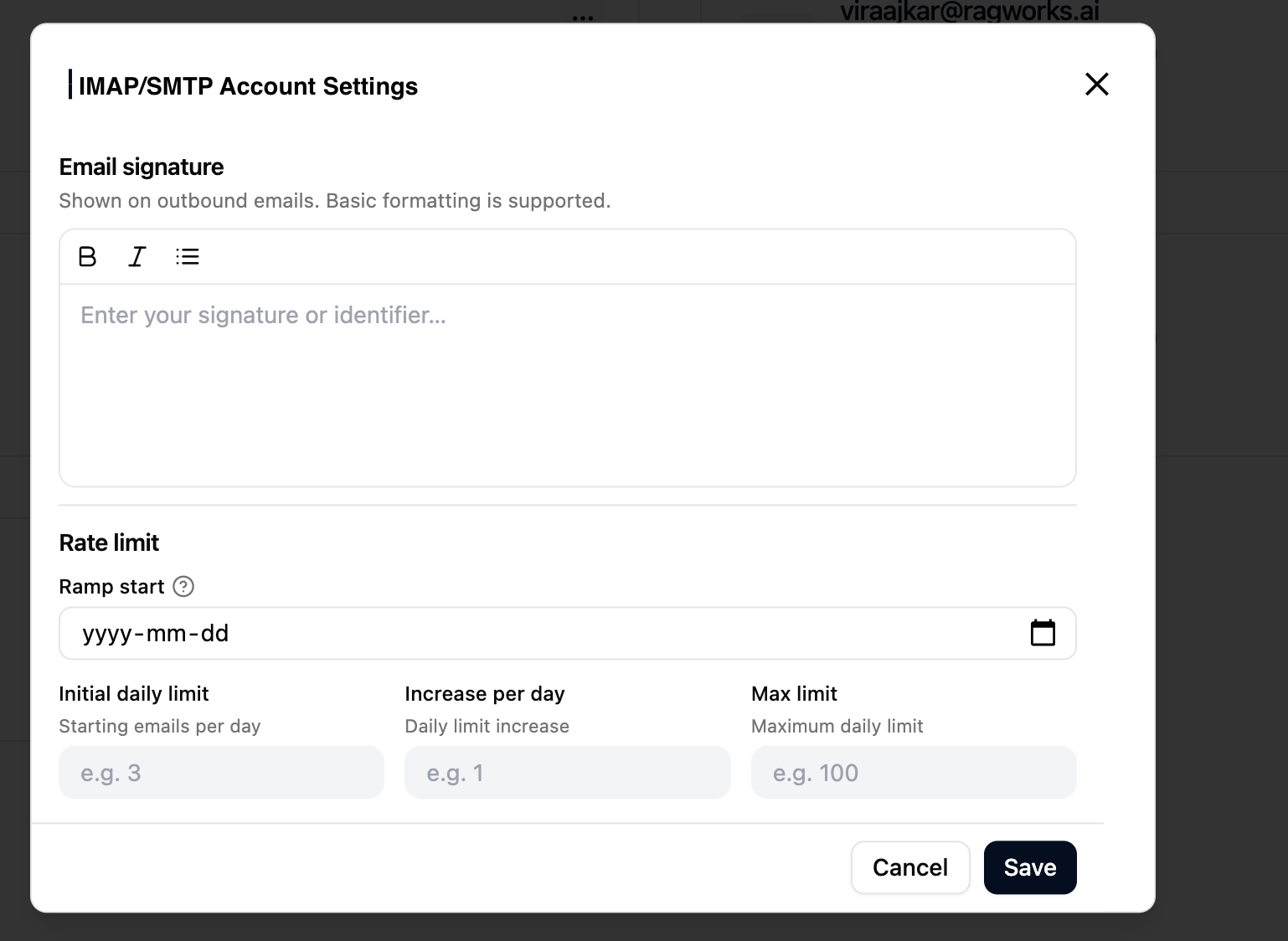
After connecting successfully, you can configure:
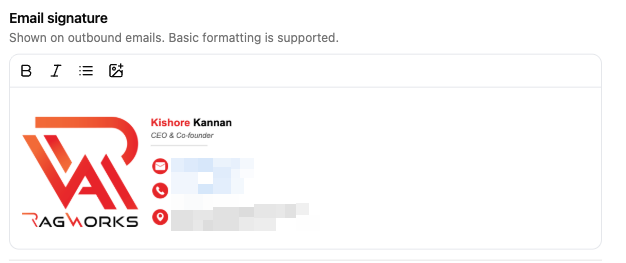
- Email signature, including an image up to 10 MB
- Daily sending limits
- Ramp-up settings
- Maximum sending volume
Sender profile
Under the signature, Sender profile takes the link to your public LinkedIn profile. Ragworks reads the schools on it, so a message can open on a school you share with a lead. See Sender profile.
Email Ramp-Up Settings
The rate limit settings help gradually warm up your email account and control the number of emails sent each day. This helps improve deliverability and reduces the risk of email providers flagging your account for unusual activity.
Ramp Start
The date when the email warm-up process begins.
From this date onward, the platform will gradually increase your daily sending volume based on the limits configured below.
For new email accounts or recently connected inboxes, we recommend starting with a low sending volume and increasing gradually over time.
Initial Daily Limit
The number of emails that can be sent on the first day of the ramp-up process.
Example:
- If the initial daily limit is set to
10, the account will send up to 10 emails on Day 1.
Increase Per Day
The number of additional emails added to the daily limit each day.
Example:
- Initial limit:
10 - Increase per day:
5
Daily sending progression:
- Day 1 → 10 emails
- Day 2 → 15 emails
- Day 3 → 20 emails
- Day 4 → 25 emails
This gradual increase helps build sender reputation safely.
Max Limit
The maximum number of emails the account can send per day.
Once the ramp-up process reaches this limit, the daily sending volume will stop increasing.
Example:
- Max limit:
50
If the calculated daily limit exceeds 50, the platform will continue sending a maximum of 50 emails per day.
Recommended Best Practices
Avoid setting very high limits immediately on newly created email accounts. Sudden spikes in email activity may negatively affect deliverability.
| Account Type | Suggested Initial Limit | Increase Per Day | Max Limit |
|---|---|---|---|
| New Email Account | 5–10 | 2–5 | 30–50 |
| Moderately Aged Account | 15–25 | 5–10 | 75–100 |
| Established Sending Account | 25–50 | 10–20 | 150+ |