HubSpot
Connect HubSpot to synchronize contacts, deals, and engagement activity between Ragworks campaigns and your HubSpot CRM pipeline.
Overview
The HubSpot connector enables Ragworks to:
- Sync contacts and deals automatically as outreach progresses
- Map campaign engagement labels to HubSpot pipeline stages
- Push deal updates in real time as prospects reply
- Centralize outbound activity inside HubSpot for your sales team
Ragworks connects to HubSpot using a Personal Access Key generated inside your HubSpot account. No OAuth app or redirect URL setup is required.
Before You Begin
You need:
- A HubSpot account with access to the Development section
- Permission to generate Personal Access Keys in your HubSpot portal
Step 1: Generate a Personal Access Key in HubSpot
- Log in to your HubSpot account.
- Click the Settings (⚙) icon in the top navigation.
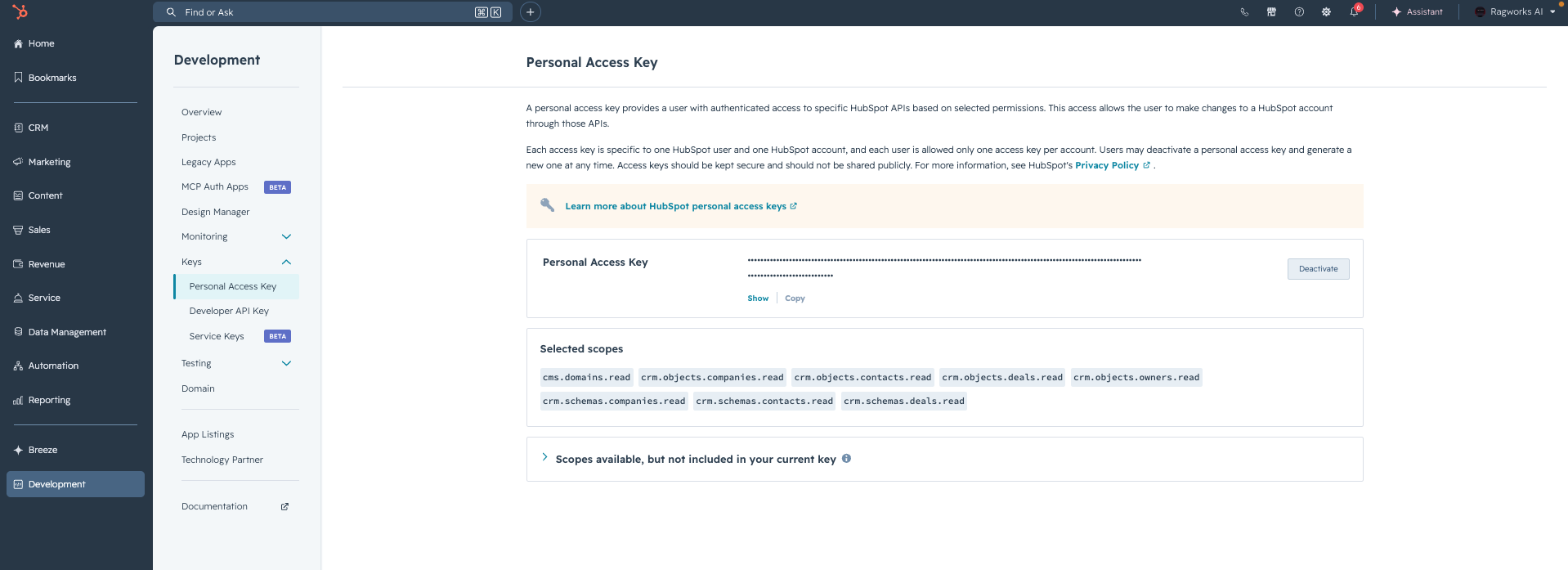
- In the left sidebar, go to Development → Keys → Personal Access Key.
- Click Show to reveal your existing key, or generate a new one if needed.
- Click Copy to copy the key value.
Required Scopes
Your Personal Access Key must include the following scopes. HubSpot shows the selected scopes on the Personal Access Key page:
cms.domains.read
crm.objects.companies.read
crm.objects.contacts.read
crm.objects.contacts.write
crm.objects.custom.read
crm.objects.custom.write
crm.objects.deals.read
crm.objects.deals.write
crm.objects.owners.read
crm.schemas.companies.read
crm.schemas.contacts.read
crm.schemas.contacts.write
crm.schemas.deals.read
crm.schemas.deals.write
If any scope is missing, click Deactivate to revoke the current key and generate a new one with the correct scopes selected.
Ragworks encrypts your service key before storing it and uses it only for CRM contact, deal, and pipeline sync. It is never used for any other purpose.
Step 2: Connect HubSpot in Ragworks
- Open the Ragworks dashboard.
- In the left sidebar, click Connectors.
- Navigate to HubSpot and click Add Account.
- In the Add HubSpot CRM modal, fill in:
| Field | Required | Description |
|---|---|---|
| Account Name | Yes | A label for this HubSpot connection (e.g., HubSpot Account) |
| Description | No | Optional note (e.g., Primary CRM for sales) |
| Service Key | Yes | The Personal Access Key copied from HubSpot |
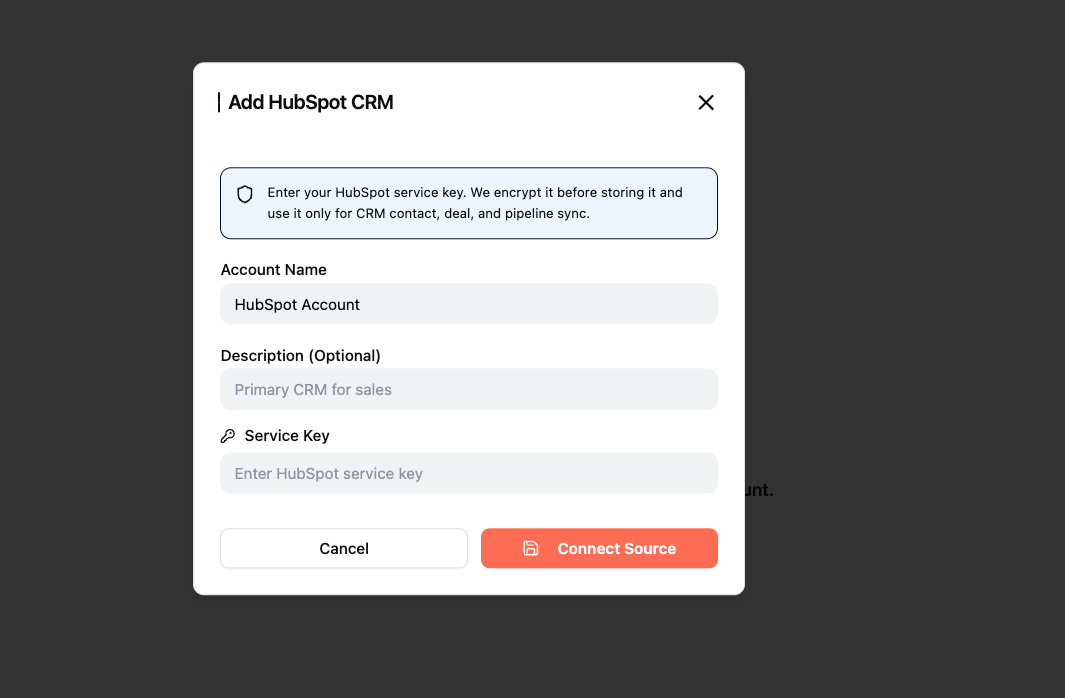
- Click Connect Source.
Ragworks will validate the key and establish the connection. The HubSpot account will appear in your Connectors list once connected.
What Gets Synced
Once connected and a campaign is configured with HubSpot CRM, Ragworks syncs:
| Data | Direction |
|---|---|
| Contacts | Ragworks → HubSpot (created or updated as leads are contacted) |
| Deals | Ragworks → HubSpot (created per lead, updated as engagement progresses) |
| Conversations | Ragworks → HubSpot (stored as Notes on the lead's deal as messages are exchanged between the lead and the agent) |
| Campaign data | Ragworks → HubSpot (campaign name and source synced as custom objects on the lead's deal) |
| Pipeline stages | Updated automatically based on engagement label changes |
| Owners | Assigned based on the owner configuration in campaign CRM settings |
Pipeline stage mapping is configured per campaign — see Creating a Campaign for details.
Troubleshooting
| Issue | What to do |
|---|---|
| Connection fails | Confirm the Personal Access Key is correct and not deactivated in HubSpot |
| Missing scopes error | Deactivate the key in HubSpot, generate a new one, and select all required scopes |
| Deals not updating | Check that pipeline stage mappings are configured in the campaign's CRM settings |
| Key not visible in HubSpot | Go to Development → Keys → Personal Access Key and click Show |