Simulate a Campaign
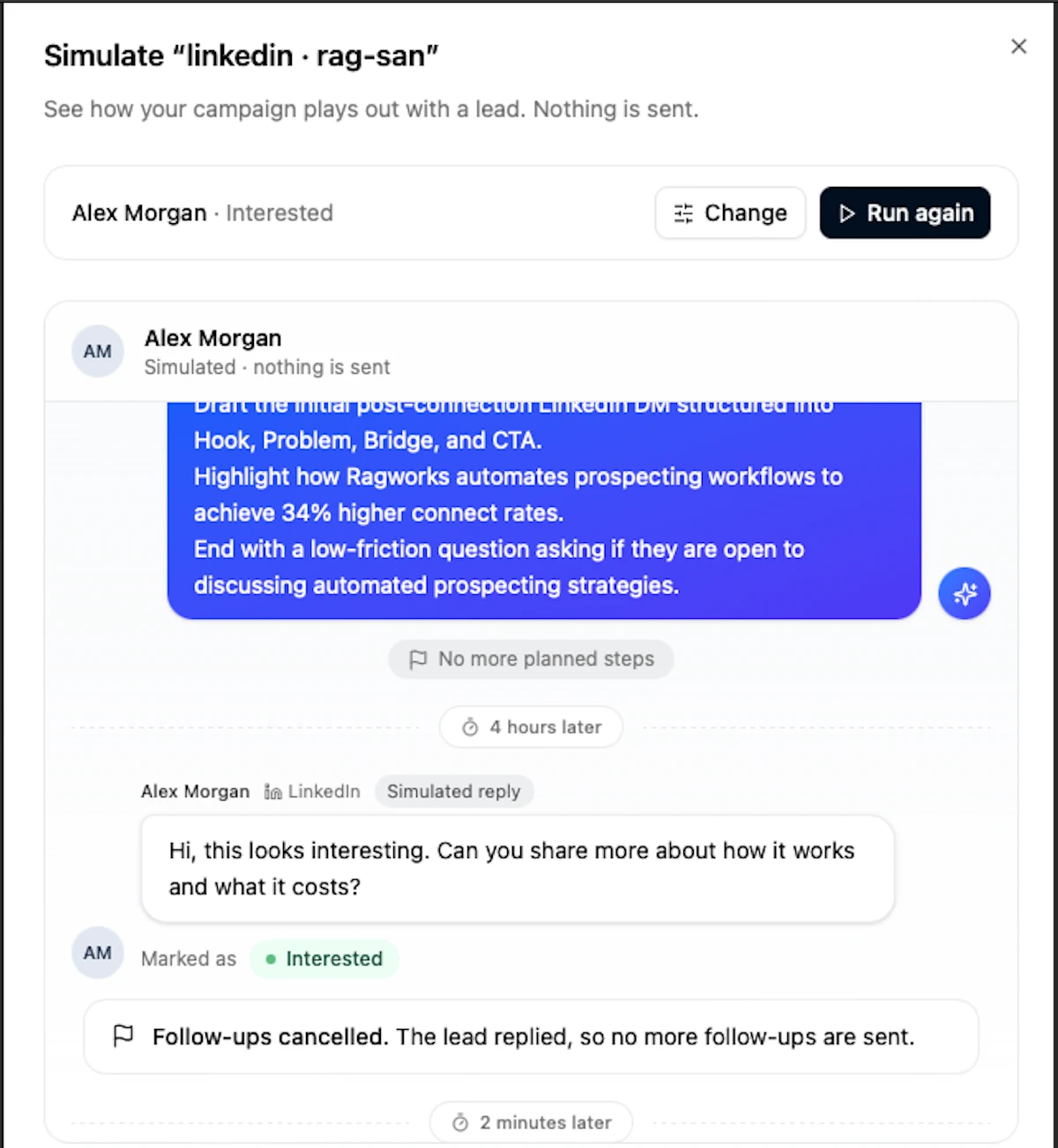
Before a campaign goes out, you probably want to know what your leads will actually get. Simulate shows you. Pick a lead, pick how they react, and Ragworks plays the whole thing back as a chat: your connection request, your messages, the lead's reply, and what your agent says back.
It's only a preview. Nothing is sent, nobody is contacted, and no lead record changes.
Open it
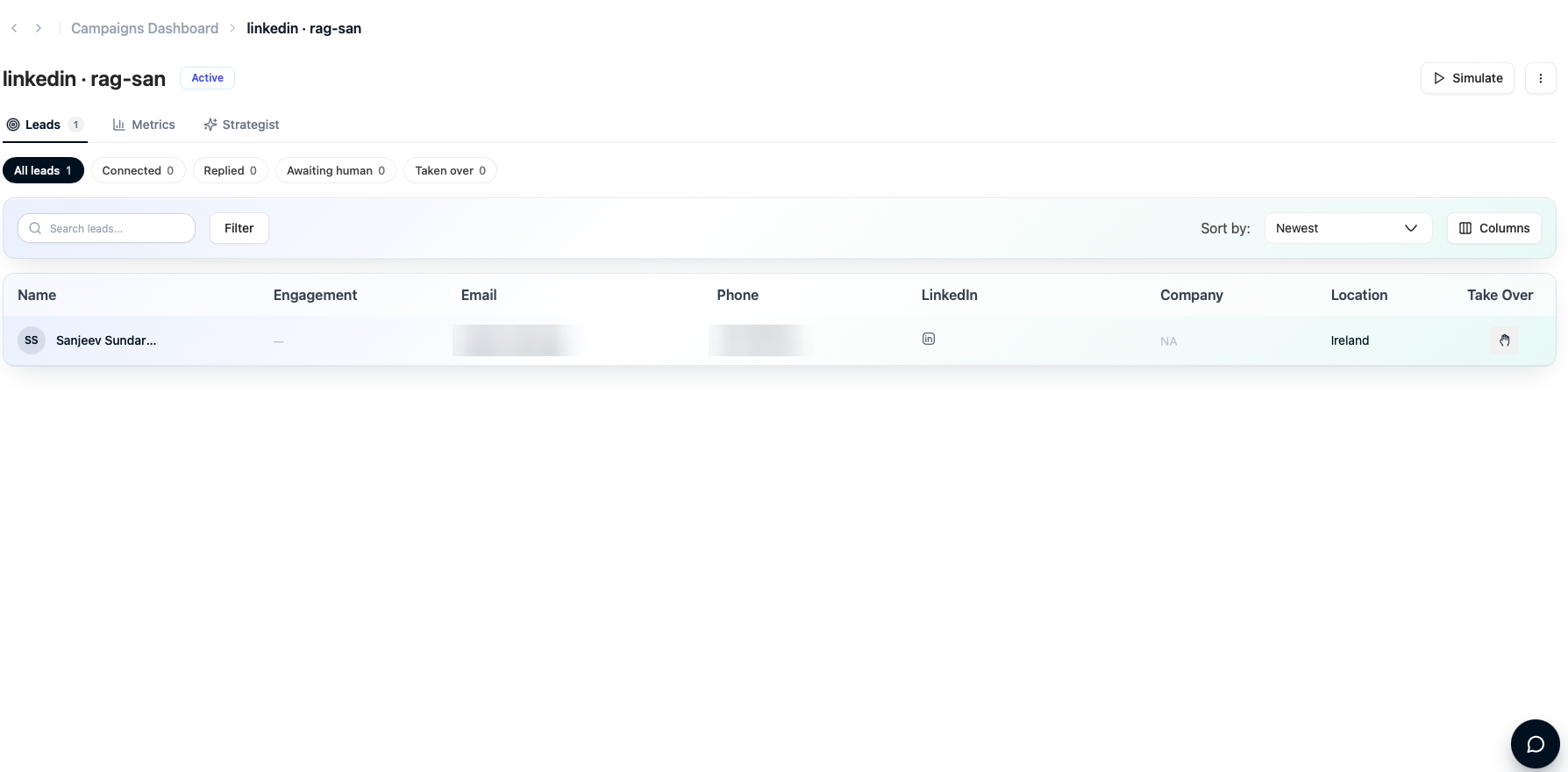
Open a campaign and click Simulate at the top right, next to the ⋯ menu. It replaces the old Playground.
Run one
There are two choices, a third when the campaign has AI-written steps, and a button.
Who is the lead? The default is Alex Morgan, a made-up lead. If you'd rather see your wording filled in for a real person, open the list and pick someone from the campaign.
What's the lead engagement status? Pick how the lead responds from the options below, or write your own reply.
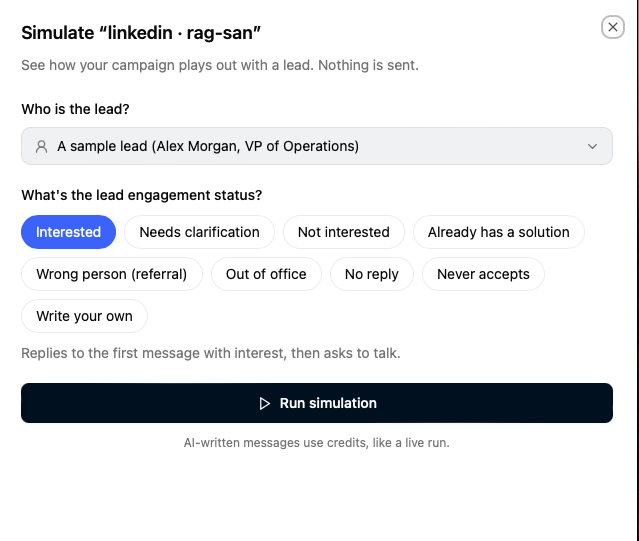
Research. When the campaign has AI-written steps, a Research row appears with Basic, Standard and Deep. It starts at your campaign's level and says which step needs it, for example "Matches your campaign, needed by Step 4. 6 credits for this lead, free if already researched." Pick Basic to run for free, or another level to see what it adds. For the sample lead it costs nothing, because the sample lead isn't researched. See Research depth and hooks.
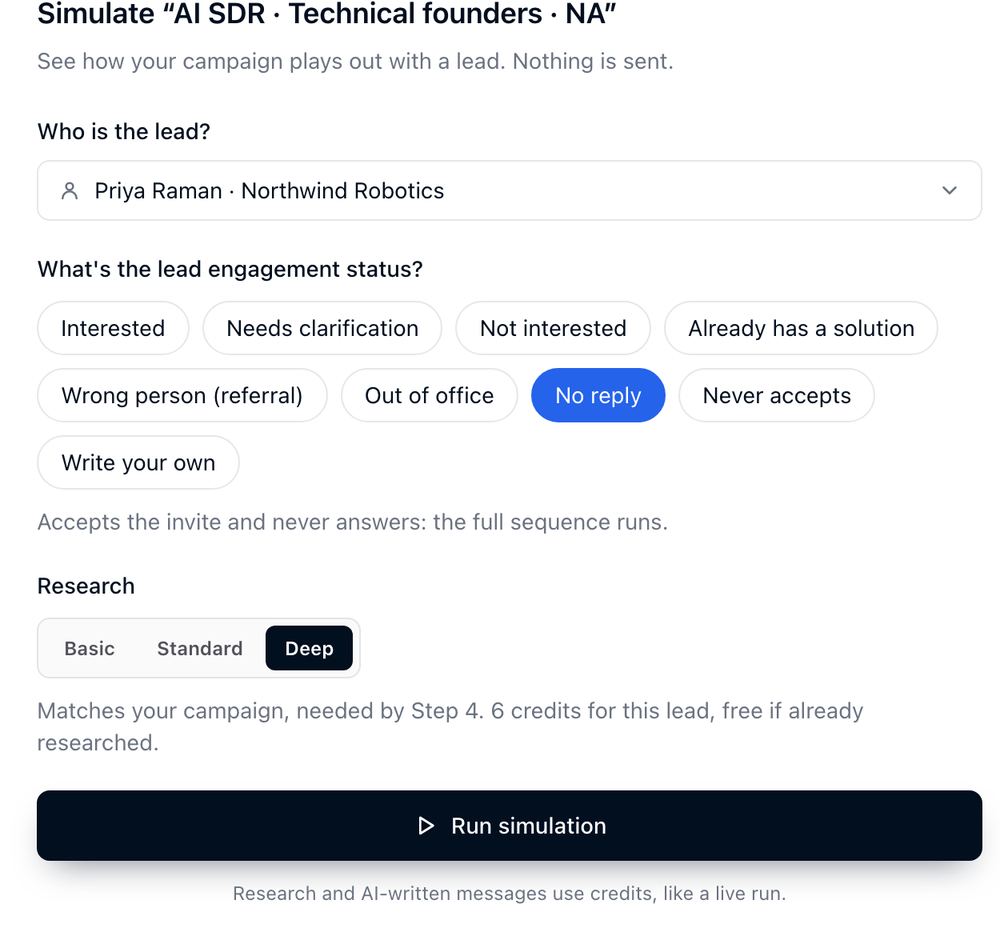
Then click Run simulation. It usually takes less than a minute, and a bit longer if your agent has several messages to write.
When it's ready, the chat plays by itself. You'll see typing dots before each message, and a divider such as 6 hours later wherever the sequence waits.
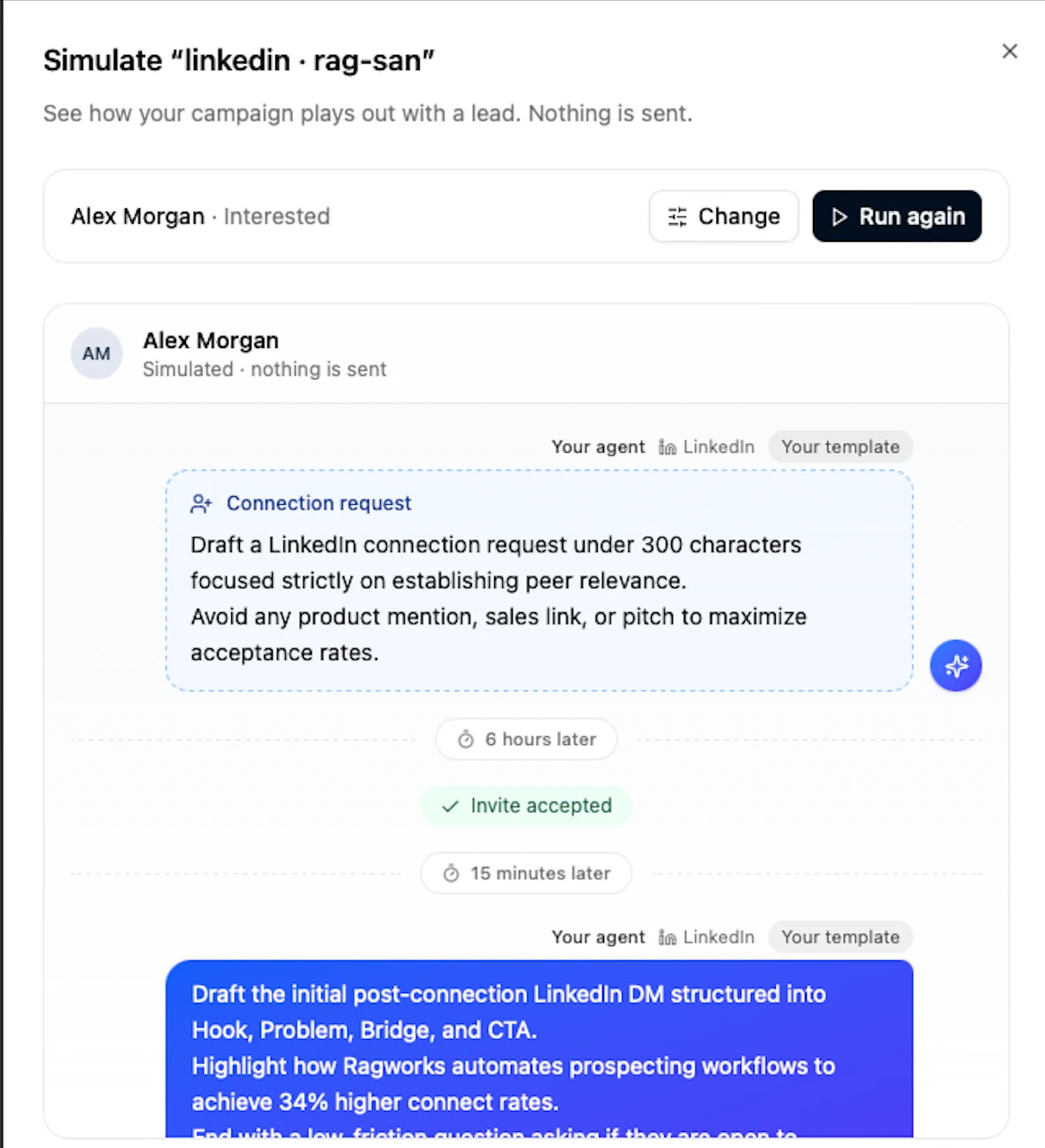
When the lead replies, the reply shows up on the left with the label it gets. Your agent's answer comes after it.
| Button | What it does |
|---|---|
| Pause and Continue | Stop the chat and start it again. |
| Skip to end | Shows the whole conversation at once. |
| Replay | Plays it again from the start. |
| Change | Lets you pick a different lead or reply. |
| Run again | Runs it once more. AI-written messages can come out worded differently each time. |
Lead engagement statuses
| Choice | What happens |
|---|---|
| Interested | The lead replies with interest, then asks to talk. |
| Needs clarification | The lead isn't sure what you do, then asks how you're different. |
| Not interested | The lead says no and asks you not to contact them again. |
| Already has a solution | The lead says they already work with a vendor. |
| Wrong person (referral) | The lead points you to a colleague. |
| Out of office | The lead's out-of-office reply comes back. |
| No reply | The lead accepts your connection request and never answers, so the whole sequence runs. |
| Never accepts | The lead never accepts the connection request, so steps that wait for it time out. |
| Write your own | The lead sends whatever you type, up to 1,000 characters. |
Ragworks writes these replies for the test. They aren't from a real person.
What you're looking at
| On screen | What it means |
|---|---|
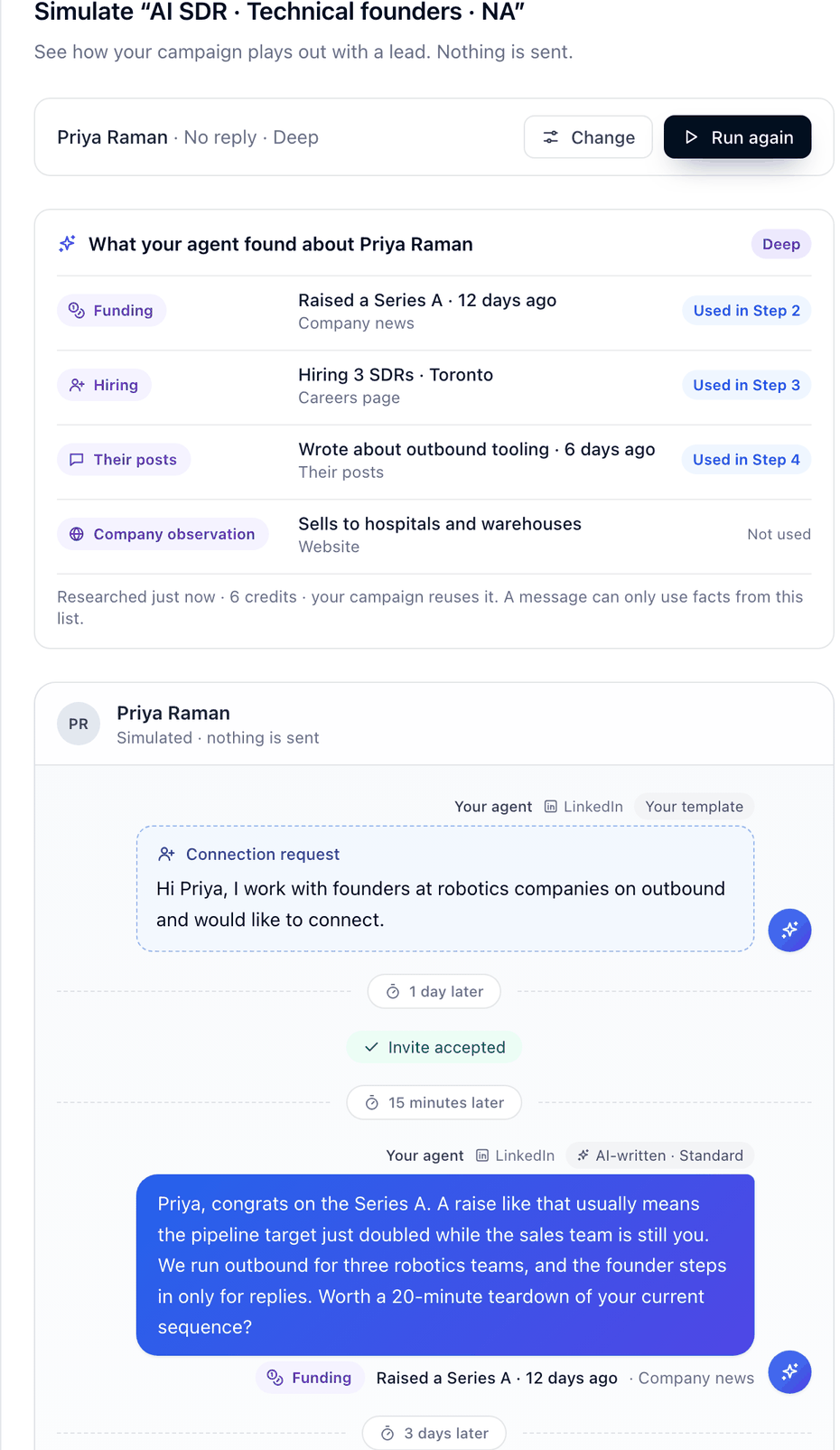
| Your template | The message is the text you wrote in the playbook, with the lead's name, company and so on filled in. |
| AI-written | Your outreach agent wrote the message. When the step has research, the label also names its depth, for example AI-written · Standard. |
| What your agent found | A card above the chat with what Ragworks found about the lead: each fact, where it came from, and whether a message used it (Used in Step 2) or not (Not used). A message can only use facts from this list. |
| Hook | Under each AI-written message, the kind of fact it opens on, the fact and its source, for example Funding · Raised a Series A · 12 days ago · Company news. Later messages open on a different hook when there is one, as in a live run. |
| Simulated reply | The reply from the test lead. |
| Marked as | The engagement label that reply gets, like Interested or Not interested. It's the same label you see in the Engagement column of the Leads table. |
| Follow-ups cancelled | Once a lead replies, the sequence stops, so any steps still waiting won't be sent. |
| Handed to a person | Your campaign passes this kind of reply to your team, so the agent doesn't answer. These are the labels you see under Taken over. |
| No reply sent | The agent didn't send an answer. That's often a stop rule in your playbook, like a lead asking not to be contacted. Whatever the agent said is shown underneath. |
| Your agent hit an error | The AI service didn't give an answer back. Your playbook didn't decide this, so just run it again. |
A single sentence under the chat tells you how it ended.
How close is it to the real thing?
Pretty close. The sequence, the waits, your playbook, your outreach agent and the engagement label all come from your real campaign. When the lead replies, your agent reads the chat and checks your playbook the same way it would for a real reply.
A few things are different:
- You choose the lead's replies. They aren't real.
- Waits are shown as written. Working hours, time zones and daily sending limits aren't applied.
- Your agent knows what the research found. At Basic that's what's already in your list: the lead's name, title, company, email and LinkedIn link. Standard and Deep add what Ragworks finds about the company and the lead. A simulation never reads the lead's profile through your LinkedIn account, so a Basic run can lack something a live run would read.
- AI-written messages change from run to run. The agent writes them fresh each time.
- Only LinkedIn and email steps are played. Steps for other channels show a note saying they aren't simulated yet.
A LinkedIn connection note always comes from your template text, even when the step is set to AI-written. If it's longer than 250 characters, Ragworks asks an AI to shorten it before it goes out, and the simulation shows the text before that. Notes are only added when the connected account is a Sales Navigator account.
Template text is sent exactly as you wrote it. If a message in the simulation sounds like a note to an AI, like "Draft a LinkedIn message that…", that step is set to Template. Open the playbook and switch it to AI-written, and the agent will turn those instructions into a real message.
Credits and limits
Messages your agent writes, and its replies, use credits, the same as a live run. If you're out of credits, the simulation won't start.
Research uses credits too, when you pick Standard or Deep for a real lead who hasn't been researched yet. The price is on the Research row before you run, and the card What your agent found says what was charged. Your campaign reuses that research, so the same lead isn't charged again when it runs. A lead who already has research, and the sample lead, cost nothing.
If your research budget is used up, the simulation runs at Basic and says so: "Research budget used. This simulation runs at Basic." See Research budget used.
You can run one simulation at a time per campaign, and up to 100 a day across your organisation.
Availability
Messages your agent writes, and its replies, are turned on account by account. If that isn't on for you yet, a simulation that needs the agent stops with "AI-written steps cannot be simulated for your organisation yet". Everything before that point still shows. Runs that only use template text, like No reply, work either way.
If something looks off
| You see | What to do |
|---|---|
| A simulation is already running for this campaign. | Wait for it to finish, then run it again. |
| You are out of credits. | Add credits and run it again. |
| This campaign has no published sequence to simulate. | Publish the campaign's sequence first. |
| That lead is not part of this campaign. | Pick a lead from the list, or use the sample lead. |
| Your agent hit an error. | Run it again. If it keeps happening, contact support. |
| A message reads like instructions. | That step is a template. See the tip under How close is it to the real thing?. |
| Your organisation has run many simulations today. | Try again tomorrow. |