Lead Scoring
Lead scoring ranks every lead in a campaign by how well they match your ideal customer profile, before outreach begins. Instead of contacting leads in the order they were added, Ragworks contacts your best-fit leads first, so attention and outreach capacity go to the leads most likely to convert, not to poor-fit leads.
Every lead gets a 0–100 fit score, plus a plain-English explanation of why it landed there. You're never guessing why the AI prioritized one lead over another.
Why Use Lead Scoring
Without scoring, a campaign works through leads in whatever order they were added, a mix of great-fit and poor-fit prospects contacted essentially at random. With scoring on:
- Best-fit leads go out first. Your list is automatically sorted by fit, so both the AI and your reps spend their time on the leads most likely to convert, with early replies and meetings coming from those leads too.
- You see the "why" for every score. Each score comes with a breakdown showing which criteria matched, which didn't, and why, so you can trust the ranking instead of treating it as a black box.
- Poor-fit leads don't get skipped silently. They're still scored and still contacted, just later in the sequence. Nothing is excluded from your list; scoring only changes the order.
Enabling Lead Scoring
Lead scoring is configured in Step 3: Finalize Settings of the campaign creation wizard.
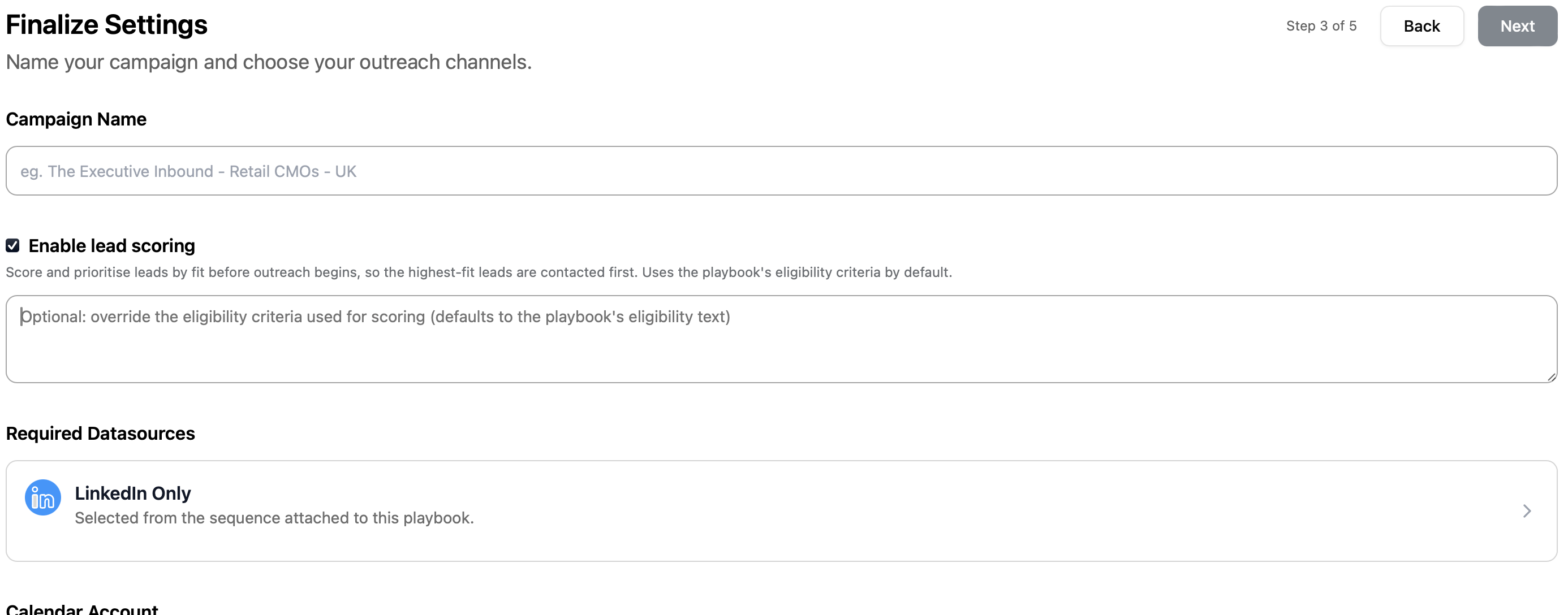
Check Enable lead scoring to turn it on for the campaign. By default, Ragworks uses the eligibility criteria already defined in your playbook (the same criteria it uses to describe who's a good fit), so in most cases there's nothing else to configure.
Overriding the criteria
If you want scoring to use different or more specific criteria than your playbook's eligibility text, enter them in the override field. This only affects scoring; it doesn't change your playbook or your outreach messaging.
Turn it on when you create the campaign (Enable lead scoring in step 3), or at any time afterwards from the campaign's ⋯ → Settings → Lead scoring (Score leads before outreach). Scoring costs about 2.5 credits per lead, plus one LinkedIn profile lookup from the daily pool it shares with outreach. Once on, it applies to every lead already in the connected list, and it automatically applies to any leads added afterward too, whether through CSV upload, AI Search, or adding contacts to the saved list directly. You don't need to re-trigger anything.
How Scoring Works
Ragworks reads your eligibility criteria and evaluates each lead against them using two complementary checks:
- Structured checks. For criteria backed by hard data, like company headcount, industry, funding stage, revenue range, or location, Ragworks checks the lead's enriched firmographic data directly.
- AI judgment. For anything more nuanced or subjective, like "already uses a CRM" or "likely to be the budget holder," the AI reads the lead's profile and available context and makes a judgment call.
Each criterion carries a weight reflecting how much it matters relative to the others. The final score is the percentage of total weight the lead satisfies: a lead that clears every high-weight criterion scores near 100, while one that fails the criteria that matter most scores low even if it passes a minor one.
Scoring Happens Automatically
You don't trigger scoring manually. The moment scoring is enabled, or new leads are added to a scoring-enabled campaign, Ragworks scores them in the background. While it works, a status strip sits under the campaign's tabs:

| Strip | Meaning |
|---|---|
| Scoring leads (blue) | Scoring is running. The bar shows how many leads are scored so far. |
| Scoring paused · daily limit reached (amber) | The normal end of a day's work. Each lead costs one LinkedIn profile lookup from a daily pool that outreach draws on first; scoring resumes at the time shown. |
| Scoring paused · out of credits / no LinkedIn account / LinkedIn disconnected (red) | Needs you. The one action on the right fixes it. |
The ⓘ button on the strip opens the day's picture: how many of today's lookups went to outreach, to scoring, and are held back for outreach, plus what is still to score and the estimated finish.
For very large lists, scoring completes gradually rather than all at once. This keeps the LinkedIn account used for enrichment operating safely within its normal usage limits, and outreach and other campaign activity aren't blocked while scoring is in progress. Once every lead is scored the strip goes away; the Score column header carries the summary from then on.
Reading Scores in the Leads Table
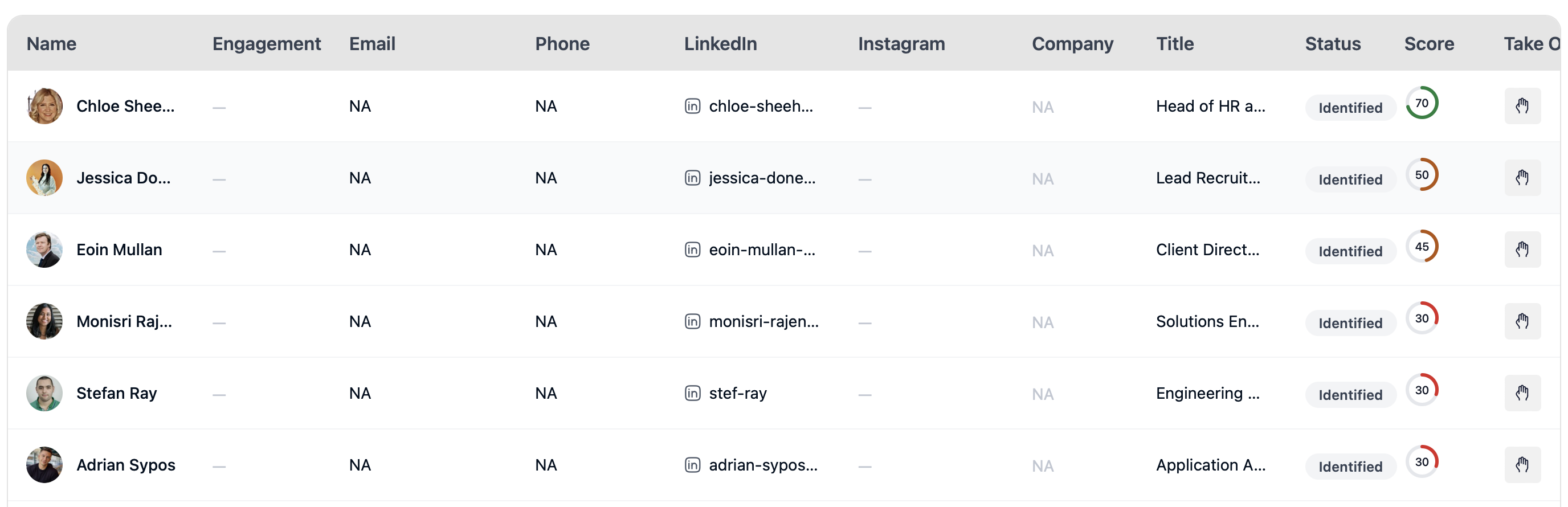
Once scoring is enabled, a Score column appears in the leads table, showing each lead's fit as a colored ring:
| Ring color | Range | Meaning |
|---|---|---|
| 🟢 Green | 70–100 | Strong fit |
| 🟡 Amber | 40–69 | Moderate fit |
| 🔴 Red | 0–39 | Weak fit |
The Score header
When scoring is complete, click the Score column header to see how many leads are scored, what they were scored against, when the last one was scored, today's lookups and the three bands — and to Rescore.
Rescoring
A score is a judgment against the criteria that existed when the lead was scored. If you change the playbook's eligibility rules or the campaign's scoring override, or the Strategist report tells you the list is wrong for your positioning, rescore the campaign from the Score header, or one lead from its score breakdown.
- The confirm step states how many leads will be scored again, that each costs one lookup from the day's shared pool and credits again, and roughly how long it will take.
- Current scores and the sending order stay until each new score lands; while a lead waits, its score shows muted with rescore pending, and the breakdown shows what the previous score was once it has settled.
- One campaign-wide rescore every six hours; rescoring a single lead is not limited.
Sorting by Score
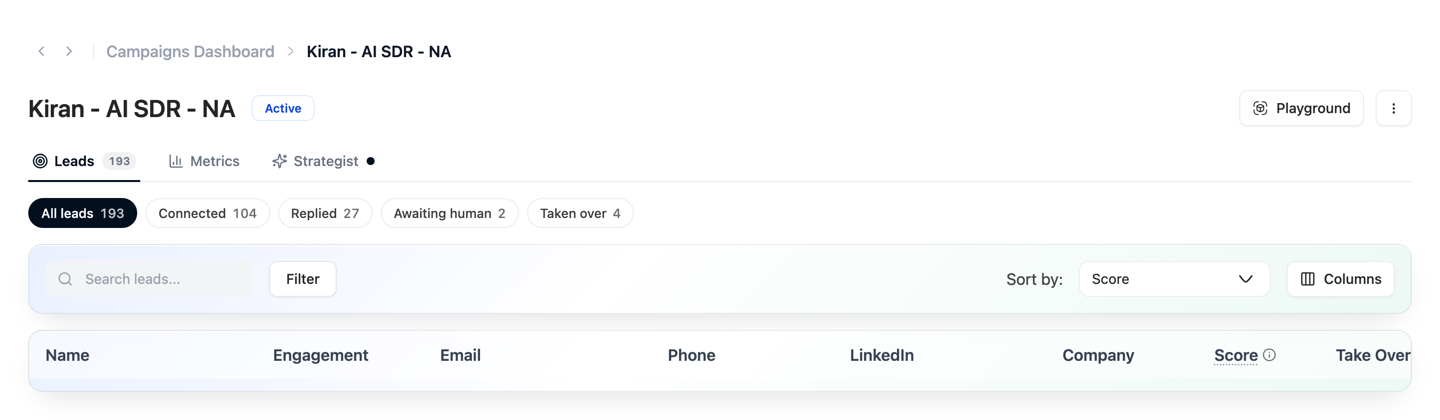
With scoring enabled, Score becomes available in the Sort by dropdown above the leads table. Sorting by Score lists leads from strongest to weakest fit, which is also the order Ragworks uses to prioritize outreach. This view shows you exactly which leads will be contacted next.
Score Breakdown
Click any score to open the full breakdown: the fit tier, the AI's overall explanation, and a line-by-line view of every criterion that went into the score.
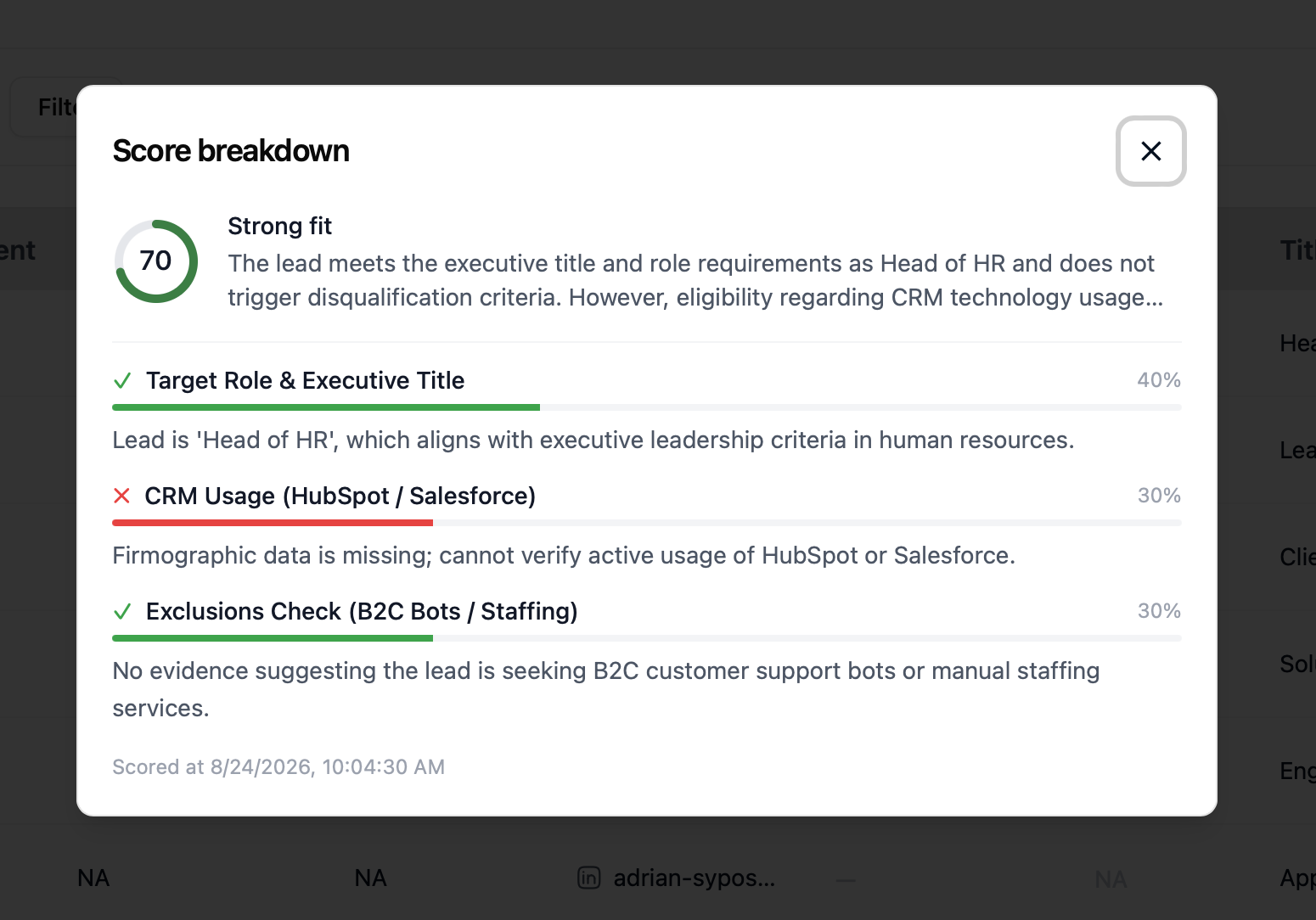
For each criterion, you'll see:
- Match indicator. A check or cross for whether the lead satisfied that criterion.
- Weight. How much that criterion contributes to the overall score, shown as a percentage bar.
- Explanation. A short, specific note on why it matched or didn't (for example, "Firmographic data is missing; cannot verify active usage of HubSpot or Salesforce").
A criterion can also show as not evaluated rather than pass or fail. This happens when there isn't enough data to check it one way or the other, and criteria marked this way don't count against the lead's score.
Leads That Aren't Scored
A lead may not get a score at all. Hovering the — in the Score column, or opening the breakdown, shows why:
| Reason shown | What it means |
|---|---|
| Lead has no LinkedIn URL | Scoring needs a LinkedIn profile to enrich the lead against your criteria |
| No connected LinkedIn account / Connected LinkedIn account was disconnected | The campaign's LinkedIn account isn't available for lookups |
| LinkedIn lookup failed | The profile lookup didn't succeed. This resolves automatically on a later pass |
| No eligibility criteria set for this campaign | Neither the playbook nor the override field has usable criteria |
| Insufficient credits | Your organization is out of credits for enrichment |
An unscored lead is not excluded from the campaign. It's simply not ranked yet, and it sorts after every scored lead when sorting by Score. Outreach still reaches it in the normal course of the campaign.
Best Practices
- Let your playbook's eligibility criteria do the work first. If your playbook already clearly describes your ideal customer, you likely don't need an override; turning scoring on is enough.
- Write override criteria the way you'd explain your ICP to a new rep. Plain language works well. Ragworks splits it into structured and judgment-based checks automatically, so you don't need to format it as rules.
- Check the breakdown on a few early leads. Before trusting the ranking on a big list, open the breakdown on 3–4 leads across the score range to confirm the reasoning matches your expectations.
- Sort by Score to prioritize your own attention too. If you're spot-checking replies or taking over conversations manually, working top-down by Score focuses your time on the leads most likely to convert.
Troubleshooting
| Issue | What to do |
|---|---|
| Score column doesn't appear | Confirm Enable lead scoring was checked when the campaign was created. It can't be turned on afterward for an existing campaign |
| Scoring seems stuck on a large list | Large lists score gradually to stay within LinkedIn usage limits. The strip under the tabs says whether it is running, waiting for tomorrow's lookups, or needs you; its ⓘ shows where today's lookups went |
| Many leads show "Lead has no LinkedIn URL" | Confirm the lead source actually includes LinkedIn profile URLs. Leads without one can't be enriched for scoring |
| Scores don't match my expectations | Open the breakdown to see exactly which criteria drove the score. If the criteria themselves are wrong, edit your playbook's eligibility text or the campaign's scoring override |
Next Steps
- See Working with an Active Campaign for filtering, sorting, and managing leads once outreach is running.
- See Building a Playbook to review or refine the eligibility criteria scoring uses by default.