Campaign Experiments
An experiment lets you try two or three playbooks on the same list of leads, see which one gets better results, and then send the rest of the list to the winner.
Normally you pick a playbook, run it on the whole list, and only find out afterwards whether it worked. By then every lead has been contacted and you can't run the list again. With an experiment you use a small part of the list to test each playbook and keep the rest back until you know which one to use.
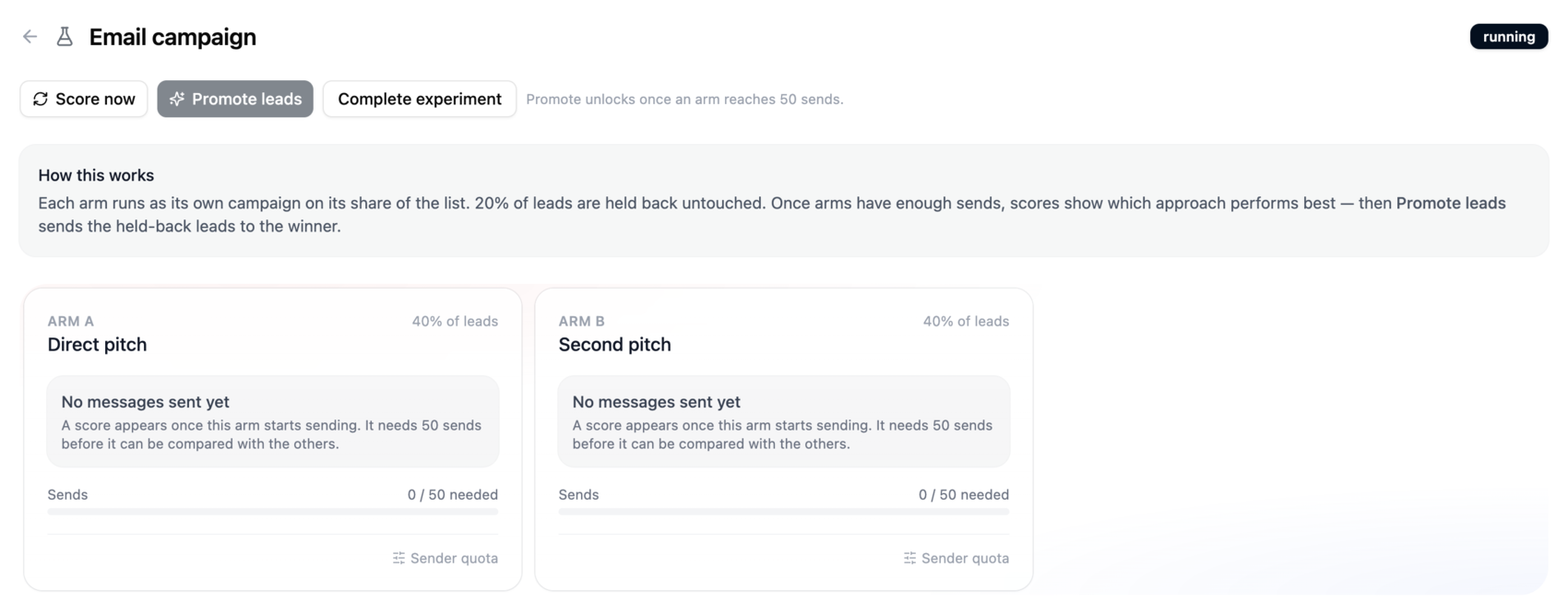
How it works
- Pick a campaign that has your leads loaded but hasn't been launched yet. This is the source campaign.
- Split its leads between two or three playbooks. Each playbook with its share of leads is called an arm. Any share you don't give to an arm is held back.
- Create the experiment. It's saved as a draft and nothing is sent.
- Approve and launch it. Ragworks creates one real campaign for each arm and divides the leads between them.
- Score the arms to see how each one is doing.
- Promote the winner, which sends the held-back leads to it.
- Complete the experiment when you're finished.
Terms
| Term | Meaning |
|---|---|
| Experiment | One test. A source campaign split across two or three playbooks. |
| Source campaign | The campaign whose leads you split. It's left holding the held-back leads. |
| Arm | One playbook and its share of the leads. Each arm runs as its own campaign. |
| Holdback | Leads you don't contact during the test. They're your control group and what you promote to the winner later. |
| Score | A rating from 0 to 100 for one arm. |
| Confidence | Low, Medium or High. How much you can trust a score. |
| Minimum sample | How many sends an arm needs before its score starts to count. The default is 50. |
| Promote | Send held-back leads to the winning arm. |
:::info Availability Experiments is turned on account by account. If you don't see an Experiments tab on the campaign overview, it isn't enabled for your account yet. If you open an experiment link directly, you'll see "Experiments aren't available yet" and a Back to campaigns button. :::
An arm is a playbook, and research depth is set on the playbook's AI-written steps. To find out whether a deeper level pays for itself, clone the playbook, set a step to Deep (or to a template) in the copy, and test the two against each other. Research by depth on the Lead sourcing tab of Analytics shows reply rate at each depth. See Research depth and hooks.
Statuses
| Status | What it means | What you can do |
|---|---|---|
| Draft | Saved, not launched. No campaigns exist and no lead has been touched. | Approve and launch, or delete. |
| Approving | The launch is running. Usually a minute or two. | Wait. The page refreshes by itself. |
| Running | The arms are live and sending. | Score, promote, complete, set sender quota. |
| Done | Finished. The final scores are saved. | View results, set sender quota on promoted arms, delete. |
An experiment only moves forward through these. A Done experiment can't be reopened.
You can't edit an experiment once it's created. To change a draft, delete it and make a new one. A running experiment can't be changed at all, because changing the split would reassign leads that have already been contacted.
Before you start
| You need | If you don't have it |
|---|---|
| A source campaign that hasn't been launched (it shows as Pending). If it had already started, its leads would be contacted twice. | Create a campaign with your leads and playbook, but don't approve it. |
| A campaign on the graph engine. Legacy campaigns don't appear in the picker. | Create a new campaign. |
| At least one lead per arm. | Add leads, or wait for the import to finish. |
| A playbook for each arm with status Ready or Completed. | Finish building the playbook. |
| A published sequence on each playbook, with a message at every step. Each arm is launched like a normal campaign, and the launch fails otherwise. | Open the sequence, write the missing messages and publish it. |
| A different playbook for each arm. The wizard won't let two arms share one. | Use separate playbooks. |
| The sending accounts connected on the source campaign. Every arm uses them. | Fix the connection on the source campaign. |
| A source campaign that isn't already in a draft or running experiment, and isn't itself an arm. | Complete or delete the other experiment. |
Only campaigns can be used as a source. A saved lead list has no sender or schedule to copy, so it won't appear in the picker.
The Experiments tab
On the campaign overview, open the Experiments tab, next to Overview and Campaigns.
- If you haven't created any, you'll see "No experiments yet" and a New experiment button.
- Otherwise you'll see a card for each experiment, newest first. The list shows your 500 most recent.
- If the list can't load, you'll see "Couldn't load experiments" and a Retry button. The request gives up after about 20 seconds.
Each card shows the experiment's name and status, a bar showing how the list is split, and the number of arms. It also shows which arm is leading (or "Not scored yet"). Once an arm can be promoted, a green "Ready to promote" note appears on running experiments. Draft and Done experiments have a trash icon for deleting them.
Click a card to open the experiment, or click New experiment to start the wizard.
Creating an experiment
The wizard has four steps. Back keeps what you've entered. Cancel on the first step takes you to the page you came from.
Step 1: Select Lead List
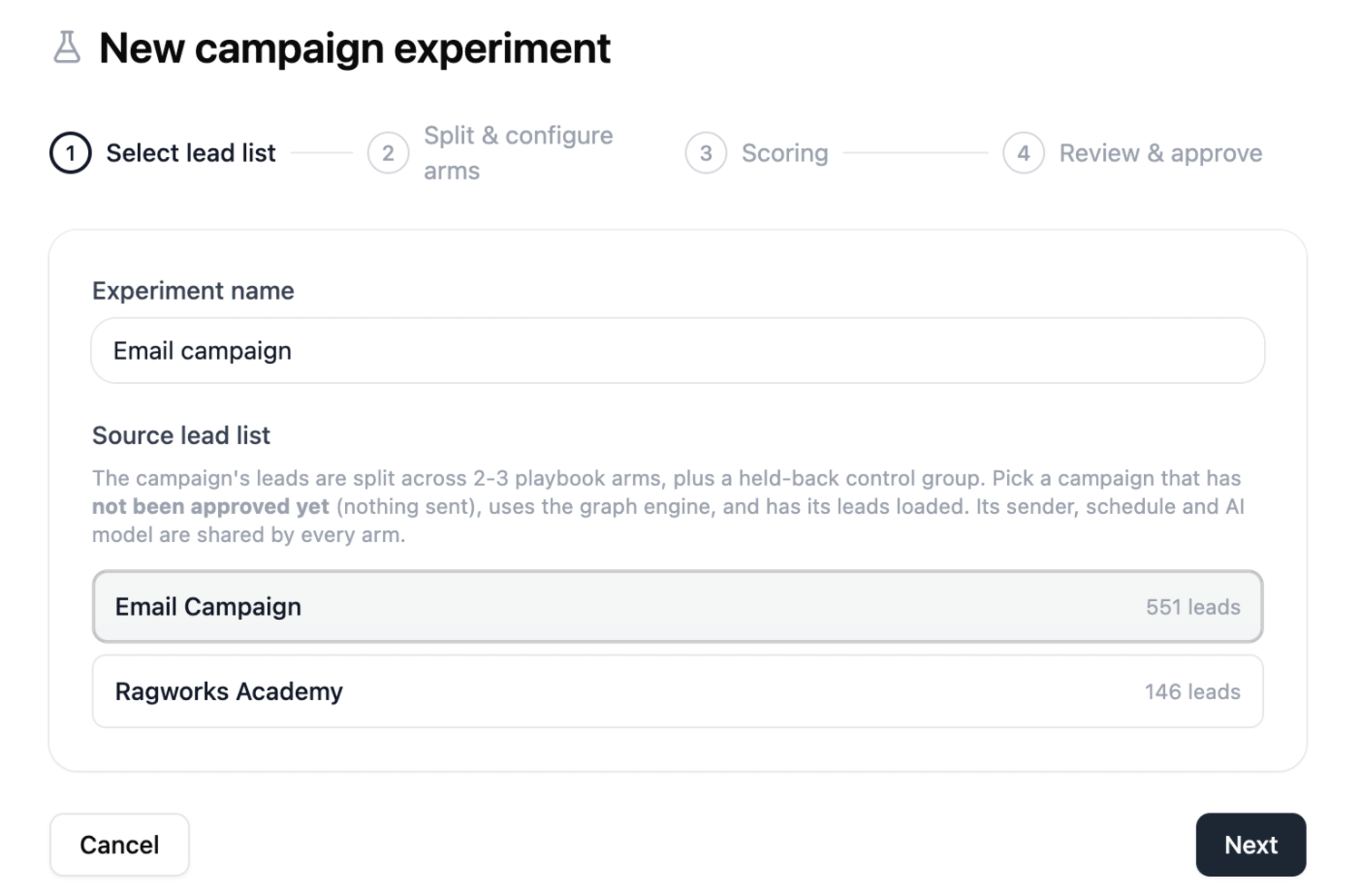
Enter a name for the experiment (up to 200 characters, and it doesn't have to be unique), then pick the source campaign. Next stays greyed out until you've done both.
The picker only shows campaigns that are on the graph engine, haven't been approved, aren't already an arm of another experiment, and show as Pending. Each one shows its lead count.
| What you see | What it means |
|---|---|
| A spinner | Campaigns are loading. If you have a lot of them, they load in pages until all are in. |
| "Couldn't load campaigns" | The request failed or timed out. Click Retry. |
| "No eligible campaigns" | Nothing qualifies yet. Create a campaign with your leads and playbook, don't approve it, then come back. |
Step 2: Split & configure arms
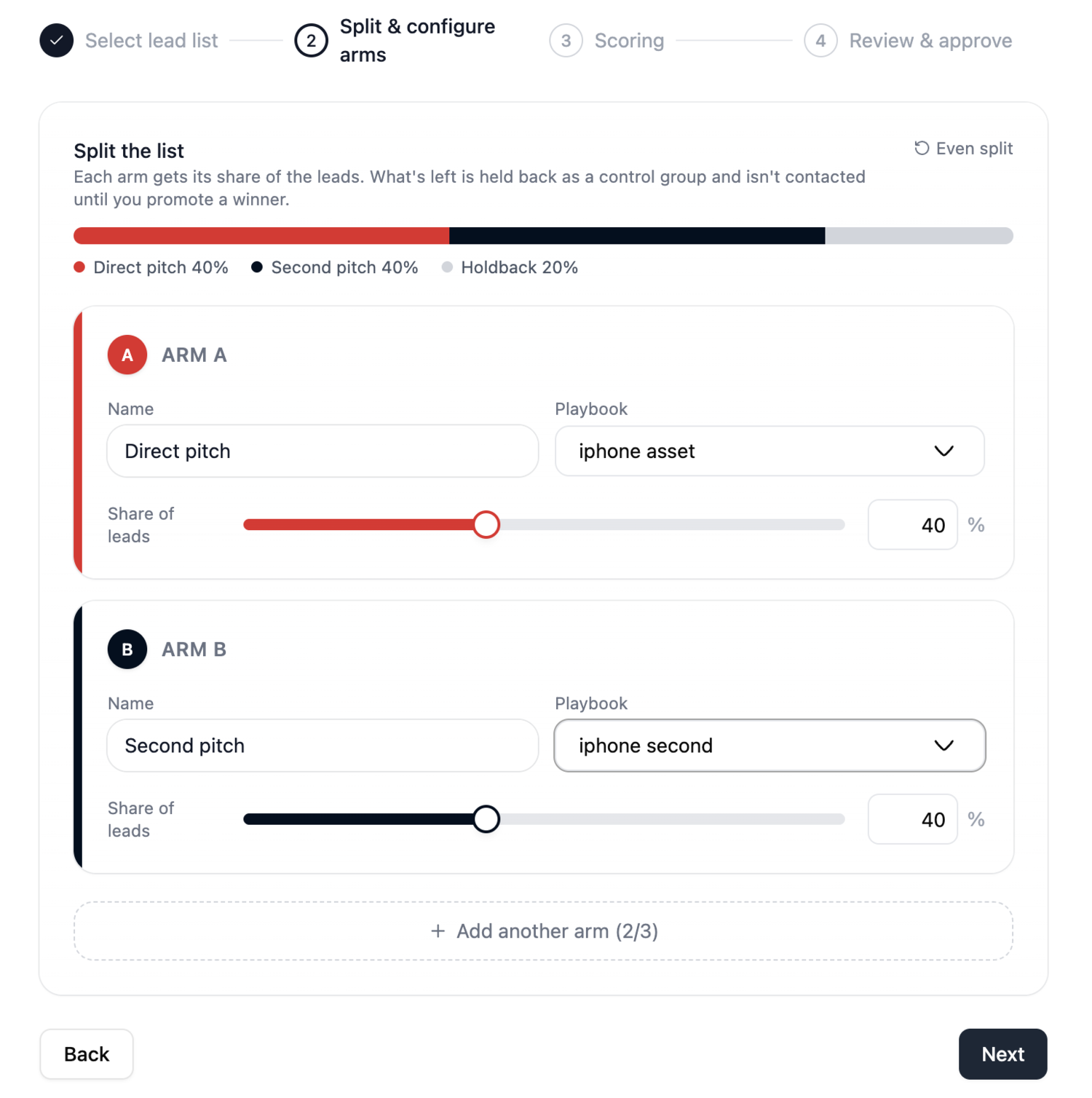
You start with two arms at 40% each and 20% held back. For each arm you set a name, a playbook and a share of the leads.
- Name is required and can be up to 200 characters. It becomes part of the arm's campaign name.
- Playbook is required. Only Ready or Completed playbooks are listed, and each playbook can be used by one arm only. If you have none, the list says "No ready playbooks yet".
- Share of leads is a whole number from 1 to 100. Use the slider or type it in.
Click Add another arm to add a third. The trash icon on an arm only appears while you have more than two.
Setting the shares
Each arm can have any share you like. 10% and 20% is fine, and so is 40% and 40%, or 5% and 5%. The only rules are that every arm gets at least 1% and the arms together can't go over 100%.
Whatever the arms don't use is the holdback. If you give one arm 10% and another 20%, 70% is held back. You never type the holdback in yourself.
A few things to know:
- The slider and number box for each arm stop at whatever room is left, so you can't go over 100% by dragging. If you type a number that's too big, it's cut down to the most that fits.
- If the arms add up to 100%, nothing is held back. That's allowed, but you won't have a control group and there'll be nothing to promote later.
- Adding or removing an arm resets all the shares to an even split, so choose the number of arms first and set the percentages after.
- Even split does the same reset when you click it. It divides 80% evenly between the arms and keeps 20% for the holdback: 40 and 40 for two arms, or 26, 26 and 28 for three (the last arm takes the rounding).
- If one arm is much smaller than another, it takes longer to collect enough replies, so it will reach Medium confidence later.
If Next is greyed out, the message under the arms tells you why:
| Message | What to do |
|---|---|
| Experiments need 2 to 3 arms. | Keep two or three arms. |
| Every arm needs a name. | Name each arm. |
| Every arm needs a playbook. | Pick a playbook for each arm. |
| The arm's share must be between 1 and 100. (It shows your arm's name.) | An arm can't be at 0%. Give it at least 1%. |
| Arm percentages add up to more than 100% | Lower one or more shares. |
| Arm keys must be unique. | Reload the wizard. |
Messages you need to act on show in red. The grey ones are just reminders that something isn't filled in yet.
Since splits are random for each lead, the arms won't match your percentages exactly on a small list. See How leads are split.
Step 3: Scoring
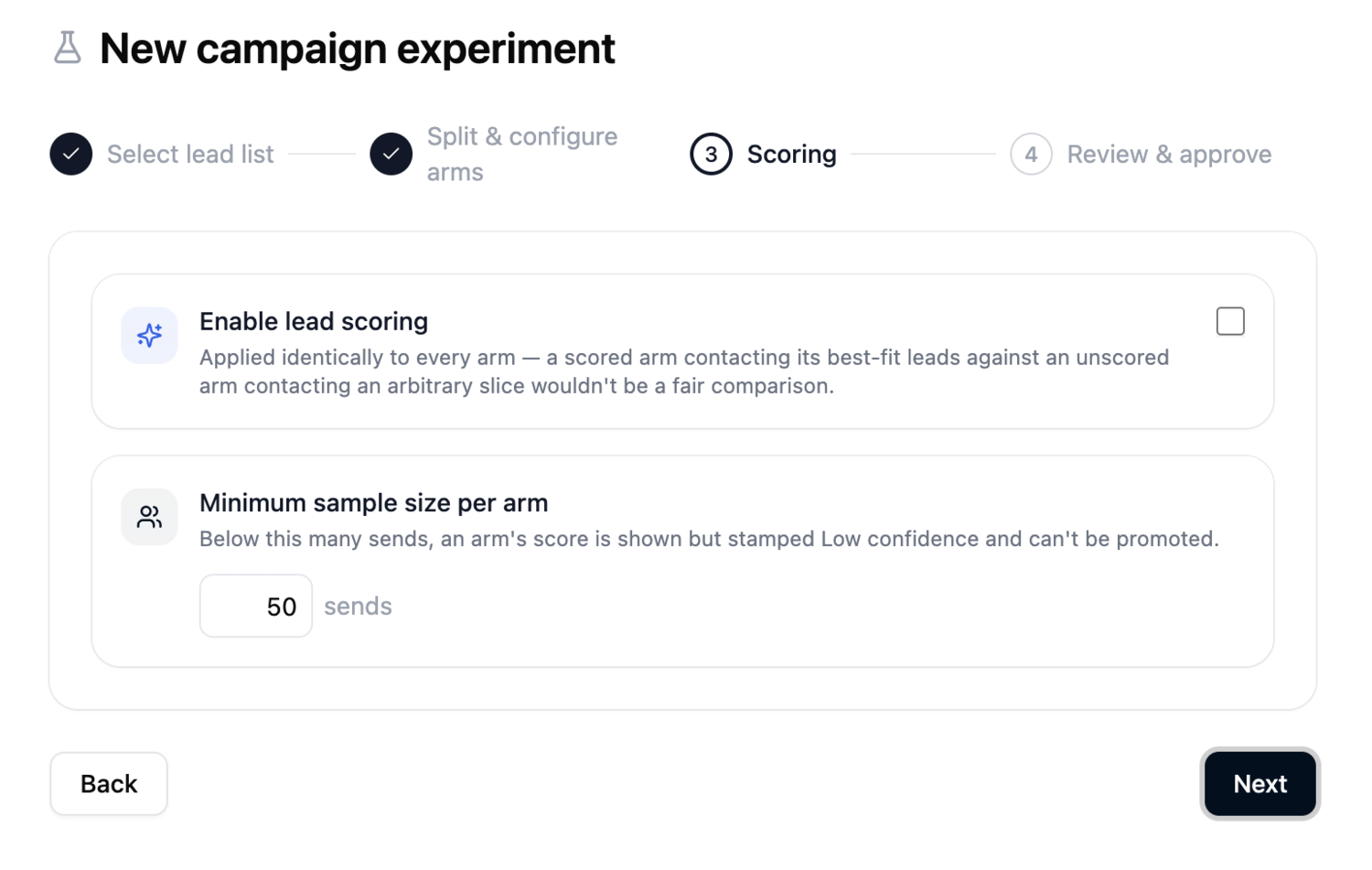
Enable lead scoring is off by default. When you turn it on, Lead Scoring is switched on for every arm. It can't be on for some arms and off for others, because an arm that contacts its best-fit leads first can't fairly be compared with one that contacts leads in no particular order.
With scoring on, a panel appears with a box of eligibility criteria for each arm:
- Each box starts out filled with the criteria from that arm's playbook, with a "tracks its playbook" tag beside it.
- Edit a box to give that arm its own criteria. The limit is 2,000 characters.
- If a box still matches the playbook's criteria when you create the experiment, nothing is saved for that arm and it keeps following its playbook.
- Use the same criteria for all arms copies the first arm's criteria to the others. An Undo button appears so you can put everything back. Undo disappears once you edit a box, or if you go back and change the number of arms, so it can never overwrite something you typed.
- The panel heading says whether the arms use "each arm ranked by its own playbook", "arms ranked identically" or "arms ranked by different criteria". The score report for each arm shows the same note.
If you want to compare messaging only, use the same criteria for every arm. With different criteria you're testing who gets contacted as well as what they're sent.
Minimum sample size per arm is how many sends an arm needs before its score starts to count. It defaults to 50 and can't be lower than 1. Below it, the score is shown but marked Low confidence, and the arm can't be promoted.
Reaching the minimum sample isn't always enough to promote. The arm also needs Medium confidence, which depends mostly on how many replies it has. See Confidence.
If scoring is off, the criteria panel is hidden and nothing is saved for it.
Step 4: Review & approve
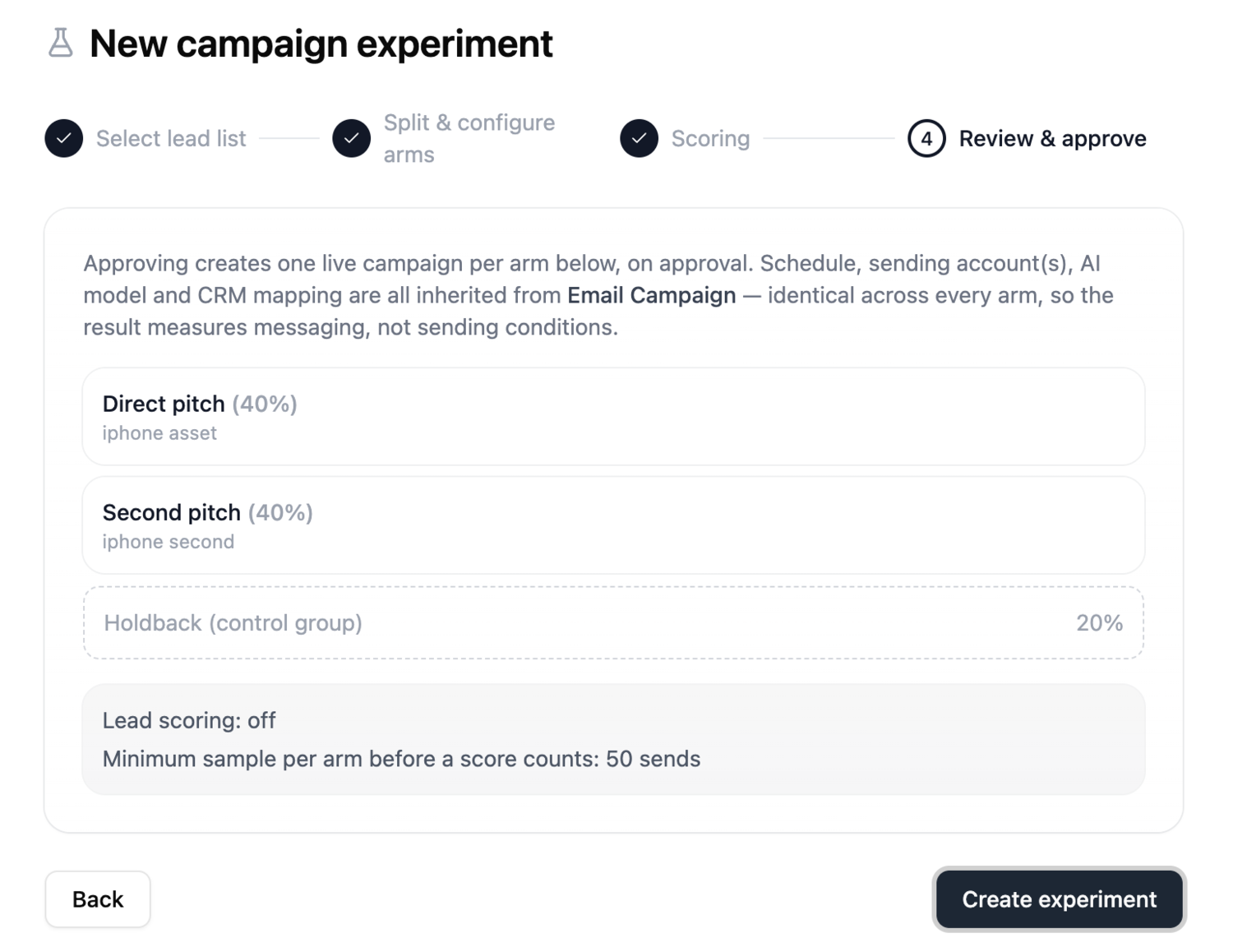
This page summarises your setup: each arm with its share and playbook, the holdback, whether scoring is on, and the minimum sample. An arm with its own criteria has a "Custom criteria" badge.
The page also notes that the schedule, sending accounts, AI model and CRM mapping are all copied from the source campaign and are the same for every arm. You can't set them per arm. This is so any difference in results comes from the messaging, not from sending conditions.
Click Create experiment. This only saves a draft. No campaigns are created and nobody is contacted. You'll go to the experiment's page with the message "Experiment created as a draft."
If creation fails, you stay on the page with a red message:
| Message | What it means |
|---|---|
| Source lead list not found | The campaign was deleted. Pick another. |
| Campaign experiments require the source list to use the graph outreach engine. | The campaign is on the legacy engine. |
| This campaign has already been launched. Experiments need a campaign that has not been approved yet, so no lead has been contacted. | Use a campaign that's still Pending. |
| This campaign has N lead(s); it needs at least one per arm (K). | Add leads, or wait for the import to finish. |
| This lead list is an arm of another experiment and can't be used as a source. | Pick a different campaign. |
| This lead list is already attached to an active experiment. | That campaign already has a draft or running experiment. Complete or delete it first. |
| Request timed out after … s | Check your connection and try again. |
Approving and launching
Open the draft. It says "Ready to launch" with a short summary and an Approve & launch button.
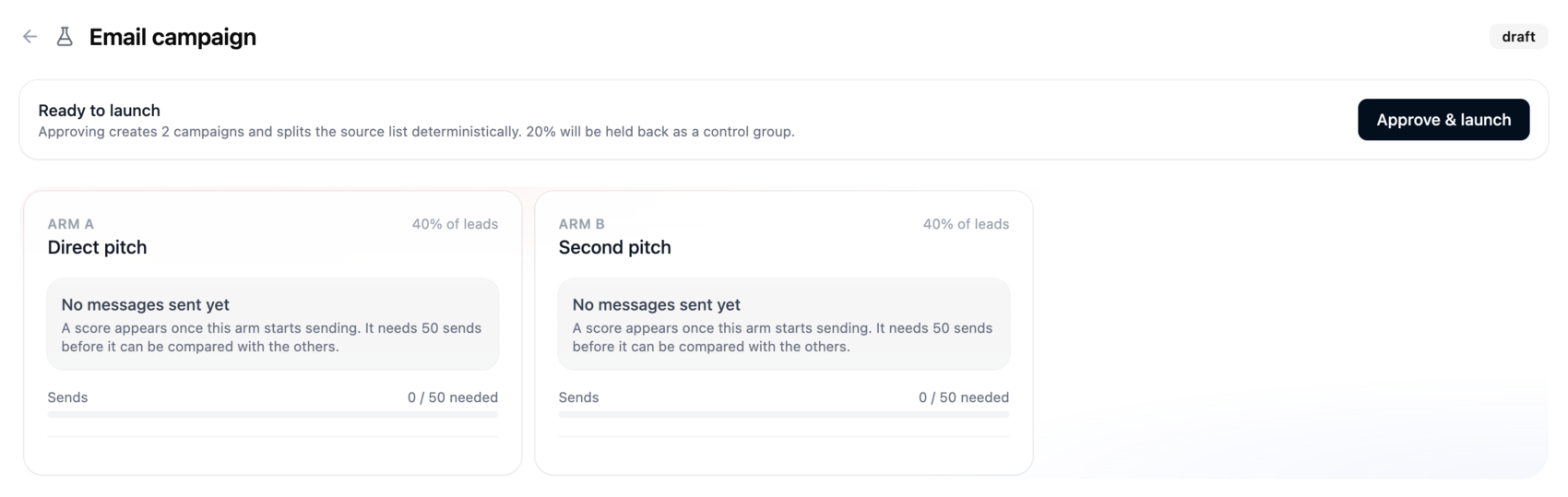
When you click it, Ragworks does this:
- Locks the experiment (Draft becomes Approving), so a double-click or a second tab can't launch it twice.
- Creates one campaign per arm, named "Experiment name — Arm name". Each one is built from the source campaign, with the same senders, schedule, working hours, AI model, CRM and channels, but with that arm's playbook and scoring criteria.
- Splits the leads. Every lead on the source list goes to one arm or to the holdback (see below). Each arm's leads move to its campaign and the lead counts are updated. The source campaign's count drops by the number moved, so it's left with just the held-back leads.
- Launches each arm the same way any campaign is approved. Leads are enrolled in the sequence and the schedules are set up.
- Sets the experiment to Running and shows "Experiment approved — arm campaigns are launching."
While it runs, the page shows "Creating arm campaigns and splitting the list. This can take a minute; the page updates when it finishes." and checks for the result every 3 seconds.
After launch, leave the source campaign alone. It only holds the held-back leads, and those are blocked from enrollment while the experiment runs (see The holdback), so approving it wouldn't start anything useful.
If approval fails
Approval either finishes or undoes itself.
| What happened | Result | What to do |
|---|---|---|
| It failed before any arm launched (the usual case) | Everything is rolled back. The arm campaigns are removed, leads go back to the source campaign, counts are restored and the experiment returns to Draft. | Fix the cause and click Approve & launch again. |
| It failed after at least one arm had launched | The launched arm is never deleted, because it's a live campaign and removing it could cause duplicate sends on a retry. The arms that hadn't launched are rolled back, and the experiment is left Running with only some of its arms. | Don't retry. Talk to a Ragworks expert with the experiment name. |
| You clicked twice, or opened it in two tabs | The second request is refused with "Experiment approval is already in progress." | Wait for the first one to finish. |
| The experiment is no longer a draft | You'll see "Experiment is running, not draft" (or approving, or done). | Refresh the page. |
| The page shows a timeout after about 2 minutes | The page stopped waiting, but the launch may still be going. | Refresh. It will show Approving, Running or Draft. Don't click approve again until you've checked. |
The usual reasons for a rolled-back approval are the same ones that would stop any campaign launching:
- The campaign is still being built. The message is "This campaign is still being built and cannot be activated yet".
- A playbook's sequence isn't published. The message mentions publishing the sequence and approving again.
- A sequence step has no message. The message is "Every step of the sequence needs a message before the campaign can start", and it may show up as plain text listing the missing steps.
- A playbook was deleted.
While it's running
At the top are three buttons: Score now, Promote leads and Complete experiment. Below them is a short "How this works" note, then a card for each arm, and a results table once any arm has sends. The page refreshes every 30 seconds, or every 3 seconds while approving.
Arm cards
Each card shows the arm's letter and name, its share of the leads, and a Sends bar that fills as the arm approaches the minimum sample. What else it shows depends on where the arm is:
| State | When | What you see |
|---|---|---|
| No data | No sends yet. | "No messages sent yet." This stays even if you've clicked Score now, because there's nothing to measure. |
| Still collecting data | It has sent something but confidence is still Low. | The score in grey with a "Still collecting data" badge and a note that it's only a rough guide. |
| Ready | Confidence is Medium or High. | The score with its confidence badge. The arm can now be promoted and can be marked Leading. |
A scored card also shows Engagement (the results half of the score), Message quality (the AI review half, or "n/a" if the review couldn't run) and Replies.
The arm with the highest score among Ready arms gets a green Leading badge. An arm that's still collecting data never leads, so an arm with no sends can't win on a default score. If two arms tie, the earlier one leads.
The Sends bar only tracks the minimum sample. A full bar doesn't mean the score is ready, since an arm can have enough sends and still be on Low confidence.
View full report opens the arm's score report. It appears once the arm has sent something. Sender quota appears once the arm has its own campaign.
The results table shows Arm, Score, Sends, Reply rate, Positive replies, Accepted and Rejected. The rates are estimates adjusted for sample size, so with little data they're pulled towards the benchmark rates and may not match replies divided by sends exactly. Arms with no sends show a dash.
Scores update when you ask
Scores aren't refreshed automatically. Click Score now whenever you want an update.
- You can score once every 6 hours per experiment. The limit covers the whole experiment, not each arm. If you click too soon you'll see "Manual scoring is rate-limited to once per 6:00:00; try again in …" with the time left. A run that fails doesn't start the 6 hours.
- Score now scores every arm at once. You can't score one arm on its own.
- It works while the experiment is Running. On a Done experiment the button is disabled.
- If the AI review fails or times out, that arm gets a score from its results alone and the report says so. It isn't treated as an error.
- If an arm's campaign has been deleted, that arm is skipped and keeps its last score. The others are scored as normal.
Changing arms while it runs
Arms are ordinary campaigns, so you can pause, resume or edit them from the Campaigns tab. That affects the test:
| If you | What happens |
|---|---|
| Pause an arm | It sends less, which skews the comparison. If you promote to a paused arm later, leads meant for it are skipped. |
| Edit an arm's messages | You're no longer comparing the playbooks you started with, and the scores will mix before and after. |
| Add leads straight to an arm | That arm contacts them, but they weren't part of the original split, so the arms stop being comparable. |
| Delete an arm's campaign | The arm can't be scored again (it keeps its last score) and can't be promoted to. |
| Change a shared sender | Sending accounts split their daily limit between all active campaigns on them, including your arms. See Sender quota. |
For a result you can trust, leave the arms alone once they're running. If you need to change how much one arm sends, use Sender quota instead of pausing it.
Adding or removing leads while it runs
- Leads you add to the source campaign aren't assigned to an arm and aren't contacted, because the source campaign was never launched. The exception is a standing Auto promotion, which sends new leads to the winners (see Promoting).
- Leads you add directly to an arm are contacted by that arm, outside the original split.
- Removing a lead from a campaign works as it normally does. Its pending outreach is cancelled.
- Deleting a lead also deletes its experiment assignment record. If that cleanup fails, the lead is still deleted.
How scores are worked out
Each arm gets a combined score from 0 to 100:
combined score = 0.6 × results score + 0.4 × messaging score
If the AI review can't be produced, the combined score is just the results score.
The results score
This comes from what actually happened. 50 means the arm is exactly at the benchmark. Doing better pushes it up and doing worse pulls it down.
| Signal | Weight | What it measures |
|---|---|---|
| Reply rate | +0.40 | Leads who replied, divided by messages sent. |
| Positive replies | +0.30 | The share of replies that were interested, a booked meeting, a referral or "follow up later". |
| Acceptance rate | +0.20 | Connection requests accepted, divided by sent. Only counts for arms that send LinkedIn connection requests. For email-only arms it adds nothing. |
| Rejections | −0.10 | The share of replies that were not interested, a vendor pitch or "already have a solution". More of these lowers the score. |
Each rate is adjusted for how much data there is, so a few lucky early replies don't swing the score. The benchmarks are a reply rate of 8%, positive share of replies 33%, acceptance 30% and rejection share 25%.
The messaging score
An AI reviewer reads the arm's playbook copy and message sequence, your positioning and ideal customer, the campaign goal, the arm's numbers and a sample of real replies. It scores five things from 0 to 100, and the messaging score is their average.
| Dimension | What it looks at |
|---|---|
| Message / ICP fit | Whether the opener and value proposition suit the target person and their pain. |
| Sequence coherence | Whether the steps build on each other or just repeat. |
| Positioning alignment | Whether the copy matches your positioning and ideal customer. |
| Goal alignment | Whether it serves the campaign's goal, rather than just being good writing. |
| Observed reply quality | What the sampled replies suggest: real interest, soft "maybe later", or the wrong person. |
Replies are passed to the reviewer as untrusted text. Instructions inside a lead's reply are treated as data and can't change a score. If the arms use different criteria, the reviewer is told, and it separates the effect of who was contacted from the effect of what was said where it can.
Confidence
Confidence says how much to trust a score. It isn't a measure of how good the arm is.
| Level | Meaning | Can be promoted? |
|---|---|---|
| Low | Not enough data to rely on. | No |
| Medium | A fairly solid read. | Yes |
| High | A very solid read. | Yes |
An arm is Low if it has sent fewer than the minimum sample, if it has no results yet, or if any of the rates behind its score is still too uncertain. Otherwise confidence follows the least certain of those rates.
The positive and rejection shares are worked out from replies, so replies matter more than sends. An arm can have plenty of sends and still be on Low because it doesn't have many replies yet. As a rough guide:
| Reply rate | When an arm reaches Medium |
|---|---|
| About 8% | Between 800 and 1,600 sends (roughly 65 to 130 replies). Still Low at 800. |
| About 20% | Between 400 and 800 sends (roughly 80 to 160 replies). Still Low at 400. |
These are estimates for typical cold outreach and yours will vary. High is rarely reached. In practice, expect to need somewhere between several hundred and a couple of thousand sends per arm before one can be promoted.
High confidence doesn't mean a good result. An arm with a very low score and no replies after many sends can show High, because Ragworks is confident it isn't working. That makes the arm promotable, so check the score as well as the badge before you promote.
The note beside Promote leads says "Promote unlocks once an arm reaches N sends". Reaching N sends only gets an arm past the minimum sample. The button also needs an arm at Medium confidence or higher, so if you have the sends but it's still grey, the arm needs more replies.
Score report
Click View full report on an arm to open its report. It has:
- The combined score in a ring (green at 67 and above, amber from 40 to 66, red below 40), the confidence badge, the criteria note, the send and reply counts, and the model that wrote the review.
- A notice if the AI review wasn't available ("this is a metrics-only score").
- A notice if the arm is on Low confidence ("shown for visibility, but this arm can't be promoted yet").
- The five dimensions, each with a bar, a score and the reasoning behind it.
- Risks that could undermine the result, including differences in targeting between arms.
- Recommended actions for that arm, each tagged Messaging, Reach, Throughput or Confidence.
An arm that hasn't been scored shows "This arm hasn't been scored yet."
The review is based on real replies, so its written reasoning may paraphrase or quote them. It's stored with the experiment and removed when you delete the experiment.
Promoting the winner
Promoting sends held-back leads to the arm (or arms) you choose, so they start being contacted. It's available while the experiment is Running, and Promote leads becomes active once at least one arm has Medium or High confidence. Only those arms appear in the panel. If none qualify, the panel says "No arm has cleared the confidence floor yet — score the experiment first."
Manual or Auto
| Manual | Auto | |
|---|---|---|
| What you enter | A percentage for each arm you pick, taken from the held-back pool. | A weight from 1 to 1000 for each arm you pick. |
| Limits | The percentages can total up to 100%. Going over shows "Percentages add up to more than 100%" and disables Promote. | Any weights. They're scaled so they total 100. |
| What's left | Anything you don't allocate stays held back. | Nothing. The whole pool is sent out. |
| Leads added later | Not routed. They stay on the source campaign and aren't contacted. | Sent to the winners using the same weights, for as long as the policy stands. |
| Use it when | You want to roll out in stages. | You've picked the winner and want everything to go there. |
When you tick an arm, its box is filled in for you. In Manual that's whatever is still unallocated, and in Auto it's a weight of 1, which gives an even split. Promote stays disabled until at least one arm is ticked.
For example, take a list of 1,000 leads split 40 and 40 with 20% held back, so about 200 are held. A Manual promotion giving Arm A 60% sends about 120 leads to A and leaves about 80 held. An Auto promotion with A at weight 3 and B at weight 1 sends about 150 to A and 50 to B, and any leads you add to the source list later are split 75 and 25 as well.
Moving leads out of the losing arms
Tick Migrate non-engaged leads from losing arms to also move leads out of the arms you didn't pick.
- Only leads who haven't engaged are moved. That means no reply, no positive label (interested, meeting booked, referral, follow up later) and not waiting on a human. A lead in a live conversation stays where it is.
- A moved lead's sequence on the old arm is cancelled and the lead is enrolled in the winning arm from the first step. Someone who already got messages from the losing arm will now start receiving a different sequence.
- Moved leads are always spread fully across the arms you picked, using their weights scaled to 100%, even in Manual mode.
- It does nothing if every arm is a winner.
Things to know
- Only held-back leads are moved, plus migrated leads if you ticked that option. Leads already on an arm aren't touched by a normal promotion.
- The winning arm's campaign needs to be running. If it's paused or completed, leads meant for it are skipped and stay where they are, but the page still says "Promotion applied." Check the arm is running first, and check the lead counts afterwards.
- You can promote more than once. Each promotion replaces the previous one. Switching from Auto to Manual, for example, stops new leads being routed. Held-back leads still on the source list are redistributed, and leads that have already moved aren't.
- With the same weights, a lead always goes to the same arm. If you change the weights between promotions, it may go to a different one.
- If the arms used all 100%, there's nothing held back to promote.
- If you click Promote while another promotion is running, you'll see "A promotion is already in progress for this experiment."
- Promoted leads start the new arm's sequence at the first step, on that arm's schedule and sender.
| Message | What it means |
|---|---|
| arm X has no score yet or is below min_sample_per_arm confidence and cannot be promoted | The arm is on Low confidence or hasn't been scored. Score again, or wait for more replies. |
| duplicate target arm_key, or arm X not found on this experiment | A target was repeated or doesn't exist. Reload the page. |
| HOLDBACK is not a promotable arm | The control group can't be a destination. |
| manual target percentages must not sum above 100 | Lower the percentages. |
| Experiment is done, not running | The experiment has already been completed. |
Completing an experiment
Click Complete experiment when you're finished.
There's no confirmation and it can't be undone. It takes effect straight away, so check which arms you've promoted first.
| Arm | What happens |
|---|---|
| Arms you promoted | They're detached from the experiment and keep running as normal campaigns. |
| Every other arm | The campaign is marked Completed and its schedules and triggers are removed, so it stops sending. |
| The held-back leads | They stay on the source campaign and aren't contacted. They're no longer blocked from other campaigns. |
- If you complete without promoting anything, every arm is closed and all of the experiment's campaigns stop sending. Promote first if you want a winner to keep going.
- The experiment becomes Done and its final scores are saved. Later activity doesn't change them.
- Score now is disabled on a Done experiment, and Promote leads and Complete experiment are no longer available.
- An Auto promotion keeps working after completion. Leads you add to the source campaign later still go to the winners, as long as those campaigns are running.
- If closing one arm fails, the experiment is still marked Done and the other arms are handled as normal. The failure is logged. You can complete the stuck campaign yourself from the Campaigns tab.
- Clicking twice, or in two tabs, shows "Experiment completion is already in progress or done."
Deleting an experiment
Click the trash icon on the experiment's card in the Experiments tab, then confirm. The dialog says "Delete this experiment?" and that it can't be undone.
| Status | Can you delete it? |
|---|---|
| Draft | Yes |
| Done | Yes |
| Approving or Running | No. The trash icon isn't shown, and the server refuses with "Experiment is running; only a draft or a completed (done) experiment can be deleted. Complete it first." |
Deleting removes the experiment, its saved scores and its lead assignment records. It doesn't touch the campaigns or leads. Promoted campaigns keep running and closed ones stay closed.
A Done experiment's results are deleted with it, so note down any scores or recommendations you want to keep first.
Sender quota
Several campaigns often share one sending account, such as a LinkedIn profile or a mailbox, and each account has a daily limit. By default that limit is divided between the campaigns on the account according to how many leads each one has left.
That's a problem for an experiment. An arm that does well uses up its leads faster, so its share of the limit shrinks because it's doing well. Sender quota lets you fix an arm's share of the limit at a percentage you choose, so the comparison stays fair.
Open it with Sender quota at the bottom of an arm's card. It's available once the arm has its campaign. On a Done experiment it's only available for promoted arms, since closed arms no longer send.
For each type of sending, tick Pin and enter a percentage from 0 to 100, then click Save. If Pin is off, the arm uses "Auto: split by remaining leads".
| Type | Does it take effect? |
|---|---|
| LinkedIn connection requests | Yes |
| LinkedIn profile visits | Yes |
| Email sends | Yes |
| Instagram sends | It's saved but doesn't change anything yet |
| WhatsApp sends | It's saved but doesn't change anything yet |
All five rows are shown whatever channels the arm uses. Pinning a type the arm never sends on does no harm.
How the limit is divided
- Pinned campaigns get their percentage first. An arm pinned at 40% gets 40% of that account's daily limit.
- What's left is shared between the Auto campaigns, in proportion to how many leads each one has left.
- Any campaign with leads remaining still gets at least 1 a day.
| Situation | What happens |
|---|---|
| Nothing is pinned anywhere | Same as before: split by leads remaining. Nothing changes until someone sets a pin. |
| Pins add up to more than 100% | They're scaled down to total 100%, and Auto campaigns get the 1 a day minimum. |
| A pinned campaign has no leads left | Its pin is ignored, so it can't hold a share and starve the others. |
| Pinned for one type, Auto for another | That's fine. Pins are set per type. |
| Pinned at 0% | The campaign gets the 1 a day minimum, which is close to paused. Leave Pin off if you just don't want to set a share. |
| You pin an arm high | Every other active campaign on that account, not just the other arm, shares what's left. |
| The account's limit is lower than you expect | Your percentage is of the account's daily limit (after any warm-up for a new account), not a guaranteed number of sends. |
For example, say a shared LinkedIn account allows 100 connection requests a day. Arm A is pinned at 40%, Arm B at 40%, and an unrelated campaign C is on Auto and has leads left. A gets 40, B gets 40 and C gets the remaining 20. If Arm B runs out of leads, its pin is ignored. A still gets its 40 and C gets the other 60.
Quota pins work on any campaign, but arms are the usual reason to set one.
How leads are split
When you approve an experiment, each lead is placed in an arm or the holdback by a fixed rule. The lead's ID is combined with a random value created for the experiment and turned into a number from 0 to 99. The lead goes to the first arm whose range contains that number. If it falls beyond all the arms, it's held back.
What that means in practice:
- A lead always lands in the same place. The result can't change partway through a test.
- Arm sizes are approximate. Each lead is placed independently, like rolling a 100-sided die. On a list of hundreds of leads the arms will be very close to your percentages. On a handful of leads they can be well off. For example, 40% of 10 leads could be 3, 4 or 5, and on a very small list an arm could end up empty.
- Leads aren't sorted by quality first, so the arms are comparable by chance. Lead scoring, if it's on, only changes the order leads are contacted in within an arm.
- A lead is in one place only: an arm or the holdback.
- The split uses the leads on the source campaign when you approve, not when you created the draft. Leads added or removed in between are counted accordingly. Removed leads aren't split.
- Up to 50,000 leads on the source campaign are split. Anything beyond that isn't assigned or moved, so split very large lists into separate campaigns first.
The holdback
Held-back leads aren't enrolled anywhere while the experiment is running. That includes every other campaign in your organisation. If you add a held-back lead to an unrelated campaign, it's skipped. This keeps the control group clean.
The block ends when the experiment is Done or when you promote the lead.
Tips
- Change one thing between arms. Two playbooks that differ only in the opening line will teach you more than two that differ in everything.
- Unless you have a reason not to, use the same criteria for every arm.
- Don't promote too early. Early scores are noisy. Wait for Medium confidence on at least one arm and a clear gap in score.
- Give it enough time to collect replies. Confidence depends on replies, not just sends.
- Keep some holdback, or you'll have nothing left to promote.
- Make sure the winning campaign is running before you promote.
- Promote before you complete. Otherwise the whole test closes with no winner running.
- Look at the actual score and replies before promoting, not just the Leading badge.
Limits
| Limit | |
|---|---|
| Arms | 2 to 3 |
| Share per arm | 1 to 100%, whole numbers, and all arms together up to 100% |
| Default split | Two arms at 40 and 40, or three at 26, 26 and 28, with 20% held back |
| Experiment and arm names | 200 characters each |
| Scoring criteria per arm | 2,000 characters |
| Minimum sample per arm | Default 50, minimum 1 (the page accepts up to 100,000) |
| Manual scoring | Once every 6 hours per experiment |
| Experiments per source campaign | One draft or running at a time |
| Leads split at approval | Up to 50,000 |
| Experiments in the list | The 500 most recent |
| How long the page waits | About 20 seconds to load. Up to 2 minutes for approve, score, promote and complete. |
FAQ
Can I test more than three playbooks? No. An experiment has two or three arms.
Can I change an arm, the percentages or the playbook after creating it? No. Delete the draft and create a new one. Once it's running, the split is fixed.
Can the arms use different senders, schedules, AI models or CRMs? No. These are the same for every arm, so differences in results come from the messaging.
Can two arms use the same playbook? No. The wizard doesn't allow it.
Can I run an experiment on a campaign that has already started? No, because those leads have already been enrolled or contacted. Create a new campaign and don't approve it.
Does it work for email, LinkedIn, Instagram and WhatsApp? It uses whichever channels the source campaign uses. Acceptance rate only counts toward the score for arms that send LinkedIn connection requests.
Why is Promote leads greyed out when an arm has more than 50 sends? The arm isn't at Medium confidence yet. See Confidence.
Why don't the rates in the table match my reply counts? They're estimates adjusted for sample size, and with little data they lean towards the benchmark rates.
An arm has no sends and says "No messages sent yet", even though I scored it. With nothing sent there's nothing to measure, so the card shows it as having no data.
Why was my second Score now refused? You can only score once every 6 hours per experiment.
I added leads to the source campaign after launching and they weren't contacted. The source campaign was never launched, and new leads aren't assigned to an arm. Use an Auto promotion if you want leads added later to follow the winners.
I promoted, but fewer leads moved than I expected. Leads meant for a paused or completed arm are skipped and stay held back. In Manual mode, any share you didn't allocate also stays held. Check that the target campaigns are running and look at how many are still held back.
I completed the experiment and my campaigns stopped. Completing closes every arm you didn't promote, which is all of them if you never promoted. Closed campaigns are marked Completed.
I set a quota pin for Instagram or WhatsApp and nothing changed. Pins for those two are saved but not applied yet. Only LinkedIn connection requests, LinkedIn profile visits and email use them.
Privacy and data
- Each lead's arm is worked out from a random value stored with the experiment. When you delete a lead, its assignment record is deleted too. The cleanup is best-effort, and the lead is deleted even if it fails.
- Deleting an experiment deletes that random value, the assignment records and the saved scores. Experiment records are also included when an organisation's data is purged.
- Score reports are stored with the experiment and may contain paraphrased or quoted replies.
- The arms' campaigns and the leads follow the same retention and deletion rules as any other campaign.
Troubleshooting
Errors show as a red message titled for what failed: Couldn't create the experiment, Couldn't approve, Couldn't score, Couldn't promote, Couldn't complete, Couldn't delete experiment, or Couldn't update quota weights.
| Where | Message | What to do |
|---|---|---|
| Create | Source lead list not found | The campaign was deleted. Pick another. |
| Create | …require the source list to use the graph outreach engine | Use a graph-engine campaign. |
| Create | This campaign has already been launched… | Use a campaign that hasn't been approved. |
| Create | This campaign has N lead(s); it needs at least one per arm… | Add leads or wait for the import. |
| Create | …already attached to an active experiment | Finish or delete the other experiment. |
| Create | …is an arm of another experiment… | Don't use an experiment's own arm as a source. |
| Approve | Experiment approval is already in progress | Wait. It's still running. |
| Approve | Experiment is running, not draft | It's already launched. Refresh. |
| Approve | …rolled back; it is a draft again and can be retried | Fix the cause (an unpublished sequence, an empty step, or a campaign still building) and try again. |
| Approve | …partially failed… needs operator attention, not a retry | Talk to a Ragworks expert. Don't retry. |
| Score | Experiment is draft, not running | Launch it first. |
| Score | Manual scoring is rate-limited… | Wait out the 6 hours. |
| Promote | …cannot be promoted | The arm is on Low confidence or hasn't been scored. |
| Promote | A promotion is already in progress… | Wait for the first one to finish. |
| Complete | Experiment completion is already in progress or done | It's already completed. Refresh. |
| Delete | …only a draft or a completed (done) experiment can be deleted… | Complete the experiment first. |
| Any | Request timed out after … s — the server may be unreachable. | Check your connection. For approve, score, promote and complete, refresh before you try again, since the action may have gone through. |
If something still doesn't behave the way this page describes, talk to a Ragworks expert with the experiment name and what you were doing.