Working with an Active Campaign
Once a campaign is active and running, the campaign workspace is where you monitor progress, review lead activity, manage replies, override engagement labels, and adjust settings — all without pausing or recreating the campaign.
Campaign Dashboard
The Campaign dashboard gives a high-level view of all campaigns, split into an Overview tab (KPIs, conversion funnel, weekly trends, lifetime engagement) and a Campaigns tab (a sortable, filterable table of every campaign with row-level actions).
See Campaign Dashboard for the full breakdown of every metric, chart, and action.
The campaign page
A campaign opens on a page with three tabs. The tab and its state live in the address bar, so a reload or a shared link lands on the same view.
| Tab | URL | What it holds |
|---|---|---|
| Leads | /campaigns/<id> | The leads table with quick filters, the Filter popover and the column picker |
| Metrics | ?tab=metrics | The KPI row, the daily chart and four breakdowns |
| Strategist | ?tab=strategist | The AI Sales Strategist report |
Notices that need you — LinkedIn invites paused, research budget used, scoring status — sit in one slot under the tabs on every tab. Preview 3 leads (see Preview 3 leads), Simulate (see Simulate a Campaign) and the ⋯ campaign actions stay in the header.
The Leads tab
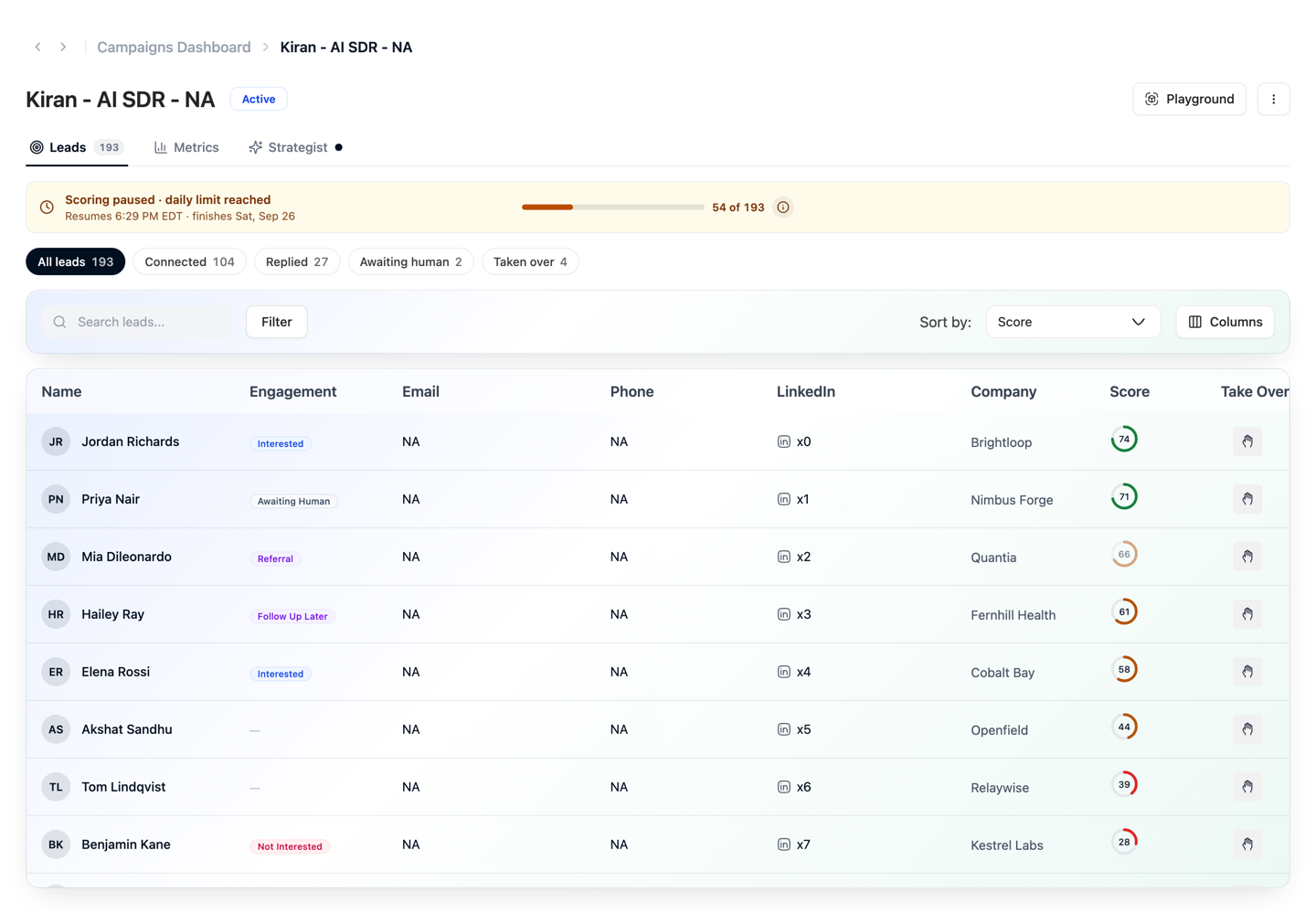
Quick filters
The chips above the table are one-click presets, each with its count: All leads, Connected, Replied, Awaiting human and Taken over, plus Mail opened when the campaign's sequence has an email step, and Not reachable when the campaign has leads its sequence can't reach. They combine with anything set in the Filter popover, and a chip lights up whenever the current filter matches it.
Mail opened lists the leads who opened at least one of your emails. Its count is a number of leads, so a lead who opened twice counts once, and the chip stays on the row at 0 until the first open. It is the filter you get by clicking Mail Open in the Metrics tab's chart legend (see Filtering from the chart). An open is not a sure sign of interest: some mail apps open every email automatically and others block the signal. See how reliable each wait is.
Choosing columns
Columns opens a picker over the table's columns. Up to eight columns show at a time so the table stays readable; Name and Take Over are always on, and the rest can be turned on or off — turn one off to add another. Email, Phone and Instagram fill in as enrichment finds them. When the campaign has AI-written steps, a Research column shows how deeply each lead was researched (see The Research column). The choice is remembered per campaign in your browser; Reset restores the default set.
Filtering Leads
Use filters to find specific leads inside a campaign.
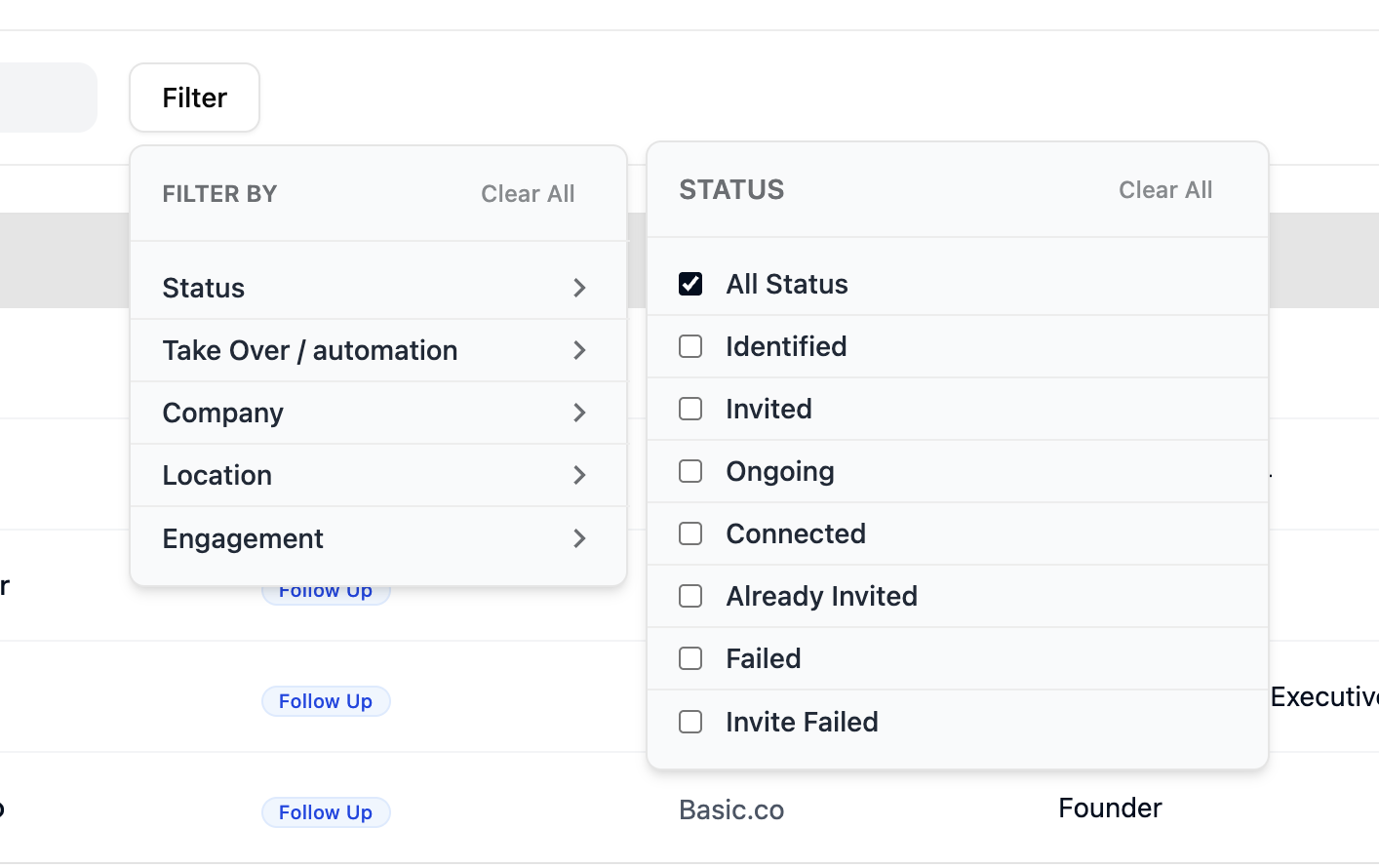
Available filters:
| Filter | Use |
|---|---|
| Status | Filter by lead status (Identified, Invited, Ongoing, etc.) |
| Take Over / Automation | Show leads under manual or automated control |
| Engagement | Filter by engagement label (Interested, Not Interested, etc.) |
| Company | Filter leads from a specific company |
| Location | Filter leads by location |
Filtering from the chart
Clicking a series in the Metrics tab's chart legend filters the leads table by that event type, and the filter is kept in the address bar (&events=), so it survives a tab switch and can be shared.
The Metrics tab
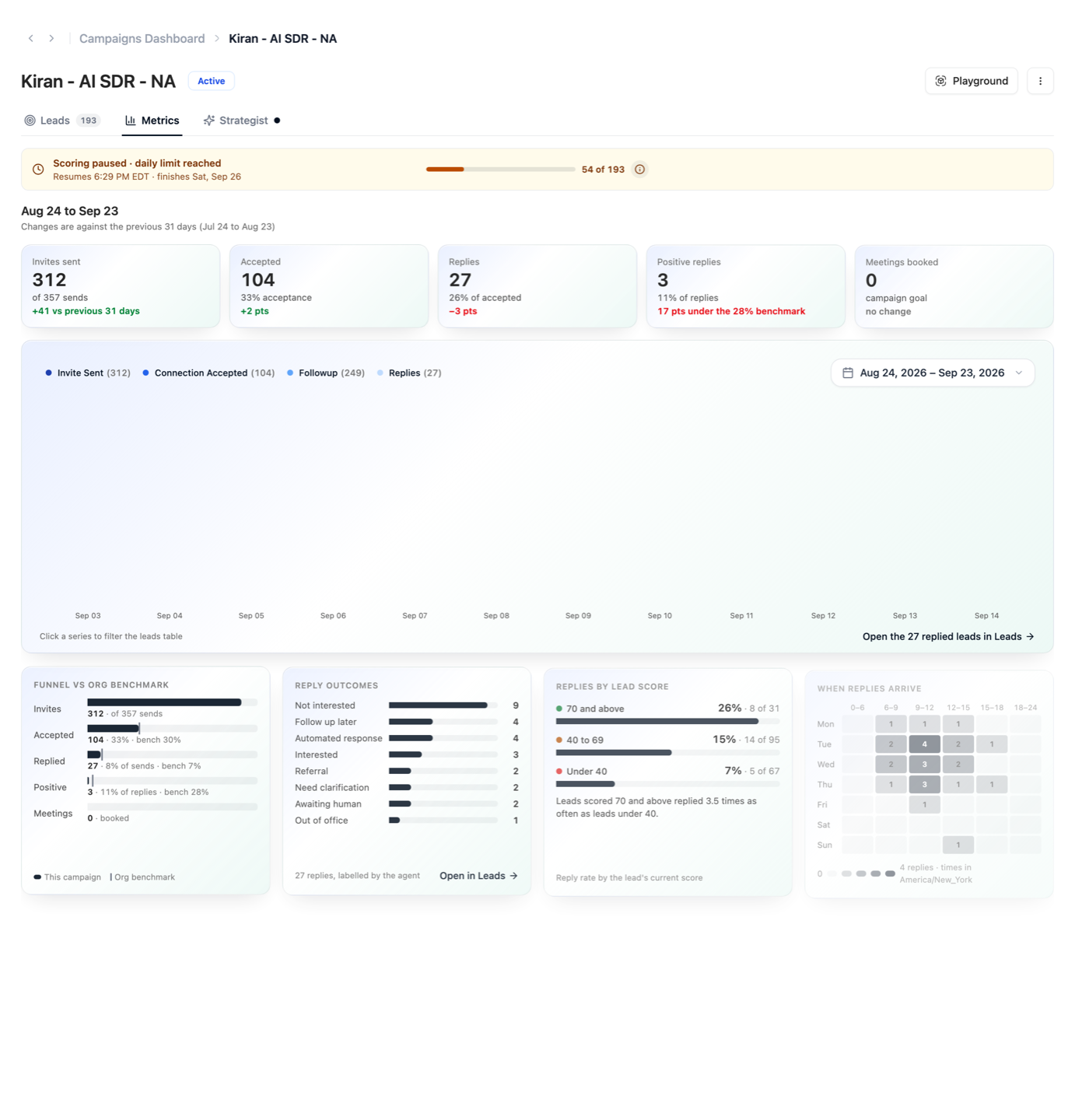
| Part | What it shows |
|---|---|
| KPI row | Invites sent, accepted, replies, positive replies and meetings for the selected date range, each with its rate and the change against the previous window of the same length (dated under the title). |
| Daily chart | Events per day by series. Pick the date range on the right; it drives the KPI row and the breakdowns too. Click a series to filter the leads table. |
| Funnel vs org benchmark | Your counts as bars with a tick where your organisation's own benchmark would put each stage. Until the organisation has enough history, the platform default is used and the tile says so. |
| Reply outcomes | Replies in the window by the engagement label the agent gave them. Open in Leads shows those leads. |
| Replies by lead score | Reply rate for leads scored 70 and above, 40 to 69 and under 40, by the lead's current score. |
| When replies arrive | Replies by weekday and time of day, in the campaign's timezone. |
Research on the Leads tab
The Research column
A campaign with AI-written steps can show a Research column in the leads table. Each lead has a pill for the depth Ragworks researched it at:
| Pill | What it means |
|---|---|
| Basic, Standard, Deep | The depth of the lead's research. Every step reuses it. |
| Basic · budget | The lead would have been researched deeper, but the research budget was used, so it got Basic. |
| Not yet | The lead has not been researched yet. It is researched when a step that needs it is about to run. |
| — | Nothing to show, for example a lead the sequence can't reach. |
See Research depth and hooks for what each depth reads.
Research budget used
Research draws on the same budget as lead sourcing and scoring, and the budget resets with your credit cycle. When the part for research and scoring is used, a notice appears under the campaign's tabs:
Research budget used · resets Nov 7 · new leads are researched at Basic until then
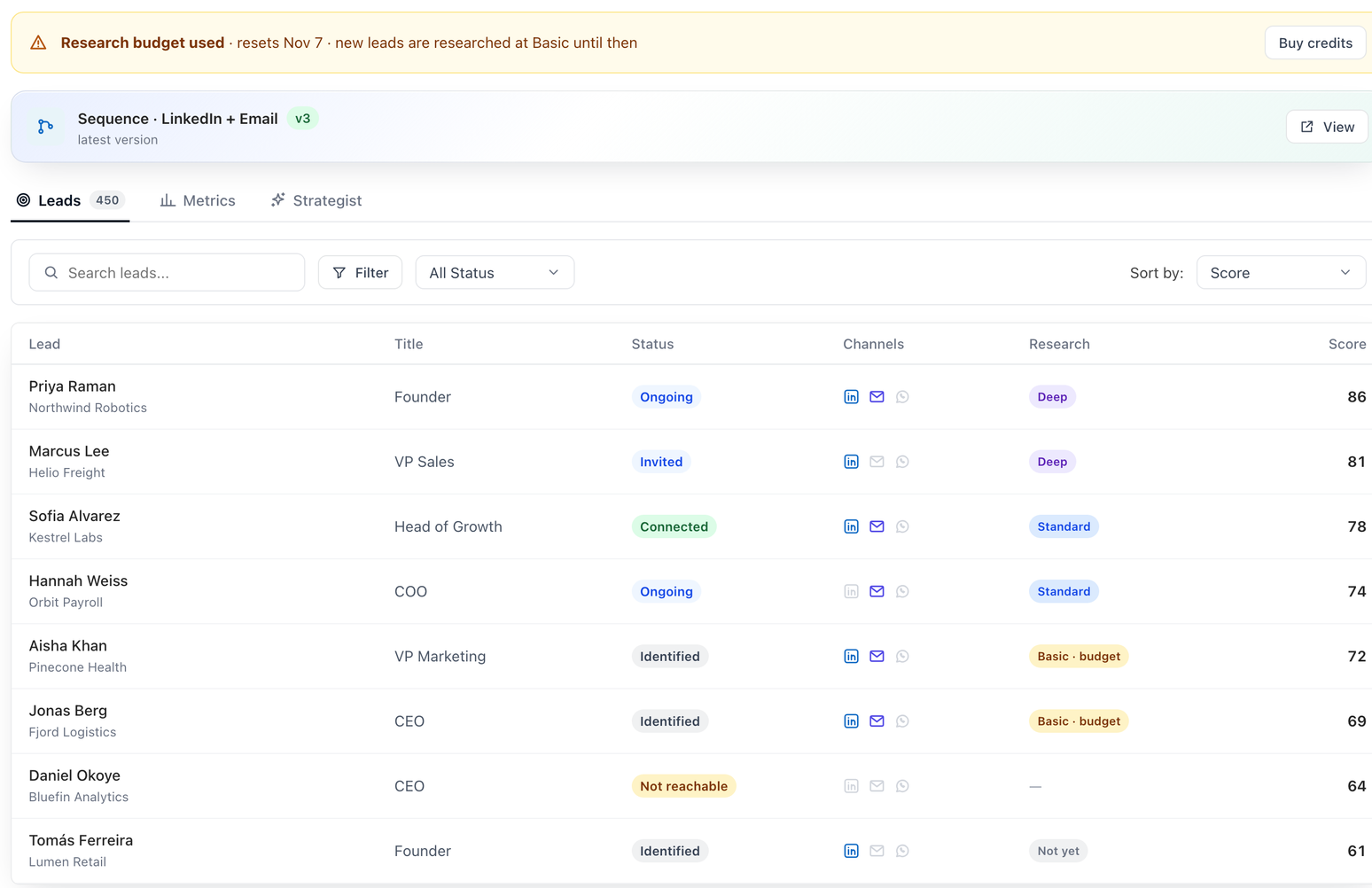
While it shows:
- Sending carries on. Nothing is paused.
- New leads are researched at Basic, which is free. Leads already researched keep their research.
- The button beside the notice is Buy credits, or Upgrade on the Lite plan.
The notice clears when the budget resets. To see how the budget is split, see Lead sourcing budget.
LinkedIn invites paused
Sending more connection requests to an audience that mostly ignores them can put a LinkedIn account at risk. So Ragworks watches the acceptance rate of each LinkedIn account on each campaign, and pauses that account's new connection requests on the campaign when both of these are true:
- at least 100 connection requests have been sent from the account on the campaign
- fewer than 10% of them have been accepted
Only new connection requests stop, and only for that account on that campaign. The campaign stays active: replies, email and follow-up messages carry on, and a lead whose next step is a connection request waits at that step until invites resume. Your other campaigns, and other accounts on the same campaign, aren't affected.
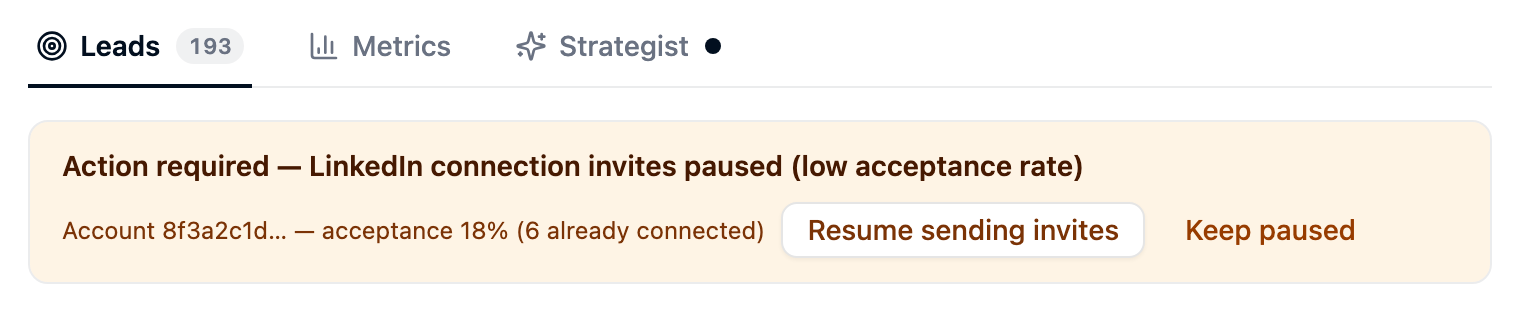
What you see
| Where | What it shows |
|---|---|
| The campaign page | The notice above, under the tabs on every tab. It names the account and gives its acceptance rate, with Resume sending invites and Keep paused beside it. If the account has since been removed from Connectors, or you don't have access to it, the notice shows the first characters of its ID instead |
| The dashboard's Campaigns tab | An Action required pill next to the campaign's name |
| People with the admin or owner role get an email about it |
The rate is the invites accepted out of the invites sent from that account on that campaign, counting those still waiting for an answer. Leads who were already connected count as accepted; when there are any, the notice adds (N already connected) after the rate.
Resume, keep paused or wait
| Choice | What happens |
|---|---|
| Resume sending invites | The account sends connection requests again on this campaign. This is your decision overriding the safeguard, so Ragworks doesn't pause that account on this campaign again, even if acceptance stays low |
| Keep paused | Acknowledges the notice and leaves the account paused. The notice and the pill stay until invites resume |
| Wait | Invites already sent can still be accepted while sending is paused. When the account's rate on the campaign reaches 15%, sending resumes by itself and the notice clears |
A low acceptance rate usually means the audience or the connection request isn't landing. Before you resume, look at who the campaign targets and what the request says.
Lead Statuses
Lead status tracks where each lead is in the outreach workflow. Updated automatically as Ragworks executes sequence steps.
| Status | Meaning |
|---|---|
| Identified | Lead is in the list but outreach has not started |
| Invited | LinkedIn connection request sent |
| Connected | Connection accepted |
| Already Invited | A prior invite exists from a previous interaction |
| Ongoing | Outreach is actively in progress |
| Failed | An action could not be completed for this lead |
| Invite Failed | The connection request specifically failed |
| Not reachable | The lead has no channel the campaign's sequence can use, so it is not enrolled. See below |
Not reachable leads
A lead is Not reachable when no step of the campaign's sequence can reach it: no LinkedIn profile ID for the LinkedIn steps, no email address for the email steps, no number for WhatsApp, and so on. It is kept on the campaign rather than dropped, and it is not contacted.
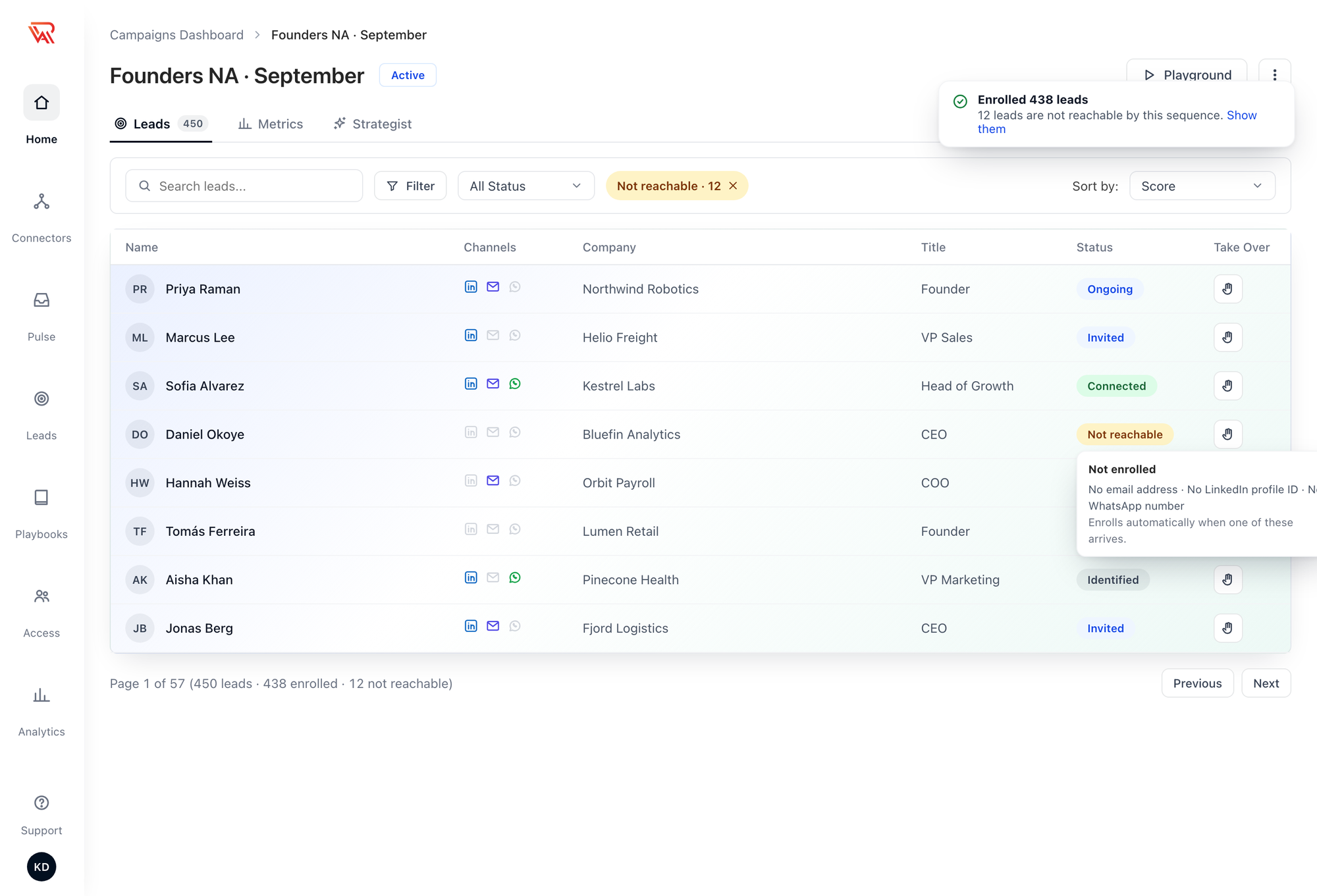
- Hover over Not reachable to see Not enrolled and what the lead is missing.
- The Not reachable quick filter lists them all.
- They enroll by themselves. As soon as one gains a channel — enrichment finds an email, you add a LinkedIn profile — it starts the sequence at the first step.
A lead can also be enrolled and still skip steps: a lead with an email but no LinkedIn profile skips the LinkedIn steps and gets the rest. Its progress shows each skipped step and why. How a step treats such leads is set per step in the sequence; see Leads who can't be reached on a channel.
Viewing Lead Activity
Click any lead in the campaign list to open the Account Information panel.
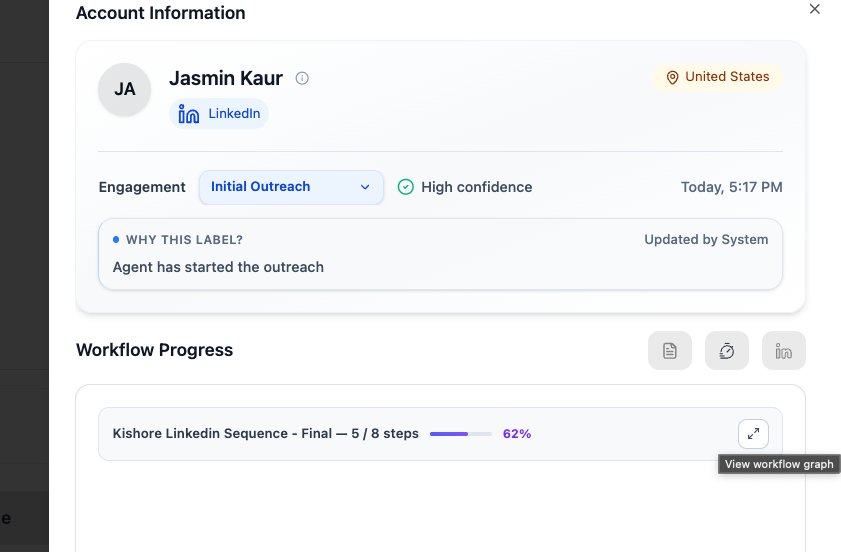
The panel shows:
| Field | Description |
|---|---|
| Engagement label | Current AI classification (e.g., Initial Outreach, Interested, Not Interested) |
| Confidence | How confident the AI is in the label (High, Medium, Low) |
| Why this label? | The AI's reasoning, updated each time the label changes |
| Updated by | Whether the last update was by the System (AI) or a user (manual override) |
| Workflow Progress | Every step of the lead's route through the sequence, and what happened on each. See below |
Lead progress
Workflow Progress names the sequence and the version the lead runs on, how far it has got (3 / 6 steps), and lists the steps in order.
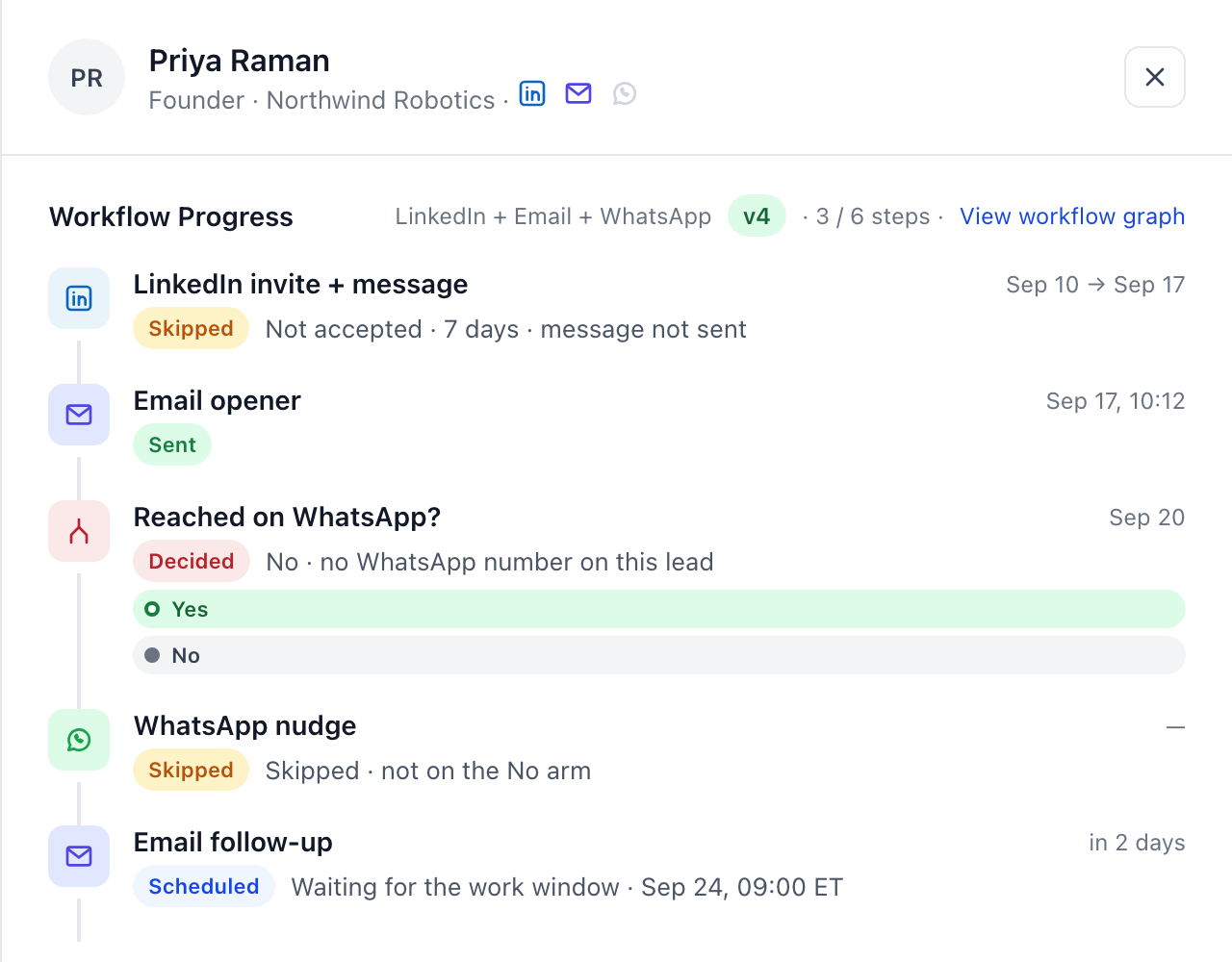
| Row | What it says |
|---|---|
| Sent | The step went out, with when |
| Skipped | Why: the lead can't be reached on that channel (no phone number), the invite was Not accepted · 7 days · message not sent, or the step is not on the No arm the lead took |
| Decided | A Condition, with the arm taken and why, for example No · no WhatsApp number on this lead |
| Scheduled | The next step and when it will run, for example waiting for the work window |
| Failed | Why, for example Failed · bounced. Steps after a bounce that stopped the lead read Stopped after the bounce |
Next Scheduled Runs underneath lists what comes next, including anything the lead is waiting for: Waiting for connection · until Oct 2 · then Not accepted. When the lead reaches End, the header reads Completed.
Workflow Graph
View workflow graph opens the lead's route as the full sequence.
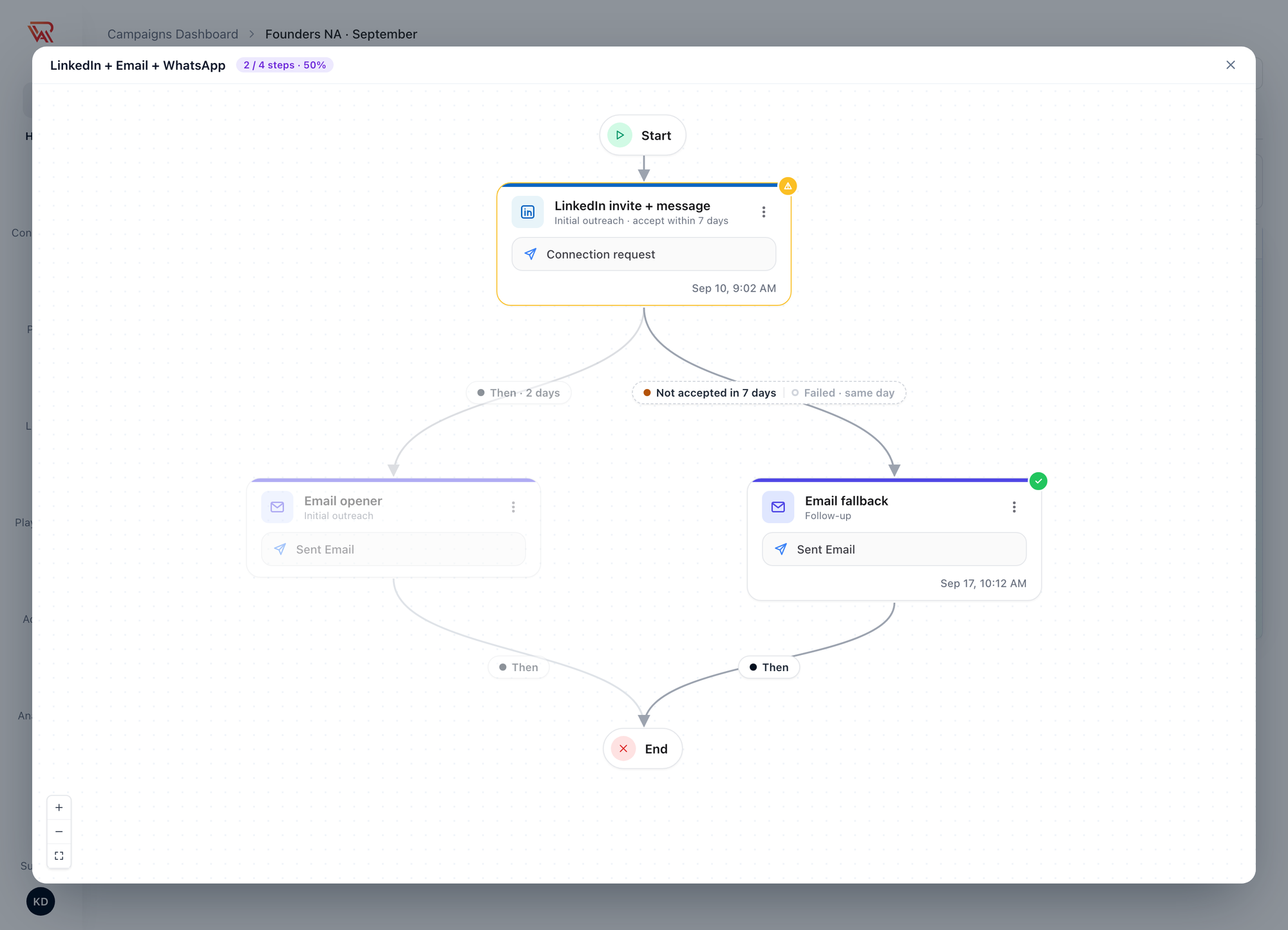
- Steps the lead has been through carry a status badge and the time they ran.
- The route the lead took is drawn solid; routes it didn't take are faded.
- Each line carries its port and wait, for example Then · 2 days. When two ports lead to the same step they share one pill, and the port this lead took is filled: Not accepted in 7 days | Failed · same day.
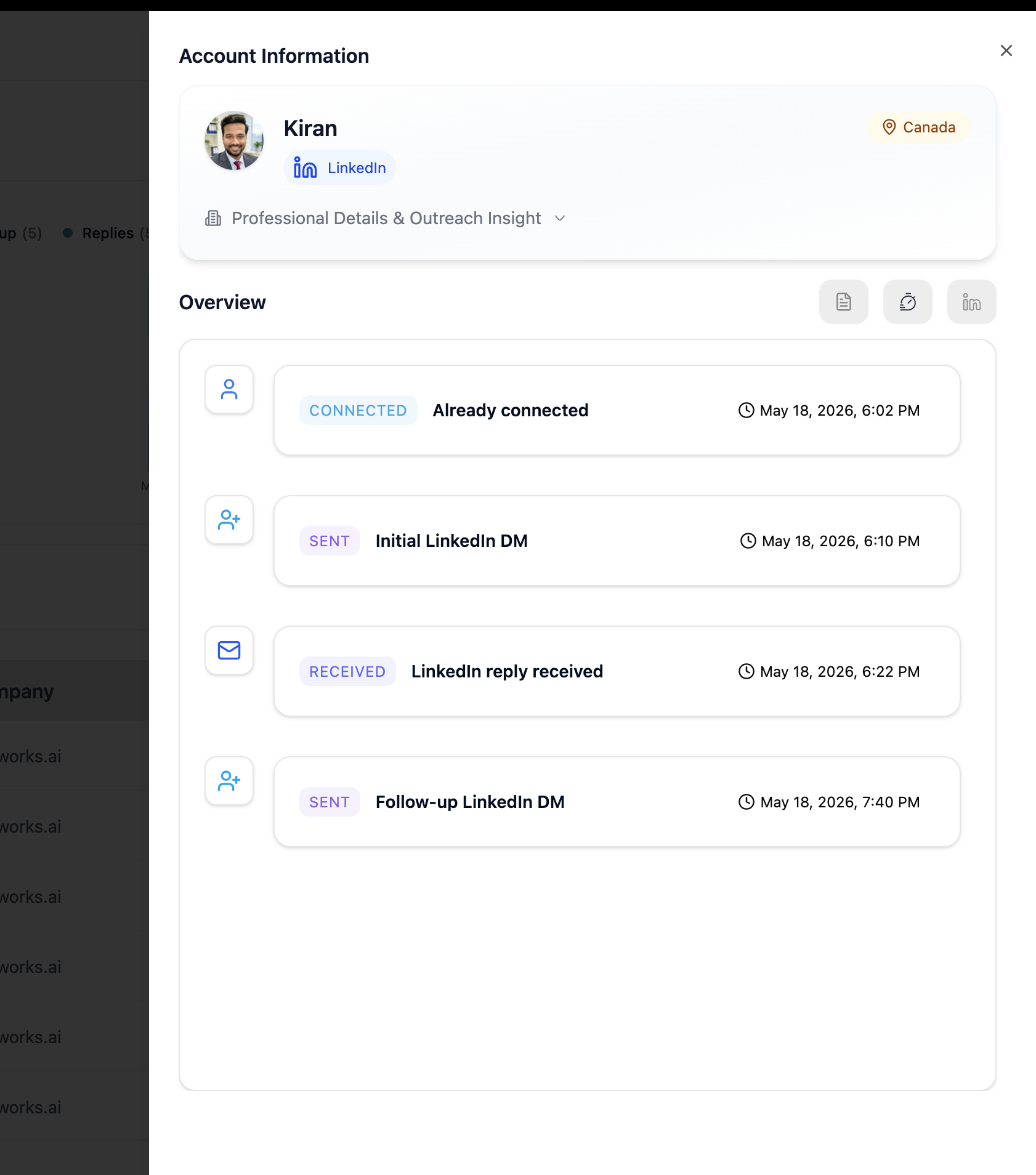
Lead Timeline
The lead timeline shows a chronological log of all events: messages sent, replies received, follow-ups triggered, failed actions, and meeting activity.
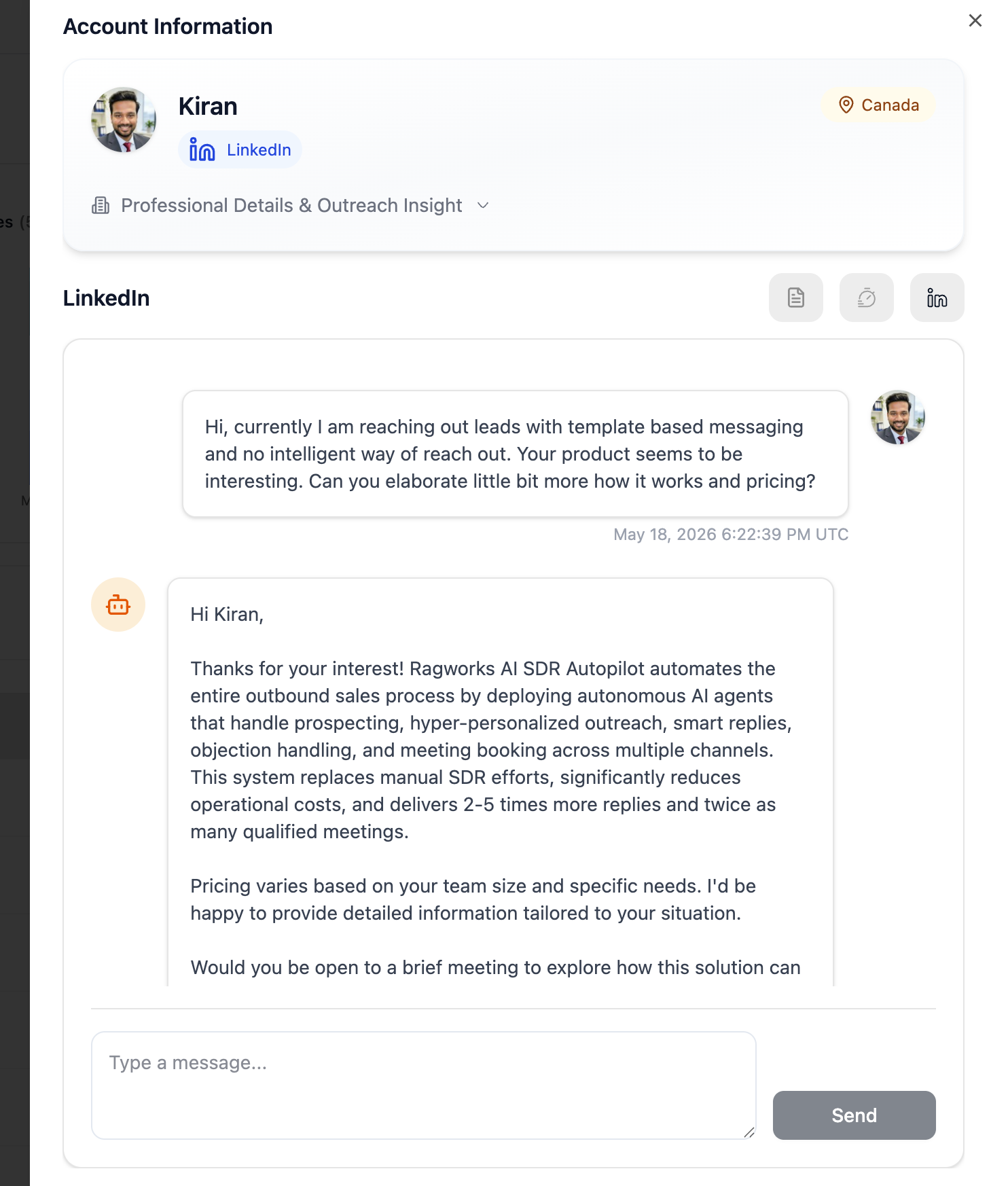
Conversations
Select the channel icon (LinkedIn or Email) inside the lead detail view to read the full conversation, review AI-generated replies, and continue manually if needed.
AI Outreach Summary
By clicking the Summary icon inside the conversation pane, you can generate real-time AI insights on the lead's messaging history.
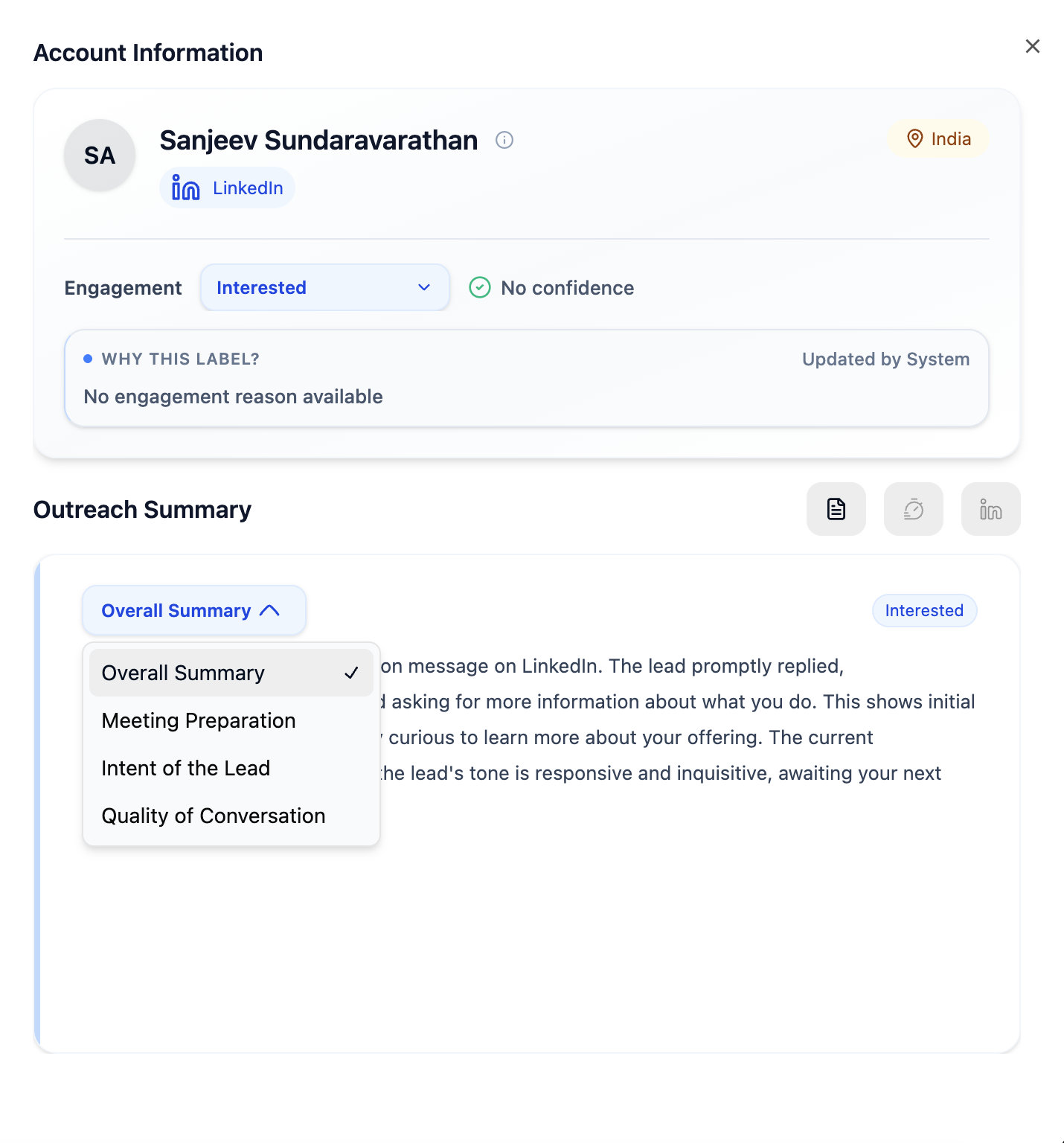
Depending on your goal, you can select from 4 different summary types:
- Overall Summary: A high-level narrative of the lead's behavior throughout the outreach. It covers their connection status, key channel interactions (LinkedIn, email, phone), handoffs to other contacts, and the overall tone of the conversation.
- Meeting Preparation: Analyzes the lead's responses to gauge if they are likely to attend an upcoming meeting or showing hesitation. Highlights key pain points discussed, current tech stack/solutions mentioned, specific objections raised, and questions asked by the lead.
- Intent of the Lead: Deep-dives into the lead's buying intent. Analyzes whether they exhibit genuine buying signals or are just window shopping, while highlighting urgency, timeline, and overall sentiment.
- Quality of Conversation: Evaluates how the lead is responding (e.g., actively engaged with detailed answers vs. short/delayed replies). Highlights the overall health and flow of the dialogue and points out any missed opportunities by the rep.
The summary view also highlights the lead's current Engagement Label, the AI's confidence score, and a suggested Follow-up action.
Translation Features
To help you communicate seamlessly with leads globally, the platform offers built-in Global Conversation Translation:
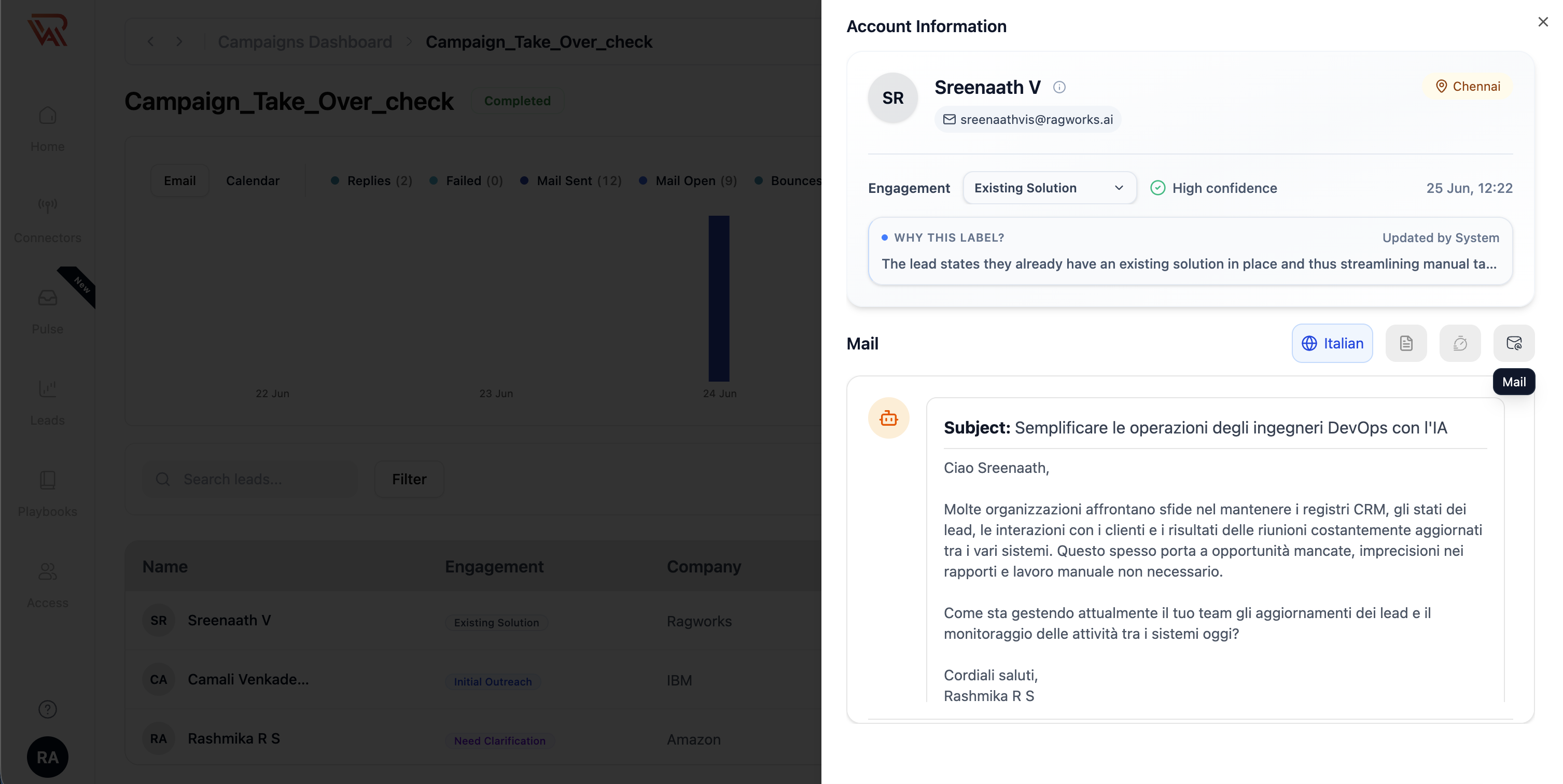
- Auto-Translation: Messages are automatically translated into your preferred language. You can select your desired language (e.g., Italian) using the language toggle button directly on the message card.
- Persistent Preference: Your language preference is saved, ensuring a consistent experience across all your leads without needing to select it every time.
- Universal Support: The system translates the entire conversation timeline, making it easy to understand the context of every interaction, no matter the original language used by the lead.
Engagement Labels
The AI assigns engagement labels to classify the current state of each lead's conversation, and updates them automatically as outreach progresses and replies arrive.
| Label | When assigned |
|---|---|
| Initial Outreach | The agent has started outreach for this lead |
| Interested | The lead expressed buying interest |
| Follow Up | A follow-up message has been sent |
| Follow Up Later | The lead asked to be contacted later |
| Need Clarification | The lead asked for more information |
| Not Interested | The lead declined |
| Meeting Booked | A meeting was successfully scheduled |
| Bounced | Email to this lead bounced |
| Out of Office | An out-of-office auto-reply was detected |
| Automated Response | A non-human reply was detected |
| Referral | The lead referred another contact |
| Awaiting Human | Flagged for manual review |
| Existing Solution | The lead mentioned a current tool or vendor |
| Vendor Pitch | The lead tried to sell back |
Overriding an Engagement Label
Click the label dropdown in the Account Information panel to manually change the classification for any lead.
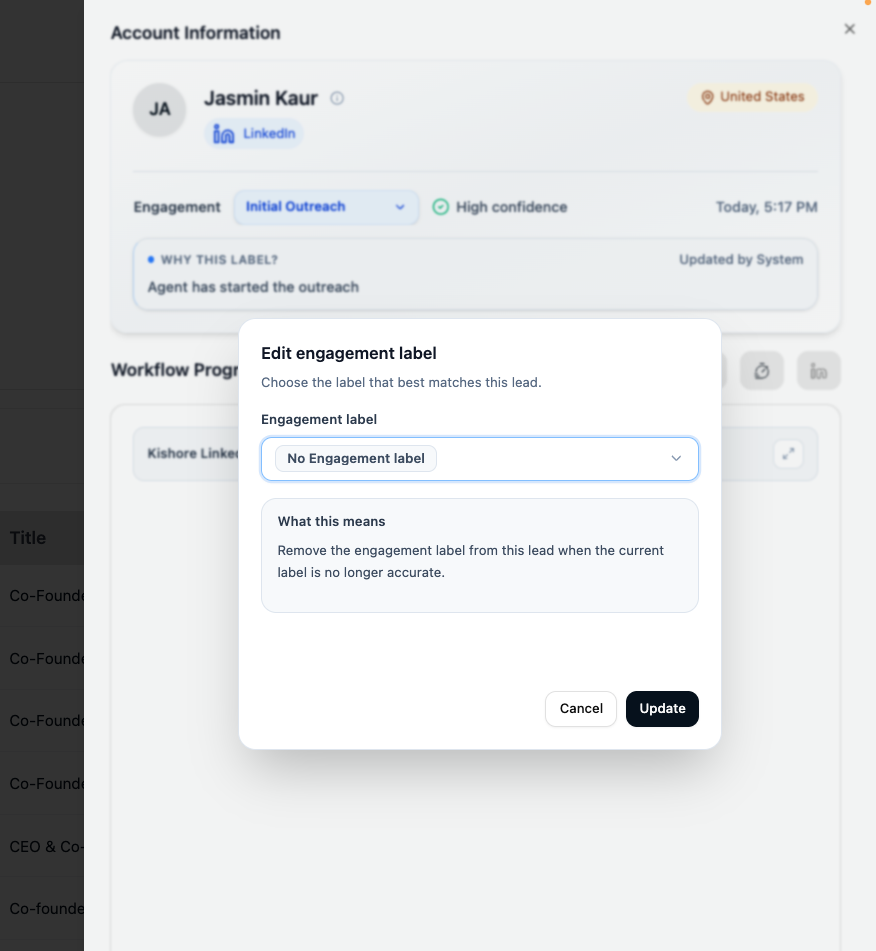
Manual Override Behavior
Once you manually change a label, the AI will never update it again for that lead.
The manual override is permanent. To restore automatic AI classification, select No Engagement Label from the dropdown — this removes the override and lets the AI resume updating the label normally.
CRM Side Effects
Changing an engagement label, whether by the AI or by you, triggers the same CRM pipeline update. The lead's deal moves to the CRM stage mapped to the new label. This applies equally to system updates and manual overrides, so you can intentionally use overrides to push deals through your CRM pipeline.
Unmapped labels do not trigger a CRM stage change.
Taking Over a Lead
Use Take Over to pause automation for a specific lead and handle the conversation yourself.
When a lead is taken over:
- Automated follow-ups stop for that lead
- You can send messages directly from within Ragworks
- No need to log in to LinkedIn, Gmail, or Outlook separately
To resume automation, remove the take-over flag from the lead.
Unless the campaign has Take over the lead when you reply yourself turned on, messaging a lead directly on LinkedIn doesn't take them over. If the lead hasn't replied, the sequence keeps sending follow-ups after your message. Click Take over before you message them yourself, or turn the setting on (see Takeover Settings). See How Takeover Works.
Automated Takeover by Label
In addition to manual takeovers, you can configure the system to automatically take over a conversation based on specific engagement labels.
- Triggered by AI or Manual Updates: If a lead receives one of the designated labels—whether automatically assigned by the AI or manually overridden by you—the system immediately pauses automated follow-ups for that lead.
- Customizable Label Triggers: You can define exactly which labels trigger an automated takeover. This set of labels can be configured when initially creating a campaign, or modified at any time in the campaign's Settings → Takeover settings.
- Automated replies: unless you choose otherwise, Out of office, Automated response and Bounced don't take a lead over. Autoresponders don't end the sequence, and a sequence can branch on these labels with a Condition.
- Seamless Handoff: This ensures your team can instantly step in for critical or high-value conversations (e.g., "Interested", "Meeting Booked") without having to manually monitor every reply.
Takeover Settings
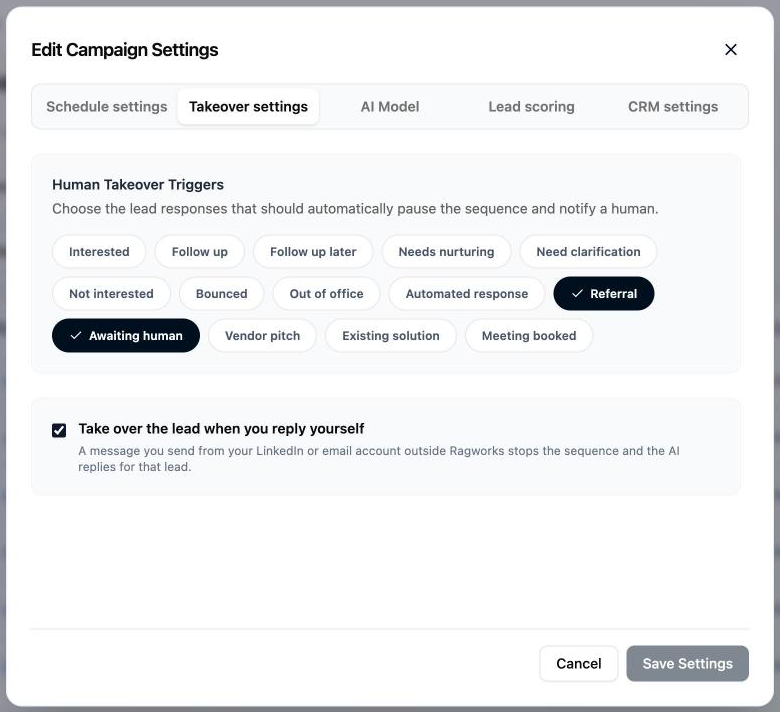
Define your Human Takeover Triggers by toggling specific engagement labels (e.g., "Need clarification", "Not interested", "Bounced"). When a lead is assigned one of these labels, the sequence automatically pauses and notifies a human.
Below the labels, Take over the lead when you reply yourself hands a lead to you as soon as you message it from your LinkedIn or email account outside Ragworks: the sequence stops and the AI stops replying, just as if you'd clicked Take over. The lead's timeline logs Human Takeover with You replied on LinkedIn or You replied by email. It's off unless you turn it on. See Messaging a lead yourself, outside Ragworks.
Take Over is best used for high-intent leads, sensitive conversations, or situations where a personal reply is more appropriate than an AI-generated one.
Editing Campaign Settings
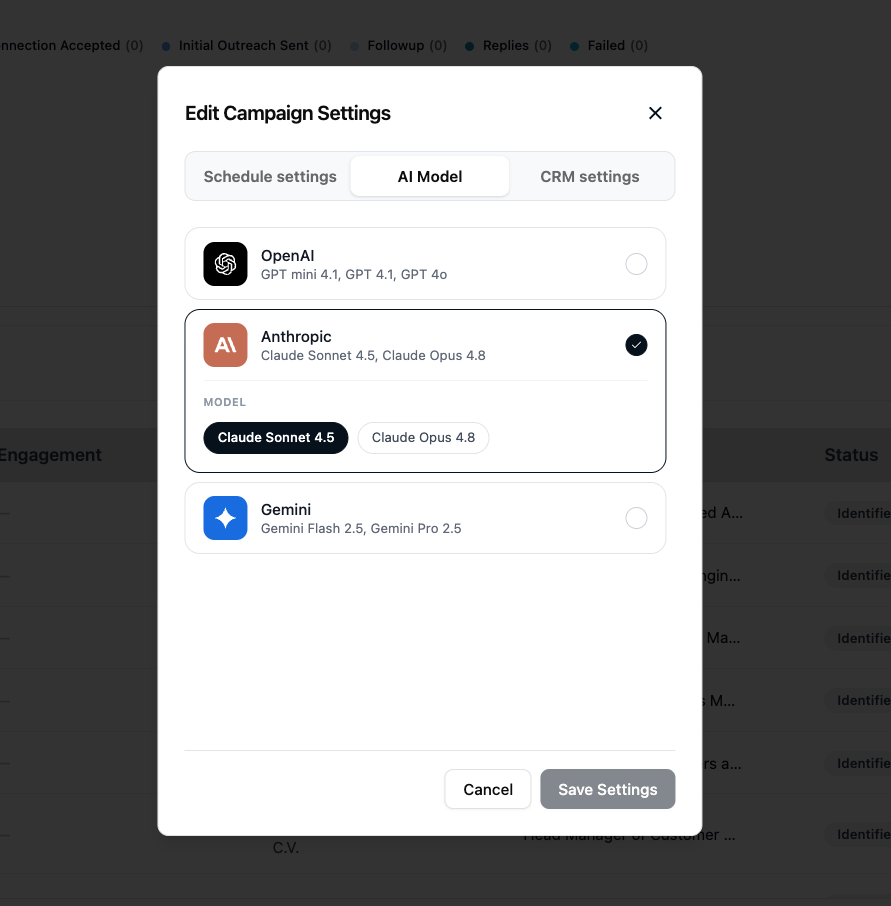
After a campaign is created, you can change its schedule, takeover labels, AI model, lead scoring and CRM settings at any time without recreating it. Open the campaign, then ⋯ → Settings.
Schedule Settings
Adjust timezone, work hours (start and end), work days, and min/max send delays. Changes take effect on the next sending window.
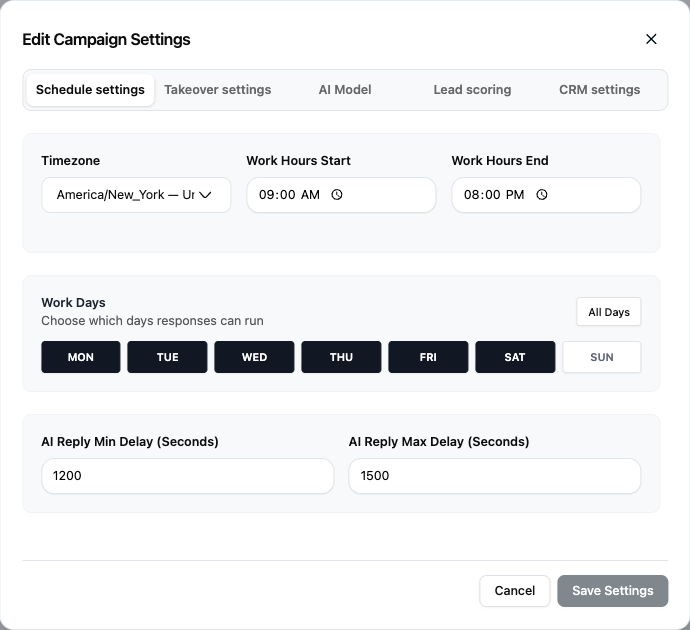
AI Reply Min Delay and AI Reply Max Delay set how long, in seconds, the AI waits before answering a lead. If you answer the lead yourself within that window, the AI skips that reply. See How Takeover Works.
Lead scoring
Score leads before outreach turns lead scoring on or off for this campaign, with an optional eligibility criteria override.
AI Model
Switch the AI provider or model used for outreach generation and reply handling.
| Provider | Models |
|---|---|
| OpenAI | GPT Mini, GPT Pro |
| Anthropic | Claude Sonnet, Claude Opus, Claude Haiku |
| Gemini | Gemini Pro, Gemini Flash, Gemini Flash Lite |
CRM Settings
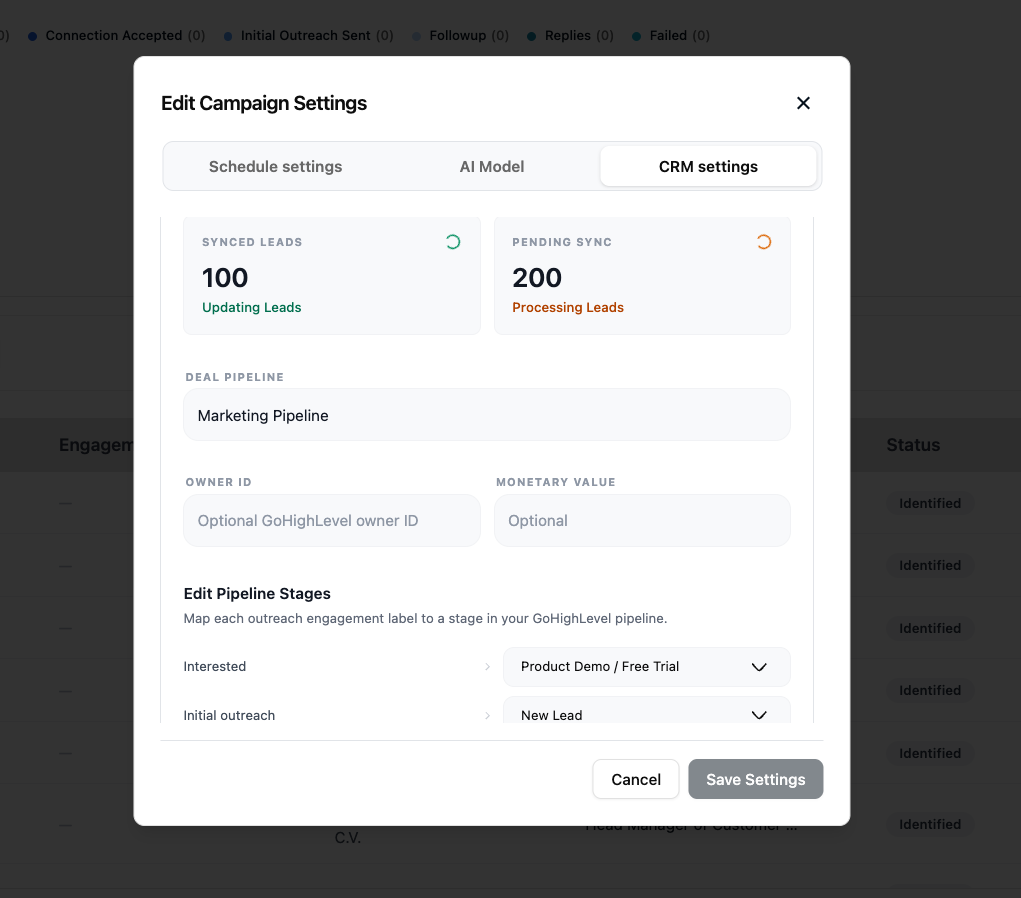
| Action | What it does |
|---|---|
| View Synced / Pending Leads | Monitor how many leads have been synced to the CRM |
| Edit Pipeline Stages | Re-map engagement labels to different CRM stages |
| Update Owner ID | Change the assigned GHL owner for new deals |
| Update Monetary Value | Change the deal value applied to synced contacts |
Stage mapping changes apply to all future label updates. Past synced records are not retroactively updated.
Managing the Lead List While Active
The connected lead list remains dynamic throughout the campaign lifecycle.
To remove a lead: Go to Leads → Saved List → open the list → remove the lead. The change syncs automatically and the lead is excluded from further outreach.
To add leads: Use AI Search, upload via BYOL, or add contacts to the saved list directly. New leads are automatically enrolled and start the sequence from the beginning; a new lead the sequence can't reach joins as Not reachable.
Adding leads to a running campaign is a reliable way to scale up gradually after validating messaging and AI reply quality on the initial batch.
Campaign Actions
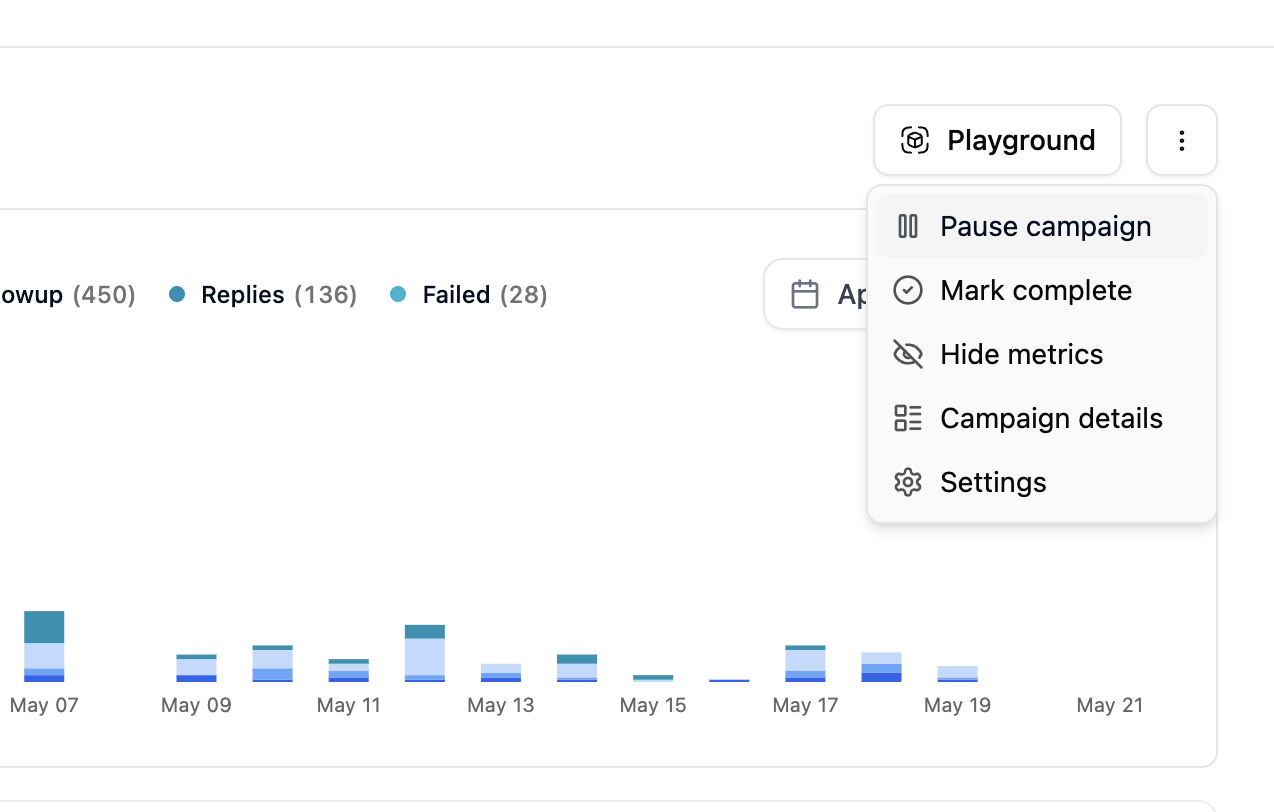
From the campaign action menu you can manage campaign-level controls:
| Action | Available on | What it does |
|---|---|---|
| Approve campaign | Pending campaigns | Approve & Launch starts outreach. Needs a message for every step of the sequence |
| Pause campaign | Active campaigns | Pauses all outreach. No messages or actions are sent while paused |
| Resume campaign | Paused campaigns | Resumes outreach from where it left off |
| Mark complete | Active or paused campaigns | Ends the campaign and marks it as completed |
| Campaign details | Any campaign | The campaign's list, playbook, accounts and Sequence. See below |
| Settings | Any campaign | Schedule, takeover labels, AI model, lead scoring and CRM |
| Delete Campaign | From the Campaigns table | Permanently removes the campaign (confirmation required). It also frees its saved list for another campaign |
The campaign's sequence version
Campaign details has a Sequence row: the sequence, the version this campaign runs on, and View. When a newer version of the sequence has been published, the row says so — v4 available · published 24 Sep — and offers Move to v4, with a preview of what changes before anything moves. See Moving a campaign to a new version.
Best Practices
- Review daily — check reply quality and engagement label accuracy on the first few leads before scaling
- Take over high-intent leads promptly — the sooner a human responds to an interested lead, the better the conversion rate
- Use manual overrides deliberately — remember that overrides are permanent and also trigger CRM updates
- Monitor failed actions — a high failure count on LinkedIn steps usually indicates an account connectivity issue
- Adjust schedule settings early — if reply rates are low, try tightening work hours to match target audience timezones
- Keep CRM stage mappings current — update them when your pipeline stages change so records stay accurate