Quickstart setup
Four questions, and your first campaign is built for you: a playbook written from your website, a lead list sourced to your description, messages drafted into a sequence, and a campaign left in draft.
Nothing is ever sent until you activate it. Everything the setup chooses can be changed, before or after.
When it runs
| You are | Where it appears |
|---|---|
| A new customer, just past payment | Automatically, as the next thing you see |
| An existing customer | Home → Create Campaign → Quickstart, any time |
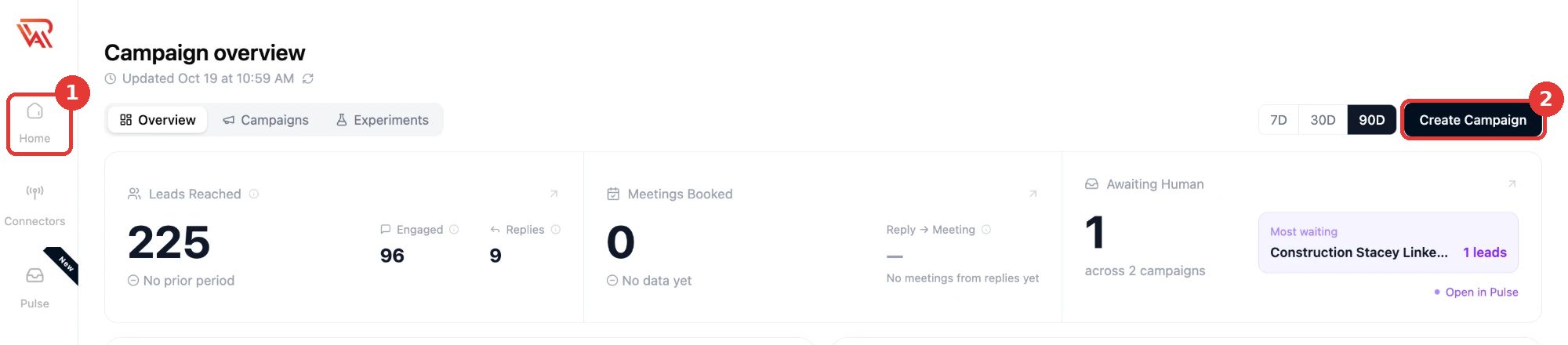
Starting it from Create Campaign asks the same four questions again for a new campaign. Your company details carry over; the goal, the audience and the sending accounts are asked fresh, because they belong to the campaign rather than to you. Once you have a published playbook, step 2 can run it as it is instead of writing another — see Use an existing playbook.
Step 1: Where can we learn about your business?
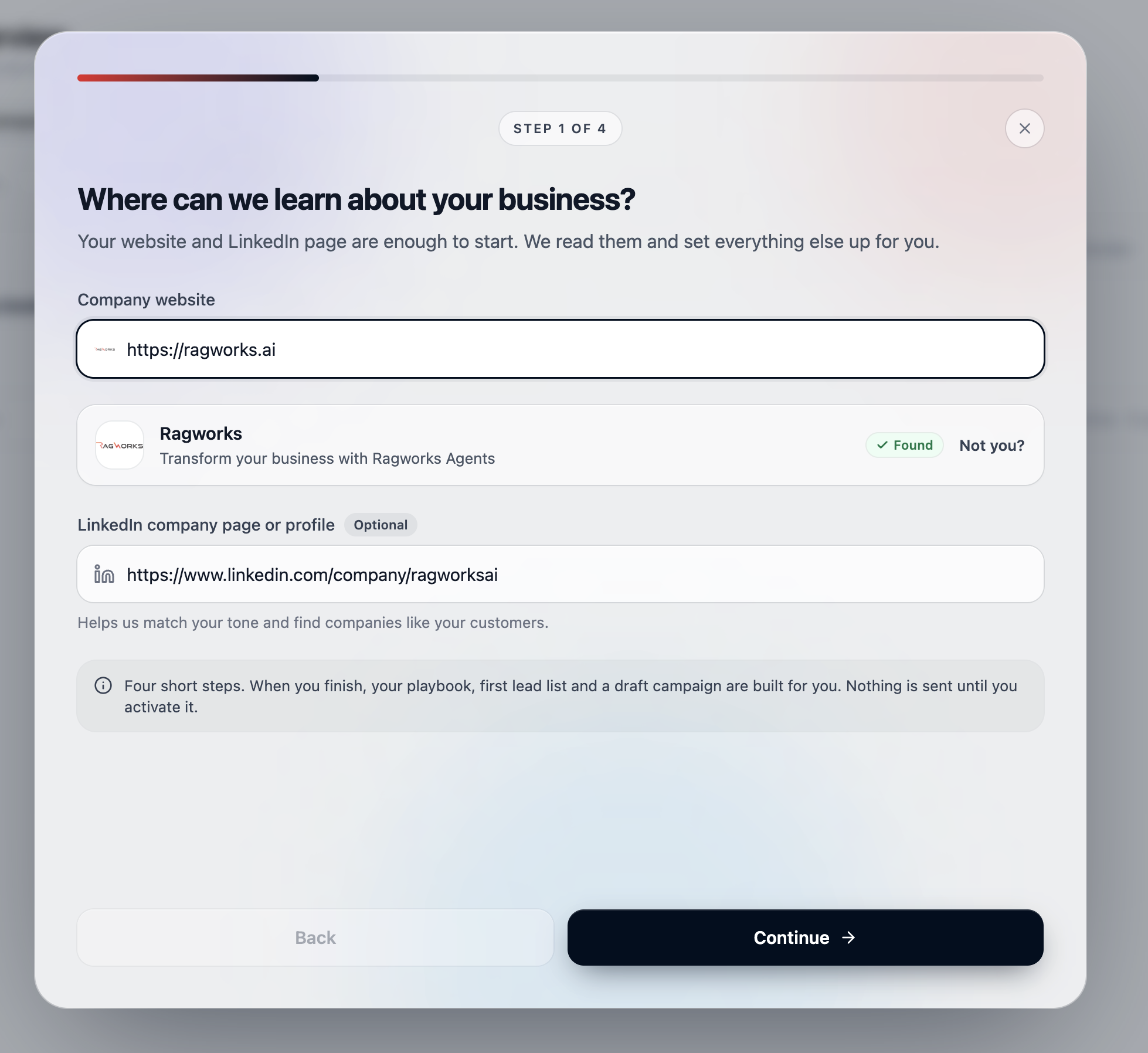
Your website is the only required answer. We read it and show you what we found, so you can correct us before anything is built on it.
| Field | What it is used for |
|---|---|
| Company website | Writes your playbook: what you sell, to whom, and how you talk about it |
| LinkedIn company page (optional) | Matches your tone, and helps find companies like your existing customers |
If the preview names the wrong company, use Not you? and type your own details instead.
Produces: the raw material for your playbook.
Step 2: What should your AI SDR go after?
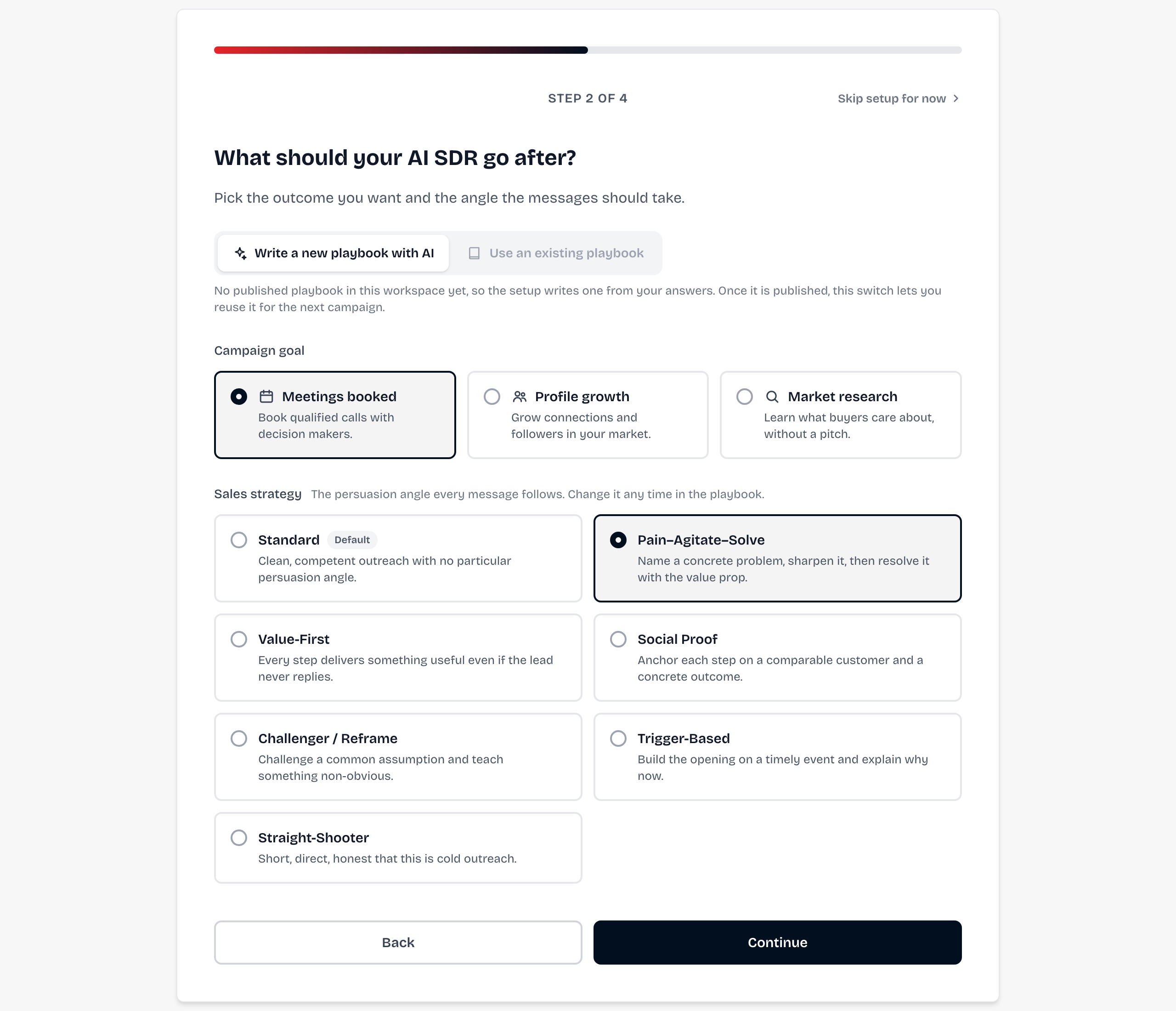
The switch at the top says where the playbook comes from. Write a new playbook with AI is the default and writes one from your answers; Use an existing playbook is greyed out until your workspace has a published playbook to pick, and the line under the switch says so.
Campaign goal
| Goal | Pick it when |
|---|---|
| Meetings booked | You want qualified conversations in the calendar. The default for most first campaigns |
| Profile growth | You want the network and audience first, and the meetings to follow |
| Market research | You want to learn how this audience buys, what they use and what they struggle with |
Sales strategy
The persuasion angle every message follows. Standard is clean, competent outreach with no particular angle; the others shape how each step argues its case.
You can change the strategy any time in the playbook, and regenerate the messages against it.
Use an existing playbook
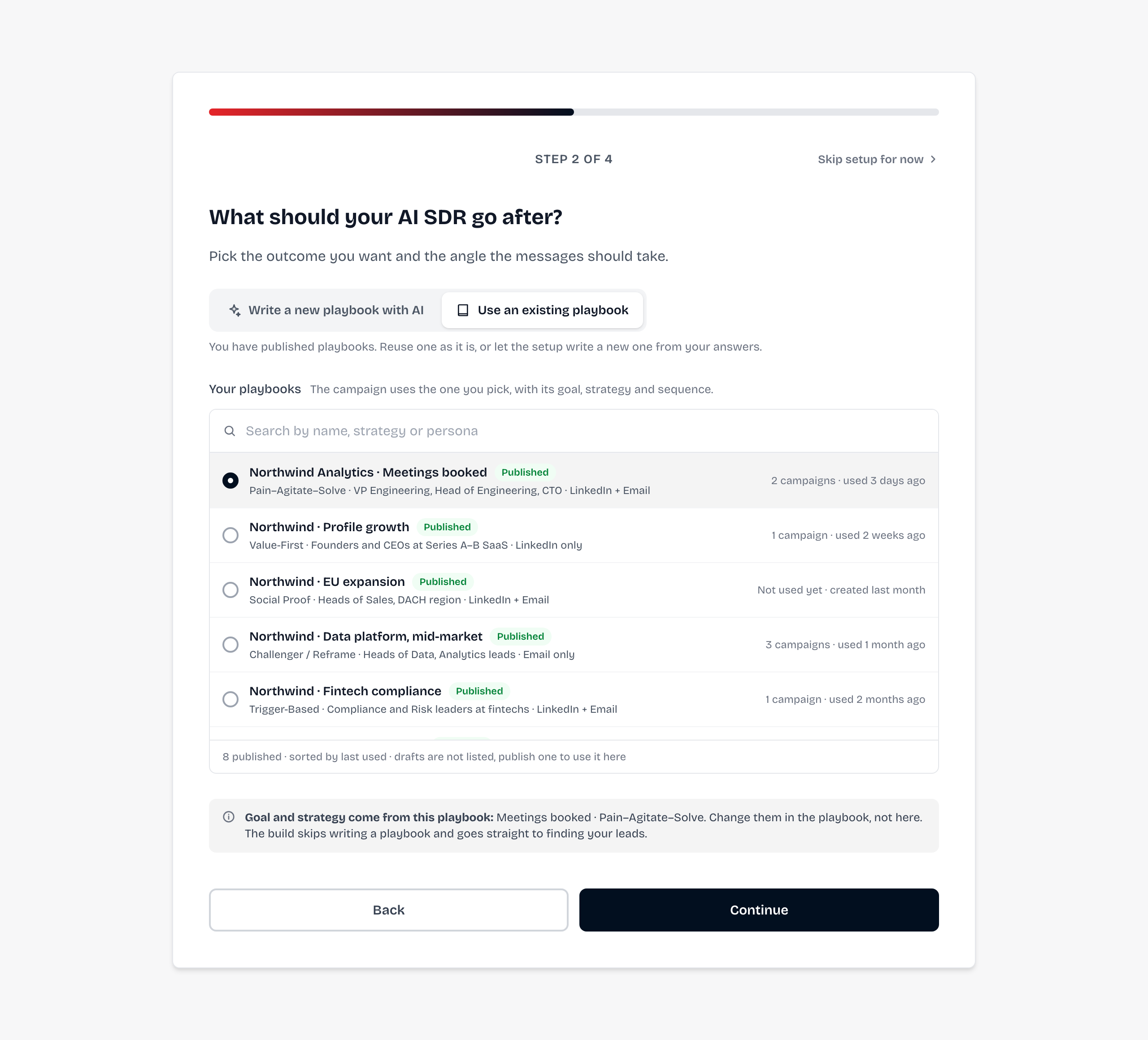
Once you have a published playbook, the second option comes alive and the goal and strategy cards give way to your playbooks: a search box over every published one, sorted by how recently each was used, with its strategy, personas, sequence and campaigns on the row. Drafts are not listed — publish a playbook to use it here.
Pick one and three things follow from it:
| What happens | |
|---|---|
| Goal and strategy | Come from the playbook. Change them in the playbook, not here |
| Sequence | The playbook's own sequence is used, so step 4 offers only the channels it sends on |
| The build | Skips writing a playbook and goes straight to finding your leads |
The messages are the ones already in that playbook, so a campaign on a playbook you have refined sends the copy you refined.
Produces: the goal and the angle your playbook is written to — or the playbook itself.
Step 3: Who should we reach?
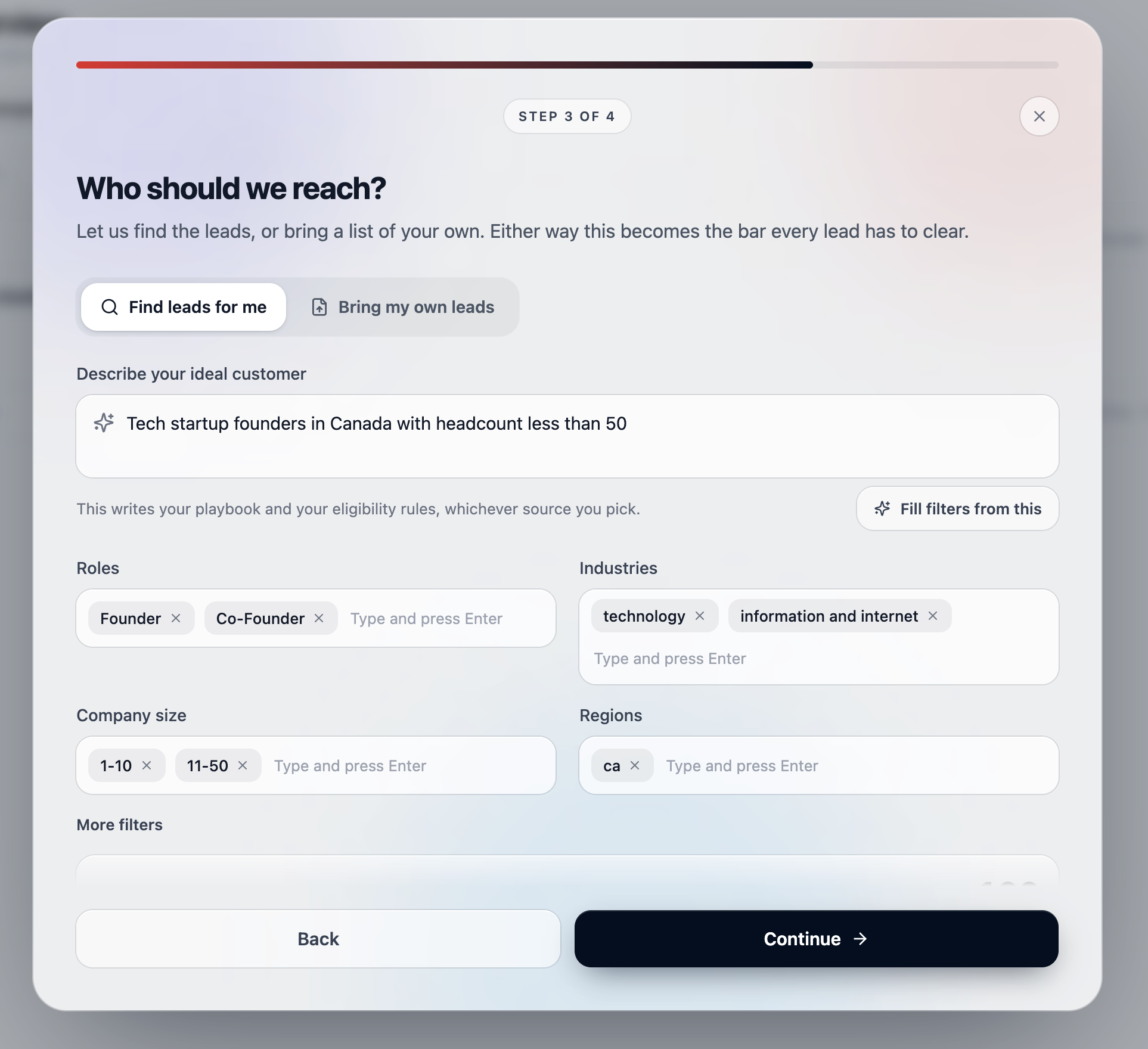
Choose Find leads for me to have us source them, or Bring my own leads to upload a file.
Either way, describe your ideal customer in your own words. That description is required for both, because it writes your playbook and your eligibility rules — the bar every lead has to clear — not just the search.
Filling the filters
Fill filters from this reads your description and fills the filters below it: roles, industries, company size, regions, and the extras under More filters. Everything it chooses is shown as a chip you can remove, and you can type your own.
A filter it did not fill is one it could not infer. Add it by hand rather than assuming it was understood.
How many leads, and how we find them
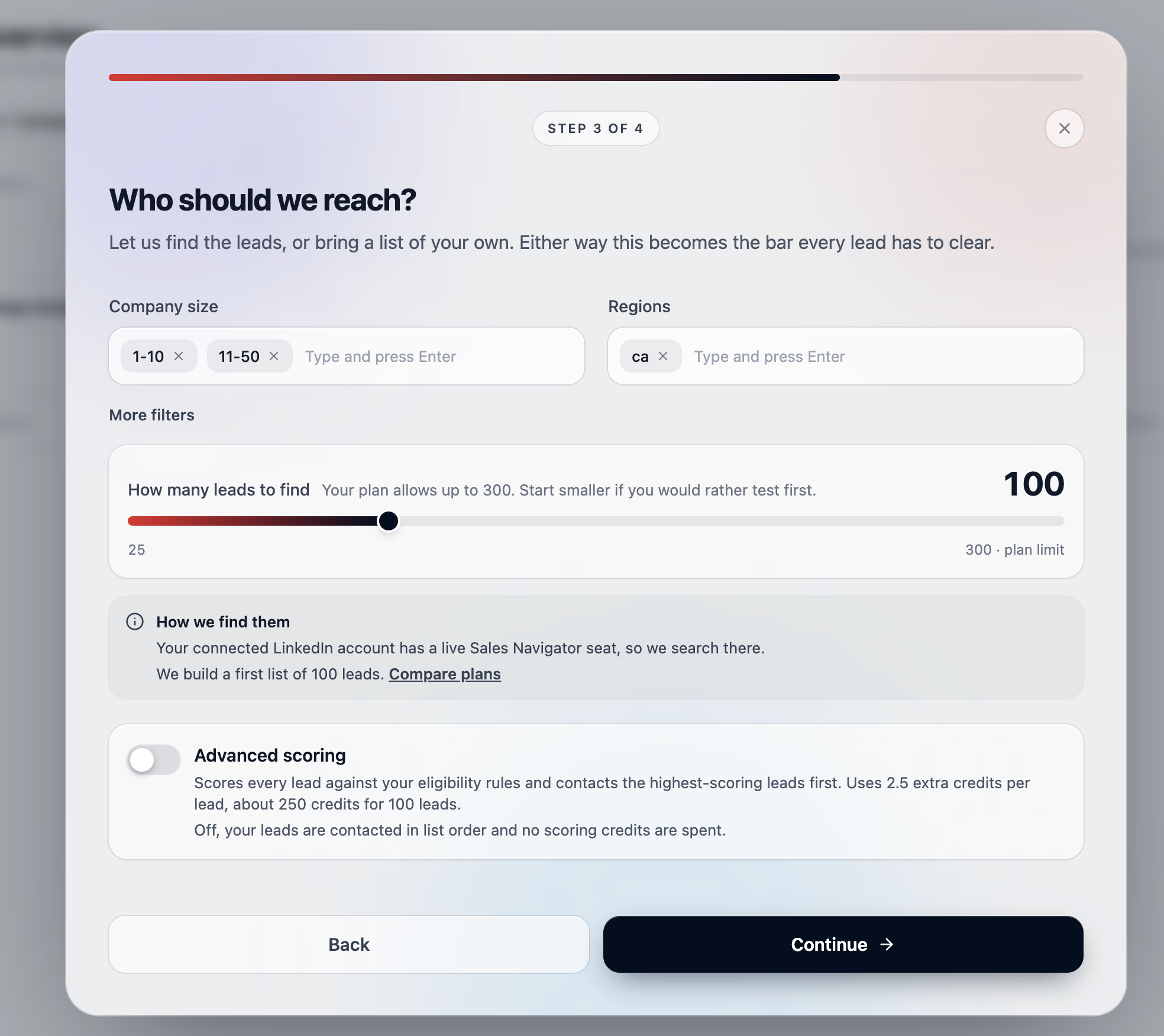
The slider caps how many leads to build. Your plan sets the ceiling; start smaller if you would rather test the messaging first.
How we find them tells you which engine will run:
| Engine | When it is used |
|---|---|
| Sales Navigator | Your connected LinkedIn account has a live Sales Navigator seat |
| Ragworks Database | No LinkedIn account, or no Sales Navigator seat. See Ragworks Database |
Produces: your first lead list, and the eligibility rules in your playbook.
Off by default, because it costs credits. See Advanced scoring for what it does and what it costs.
Step 4: How should we reach them?
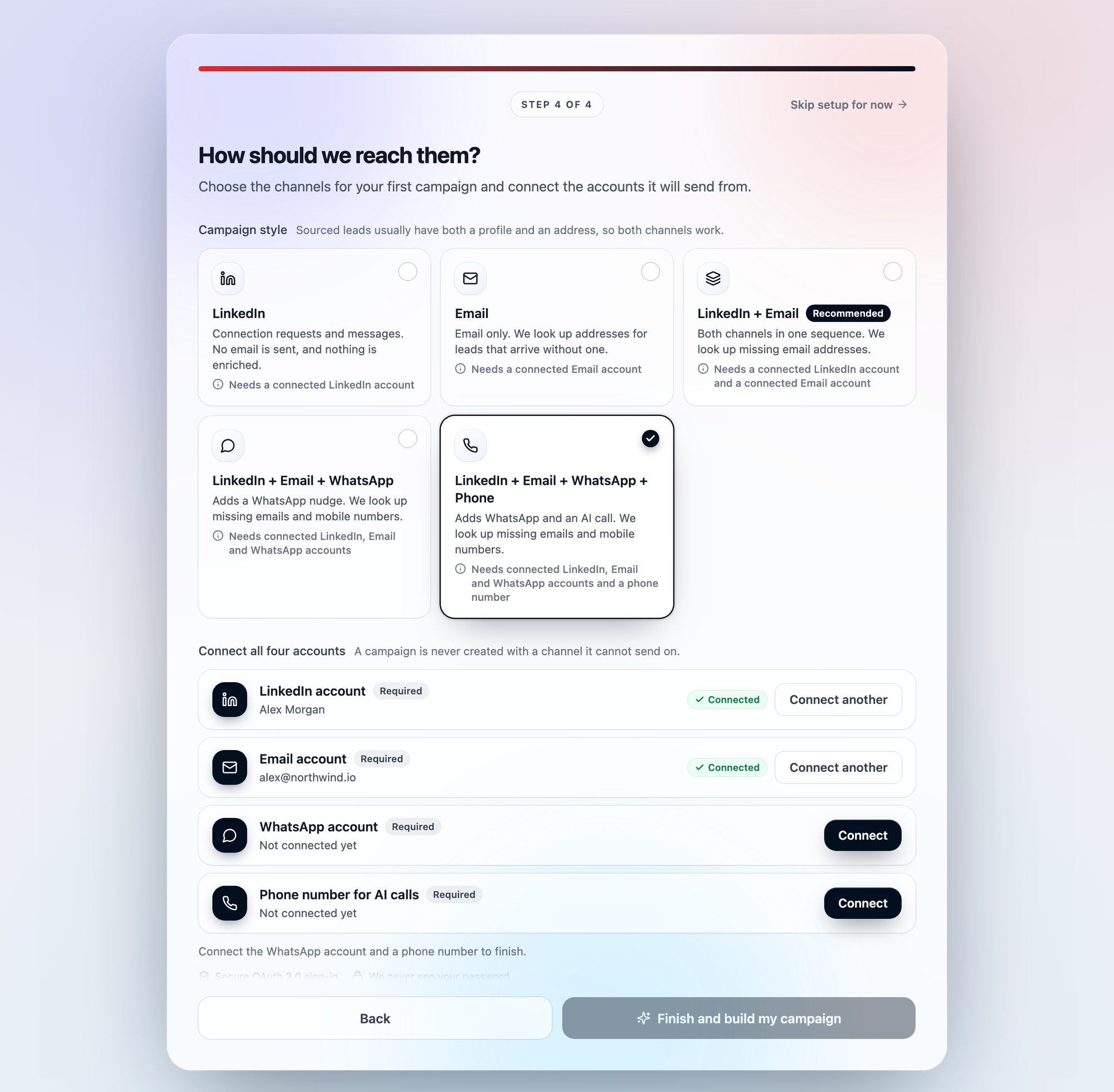
Pick a campaign style. Each one builds your campaign on the matching predefined template.
| Style | What it sends | Looks up | Needs |
|---|---|---|---|
| Connection requests and messages. No email is sent | Nothing | A LinkedIn account | |
| Email only | Missing email addresses | An email account | |
| LinkedIn + Email (recommended) | Both channels in one sequence | Missing email addresses | Both accounts |
| LinkedIn + Email + WhatsApp | Adds a WhatsApp nudge for leads who open your email | Missing emails and mobile numbers | LinkedIn, email and WhatsApp accounts |
| LinkedIn + Email + WhatsApp + Phone | Adds WhatsApp and an AI call for the most engaged leads | Missing emails and mobile numbers | LinkedIn, email and WhatsApp accounts, and a phone number for AI calls |
Every style sends each lead only what it can receive: a lead with no email still gets the LinkedIn steps, and the other way round. Looking up emails and mobile numbers uses credits.
Under the styles, one row per account the style needs, marked Required. Connect adds a missing one without losing your answers; Connect another adds a second account of a type. A campaign is never created with a channel it can't send on, so Finish and build my campaign stays disabled until every required account is connected.
When you bring your own leads
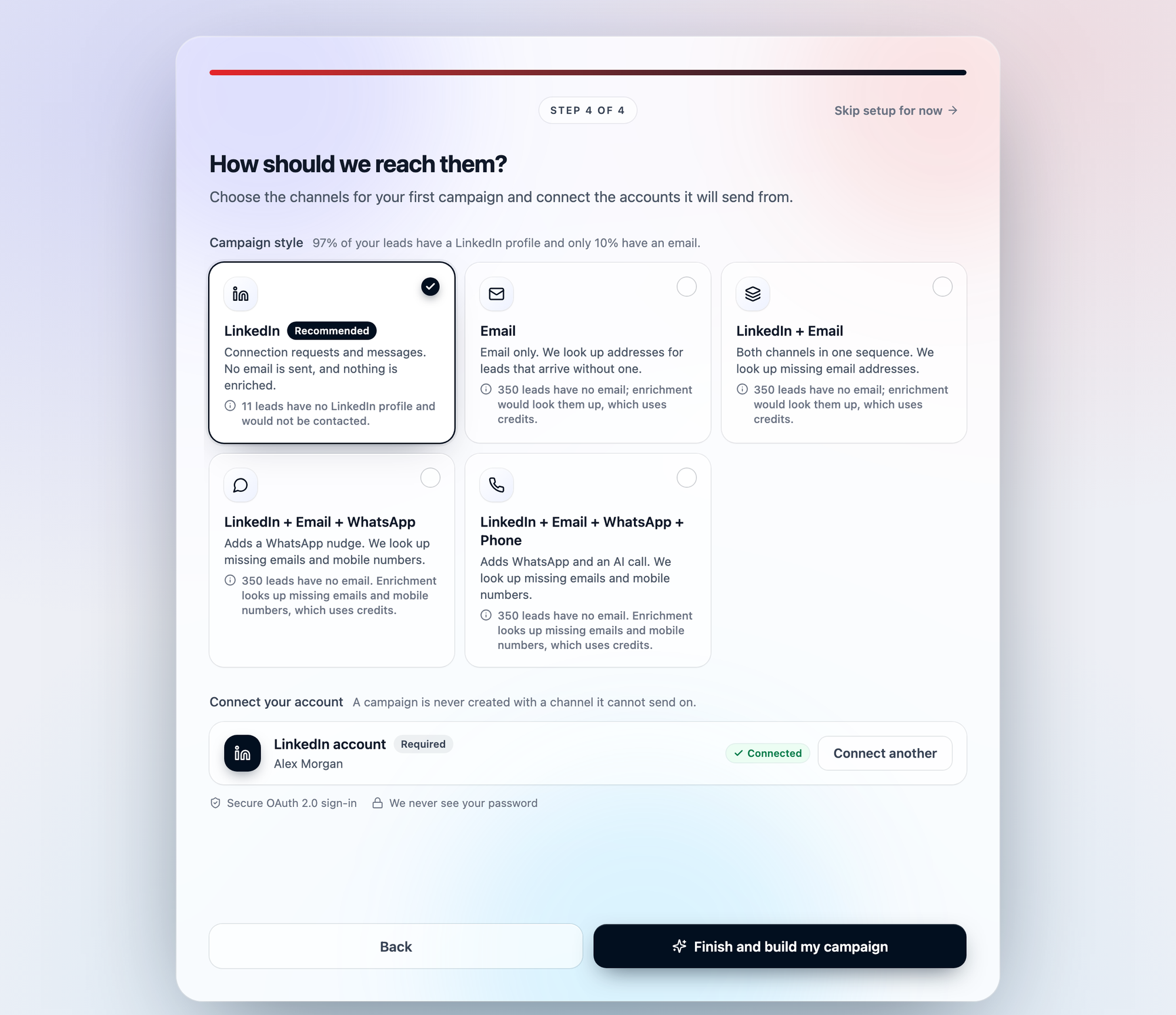
With your own file, the step reads your leads first. The line beside Campaign style says how many have a LinkedIn profile and how many an email, the style that reaches most of them is marked Recommended, and each style says what it would cost you: 11 leads have no LinkedIn profile and would not be contacted, or 350 leads have no email; enrichment would look them up, which uses credits.
If you chose an existing playbook in step 2, the style is fixed to the one its sequence sends on — marked From your playbook — and the others are greyed out. A sequence with email steps needs a mailbox behind them, and one without any never asks for one.
If you have more than one account of a type, pick which one this campaign sends from. Connect another adds one without leaving the step.
A connected Google account books meetings whichever style you choose. Having one connected does not turn a LinkedIn campaign into an email campaign — only the style decides what is sent.
Produces: the sending accounts on your campaign.
While it builds
Finish, and the campaign appears on the Campaigns tab straight away with a Generating pill. Open the row to watch the stages: the playbook, then the lead list, then the draft campaign.
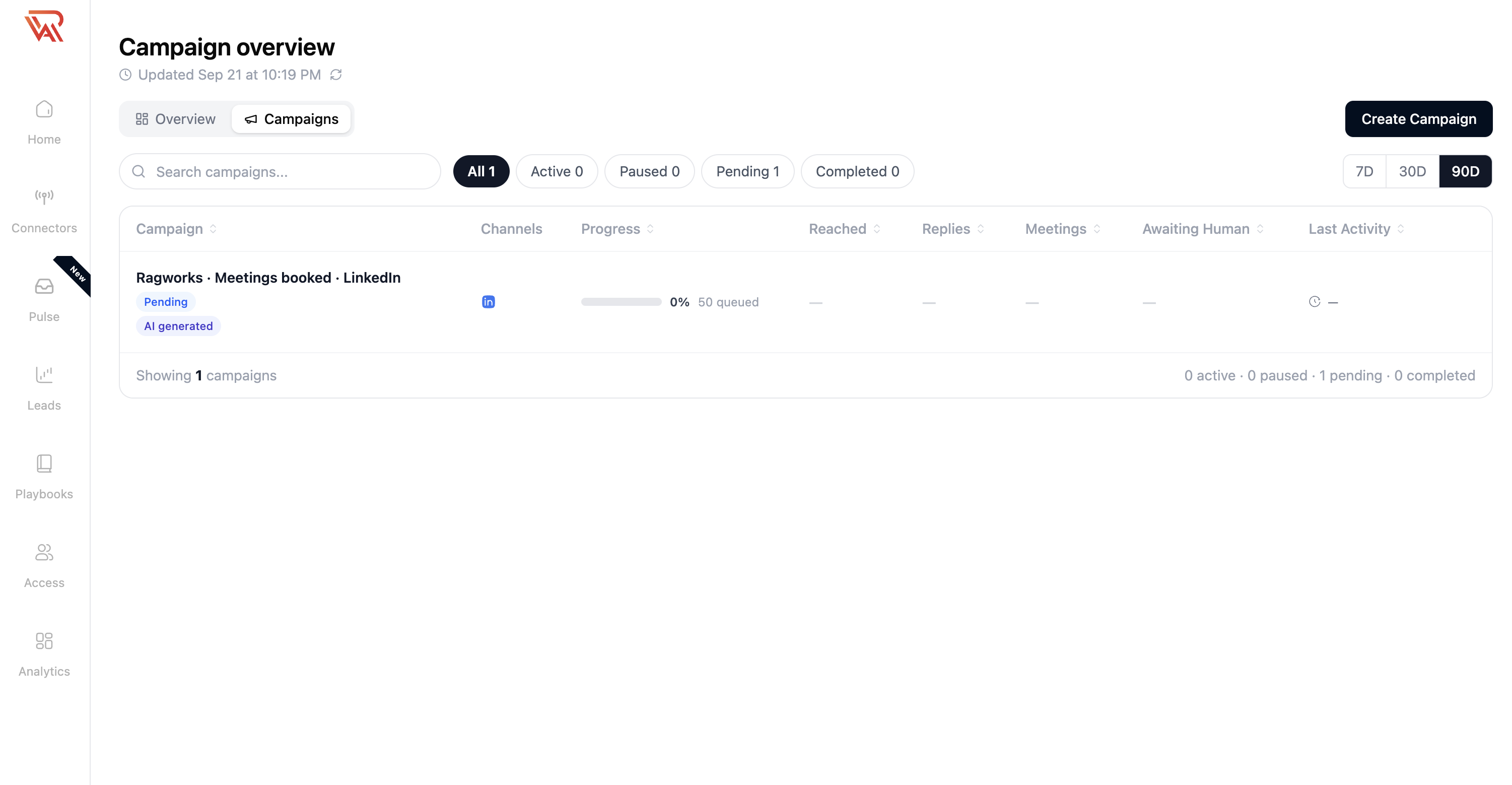
| State | What it means |
|---|---|
| Generating | Still building. Open the row for the stage-by-stage progress |
| Pending · AI generated | Built and waiting for you. Open it to review and activate |
| Stopped | A stage failed. The drawer says which one and why, with Retry build |
A build that stops keeps everything it already made. Retrying resumes from the stage that failed rather than starting over.
Review and activate
The campaign name
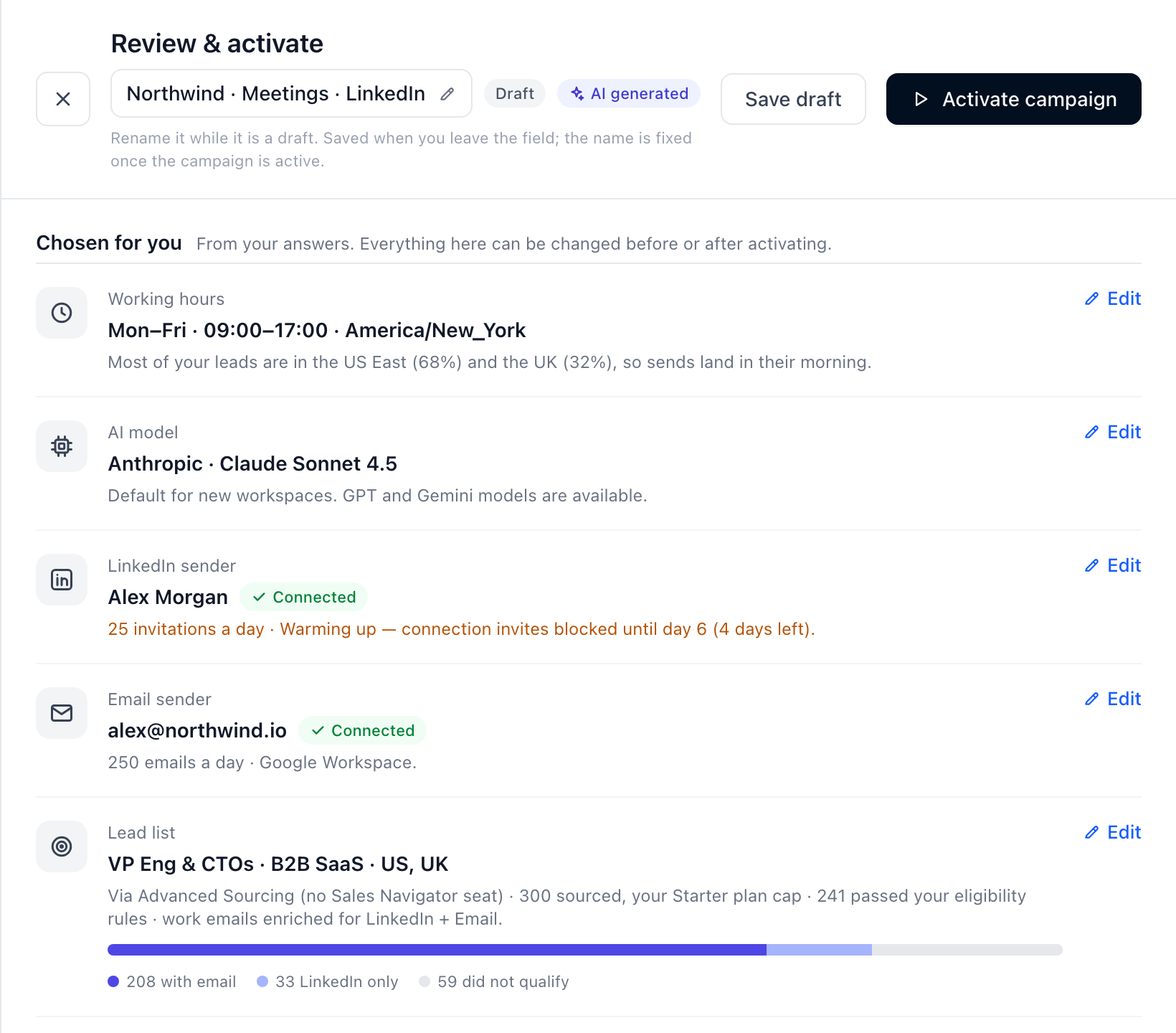
The heading of the drawer is the campaign's name, and while the campaign is a draft it is a field: click it, type, and it saves when you leave the field or press Enter. Escape puts the old name back. It is the same name the Campaigns tab and the campaign page show. Once the campaign is active the name is fixed here.
Chosen for you
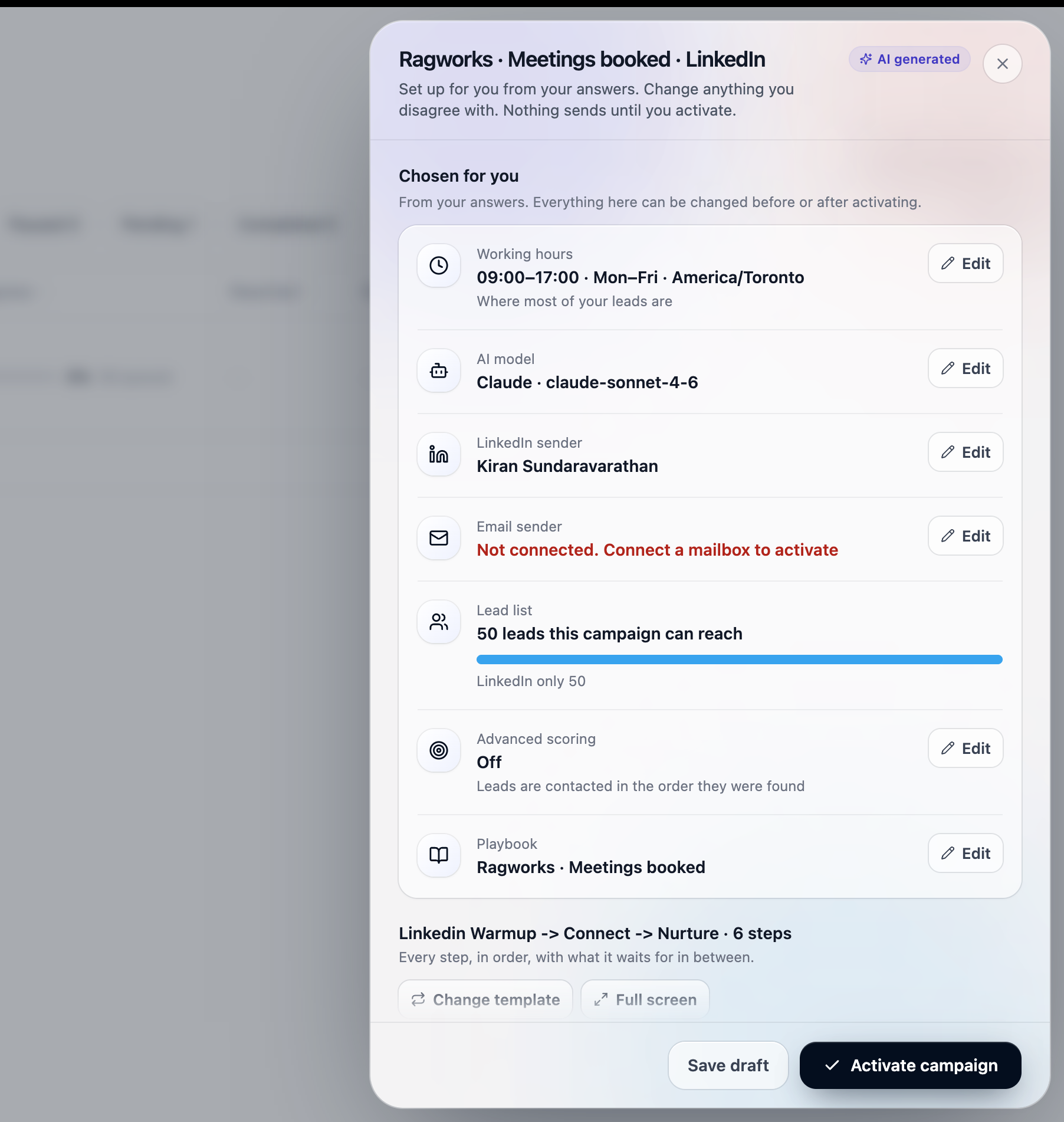
Chosen for you lists every decision the setup made, each with an Edit button:
- Working hours — set to the timezone most of your leads are in
- AI model — the model your agent replies with
- LinkedIn sender and Email sender — the accounts this campaign sends from
- Lead list — how many of your leads this campaign can actually reach
- Advanced scoring — on or off, and what that means for send order
- Playbook — the playbook written from your answers, or the one you chose in step 2
Anything shown in red has to be resolved before you can activate — most often an account that is not connected.
The sequence
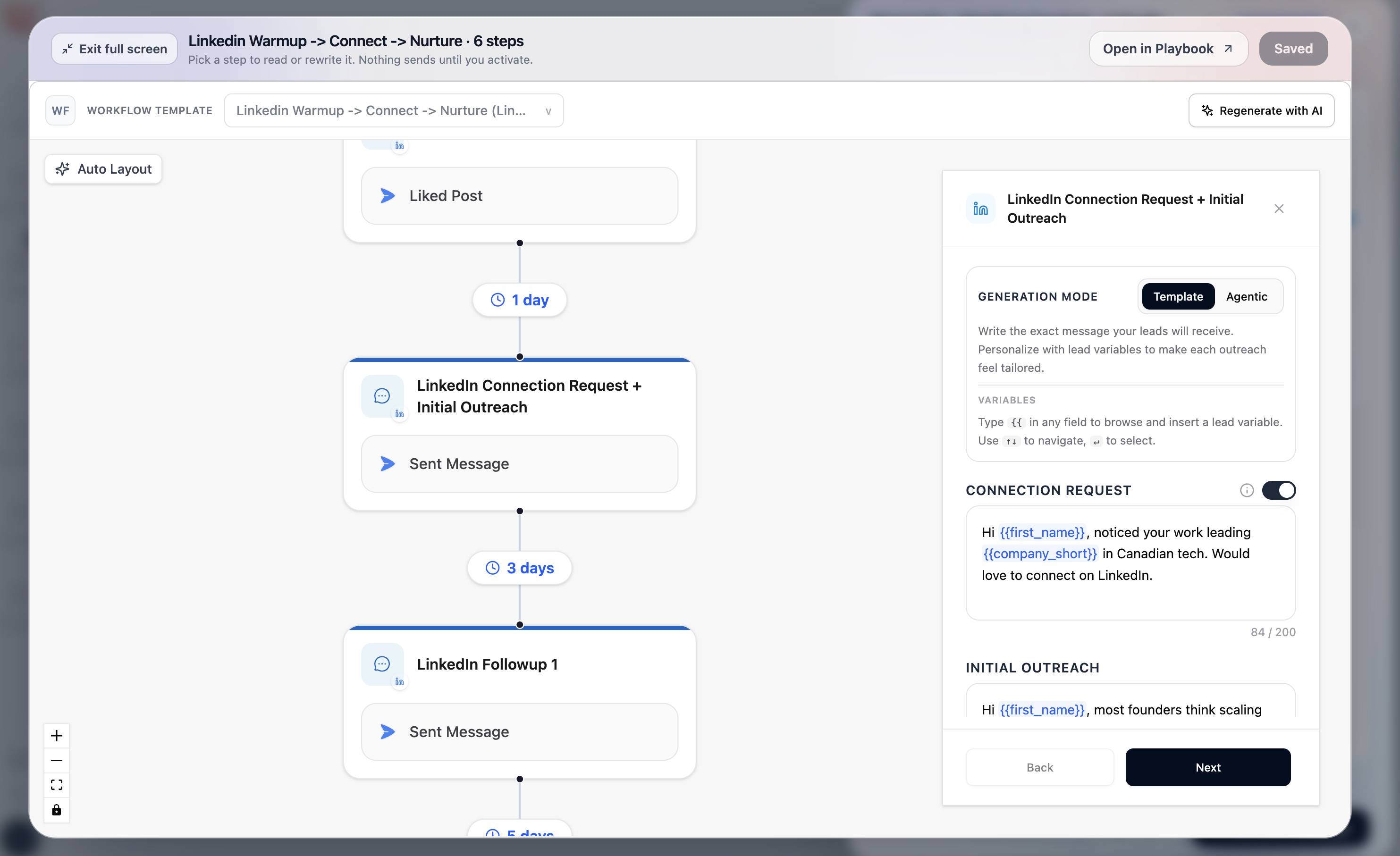
Full screen opens the sequence in the playbook's own editor: every step in order, what it waits for in between, and the exact message each one sends.
For each step you can:
- switch between Template (the exact message, with
{{variables}}) and Agentic (instructions the agent follows) - edit the copy, inserting lead variables by typing
{{ - see the connection-request character count, which LinkedIn enforces
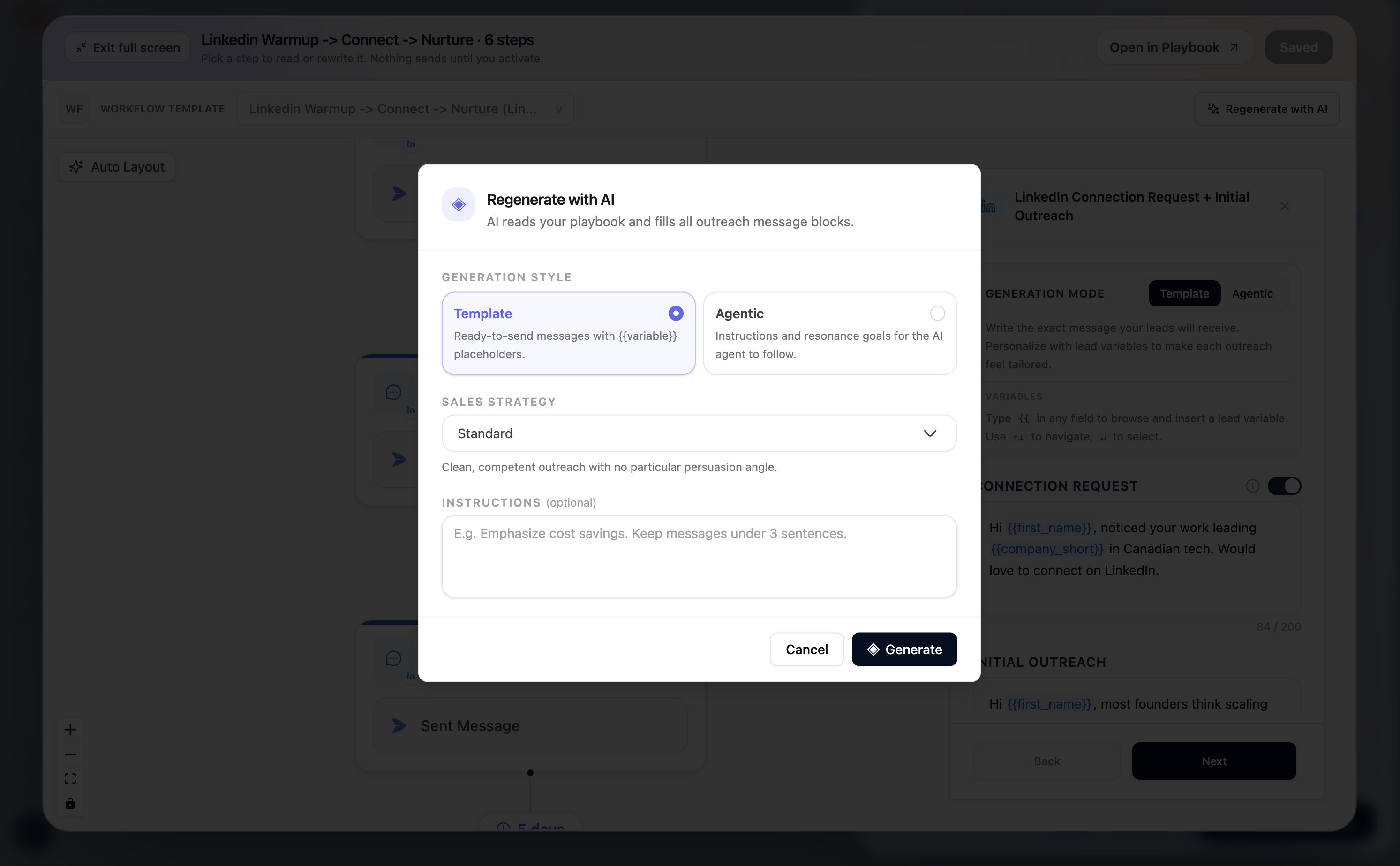
Regenerate with AI rewrites every message block from your playbook. Change the sales strategy here, or add instructions like "keep messages under 3 sentences", and generate again.
Change template swaps the whole sequence for another one that sends on the same channels.
When you are happy, Activate campaign. That is the first moment anything is sent.
Skipping and resuming
Every step has a quiet Skip setup for now link. Skipping keeps every answer you have already given and takes you to the app.
To pick it up later, go to Home → Create Campaign → Quickstart. Your company details are still there; the rest is asked again for this campaign.
Skipping costs you nothing. Nothing is built, nothing is charged, and nothing is sent.