Getting help in the product
The support bubble in the corner of your page is the fastest way to get unstuck. It puts three kinds of help in one place:
- Take the tour of the page you're on.
- Ask Ragworks AI, which answers from these docs.
- Talk to a Ragworks expert, which sends a request to the Ragworks team. This is how you contact support and escalate an issue to a person.
This page covers:
- Open the support bubble
- What the support panel offers
- Take the tour
- Ask Ragworks AI
- Talk to a Ragworks expert
- What the Ragworks team sees
- Attach a screenshot, a file, a link or troubleshooting details
- Follow the conversation
- How long things are kept
- Choose the right help
- Troubleshooting
Open the support bubble
The support bubble sits in the bottom-right corner of the page.
- Click the bubble (1). You can also click the ? at the bottom of the sidebar.
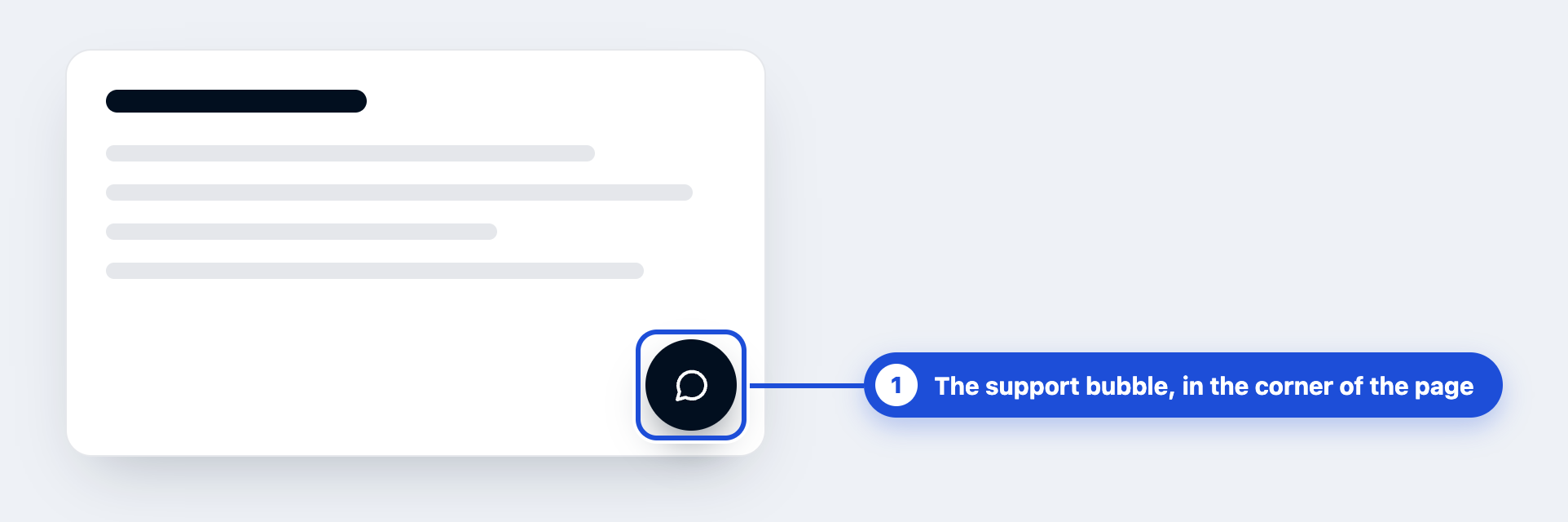
Result: the support panel opens in the corner of the page. Click the x to close it. Whatever you were doing on the page stays as it was.
The support bubble is in the AI SDR product: Campaigns, Pulse, Playbooks, Leads and the pages you open from them. The agent builder (Agent, Data sources, Schedules, Chat and History) keeps its own Support dialog for now, with the Ragworks community, a demo booking and email.
What the support panel offers
The panel opens on its home view.
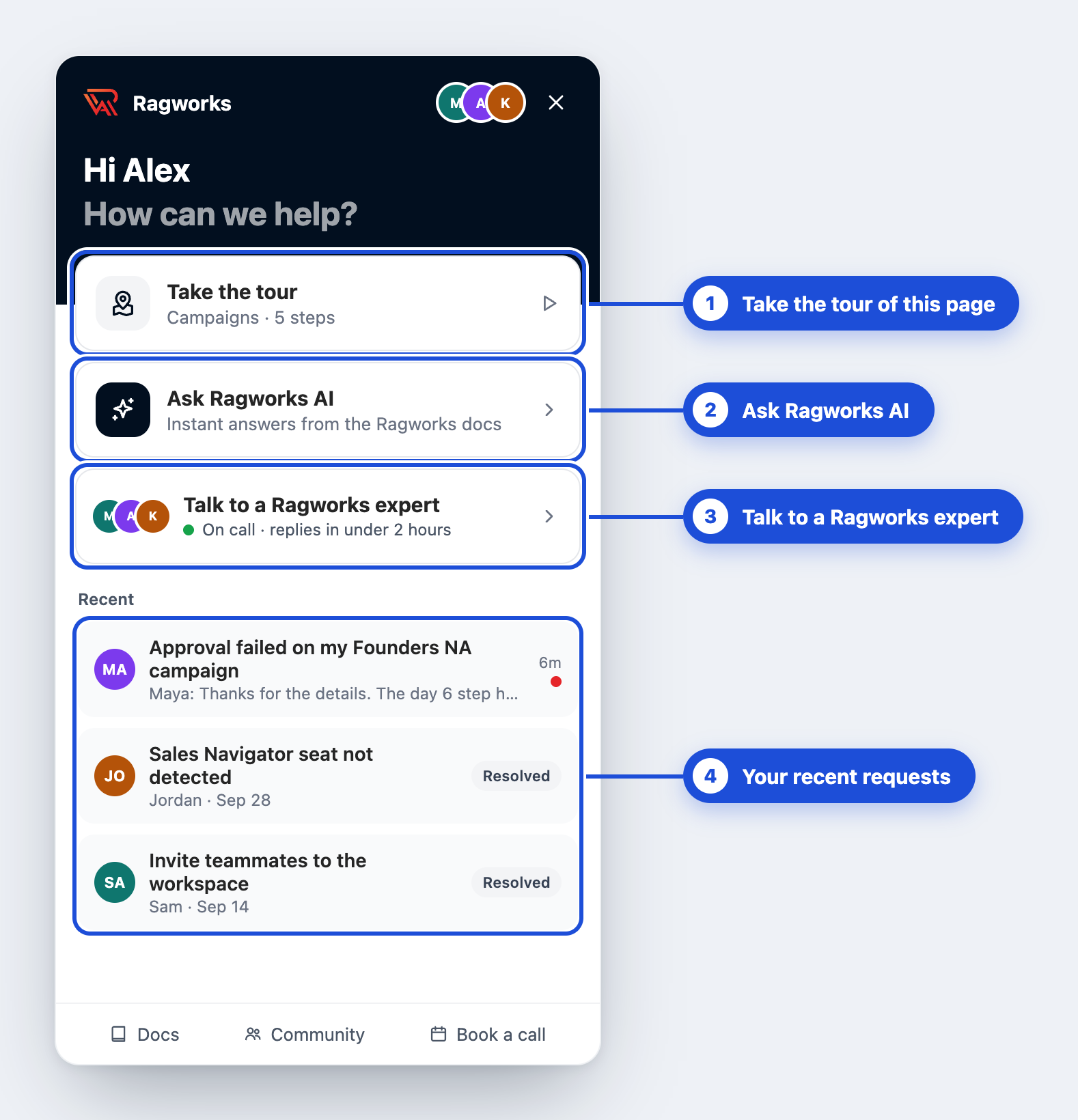
| Callout | What it does |
|---|---|
| 1. Take the tour | Starts the guided tour of the page you're on. It appears only on pages that have a tour, and shows the page's name and its number of steps. |
| 2. Ask Ragworks AI | Opens a chat that answers questions from the Ragworks docs. |
| 3. Talk to a Ragworks expert | Opens a form that sends your request to the Ragworks team. It shows the usual reply time, such as "replies in under 2 hours". |
| 4. Recent | Your latest requests. A red dot means a reply you haven't read, and Resolved means the team has closed the request. Click one to open the conversation. |
At the bottom of the panel, Docs opens these docs, Community opens the Ragworks community, and Book a call books a call with the team.
Take the tour
Use the tour when you want to be shown around the page you're on.
Steps
- Open the support bubble.
- Click Take the tour (callout 1 in the panel screenshot).
Result: the panel closes and the page's tour starts. If Take the tour isn't in the panel, the page you're on has no tour.
Ask Ragworks AI
Ragworks AI answers questions about how Ragworks works, using these docs. It's the quickest way to find a setting, check how a feature behaves, or learn what an error message means.
Steps
- Open the support bubble.
- Click Ask Ragworks AI.
- Pick a starter question (2), or type your own in the box at the bottom (3) and press Enter.
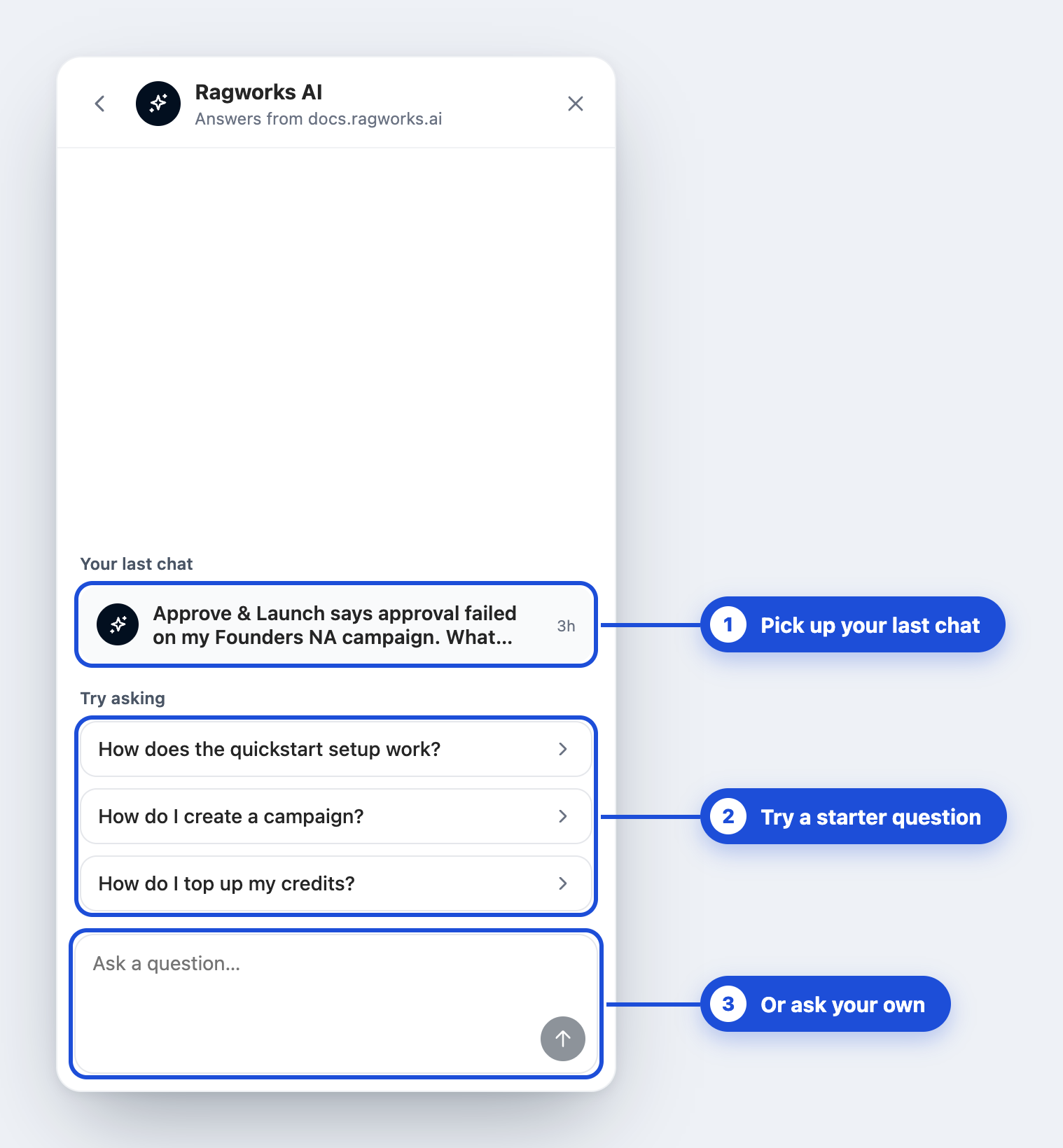
If you've asked questions before, Your last chat (1) brings that chat back. A new chat starts by itself when you open the chat more than 30 minutes after your last question. To start a fresh one at any time, click the New chat icon at the top.
Read an answer
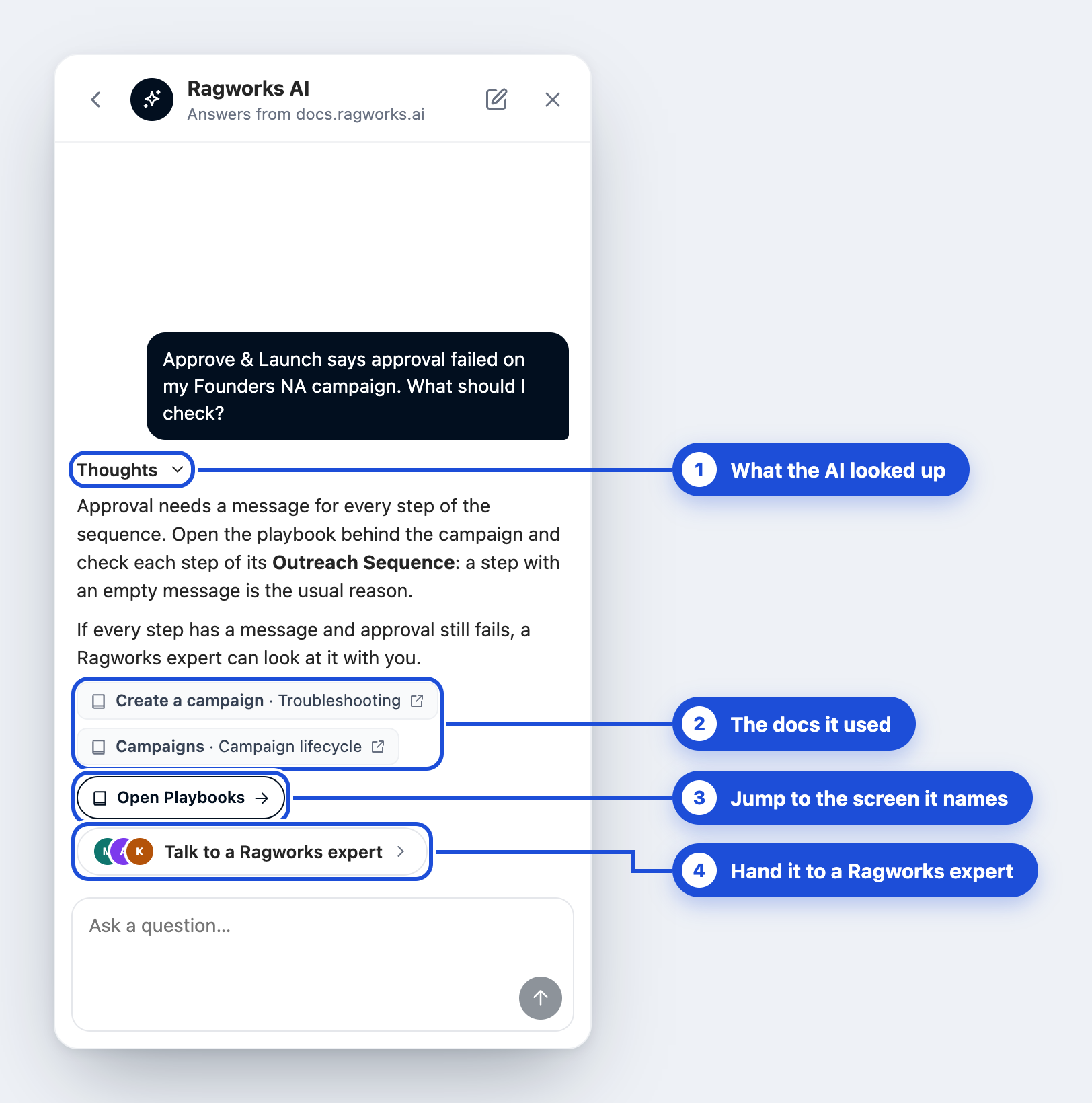
- Thoughts (1) shows what Ragworks AI looked up while it worked. Click it to open or close the list.
- The docs it used (2) are the pages and sections behind the answer. Click one to read it on docs.ragworks.ai, in a new tab.
- A screen it names (3) is a button such as Open Playbooks. Click it to go straight there.
- Talk to a Ragworks expert (4) starts a request with a summary of your problem already filled in. See Talk to a Ragworks expert.
When the docs don't cover your question, Ragworks AI says so and offers Talk to a Ragworks expert.
What Ragworks AI can and can't do
- It reads the Ragworks docs and links you to the pages it used.
- It can open a screen for you.
- It can't see your campaigns, leads or settings, and it can't change anything in your account.
- Its chats don't appear in History.
Credits and limits
- Credits: each answer uses a small number of credits, charged for the AI work it took, like any other AI work in Ragworks. It shows in the Analytics ledger as Ragworks AI answer, under Other. See How credits are counted. If your credits run out, Ragworks AI still answers, so you're never locked out of help.
- Talking to the Ragworks team is free. A request to the team never uses credits.
- Limits: up to 30 questions an hour, and up to 4,000 characters in a question. When you reach the limit, the chat tells you and offers Talk to a Ragworks expert.
Talk to a Ragworks expert
Use this to contact support and escalate an issue to a person. Send a request when something is broken, your data looks wrong, you're blocked on billing or account access, or Ragworks AI and these docs haven't solved it.
You can ask Ragworks AI how to do it, too. Try How do I escalate an issue to a Ragworks expert?
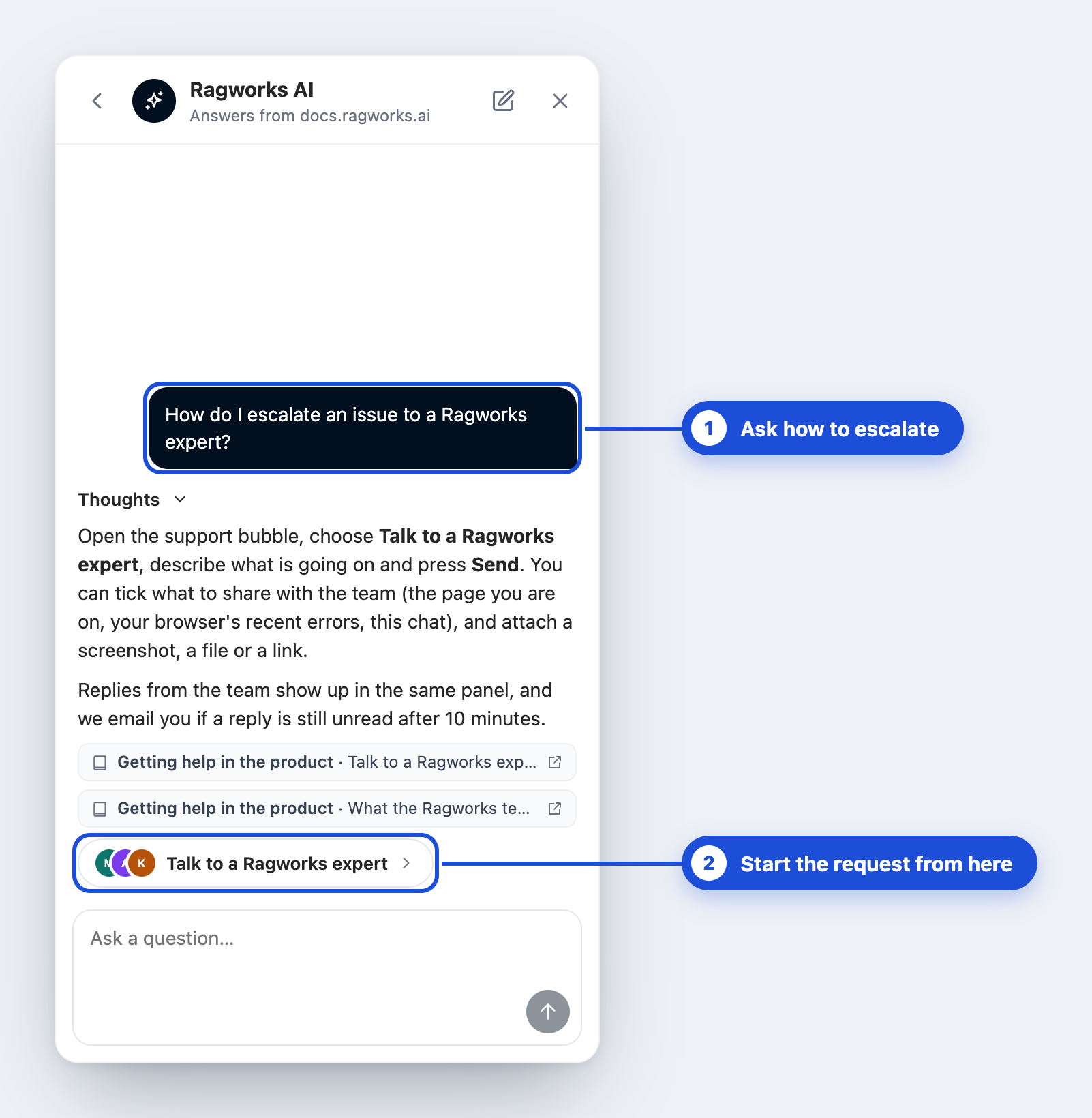
Escalate an issue: send a request to the Ragworks team
- Open the support bubble.
- Click Talk to a Ragworks expert. In Chrome and Edge, your browser asks whether to share this tab. If you allow it, a screenshot of the page is attached for you. If you decline, or you use another browser, the form opens without one.
- Under What's going on? (1), say what you were doing, what you expected and what happened. Name the campaign, lead or page if you can.
- Add anything that helps (2). See Attach a screenshot, a file, a link or troubleshooting details.
- Under Shared with the team (3), untick anything you'd rather not share.
- Click Send to Ragworks team (4).
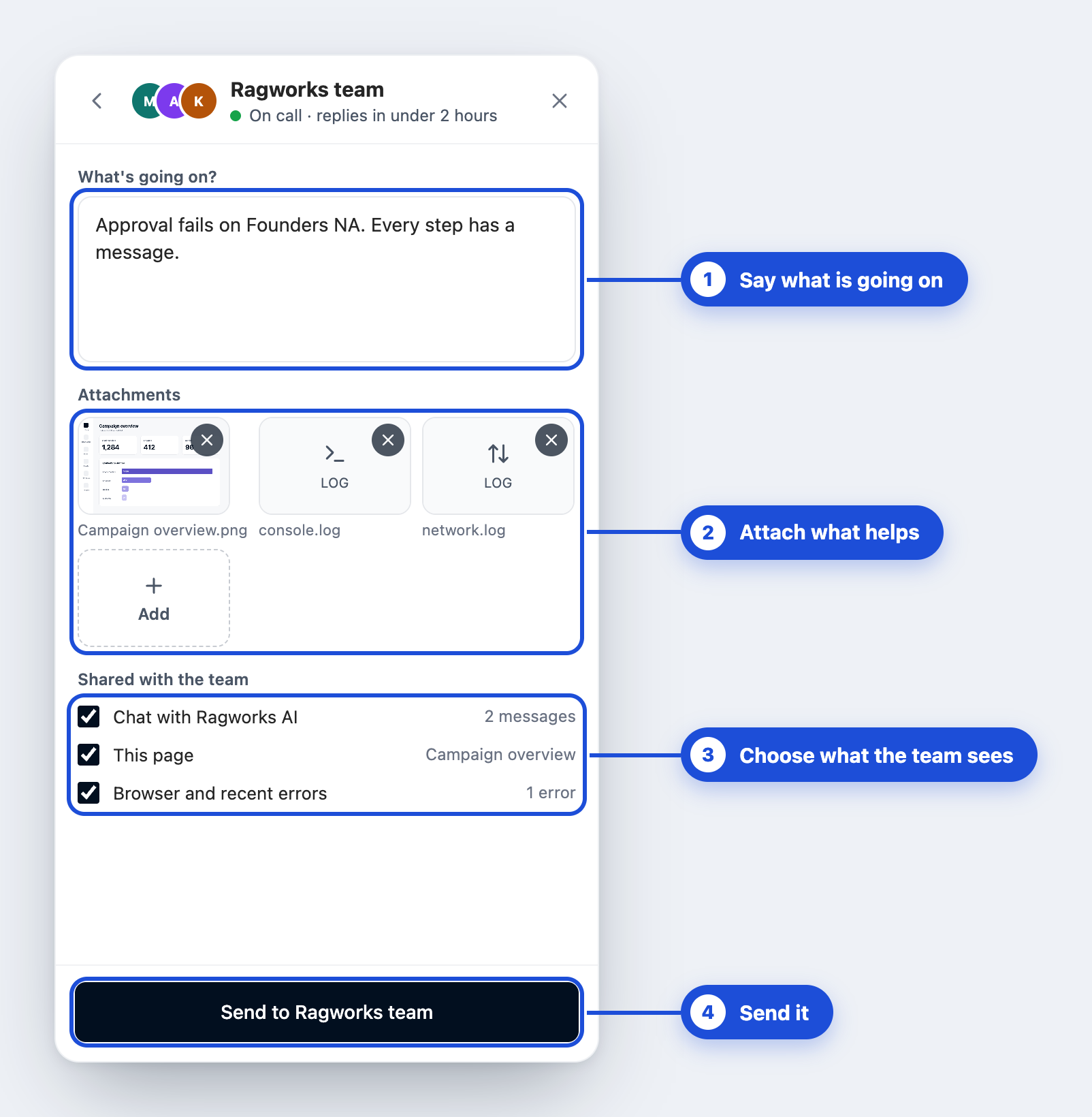
Result: your request opens as a conversation. It shows Sent to the Ragworks team, a request number such as Request #1042, and the status Open. The team replies in the same conversation. See Follow the conversation.
If you start from an answer in Ragworks AI, the same form opens with a summary of the problem filled in and Chat with Ragworks AI ticked, so the team can read what you've already tried.
The more the team knows, the faster the answer: what you clicked, what you expected, what happened instead, and which campaign or lead it was. A screenshot and the troubleshooting files usually save a round of questions.
What the Ragworks team sees
Always, so the team knows who to answer:
- your name and email
- your organization and plan
- your message
Only if you leave the box ticked under Shared with the team:
| Box | What the team gets |
|---|---|
| Chat with Ragworks AI | The conversation you had with Ragworks AI, so you don't repeat yourself. It appears when you've chatted with Ragworks AI. |
| This page | The app, the name of the page you were on, for example Campaign overview, and its address with any ids removed. |
| Browser and recent errors | Your browser, the size of your window, and the last calls the page made that failed: the method, the route and the status, such as POST /api/v1/campaigns/:id/approve → 415. It shows how many, such as 1 error. Ids, query strings, bodies and headers are never included. |
The team never sees your password. Don't type passwords or card numbers into your message, a screenshot or a file.
Attach a screenshot, a file, a link or troubleshooting details
Click Add in the request form, or the paperclip in a conversation, to open the menu.
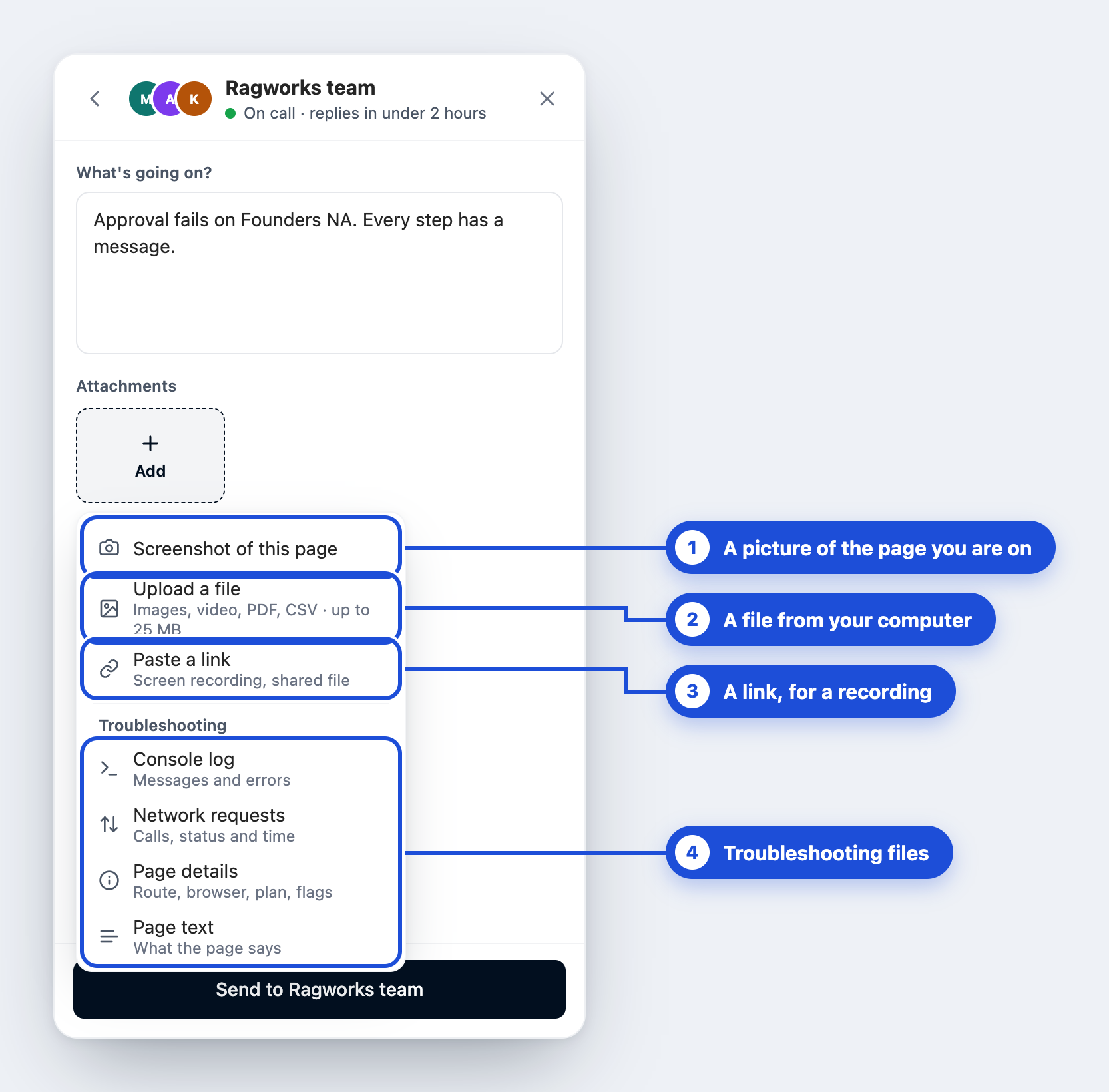
| Item | What it attaches |
|---|---|
| Screenshot of this page (1) | A picture of the page you're on, with the panel hidden. Your browser asks what to share: choose this tab or window. It isn't offered on phones. |
| Upload a file (2) | A file from your computer: PNG, JPG, WEBP or GIF pictures; MP4, MOV or WEBM video; PDF, CSV, TXT or LOG files. Up to 25 MB each. |
| Paste a link (3) | A link that starts with https://, for something too big to upload, such as a screen recording. The team opens it, we don't. |
| Console log, Network requests, Page details, Page text (4) | Troubleshooting files that Ragworks makes in your browser when you pick them. See Troubleshooting files. |
Each attachment shows as a tile. Click the x on a tile to remove it.
Share a screen recording
A short recording often shows a problem better than words.
- Record your screen with any screen recorder, including the one built into your computer.
- If the recording is 25 MB or less, choose Upload a file and pick it. Otherwise, share it from your recording tool and choose Paste a link.
Troubleshooting files
These four items give the team what an engineer would otherwise ask you for. Nothing is attached until you pick one, and you can read each file before you send it.
| File | What it holds |
|---|---|
Console log (console.log) | The last 200 messages and errors your browser logged in this tab, oldest first, with the time and level. Errors include their stack. |
Network requests (network.log) | The last 100 calls the page made, oldest first: the method, the route with ids removed, the status and the time it took. Calls to other sites show only the site. Never headers, bodies, cookies or query strings. |
Page details (page-details.txt) | The page, its title and app; your browser, window size, language and time zone; your plan; and the features switched on for you. |
Page text (page-text.txt) | The text the page shows, with the support panel hidden. It can be long, so it's cut at 100,000 characters. |
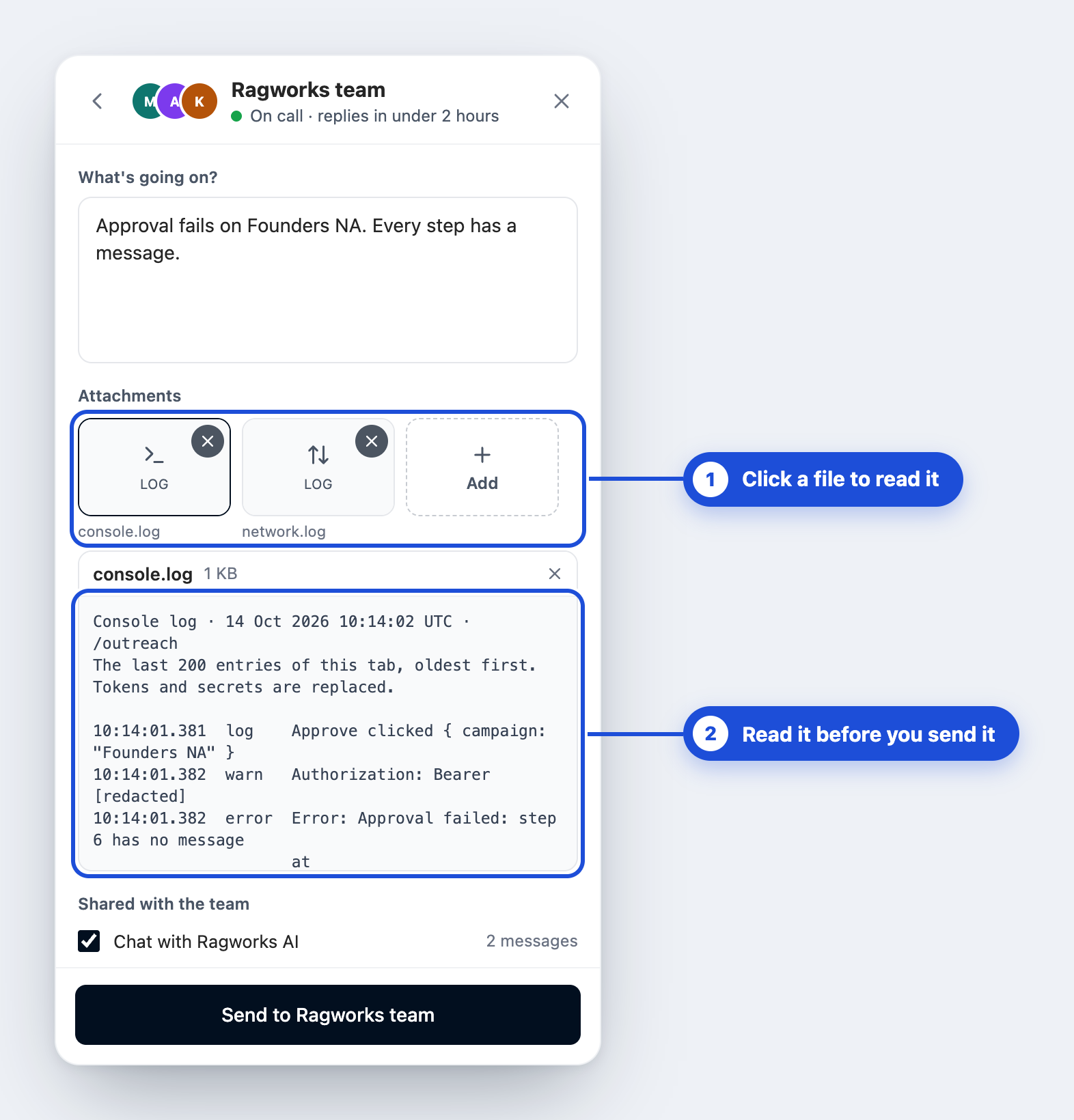
Click a file's tile (1) to read it in the panel (2) before you send it. Tokens and password-like values in the console log and the network log are replaced with [redacted]. That's a safety net, not a promise: read the file, and remove it with its x if it shows something you don't want to share. Page text is what the page shows, so a page of leads shows names and emails. The team only sees what you send.
The console log and the network log cover this browser tab only. If you open the page again or switch to another tab, they start over. If a log is empty, reproduce the problem first, then pick it again.
Limits
- Up to 5 attachments to a message, links included, and up to 25 to one request.
- Up to 25 MB for a file.
- Up to 30 files and links an hour. Each troubleshooting file counts as one.
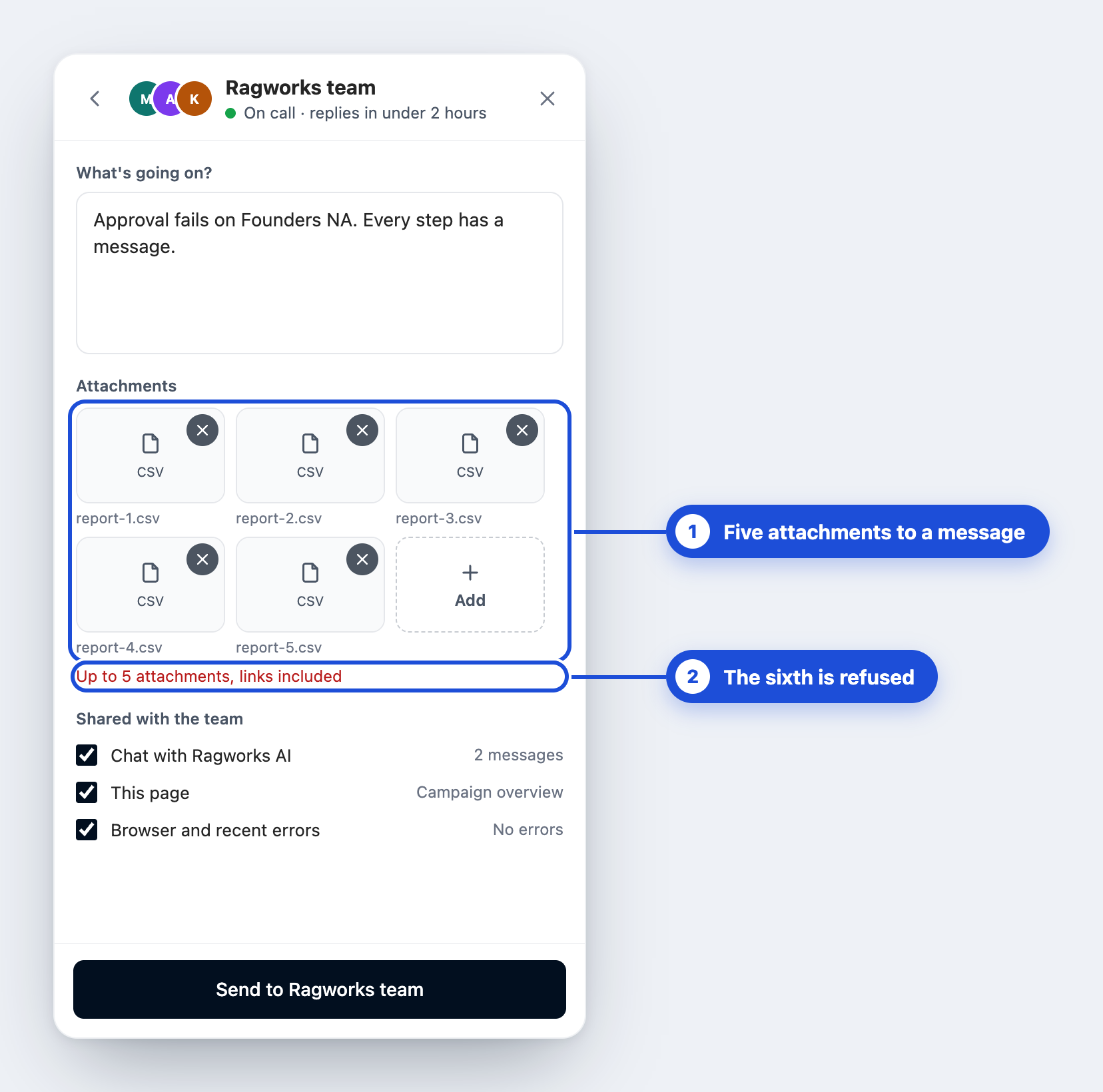
You can send a message and add more in the next one, even after the request is sent.
Follow the conversation
Your request is a conversation. Open it from Recent, or from the badge or the email.
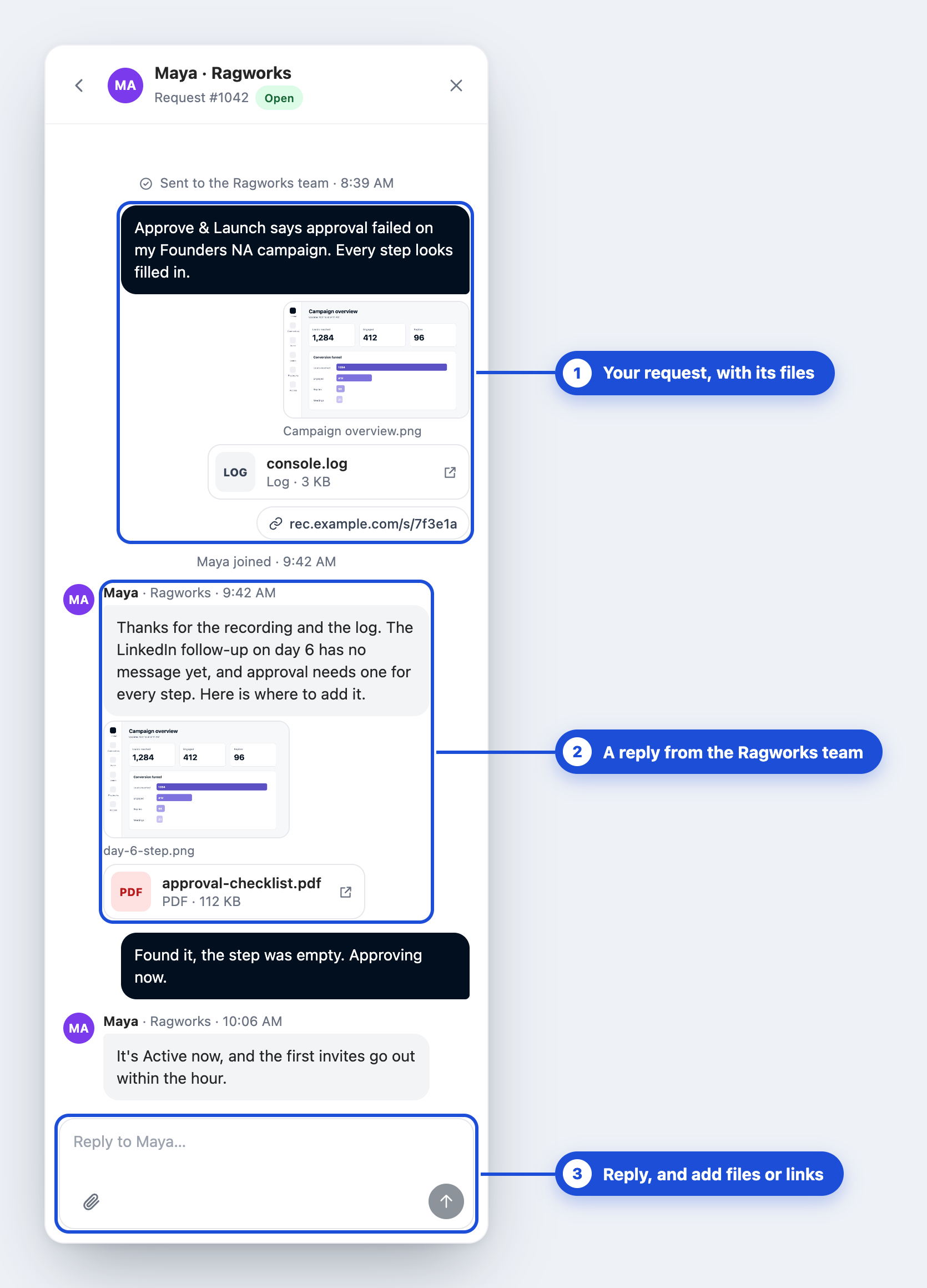
- Replies from the team appear under the team member's name and picture. If the conversation is open, a reply shows up within seconds. If the panel is closed, the bubble tells you within about a minute.
- Files from the team appear in the reply. Pictures show as thumbnails you can open full size, videos play in the panel, other files open in a new tab, and links open in a new tab.
- Your replies go to the same conversation. Add files or links to any message with the paperclip (3), including after the request is sent.
Know when the team replies
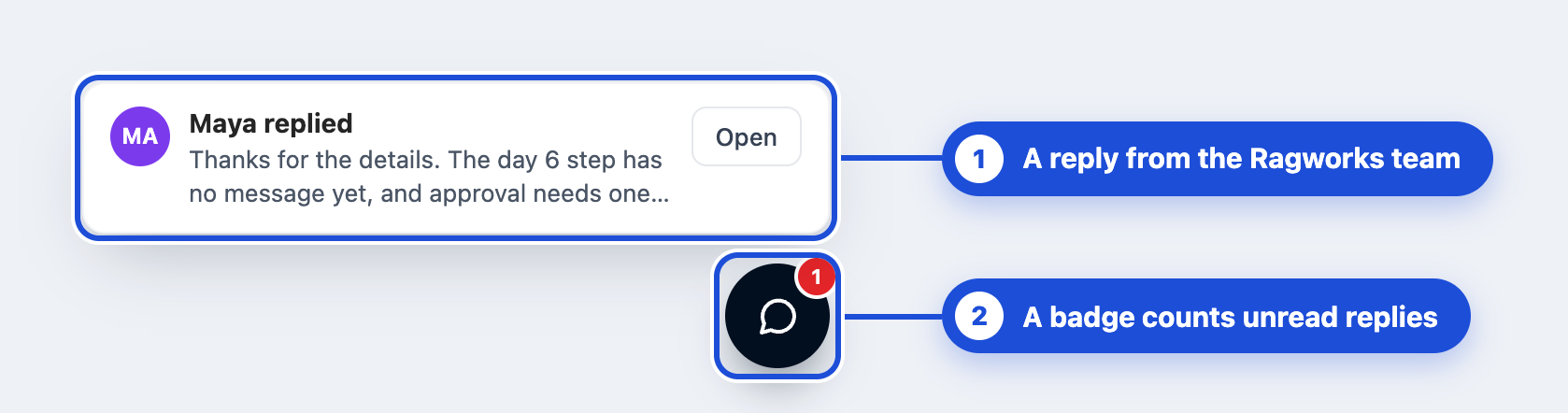
When a reply arrives and the panel is closed, the bubble shows a badge with the number of unread replies, and a short message shows the team member's name and the first words of the reply, or how many files came, such as 2 files attached. Click Open to read it.
If a reply is still unread after 10 minutes, we email you. You get one email for the request, with the first words of each reply you haven't read.
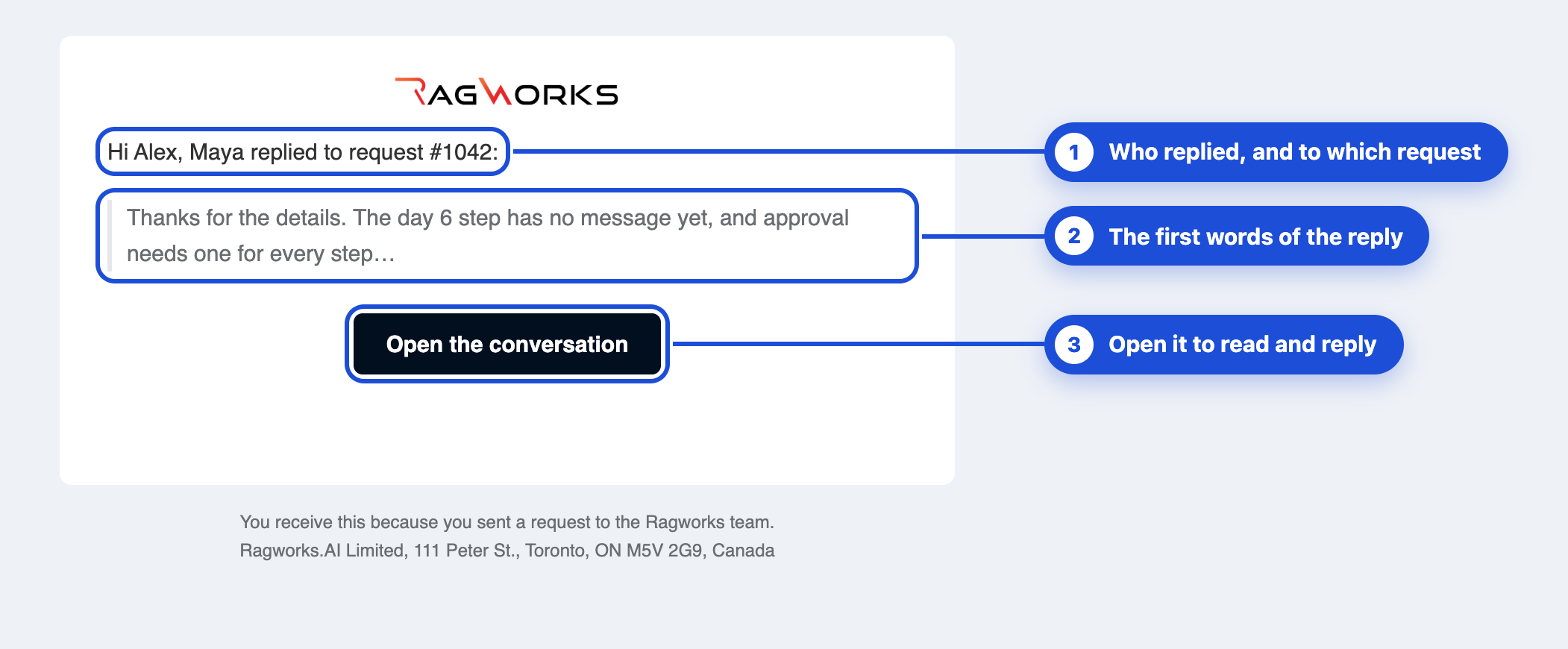
The email is a notification, not a way to reply: click Open the conversation and answer there. A reply you open within 10 minutes isn't emailed.
Resolved requests
When the team marks your request resolved, it shows Resolved, with a line that says who closed it.
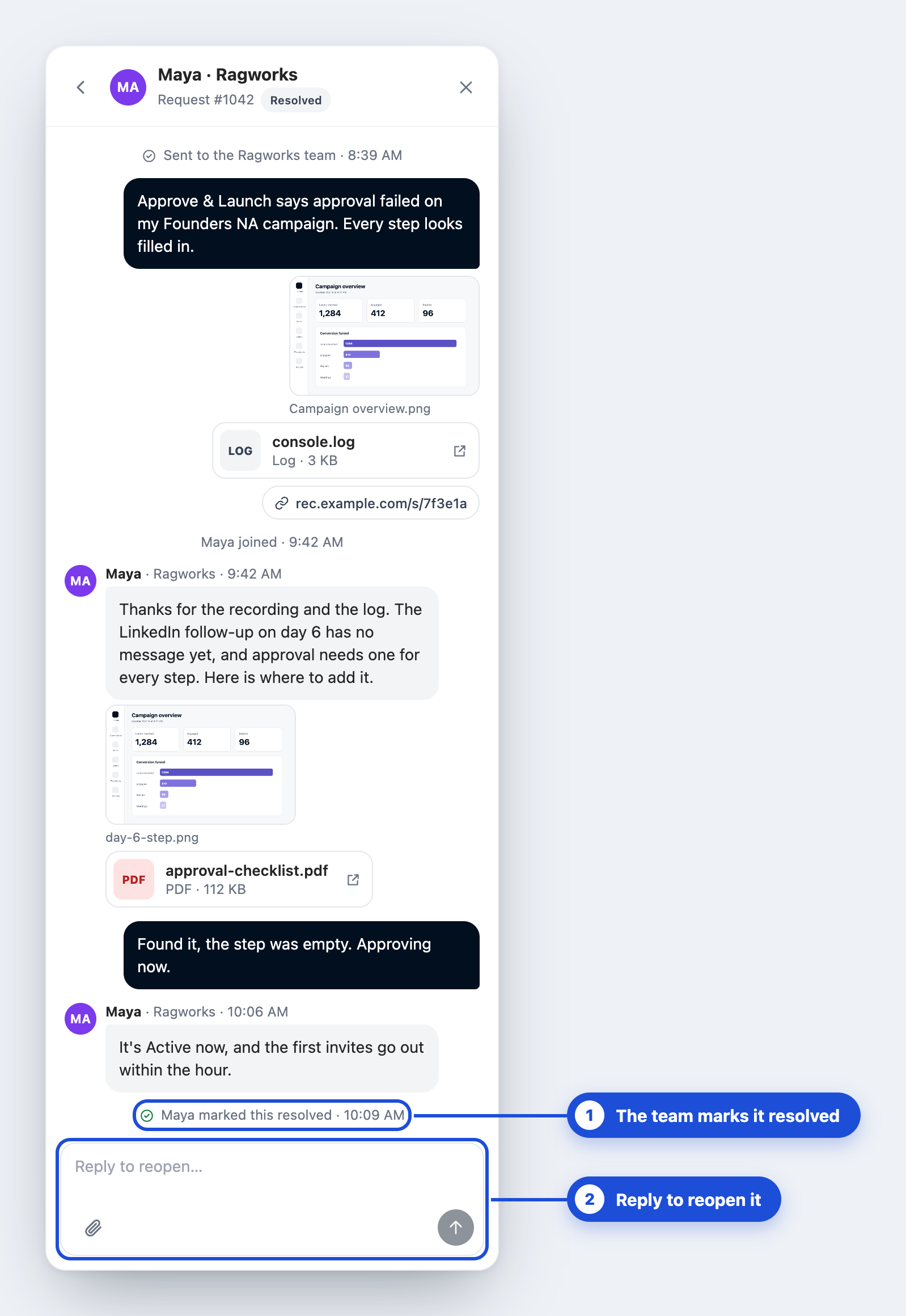
Reply in the box at the bottom (2) and the request reopens.
How long things are kept
A request and its messages are kept for 90 days after the last message, and then deleted. A file is kept for 90 days after you add it. After that it shows No longer available, and its message stays.
Ragworks AI chats aren't listed in History, and they're deleted after 90 days too.
Choose the right help
| You want to | Use |
|---|---|
| Be shown around the page you're on | Take the tour |
| Find out how something works, or what a message means | Ask Ragworks AI |
| Report something broken, or data that looks wrong | Talk to a Ragworks expert |
| Fix something Ragworks AI and the docs couldn't | Talk to a Ragworks expert |
| Get help with billing or account access | Talk to a Ragworks expert |
| Ask a question to other Ragworks users | Community, at the bottom of the panel |
| Book time with the team | Book a call, at the bottom of the panel |
Troubleshooting
| What you see | What to do |
|---|---|
| I can't find the support bubble. | You're probably in the agent builder (Agent, Data sources, Schedules, Chat or History), which keeps its own Support dialog. Open AI SDR from the profile menu to get the bubble. |
| Take the tour isn't in the panel. | The page you're on has no tour. Open Campaigns or Pulse and try again. |
| Up to 5 attachments, links included | A message takes five attachments. Send it, then add more in the next message. A request takes up to 25. |
| (file name) is larger than 25 MB | Make the file smaller, or share it from your recording tool and paste the link. |
| Upload failed. Check your connection and try again. | Check your connection and click Try again on the tile. |
| You have attached the maximum for this hour. Please try again later. | You can add up to 30 files and links an hour. Wait a while, then try again. |
| This request can hold 25 attachments. Start a new request to send more. | Send a new request for the rest, and mention the first request number. |
| Links must start with https:// | Paste the full link, starting with https://. Links with a user name or password aren't accepted. |
| Screenshot of this page isn't in the menu. | Your browser can't capture a tab, as on a phone. Take a screenshot yourself and choose Upload a file. |
| The console log is empty, or No network requests recorded yet | The tab hasn't logged anything since you opened it. Reproduce the problem, then pick the file again. |
| This page shows no text | Page text has nothing to read, because the page shows no text of its own. Use Screenshot of this page instead. |
| I didn't get an email. | An email is sent only when a reply is still unread after 10 minutes. Open Recent in the support panel to see your replies. |
| You have reached the limit of 30 questions an hour to Ragworks AI. | Wait a while, or choose Talk to a Ragworks expert. |
| Questions to Ragworks AI are limited to 4,000 characters. | Shorten your question, or put the detail in a request to the Ragworks team. |