Account settings
Use Account settings to reset your password and turn on two-factor authentication.
This page covers:
- Open Account settings
- Reset your password
- Turn on two-factor authentication
- Sign in with two-factor authentication
- Troubleshooting
Open Account settings
- In the sidebar, click your name.
- Click the gear icon next to your name (1).
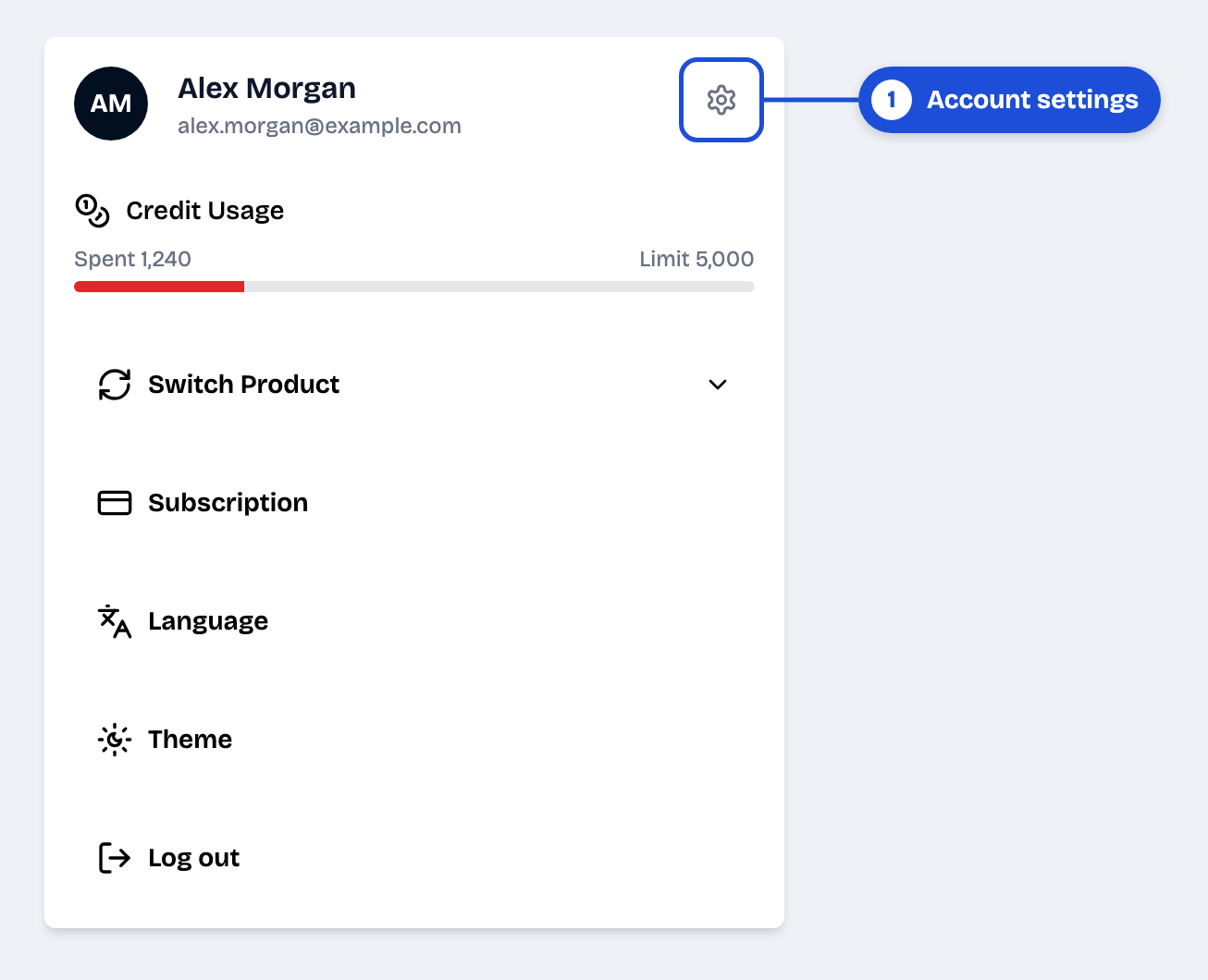
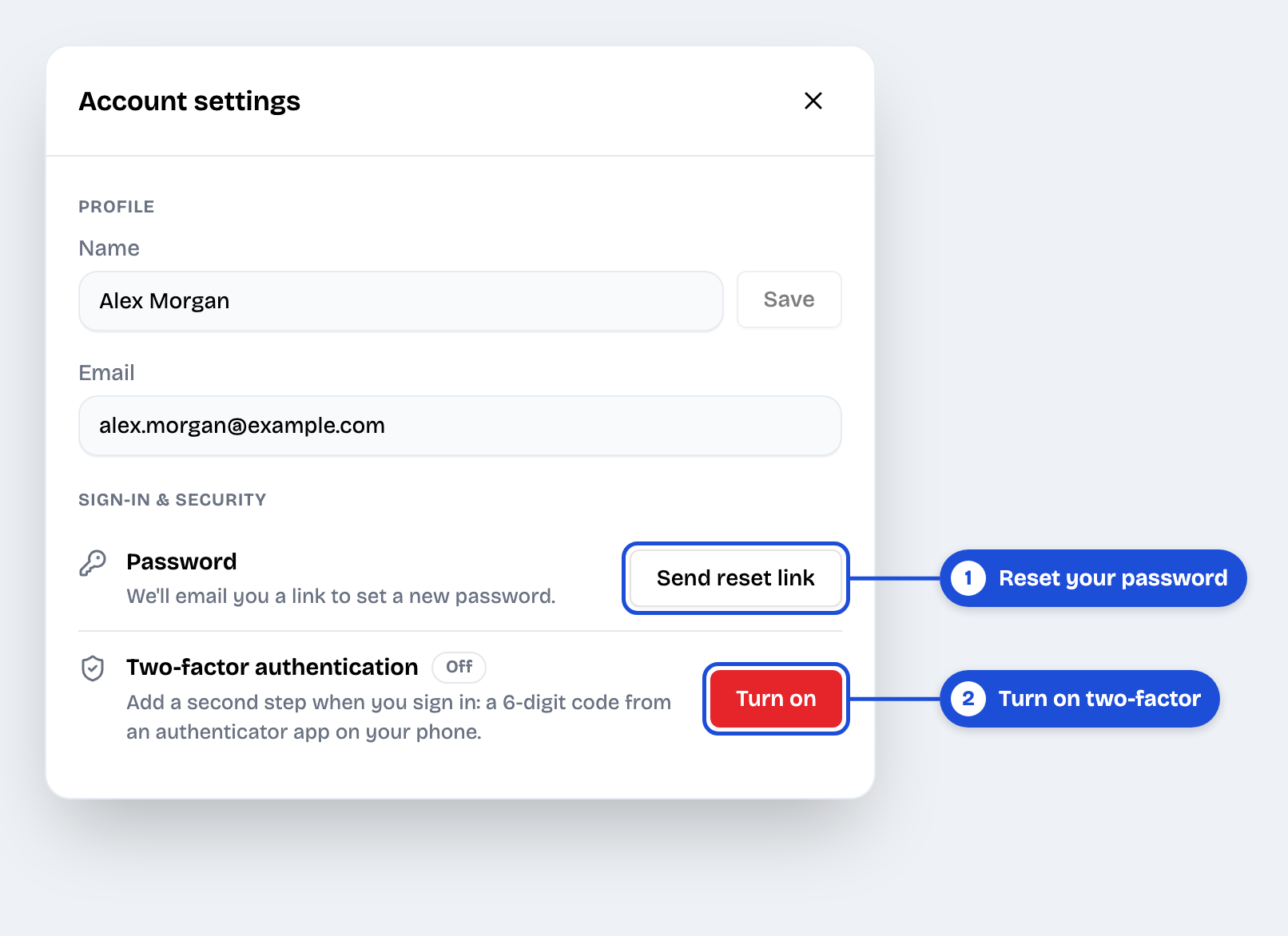
Result: the Account settings window opens. Use Send reset link (1) to reset your password, and Turn on (2) to turn on two-factor authentication.
Reset your password
Send yourself a link to choose a new password.
Steps
- Open Account settings.
- Under Sign-in & security, next to Password, click Send reset link (callout 1 in the Account settings screenshot).
- Open the email from Ragworks and click the link.
- Enter your new password and save it.
Result: you can sign in with your new password. The link goes to the email address shown in Account settings.
Turn on two-factor authentication
Two-factor authentication adds a second step when you sign in: after your password, you enter a 6-digit code from an authenticator app on your phone. Someone who learns your password can't sign in without your phone.
Setup takes about 2 minutes.
Before you begin
- Install an authenticator app on your phone, such as Google Authenticator, Microsoft Authenticator or Authy.
- Have somewhere safe to save a recovery code, such as a password manager.
Steps
-
Next to Two-factor authentication, click Turn on (callout 2 in the Account settings screenshot).
-
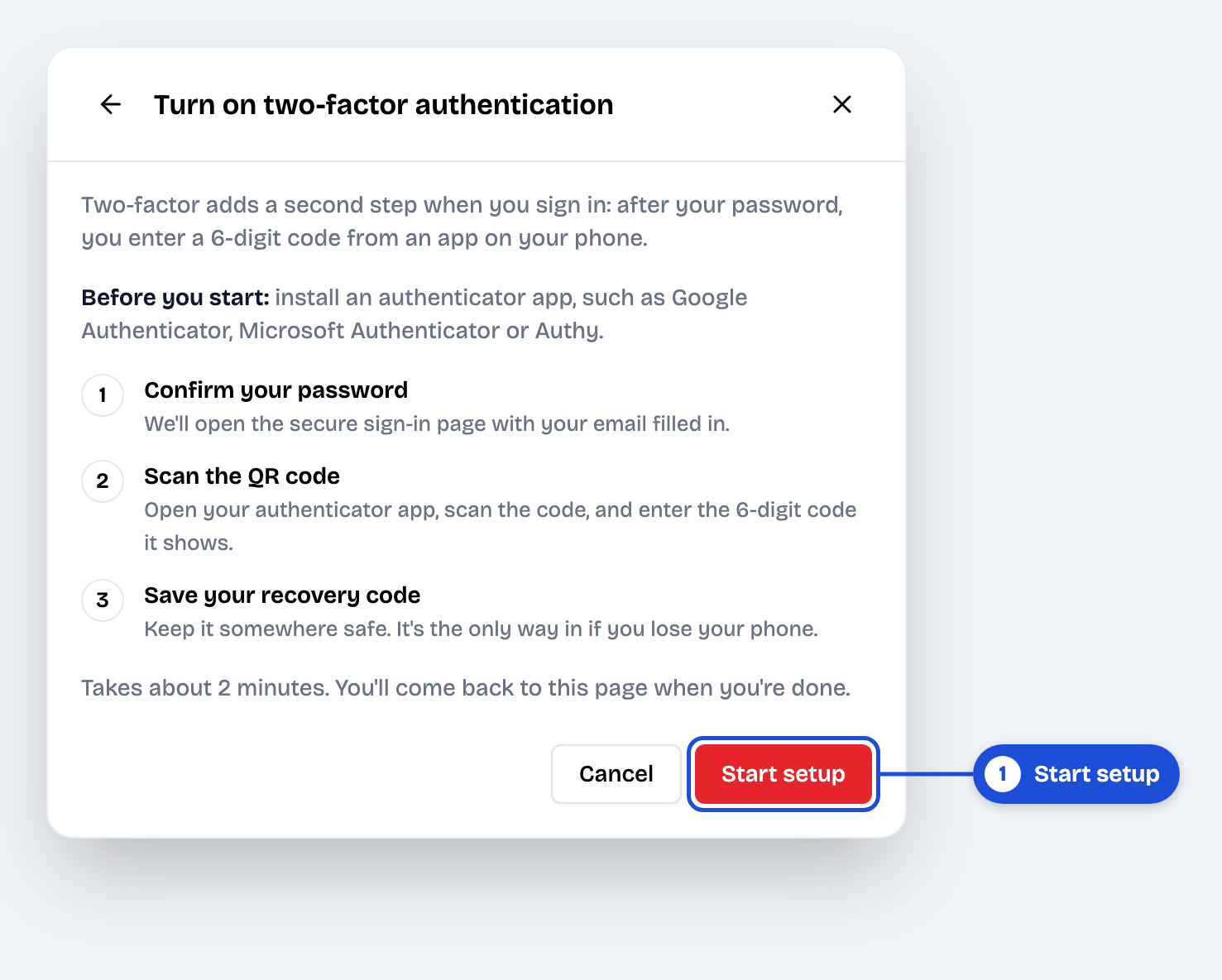
Read the steps and click Start setup (1).
-
Confirm it's you. The secure sign-in page opens with your email filled in. Enter your password and click Continue.
-
Scan the QR code:
- In your authenticator app, add a new account. Most apps use a + button.
- Scan the QR code on the screen.
- Enter the 6-digit code that your app shows and click Continue.
-
Save your recovery code somewhere safe and click Continue.
warningThe recovery code is the only way into your account if you lose your phone. It's shown only once.
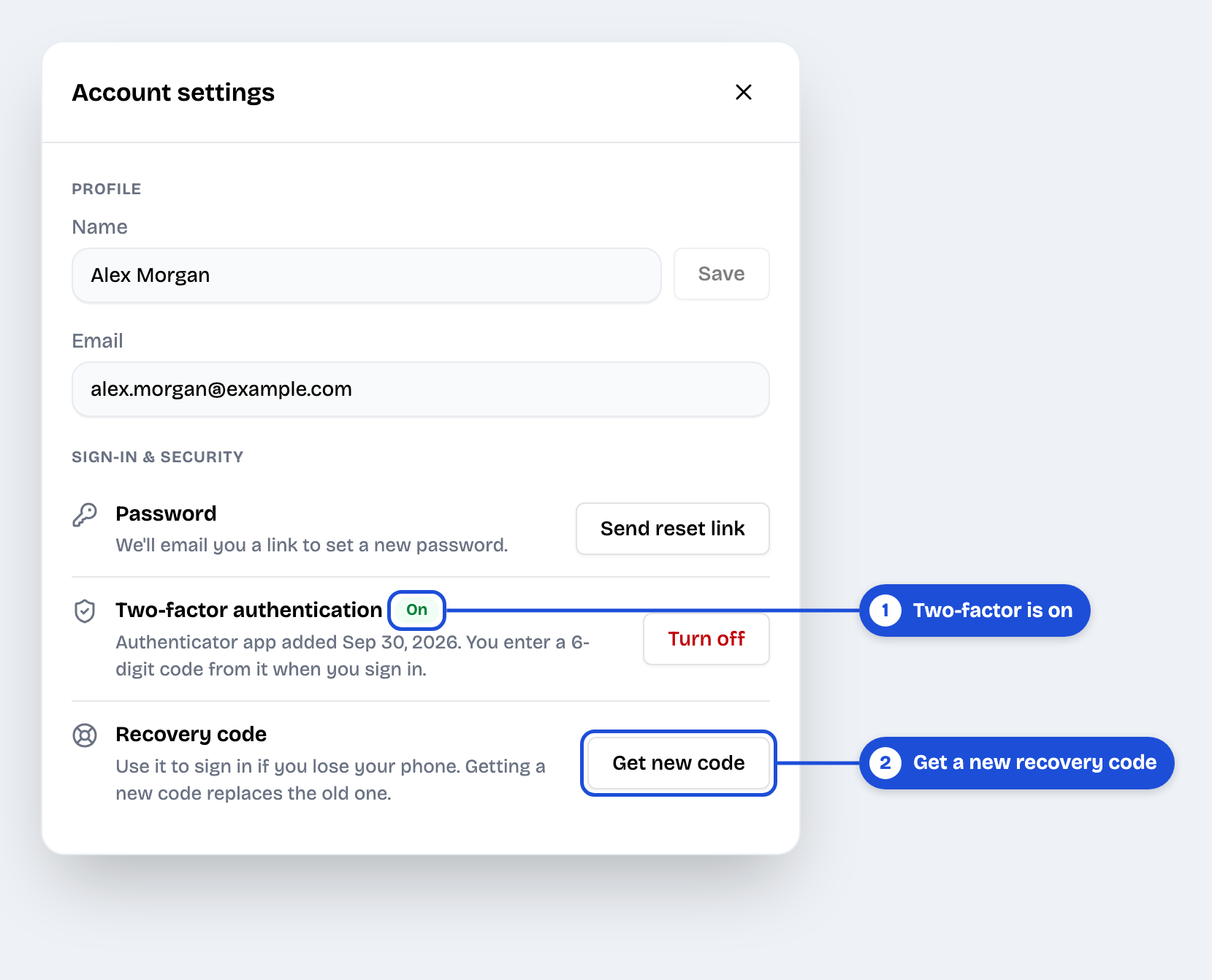
Result: you return to the page you started on, and Two-factor authentication shows On (1). From now on, you enter a 6-digit code when you sign in. To replace your recovery code later, click Get new code (2).
Sign in with two-factor authentication
- Enter your email and password as usual.
- Open your authenticator app and find the 6-digit code for Ragworks.
- Enter the code and click Continue.
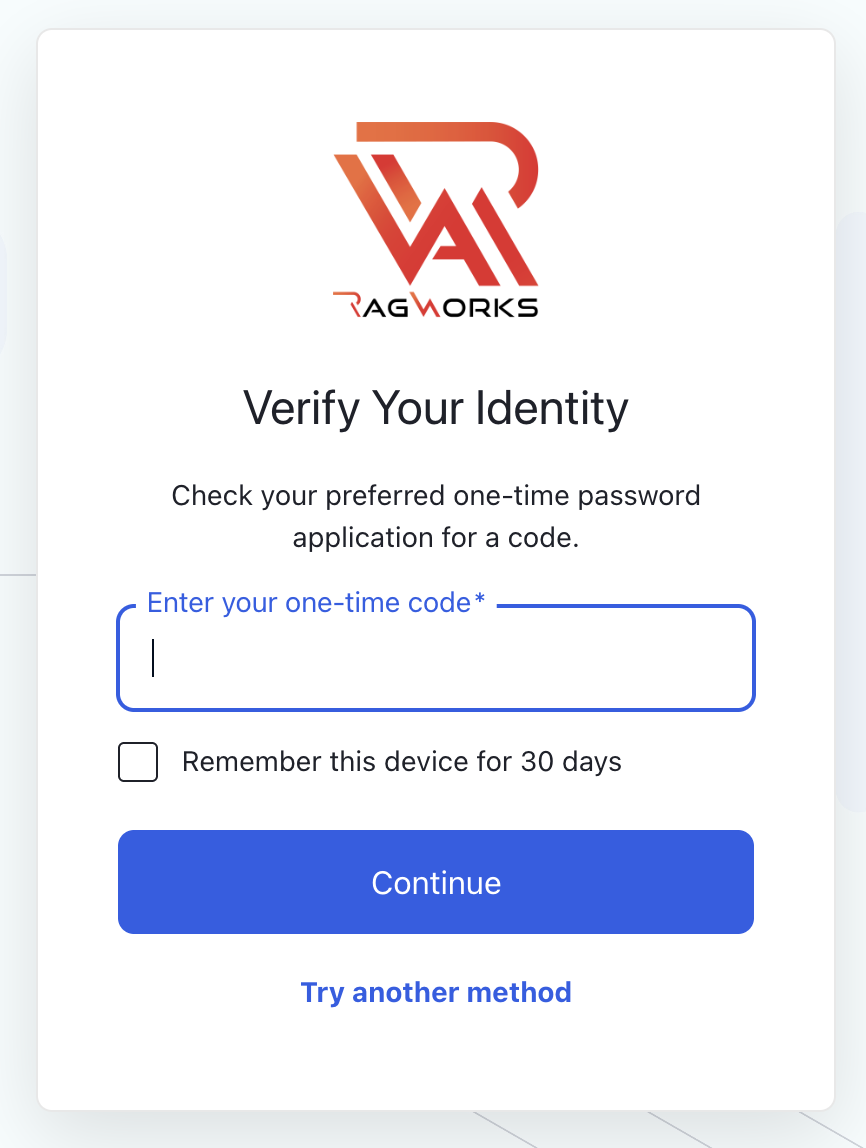
To skip the code on this browser for 30 days, select Remember this device for 30 days before you click Continue.
Troubleshooting
| Problem | Solution |
|---|---|
| The reset email didn't arrive. | Wait a few minutes and check your spam or junk folder. Make sure the address in Account settings is correct. |
| The authenticator app says the code is wrong. | Check that your phone's date and time are set automatically, then try the next code. |
| I lost my phone. | On the code page, click Try another method, choose Recovery code, and enter the code you saved. Then turn on two-factor authentication again on your new phone. |
| I lost my phone and my recovery code. | Contact support. |